Web Browsers: Chrome, Firefox, Edge
Watch this topic in 60 seconds
Free preview · Lesson 1
Understanding Web Browsers: Chrome, Firefox, Edge
Exploring the Internet: Your Guide to Web Browsers (Chrome, Firefox, Edge)
Hey there, young explorers! Get ready to embark on an exciting journey into the world of the internet. Think of the internet as a gigantic, magical library filled with an endless number of books, magazines, videos, games, and pictures. Every single piece of information, every game, every video, and every picture you see online is like a special 'book' in this enormous library, and we call these 'books' websites.
What is a Web Browser? Your Magic Window to the Internet!
Now, how do you get to read all these amazing 'books' (websites) in our huge internet library? You need a special tool, right? You can't just pick up the internet with your hands! This special tool is called a Web Browser. Imagine your web browser as a magic window on your computer or tablet. When you look through this window, you can see all the different websites on the internet!
Think of it another way: If the internet is a vast ocean, and websites are islands on that ocean, then your web browser is like your very own boat or submarine that lets you travel to any island you want! Without your boat (the browser), you'd be stuck on shore and wouldn't be able to explore all those exciting islands.
Every time you want to go online, play a game, watch a video, or do homework using the internet, you are using a web browser, even if you don't always realize it!
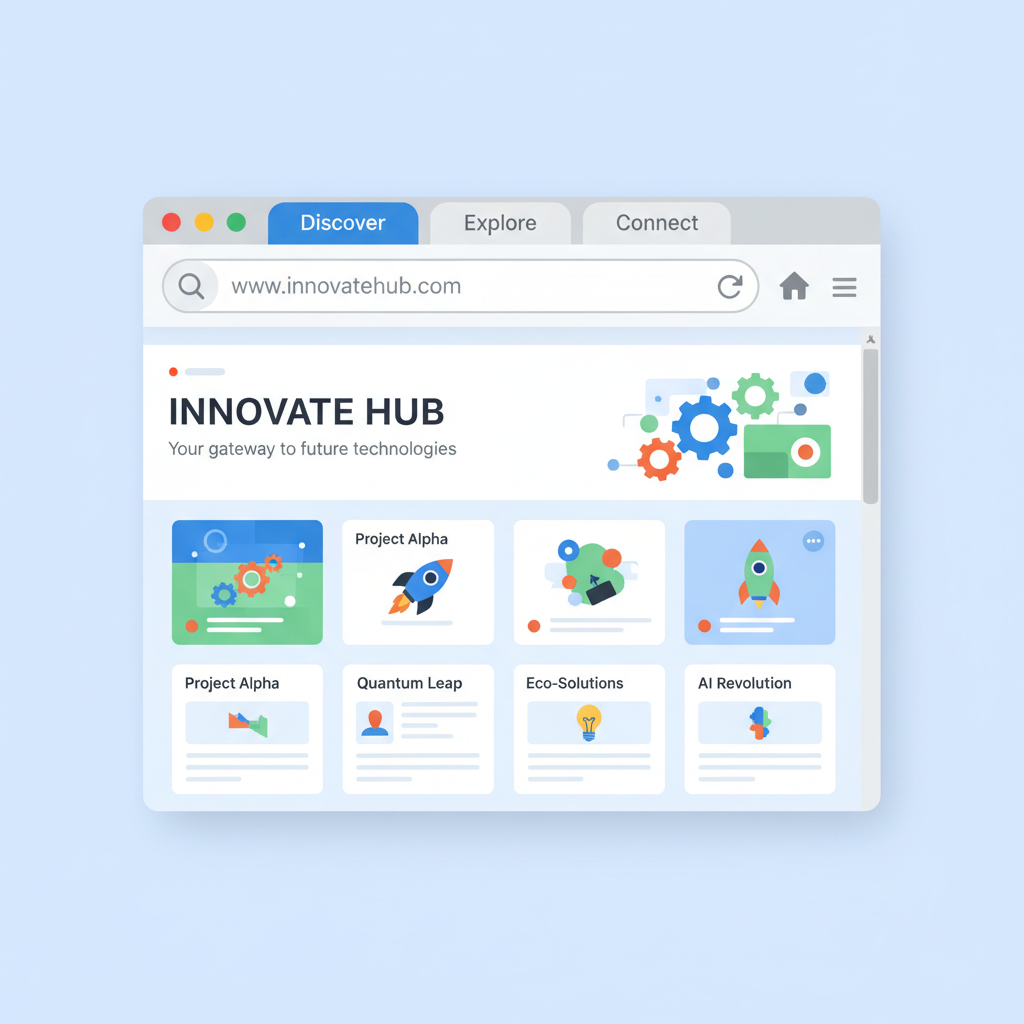
Key Parts of Your Browser Boat
Just like a boat has a steering wheel, an engine, and sails, your web browser has important parts that help you navigate:
- Address Bar: This is like the GPS or the street address of your internet boat. It's a long box at the very top of your browser where you type the website address (like www.google.com or www.nasa.gov). It tells your browser exactly where you want to go!
- Tabs: Imagine you're reading several books at once, jumping between them. Tabs let you open many websites at the same time, without closing the first one. Each tab is like a new page in your browser where a different website can be displayed.
- Back and Forward Buttons: These are like turning the pages of a book, or going back and forth on a path. The back button takes you to the website you just visited, and the forward button takes you to the next one if you've gone back.
- Bookmarks/Favorites: Found an amazing website you want to visit again quickly? Bookmarks are like putting a special sticker or dog-earing a page in your favorite book so you can find it instantly next time!
- Refresh Button: Sometimes a website might not load correctly, or you want to see if new information has appeared. The refresh button is like giving the website a gentle shake to make sure it updates and shows you the latest version.
Meet the Famous Browser Boats: Chrome, Firefox, and Edge!
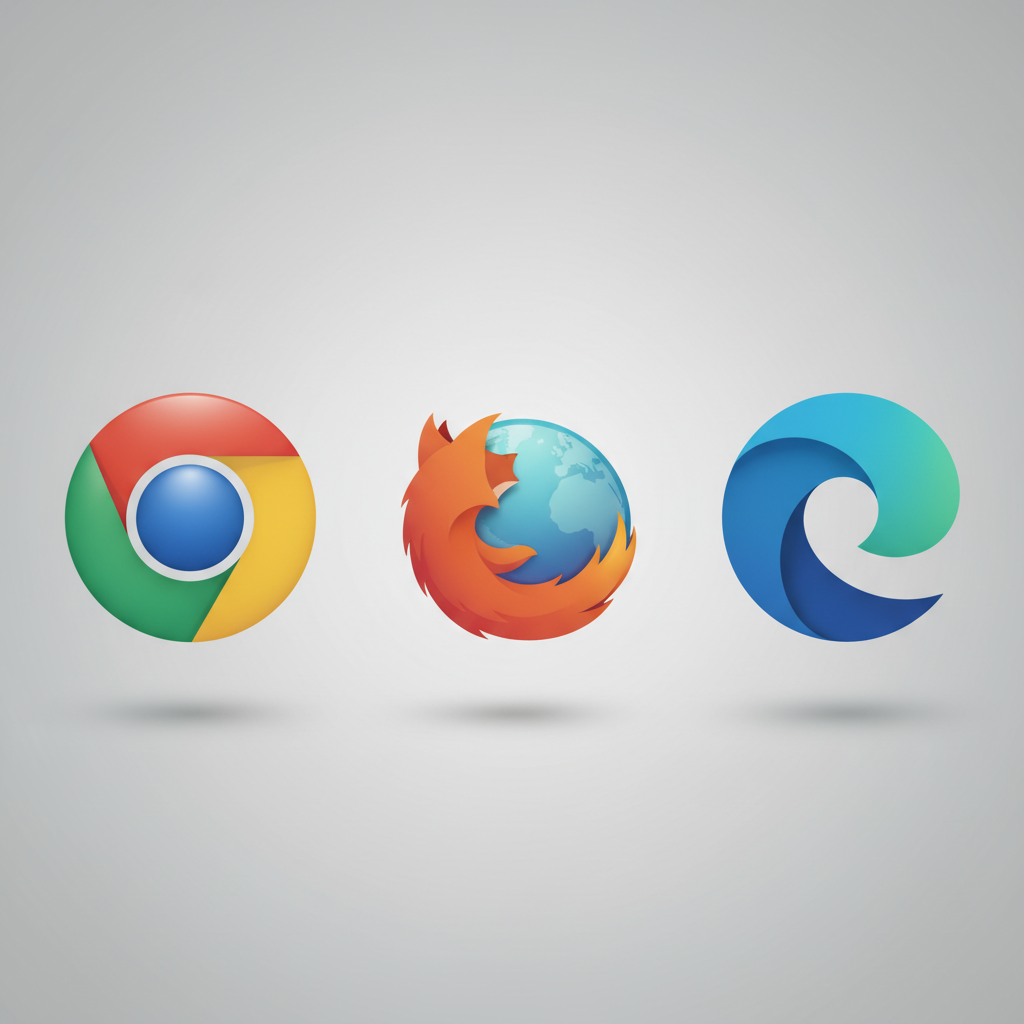
Just like there are different kinds of cars (sedans, trucks, sports cars), there are different kinds of web browsers! Each one does the same basic job – taking you to websites – but they might do it a little differently, have different features, or look slightly unique. Let's meet some of the most popular ones:
1. Google Chrome
Creator: Google
Imagine Google Chrome as a super-fast, popular, and very common sports car. Many people choose Chrome because it's known for being very quick and works really well with other Google services (like Gmail or YouTube). It's like a car that has lots of extra gadgets and apps you can add to it to make it do even more cool things!
2. Mozilla Firefox
Creator: Mozilla (a non-profit organization)
Think of Mozilla Firefox as a very reliable and sturdy adventure vehicle, built by a community of friendly people. Firefox is especially good if you care a lot about your privacy and want to make sure your online activities are kept more secret. It's like a car that has extra strong locks and privacy shields to keep your information safe from prying eyes.
3. Microsoft Edge
Creator: Microsoft
Microsoft Edge is like a brand new, very polished car made by a famous car company (Microsoft also makes Windows, the operating system many computers use). If your computer runs on Windows, Edge often comes pre-installed, meaning it's already there when you get your computer. It's known for being fast and having some cool built-in tools for reading and organizing your web pages.
Which Browser Boat Should You Choose?
So, which browser is the best? It's like asking which flavor of ice cream is the best! Everyone has their favorite. Some people like Chrome because it's super fast, others prefer Firefox for its privacy features, and some might stick with Edge because it works great with their Windows computer. You can even have more than one browser on your computer and use different ones for different tasks!
The most important thing is that all these browsers help you explore the amazing internet library. No matter which one you use, remember to always surf safely and ask a grown-up if you see anything online that makes you feel uncomfortable.
Summary and Your Internet Adventure!
Web browsers are the essential tools that allow us to access and explore the internet. They act as our 'magic windows' or 'boats' to visit countless websites. With features like the address bar, tabs, and bookmarking, they make navigating the web easy and fun. Chrome, Firefox, and Edge are three leading browsers, each offering a slightly different experience, but all serving the same core purpose: connecting you to the vast world of online information and entertainment. Keep exploring, stay curious, and always browse smart!
Keep learning, free
Create a free Syllabax account to unlock practice questions and games for this topic.
Visual Learning Enhanced! 🚀
To help you master this topic, we use Advanced Syllabax AI to generate detailed diagrams and visual models.
Note on Visuals: The AI sometimes makes spelling errors in image labels. Please refer to the lesson text for the correct terminology.