Learning Journey
Watch this topic in 60 seconds
Free preview · Lesson 1
Understanding Memory Hierarchy: RAM & ROM
Understanding Computer Memory: RAM vs. ROM (Grade 9 Foundational)
Unlocking the secrets of how your computer remembers things!
Introduction: What is Computer Memory?
Imagine your brain. It's an amazing memory machine, right? You use it to remember what you had for breakfast, how to ride a bike, and the answer to 2+2. Computers also have 'brains' and 'memories' to help them do their jobs. Just like your brain has different ways of remembering things (some short-term, some long-term), computers also have different types of memory, each with a specific role.
In this lesson, we're going to dive into two fundamental types of computer memory: RAM (Random Access Memory) and ROM (Read-Only Memory). Think of them as two key assistants in your computer's brain, working together to keep everything running smoothly.
The Kitchen Analogy: Short-Term vs. Long-Term Tasks
Let's use a kitchen as an analogy to understand different types of memory. When you're cooking, you have:
- Your Kitchen Counter (RAM): This is where you put all the ingredients you're currently using, the recipe open to the current step, and the bowls and utensils you need right now. It's fast to access, but if you clear the counter or stop cooking, everything you put there is gone. It's temporary.
- A Recipe Book or Instruction Manual (ROM): This book contains the essential, unchanging recipes for how to make basic dishes, or how to turn on and operate your oven. You read from it, but you don't usually write new recipes into it on a daily basis. It's permanent and vital for the kitchen to function.
- Your Pantry or Refrigerator (Hard Drive/SSD): This is where you store all your ingredients for the long term. It's a huge storage space, but it takes a bit longer to go and fetch something from it compared to grabbing something from the counter.
This kitchen analogy helps us understand that different tasks require different types of memory. Your computer works in a very similar way!
RAM: The Computer's Workbench (Random Access Memory)
RAM stands for Random Access Memory. If you think back to our kitchen analogy, RAM is like your kitchen counter or a temporary workbench. It's where your computer places all the programs and data it's actively working on right now.
What is RAM?
- Short-Term Memory: RAM is the computer's short-term memory. When you open an application (like a web browser, a game, or a word processor), the computer loads a copy of that application from your hard drive (long-term storage) into RAM.
- Fast Access: RAM is incredibly fast. This speed is crucial because your computer needs to access instructions and data constantly and quickly to keep your programs running smoothly. Imagine how slow cooking would be if you had to run to the grocery store every time you needed an ingredient – that's why we use the counter!
- Read and Write: The 'Random Access' part means your computer can quickly read data from any location in RAM and also write new data into it. It's a two-way street.
- Volatile: This is a very important characteristic of RAM. 'Volatile' means that RAM needs constant power to maintain the stored information. The moment you turn off your computer (or if the power goes out), everything stored in RAM is lost. It's like clearing your kitchen counter after you're done cooking – all the ingredients and dirty dishes are gone. That's why it's so important to save your work frequently!
How RAM Works:
When you click on a program icon, your computer's processor (CPU) tells the hard drive to send that program's code to RAM. Once it's in RAM, the CPU can access that code almost instantly, allowing the program to run quickly. The more RAM you have, the more programs and data your computer can juggle at the same time without slowing down.
ROM: The Computer's Rulebook (Read-Only Memory)
ROM stands for Read-Only Memory. Going back to our kitchen, ROM is like the essential instruction manual for your oven or the fundamental recipes in a cookbook that you never change. It contains vital, permanent instructions that your computer needs to start up and function properly.
What is ROM?
- Permanent Instructions: ROM stores essential, unchanging instructions. These instructions are typically put there by the manufacturer and are rarely, if ever, changed by the user.
- Non-Volatile: This is the opposite of volatile. 'Non-volatile' means that the information stored in ROM remains even when the computer is turned off and loses power. It's like the instruction manual for your oven – it doesn't disappear when you unplug the oven!
- Read-Only (Mostly): As the name suggests, ROM is primarily for reading data. While there are some advanced types of ROM that can be updated (like for firmware updates), for foundational understanding, it's best to think of it as fixed and unchangeable by the user during normal operation.
- Boot-Up Instructions: One of ROM's most critical jobs is to store the BIOS (Basic Input/Output System) or UEFI (Unified Extensible Firmware Interface) software. These are the very first instructions your computer executes when you press the power button. They tell the computer how to check its components (like RAM, keyboard, hard drive) and how to load the operating system (like Windows or macOS) from your hard drive.
How ROM Works:
When you press the power button, the CPU immediately looks to ROM for instructions. ROM tells the CPU what to do next: "Check if the keyboard is connected," "Check if the RAM is working," "Find the operating system on the hard drive and start loading it into RAM." Without ROM, your computer wouldn't even know how to begin waking up!
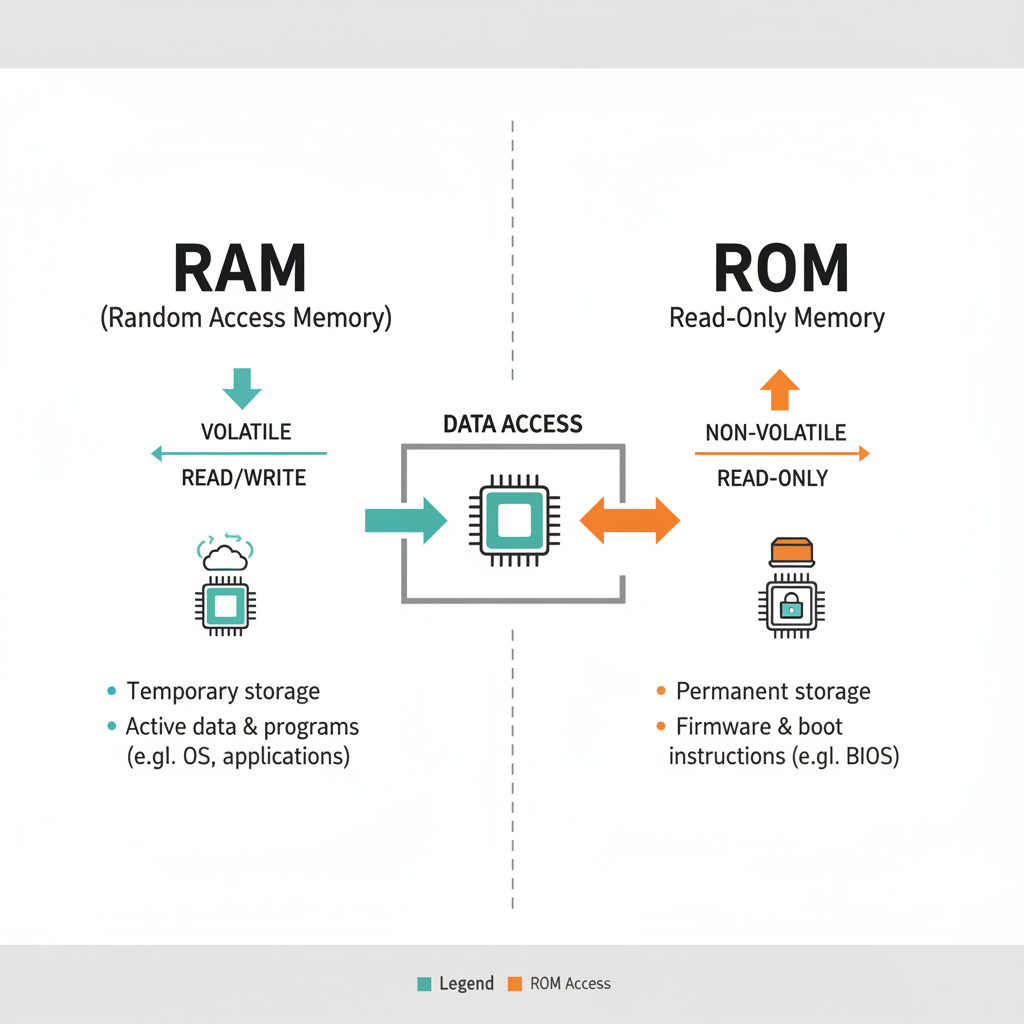 ⚠️ This picture may have spelling mistakes. Trust the words in the lesson.
RAM vs. ROM: Key Differences at a Glance
Let's summarize the main distinctions between these two crucial types of memory:
| Feature | RAM (Random Access Memory) | ROM (Read-Only Memory) |
|---|---|---|
| Volatility | Volatile: Loses data when power is off. | Non-Volatile: Retains data even when power is off. |
| Purpose | Stores programs and data currently in use (active work). | Stores permanent, essential startup instructions (BIOS/UEFI), firmware. |
| Read/Write | Can be both read from and written to by the computer. | Primarily read from; rarely (if ever) written to by the user. |
| Speed | Very fast access for active processing. | Slower than RAM for general access, but fast enough for its specific role. |
| Capacity | Typically measured in Gigabytes (GBs), usually more than ROM. | Typically measured in Megabytes (MBs), relatively small compared to RAM. |
| Analogy | Kitchen counter, temporary workbench, scratchpad. | Instruction manual, permanent rulebook, etched tablet. |
Conclusion: Working Together
While RAM and ROM have very different jobs, they are both absolutely essential for your computer to work. Think of it this way: ROM is like the instruction manual that tells your computer how to wake up and get ready for work. Once it's awake, RAM is the dynamic workspace where all the actual 'work' (running programs, browsing the web, playing games) happens.
Understanding RAM and ROM gives you a foundational understanding of how computers manage information, which is a key step in becoming a tech-savvy individual!
Keep learning, free
Create a free Syllabax account to unlock practice questions and games for this topic.
Visual Learning Enhanced! 🚀
To help you master this topic, we use Advanced Syllabax AI to generate detailed diagrams and visual models.
Note on Visuals: The AI sometimes makes spelling errors in image labels. Please refer to the lesson text for the correct terminology.