Storage Devices: HDD, SSD, Cloud
Watch this topic in 60 seconds
Free preview · Lesson 1
Understanding Storage Devices: HDD, SSD, Cloud
Understanding Storage Devices: HDD, SSD, and Cloud
Imagine your brain. It's constantly collecting and remembering information, right? Every memory, every fact you learn, every skill you master – it's all stored somewhere in your brain. In the world of computers, we need a similar 'brain' to remember all our important digital stuff: photos, videos, documents, games, and even the computer's own operating system. This 'brain' is what we call a **storage device**.
Think of data storage as a special kind of library for your computer. When you save a file, you're essentially placing a book on a shelf in this digital library. When you want to open that file, the computer goes to the shelf, finds the 'book', and opens it for you to read. Without storage devices, your computer would forget everything the moment you turned it off!
1. Hard Disk Drives (HDDs): The Spinning Record Player
The Hard Disk Drive, or HDD, is like the classic, old-school record player of computer storage. It's been around for a long time and is a very common way to store information.
How HDDs Work (Analogy: A Record Player)
Inside an HDD, there are several shiny, circular plates called **platters**, stacked on top of each other. These platters are coated with a magnetic material. Imagine them like old vinyl records. When the HDD is working, these platters spin incredibly fast – hundreds or even thousands of times per minute!
Above these spinning platters, there's a tiny arm with a little head on the end, similar to the needle on a record player. This is called the **read/write head**. This head doesn't actually touch the platters; it hovers just micrometers above them. As the platters spin, the head moves back and forth, 'reading' magnetic patterns (your data) or 'writing' new magnetic patterns onto the platters. It's like the needle on a record player reading the grooves to play music, but instead, it's reading or writing your digital files.
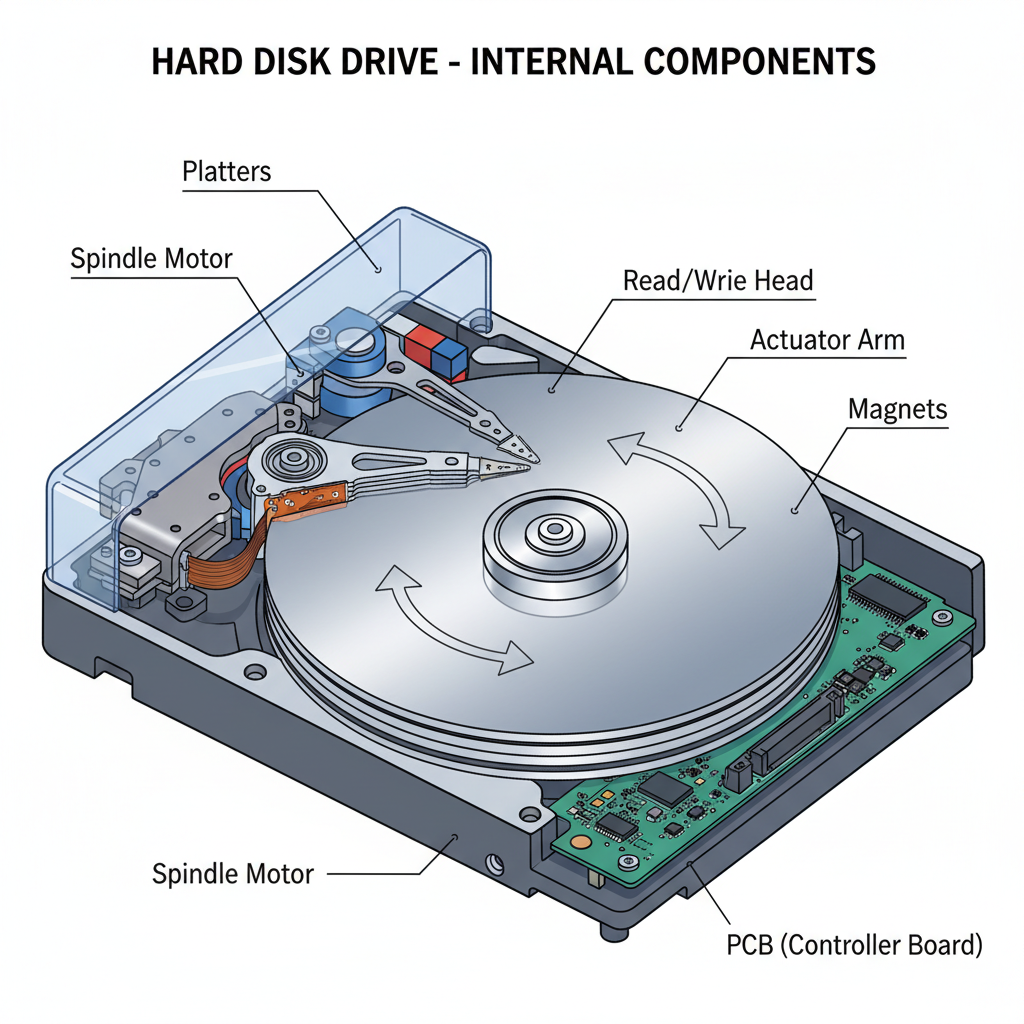 ⚠️ This picture may have spelling mistakes. Trust the words in the lesson.
Pros of HDDs:
- Lots of Space for Less Money: HDDs are generally much cheaper than other types of storage for the same amount of space. If you need to store huge amounts of photos, videos, or games, an HDD often gives you the best bang for your buck. Think of it as a huge, affordable warehouse.
- Proven Technology: They've been around for decades, so they are very reliable if handled correctly.
Cons of HDDs:
- Slow: Because they have moving parts (spinning platters, moving heads), it takes time for the head to find the data you want. This means your computer might feel slower when opening programs or files stored on an HDD. It's like waiting for a librarian to walk to a distant shelf to fetch a book.
- Fragile: Those spinning platters and delicate read/write heads are sensitive. If you drop a laptop with an HDD, or even bump it hard while it's running, you could damage the drive and lose your data. Imagine a record player suddenly being jostled while the needle is on the record – it could scratch it!
- Noisy: You might sometimes hear a faint whirring or clicking sound from an HDD as it works.
- Uses More Power: All that spinning and moving requires more electricity compared to other storage types.
2. Solid State Drives (SSDs): The Instant Digital Book
The Solid State Drive, or SSD, is the modern, super-fast alternative to the HDD. It's like moving from a physical record player to instantly streaming music from your phone.
How SSDs Work (Analogy: A USB Flash Drive or Digital Book)
The biggest difference with an SSD is that it has no moving parts – absolutely none! Instead, SSDs use something called **flash memory**. Think of it like a giant, super-advanced version of the tiny USB flash drives you might use, or even the memory inside your smartphone. It's all electronic chips.
Data is stored in tiny electrical circuits within these chips. When you want to read or write data, there's no need for spinning platters or moving heads. The computer can access any piece of data almost instantly by sending electrical signals directly to the right memory location. It's like having a digital book where you can instantly jump to any page without flipping through physically.
Pros of SSDs:
- Lightning Fast: This is the biggest advantage! SSDs can read and write data much, much faster than HDDs. Your computer will start up quicker, programs will open almost instantly, and files will load in a blink. It's like having a librarian who can teleport to any book you need in the library!
- Durable: Since there are no moving parts, SSDs are much more resistant to drops and bumps. They're more reliable for laptops and portable devices. You can drop your phone, and usually, the internal memory (which is similar to an SSD) isn't affected.
- Silent: No moving parts means no noise. Your computer will be quieter.
- Energy Efficient: They use less power, which is great for laptop battery life.
Cons of SSDs:
- More Expensive: For the same amount of storage space, SSDs are generally more expensive than HDDs. While prices are coming down, it's still a significant factor. It's like choosing between a cheap, massive physical library or a more expensive, super-efficient digital one.
- Capacity Can Be Smaller: Because of the cost, you often find SSDs with smaller storage capacities in consumer devices compared to HDDs in the same price range.
3. Cloud Storage: Your Digital Bank Vault in the Sky
Now, let's talk about something completely different: Cloud Storage. This isn't a physical device inside your computer at all. Cloud storage is like having a digital bank vault or a rented locker that isn't in your house, but somewhere far away, accessible from anywhere with an internet connection.
How Cloud Storage Works (Analogy: A Bank Vault in the Sky)
With cloud storage, your data isn't saved on your computer's HDD or SSD. Instead, it's sent over the internet to huge data centers, which are essentially massive buildings filled with thousands of computers (servers) and storage devices (often a mix of HDDs and SSDs). These data centers are owned and managed by companies like Google (Google Drive), Microsoft (OneDrive), or Apple (iCloud).
When you 'save to the cloud,' you're really uploading your files to these remote servers. When you want to access them, you download them from those servers. It's like putting your valuables in a bank vault: you don't keep them at home, but you can go to the bank (or use the internet) to access them whenever you need to.
Pros of Cloud Storage:
- Access Anywhere: The biggest advantage! As long as you have an internet connection, you can access your files from any device – your phone, tablet, or any computer in the world. Imagine having your library books available to you no matter where you are.
- Easy Sharing: It's simple to share files and collaborate with others. You can give friends or colleagues access to specific files or folders.
- Backup and Safety: If your computer breaks or gets lost, your cloud files are safe because they're not stored on that device. Cloud providers also have robust backup systems in place. It's like having a backup copy of your essential documents in a different city.
- Scalable: You can often easily buy more storage space if you need it.
Cons of Cloud Storage:
- Requires Internet: No internet, no access to your files. This can be a major limitation in some areas or situations.
- Security and Privacy Concerns: You're entrusting your data to another company. While they have strong security, there's always a theoretical risk of hacks or privacy breaches.
- Recurring Costs: While many services offer a small amount of free storage, you usually have to pay a monthly or yearly subscription fee for larger capacities.
- Speed Depends on Internet: Uploading and downloading files can be slow if your internet connection isn't fast.
Which One to Choose? (Analogy: Different Tools for Different Jobs)
Just like you wouldn't use a hammer to drive a screw, different storage devices are best for different situations:
- HDD: Great for storing lots of data cheaply, like a massive archive of photos and videos you don't need to access every second. Good for desktop computers where speed isn't the absolute top priority.
- SSD: Ideal for your computer's operating system, frequently used programs, and games where fast loading times are crucial. Makes your computer feel incredibly responsive. Many modern laptops use SSDs exclusively.
- Cloud Storage: Perfect for files you need to access from multiple devices, for sharing with others, or for backing up important documents that you can't afford to lose. It's about convenience and peace of mind.
Often, people use a combination! For example, a desktop computer might have a small, fast SSD for the operating system and key programs, and a large, affordable HDD for general storage. Many people also use cloud storage as a backup for critical files, even if they have them on their local SSD or HDD.
Understanding these different storage options helps you make smarter choices about how you save your digital life and ensures your computer is set up to work best for you!
Keep learning, free
Create a free Syllabax account to unlock practice questions and games for this topic.
Visual Learning Enhanced! 🚀
To help you master this topic, we use Advanced Syllabax AI to generate detailed diagrams and visual models.
Note on Visuals: The AI sometimes makes spelling errors in image labels. Please refer to the lesson text for the correct terminology.