Exploring Web Browsers
Watch this topic in 60 seconds
Free preview · Lesson 1
Understanding Exploring Web Browsers
Exploring Web Browsers: Your Window to the Internet!
Hey everyone! Get ready to embark on an exciting journey into the digital world! Today, we're going to explore something super important that helps us connect to the internet: web browsers. Think of them as your special spaceship that takes you on adventures across the vast universe of information!
What is the Internet? First, the Big Picture!
Imagine the whole world connected by invisible threads, like a giant spiderweb made of information. This massive, worldwide network of computers is called the Internet. It's where all the websites, videos, games, and online chats live. It's like a humongous library filled with every book, movie, and game you could ever imagine, all available to anyone who can connect!
But how do you get into this library? How do you find a specific book or watch a certain movie? That's where our heroes, the web browsers, come in!
Meet Your Web Browser: Your Internet Explorer!
A web browser is a special computer program that lets you visit websites and see everything on the internet. It's like the magical magnifying glass that helps you look at all the cool stuff on the internet, or like a special car that drives you around the internet highway.
Without a web browser, the internet would just be a bunch of invisible code. Your browser takes that code and turns it into the beautiful pictures, videos, and words you see on your screen. It translates the secret language of the internet into something you can understand and interact with!
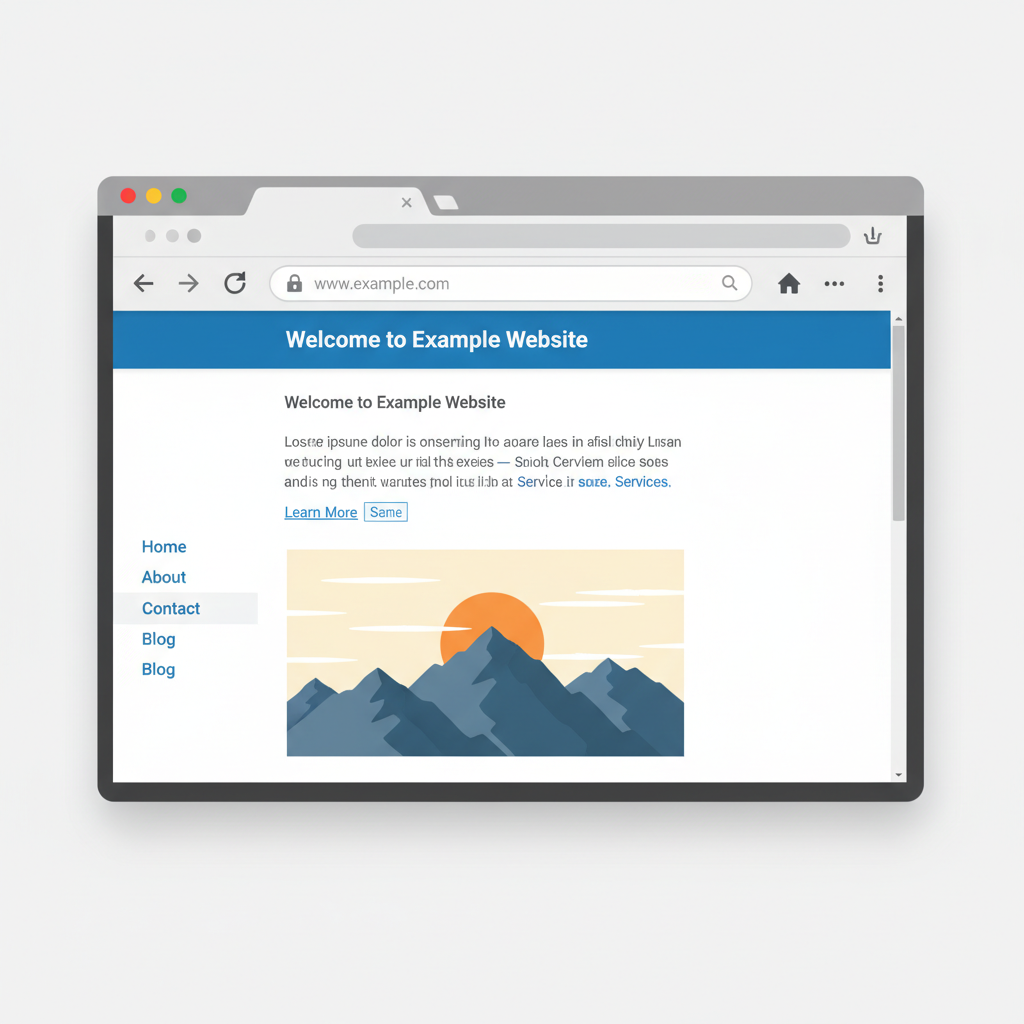 ⚠️ This picture may have spelling mistakes. Trust the words in the lesson.
How Does a Web Browser Work? A Simple Journey!
Think of it like this:
- You want to visit a friend's house. You need their address, right? On the internet, a website's address is called a URL (Uniform Resource Locator).
- You type that URL (like "www.awesomegames.com") into your browser's address bar. This is like telling your car's GPS where you want to go.
- Your web browser then sends a message, like a tiny digital messenger pigeon, to a giant computer called a server. This server is where the website's information actually lives, like a store where all the products are kept.
- The server gets the message and sends all the website's data (pictures, text, videos) back to your browser.
- Your browser then takes all that data and arranges it beautifully on your screen, just like putting together puzzle pieces to make a complete picture!
It all happens incredibly fast, often in less than a second! It's like ordering a pizza, and it appears almost instantly, perfectly made!
Key Parts of Your Web Browser: Getting Around!
Just like a car has a steering wheel, pedals, and seats, your web browser has different parts that help you navigate. Let's look at the most important ones:
-
1. The Address Bar (Your GPS):
This is the long box at the top of your browser window where you type website addresses (URLs), like "google.com" or "youtube.com". It's exactly like typing a house number and street name into your GPS to find a specific location. If you don't know the exact address, you can also type in search terms here, and it will often take you to a search engine like Google!
-
2. Back and Forward Buttons (Turning Pages):
Usually found near the address bar, these are like arrows pointing left and right. The Back button (left arrow) takes you to the last page you visited, like turning back a page in a book. The Forward button (right arrow) takes you to the page you were on before you clicked 'Back'. They help you retrace your steps without having to retype addresses.
-
3. Refresh Button (Shaking the Etch-A-Sketch):
This button often looks like a circular arrow. If a webpage isn't loading correctly, or if you want to see if new information has appeared (like scores in a live game), clicking this button tells your browser to ask the server for the page again. It's like shaking an Etch-A-Sketch to clear a drawing, or like restarting a video game level if something went wrong.
-
4. Tabs (Multiple Books at Once):
See those little rectangles at the top of your browser that let you have many different websites open at the same time? Those are called tabs! Instead of closing one website to open another, you can just open a new tab. It's like having several books open on your desk at the same time, allowing you to quickly switch between them.
-
5. Bookmarks/Favorites (Your Special Collection):
When you find a website you really love and want to visit again easily, you can "bookmark" it or add it to your "favorites." This saves the website's address so you don't have to type it every time. It's like putting a special sticker on a page in a book or adding a favorite toy to your special collection so you can find it super fast whenever you want!
-
6. Homepage (Your Front Door):
The homepage is the first page your browser shows you when you open it. It's like the front door of your house or the cover of your favorite magazine – it's the welcoming sight you see every time you start your internet journey!
Different Browsers, Different Rides!
Just like there are different brands of cars (sedans, SUVs, trucks), there are different types of web browsers, too! They all do the same basic job of showing you the internet, but they might look a little different or have slightly different features.
- Google Chrome: Very popular, like a fast, shiny sports car!
- Mozilla Firefox: Another great choice, known for being private and customizable, like a comfortable, reliable family car.
- Microsoft Edge: Comes with Windows computers, like a familiar car from your hometown.
- Apple Safari: Built into Apple devices (iPhones, iPads, Macs), like a sleek, stylish car designed just for Apple roads.
Why Do We Need Web Browsers?
Web browsers are essential for so many reasons!
- Learning: Research for school projects, watch educational videos.
- Entertainment: Play online games, watch cartoons, listen to music.
- Communication: Send emails, chat with friends, video calls.
- Information: Check weather, read news, find recipes.
They are the tools that unlock the vast potential of the internet for everyone!
Stay Safe While Browsing!
The internet is an amazing place, but it's important to be careful. Always remember:
- Ask an adult if you're unsure about a website or what to click.
- Don't share personal information online without adult permission.
- Be kind and respectful to others online.
You've just taken your first big step into understanding how you connect to the internet! Keep exploring, keep learning, and happy browsing!
Keep learning, free
Create a free Syllabax account to unlock practice questions and games for this topic.
Visual Learning Enhanced! 🚀
To help you master this topic, we use Advanced Syllabax AI to generate detailed diagrams and visual models.
Note on Visuals: The AI sometimes makes spelling errors in image labels. Please refer to the lesson text for the correct terminology.