Storage Devices: HDD, SSD, Cloud
Watch this topic in 60 seconds
Free preview · Lesson 1
Understanding Storage Devices: HDD, SSD, Cloud
Understanding Storage Devices: HDD, SSD, and Cloud
Imagine your brain. It stores all your memories, thoughts, and knowledge. Computers, just like us, need a 'brain' to store information. This 'brain' comes in different forms, and we call them storage devices. They are essential for saving everything from your favorite games and photos to important school projects and the operating system that makes your computer run.
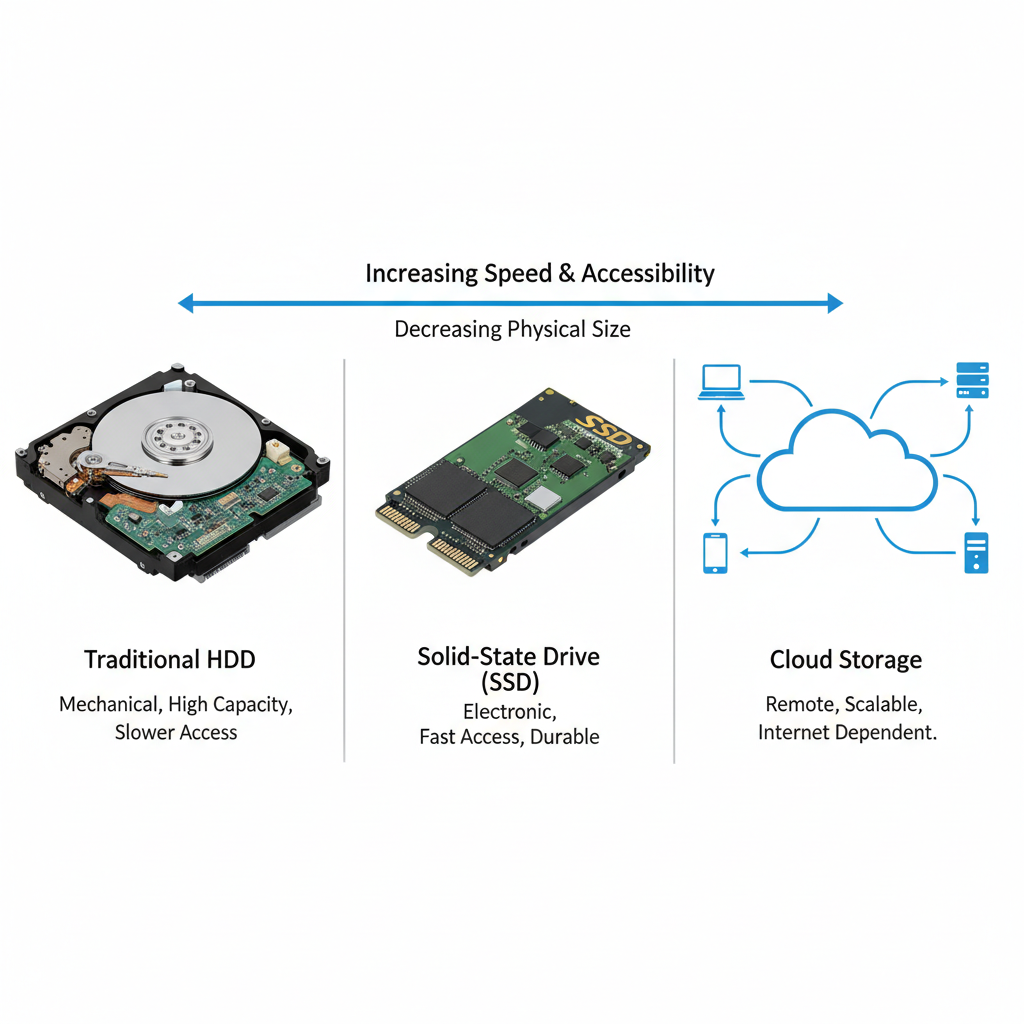
In this lesson, we're going to explore three main types of storage that you'll commonly encounter: Hard Disk Drives (HDDs), Solid State Drives (SSDs), and Cloud Storage. Each has its own strengths and weaknesses, like different tools for different jobs!
1. Hard Disk Drives (HDDs): The Spinning Library
Think of an old-fashioned record player or a very large library where all the books are physical. That's a good way to visualize a Hard Disk Drive (HDD). HDDs are the oldest type of mainstream computer storage, and they've been around for decades.
How HDDs Work:
- Platters and Spindles: Inside an HDD, there are several circular disks, called 'platters', made of magnetic material. These platters spin incredibly fast, sometimes thousands of revolutions per minute (RPM).
- Read/Write Heads: A tiny arm with a 'read/write head' hovers just above the spinning platters, much like the needle on a record player. This head moves back and forth to read data (like playing a song) or write new data (like recording a new one) by magnetizing tiny sections on the platter surface.
- Magnetic Storage: Data is stored magnetically as microscopic patterns on these platters.
Analogy: The Filing Cabinet
Imagine a giant filing cabinet with thousands of paper files. To find a specific file, you have to open the drawer, sift through the folders, and pull it out. Writing a new file means finding an empty spot and carefully placing it. This takes time. HDDs work similarly; the mechanical parts (spinning platters, moving arm) mean there's a physical process involved in finding and accessing your data.
Pros of HDDs:
- Cost-Effective: They are generally the cheapest option per gigabyte (GB) of storage, meaning you can get a lot of storage for less money.
- Large Capacity: You can find HDDs with very large storage capacities, often many terabytes (TB), perfect for storing huge amounts of photos, videos, or games.
Cons of HDDs:
- Slower Speed: Because they have moving parts, accessing data takes longer. Your computer might feel slower when starting up or loading applications.
- Fragile: If you drop a laptop with an HDD, the delicate moving parts can be easily damaged, potentially leading to data loss.
- Noisy: You might hear a faint clicking or whirring sound as the platters spin and the heads move.
- Power Consumption: They generally use more power than SSDs.
2. Solid State Drives (SSDs): The Speedy Digital Library
Now, let's fast forward to a modern, fully digital library where all books are instantly accessible on a screen. That's closer to a Solid State Drive (SSD). SSDs are a newer technology and represent a significant leap in storage performance.
How SSDs Work:
- No Moving Parts: Unlike HDDs, SSDs have no spinning platters or moving read/write heads. They are entirely electronic.
- Flash Memory: SSDs use 'flash memory' to store data, similar to the memory chips found in USB drives or your smartphone. Data is stored in tiny electrical circuits.
- Instant Access: Because there are no mechanical parts to move, data can be accessed almost instantly from anywhere on the drive.
Analogy: The Digital Index Card System
Instead of a filing cabinet, imagine a super-efficient digital index card system. When you want a piece of information, you type in a query, and the computer instantly finds it because everything is stored electronically and directly accessible. There's no physical movement required.
Pros of SSDs:
- Blazing Fast: SSDs are much, much faster than HDDs. Your computer will boot up quicker, programs will load instantly, and files will transfer at incredible speeds.
- Durable: With no moving parts, SSDs are much more resistant to drops and bumps, making them ideal for laptops.
- Silent: No moving parts means no noise.
- Energy Efficient: They consume less power, which is great for laptop battery life.
- Compact: SSDs can be made much smaller than HDDs.
Cons of SSDs:
- More Expensive: Historically, SSDs have been significantly more expensive per GB than HDDs, though prices are constantly dropping.
- Lower Capacity (historically): While large SSDs are now common, HDDs still often offer the absolute largest capacities for the lowest price.
- Limited Write Cycles (less of an issue now): Early SSDs had a theoretical limit to how many times data could be written and erased before the memory cells wore out. Modern SSDs have advanced significantly, making this a non-issue for typical home use.
3. Cloud Storage: Your Data, Everywhere
What if your library wasn't just in your house, but accessible from any computer, anywhere in the world, as long as you had an internet connection? That's the idea behind Cloud Storage.
How Cloud Storage Works:
- Remote Servers: When you store something in the 'cloud,' you're not saving it on your local computer's HDD or SSD. Instead, you're uploading it to powerful computers (called 'servers') owned and maintained by a company (like Google, Microsoft, Amazon, Apple, etc.) in a giant data center somewhere far away.
- Internet Access: You then access your files over the internet using a web browser or an app.
- Data Centers: These companies have massive facilities filled with thousands of servers, all designed to store and manage billions of files for millions of users.
Analogy: The Bank Safety Deposit Box
Imagine renting a safety deposit box at a bank. Your valuables aren't at home, but they are safe, secure, and accessible (with the right key and identification) whenever you need them, even if your house burns down. Cloud storage is similar; your data is stored securely off-site, protected by professionals, and accessible from anywhere.
Pros of Cloud Storage:
- Accessibility: Access your files from any device (laptop, phone, tablet) with an internet connection, anywhere in the world.
- Backup and Safety: Your data is automatically backed up and protected against local hardware failures (if your laptop breaks, your cloud files are safe).
- Easy Sharing: Simple to share files and collaborate with others.
- Scalability: You can easily increase or decrease your storage space as needed, often by paying a monthly fee.
Cons of Cloud Storage:
- Requires Internet: No internet, no access to your files.
- Security and Privacy Concerns: You are trusting another company with your data. While providers have strong security, it's not entirely under your control.
- Cost: Free tiers are usually limited; larger storage often requires a recurring subscription fee.
- Speed Limitations: File transfer speeds depend on your internet connection speed.
Choosing the Right Storage
So, which one should you use? It often comes down to your needs:
- HDD: Great for archival storage (stuff you don't access often), large media libraries (movies, photos), or when you need a lot of storage on a budget.
- SSD: Ideal for your operating system (to make your computer boot fast), frequently used applications, and games where fast loading times are crucial. It's the go-to for speed and responsiveness.
- Cloud Storage: Perfect for backing up important documents, accessing files across multiple devices, collaborating with others, and sharing photos/videos easily. It's your mobile, accessible, and secure digital vault.
Many modern computers and setups use a combination: an SSD for the operating system and key programs, an HDD for mass storage, and cloud storage for backups and cross-device access. By understanding each type, you can make informed decisions about how and where to store your valuable digital information!
Keep learning, free
Create a free Syllabax account to unlock practice questions and games for this topic.
Visual Learning Enhanced! 🚀
To help you master this topic, we use Advanced Syllabax AI to generate detailed diagrams and visual models.
Note on Visuals: The AI sometimes makes spelling errors in image labels. Please refer to the lesson text for the correct terminology.