Opening Saved Files
Watch this topic in 60 seconds
Free preview · Lesson 1
Understanding Opening Saved Files
Opening Up Your Digital Creations!
Hello, young digital adventurers! Have you ever made a beautiful drawing, built an amazing Lego castle, or written a super-duper story? When you're done, you probably want to keep it safe so you can look at it again later, right? Maybe you put your drawing in a special folder, or your Lego castle on a shelf.
Computers are kind of similar! When you use a computer to draw, write, or make something, the computer helps you keep your work safe. We call these saved works 'files'. And just like taking your drawing out of its folder, you need to learn how to 'open' your files to see them again or work on them more. Let's learn this super important skill!
What is a 'File' on a Computer?
Imagine your favorite drawing. It's on a piece of paper, right? On a computer, a 'file' is like that piece of paper! It's where your digital drawing, your typed story, or your fun game progress lives. It's a special little package of information that the computer stores for you.
- A picture you draw on the computer is a file.
- A story you type on the computer is a file.
- Even a game you play has files!
Each file has its own name, like 'My Super Drawing' or 'Space Adventure Story', so you can tell them apart, just like you might write your name on your school papers.
What Does it Mean to 'Save' a File?
When you finish your drawing on paper, you don't just leave it on the floor, do you? You put it somewhere safe, like a folder or a drawer. This is exactly what 'saving' a file means on a computer!
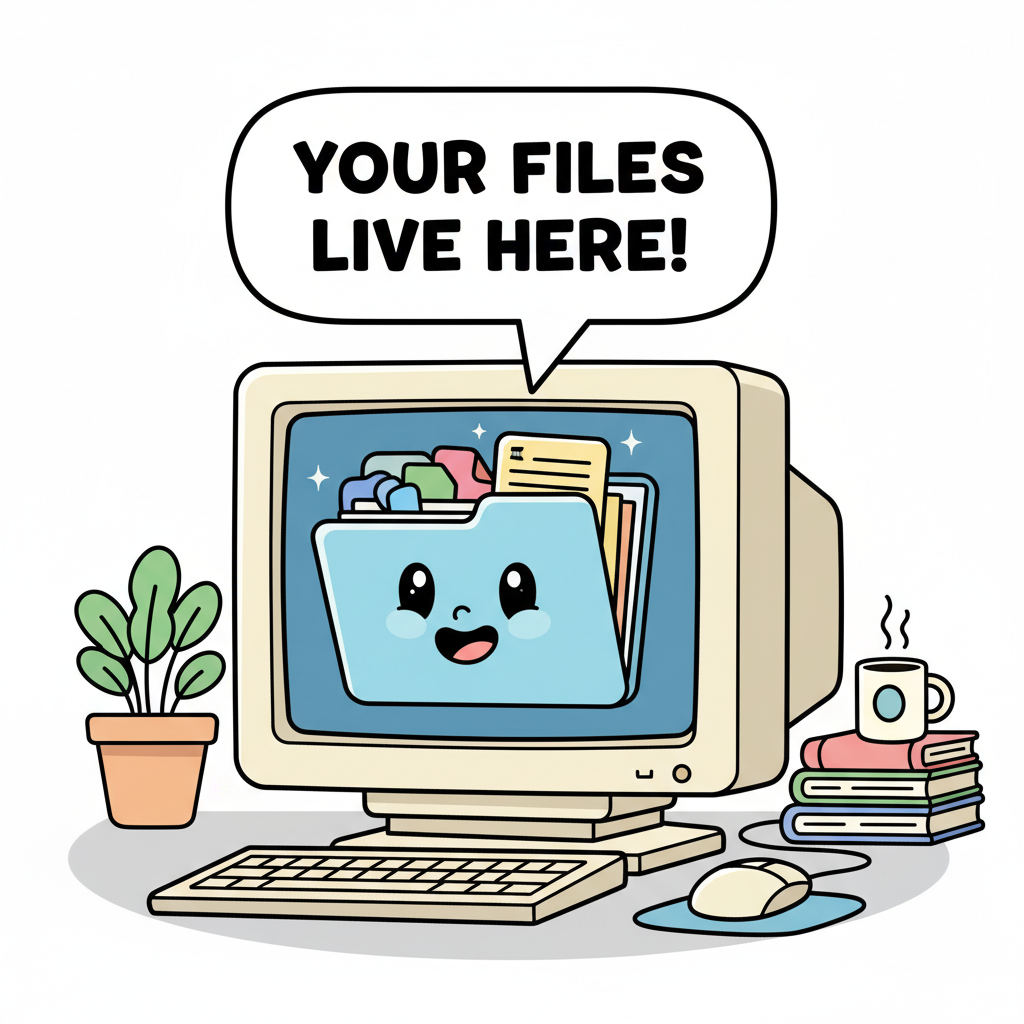
When you 'save' your work on a computer, you are telling the computer: "Please keep this safe for me! Don't let it disappear!" The computer then puts your file into a special digital 'box' or 'folder' on its hard drive. Think of the hard drive as the computer's giant storage room, full of many, many shelves and drawers.
It's like putting your favorite toy away in your toy box. If you don't put it away, it might get lost or broken. If you don't save your file, the computer might forget it, and all your hard work could be gone! So, saving is super important.
What Does it Mean to 'Open' a Saved File?
Now, let's say you want to look at your beautiful drawing again, or finish writing your exciting story. What do you do? You go to the folder or drawer where you put it, take it out, and look at it!
'Opening' a saved file on a computer is exactly like that. It means you are telling the computer: "Hey, remember that file I saved? Can you please bring it out so I can see it and work on it again?" The computer then finds that special digital 'box' or 'folder' where your file lives, pulls out the file, and shows it to you on the screen.
Where Do Our Files Live on the Computer?
Just like you have different drawers for different things (like one for art supplies, one for socks), computers have different 'folders' to keep files organized. The most common places where your files might live are:
- The Desktop: This is like the top of your desk at home. It's easy to see everything here, but it can get messy if you put too many things on it!
- Documents Folder: This is like a special filing cabinet just for your papers, stories, and important notes. It's a very common place to save and find your work.
- Pictures Folder: Can you guess what goes in here? Yes, all your amazing digital photos and drawings!
When you save a file, the computer usually asks you: "Where do you want to put this?" It's important to pay attention and remember where you put it, just like remembering which drawer you put your socks in!
How Do We Find and Open Our Saved Files? The Magic Click!
Finding your saved file is like going to your toy box to find your favorite toy. You usually look for its name or what it looks like.
- Find the Folder: First, you might need to go to the folder where you saved your file. This could be the 'Documents' folder, 'Pictures' folder, or even right on the 'Desktop'. You'll see little icons (small pictures) that look like folders.
- Look for Your File's Icon: Once you're inside the right folder, look for your file. Each file has a little picture, called an 'icon', that tells you what kind of file it is. For a drawing, it might look like a paintbrush or a small picture. For a story, it might look like a piece of paper with lines on it. You'll also see the file's name next to its icon.
- The Double-Click! Once you find your file, here's the magic part! You take your computer mouse, move the pointer (that little arrow on the screen) over your file's icon, and quickly click the left mouse button TWO TIMES IN A ROW! This is called 'double-clicking'.
When you double-click, the computer understands that you want to 'open' that file, and poof! It usually opens right up on your screen, ready for you to see or work on again.
 ⚠️ This picture may have spelling mistakes. Trust the words in the lesson.
Why is Remembering Where You Saved Your File So Important?
Imagine you put your favorite book away, but you can't remember if you put it on the bookshelf, under your bed, or in your backpack! It would be really hard to find, wouldn't it?
It's the same with computer files. If you don't remember which folder you saved your file in, it can be very tricky to find it again. Always try to save your files in a place that makes sense to you, like putting all your drawings in the 'Pictures' folder. This makes finding and opening your work much easier next time!
Let's Practice!
Now you know the secret to finding your computer treasures. Every time you save something, you're putting it in a digital safe place. And every time you open it, you're bringing it out to enjoy again! Keep exploring and creating, and don't forget your new 'opening files' superpower!
Keep learning, free
Create a free Syllabax account to unlock practice questions and games for this topic.
Visual Learning Enhanced! 🚀
To help you master this topic, we use Advanced Syllabax AI to generate detailed diagrams and visual models.
Note on Visuals: The AI sometimes makes spelling errors in image labels. Please refer to the lesson text for the correct terminology.