Opening and Closing Programs
Watch this topic in 60 seconds
Free preview · Lesson 1
Understanding Opening and Closing Programs
Let's Learn About Opening and Closing Programs!
Hello, young computer explorers! Today, we're going on an adventure to learn how to start and stop things on a computer. These 'things' are called programs. Think of your computer like a big toy box, and inside that toy box are many different toys. Each toy is like a program!
What is a Program?
Imagine your favorite storybook. To read it, you need to pick it up and open its cover, right? On a computer, a program is like a digital storybook, a game, or a drawing pad. It's something you use to do fun things! For example, a game like 'Candy Crush' is a program, or a drawing tool like 'Paint' is a program, or even a way to watch videos is a program.
Just like you have different toys for different kinds of play (a car for racing, blocks for building), a computer has different programs for different kinds of tasks (a game for playing, a writing program for typing, a drawing program for art).
Finding Your Programs: The Icons!
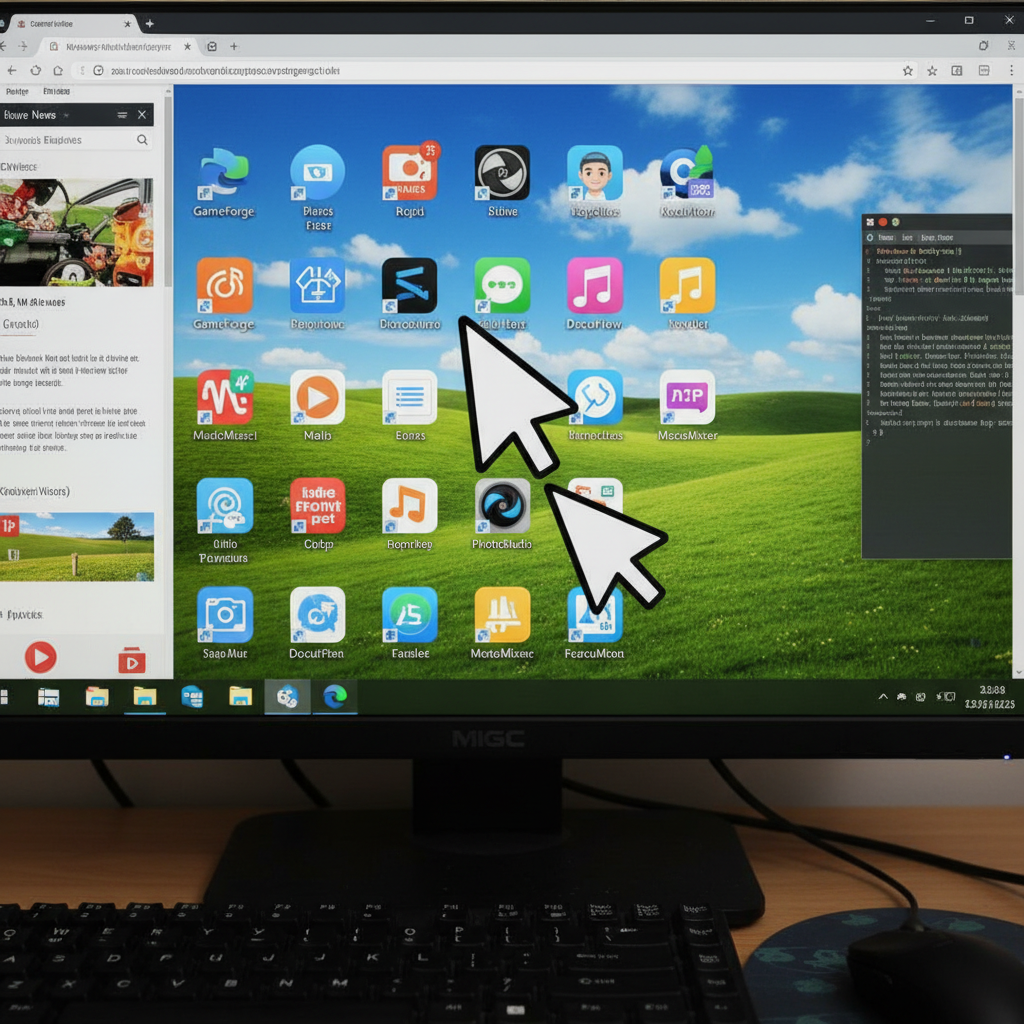
How do you find your favorite toy in your toy box? Maybe it has a special picture on its box, or it looks unique! On a computer, programs have special little pictures called icons. These icons are like the covers of your books or the pictures on your toy boxes. They help you know what program is what!
Most of the time, you'll see these icons sitting on your computer's 'desktop' – that's the main screen when you turn on your computer. Think of the desktop as your playroom floor, and all the icons are your toys waiting to be played with.
Opening a Program: Time to Play!
Once you've found the icon for the program you want to use, it's time to open it! This is like picking up your toy or opening your storybook. To open a program, you usually use your mouse.
- Sometimes, you just need to click the icon once with the left mouse button.
- Other times, you need to click the icon quickly twice – this is called a 'double-click'. It's like knocking on a door twice to open it!
When you click or double-click the icon, the program starts up! It's like magic – the game appears, or the drawing pad is ready for your art. The program window will pop up on your screen, ready for you to use. This is called 'running' the program.
Imagine you have a big coloring book. When you want to color, you don't just look at the cover, you open it up to the page you want to color, right? Opening a program is just like that – you're opening the 'book' to start using it.
 ⚠️ This picture may have spelling mistakes. Trust the words in the lesson.
Why Do We Open Programs?
We open programs because we want to use them! If you want to draw a picture, you open the drawing program. If you want to play a game, you open the game program. If you want to watch a cartoon, you open the video program. Each program helps us do something different and fun!
Closing a Program: Time to Put Away!
After you're done playing with a toy, what do you do? You put it away, right? You put it back in its box or on the shelf so your room stays tidy. It's the same with programs on a computer!
When you're finished using a program, it's important to close it. How do you do this? Look very carefully at the top corner of the program's window. Most programs will have a small 'X' button, usually in the top right corner. It often looks like a red square with a white 'X' inside.
This 'X' button is like the 'put away' button for your program. When you click this 'X' button with your mouse, the program will disappear from your screen. It's like putting your toy back in its box!

Why Do We Close Programs?
Why is it so important to close programs?
- To keep your computer tidy: Imagine if you left all your toys out on the floor all the time. Your room would be a big mess! The computer's screen can get messy with too many open programs. Closing them keeps things neat.
- To help your computer work better: When you have many programs open, it's like trying to play with all your toys at once. It can make you tired, and it can make your computer work harder and maybe even slow down. Closing programs helps your computer run faster and smoother, just like putting away your toys helps you feel more relaxed.
- To save your work: Sometimes, before a program closes, it might ask you if you want to 'save' your work. This is super important if you've been drawing or writing something you want to keep! Always ask an adult if you're not sure.
Recap!
So, remember these easy steps:
- Find the little picture (icon) for the program you want to use.
- Click or double-click the icon to open the program and start playing or working!
- When you're all done, find the 'X' button at the top corner of the program's window and click it to close the program.
- Closing programs helps keep your computer neat and running well!
You are now an expert at opening and closing programs! Great job!
Keep learning, free
Create a free Syllabax account to unlock practice questions and games for this topic.
Visual Learning Enhanced! 🚀
To help you master this topic, we use Advanced Syllabax AI to generate detailed diagrams and visual models.
Note on Visuals: The AI sometimes makes spelling errors in image labels. Please refer to the lesson text for the correct terminology.