Input Devices: Mouse & Keyboard
Watch this topic in 60 seconds
Free preview · Lesson 1
Understanding Input Devices: Mouse & Keyboard
Hello, Super Computer Users!
Have you ever wondered how you tell a computer what to do? It's like talking to a friend! But instead of using your voice, you use special tools called Input Devices. Think of it like giving instructions to a super smart robot!
What are Input Devices? Your Computer's Senses!
Imagine you want to tell a robot to pick up a toy. You might say, "Robot, pick up that blue car!" Your voice is the "input" that the robot hears and understands. Computers are similar! They need "input" from you to know what to do.
Input devices are like the computer's ears and hands. They take information FROM YOU and send it TO the computer. Think of your own body: your eyes see things, your ears hear things, and your skin feels things. These are your natural "input devices" that send information to your brain! Without them, your brain wouldn't know what's happening around you.
Today, we're going to learn about two of the most important input devices that help you 'talk' to your computer: the Keyboard and the Mouse!
Meet the Keyboard: Your Computer's Magic Typewriter
Look at a keyboard. What do you see? Lots and lots of buttons! We call these buttons keys. A computer keyboard is like a fancy electric typewriter that lets you write directly onto your computer screen. When you want to write a story, send an email, type your name into a game, or even give a command, you use the keyboard.
How it works: When you press a key, it's like sending a secret message or a tiny electrical signal to the computer. The computer understands exactly which key you pressed and quickly shows it on the screen. It's super fast! It's almost like magic how your fingers can make words appear.
Important Parts of a Keyboard:
- Letter Keys: These are all the letters from A to Z, both big (capital) and small. You use them to type words and sentences, just like writing in a notebook or on a piece of paper!
- Number Keys: You'll find numbers from 0 to 9. These are useful for typing your age, phone numbers, doing simple math problems, or putting scores in a game.
- Symbol Keys: These are keys with special characters like '!', '@', '#', '$', '%', and '?'. They add excitement and meaning to your words, or help you make passwords strong.
- Spacebar: This is the BIG long key at the very bottom. What do you think it does? That's right! It puts spaces between your words, so they don't all squish together. Try typing "Hello" then press Spacebar, then "World". See the space? It's like taking a little breath between your words.
- Enter Key: This key is like saying, "Okay, I'm done with this line!" or "Go to the next step!" It often starts a new line of text or tells the computer to accept what you've typed, like pressing a 'Go' button.
- Shift Key: There are usually two Shift keys on a keyboard. This key is like a magic button that helps you make BIG letters (capital letters) or use the TOP symbols on some keys. For example, hold Shift and press 'a' to get 'A'! Hold Shift and press '1' to get '!'.
- Backspace Key: Oops! Made a mistake? The Backspace key is your best friend! It erases letters one by one, going backward. It's like having an electronic eraser for your computer screen.
- Arrow Keys: These keys have arrows pointing up, down, left, and right. They help you move around on the screen without using the mouse, like guiding a little car or character in a game.
The keyboard is amazing for writing, giving precise commands, and putting information into the computer.
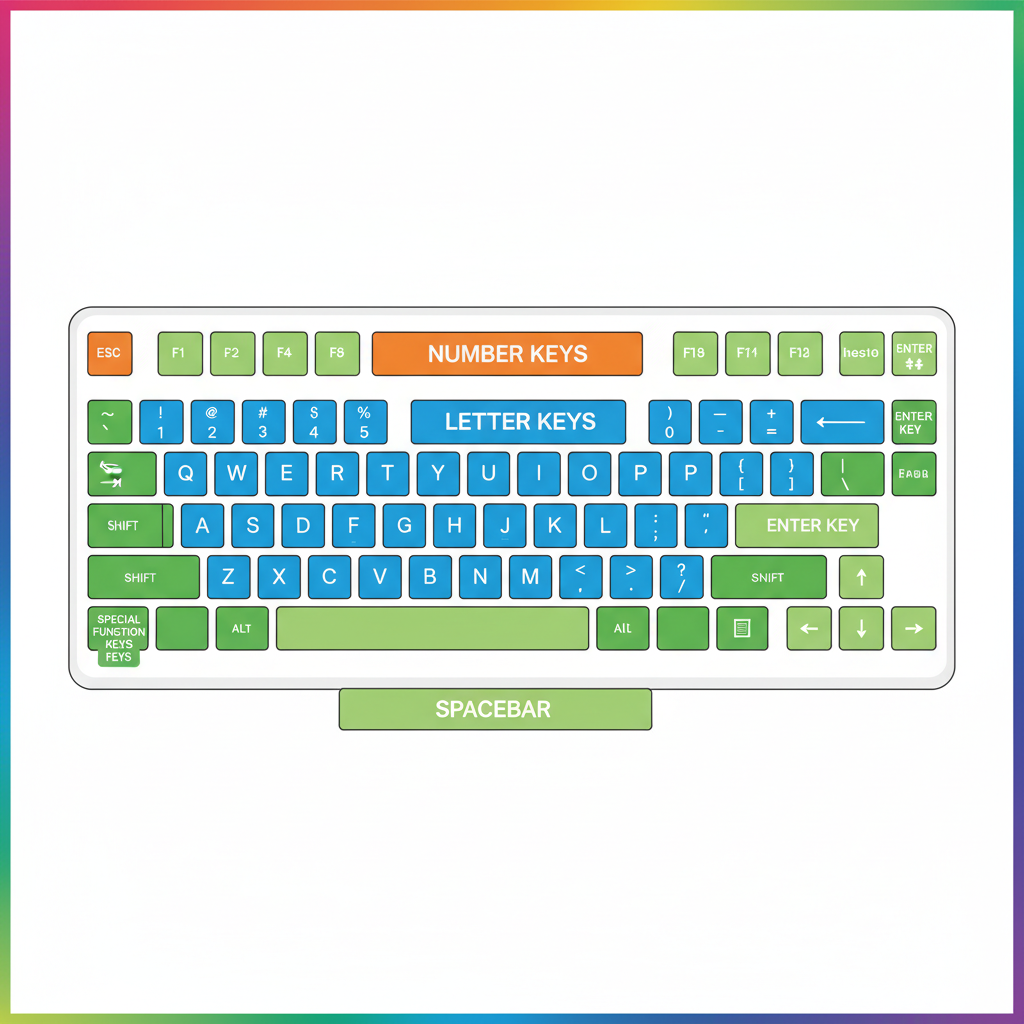 ⚠️ This picture may have spelling mistakes. Trust the words in the lesson.
Meet the Mouse: Your Computer's Pointing Finger
Now, let's talk about the mouse! It's usually a small, smooth device that fits comfortably in the palm of your hand. It looks a bit like a small, sleepy animal with a 'tail' (the wire) or sometimes no tail at all (wireless mice!), hence its name!
How it works: As you move the mouse on your desk or a mouse pad, a little arrow or hand (we call this the pointer or cursor) moves on your computer screen. It's like your finger pointing at things on the screen from a distance, or a remote control for your TV!
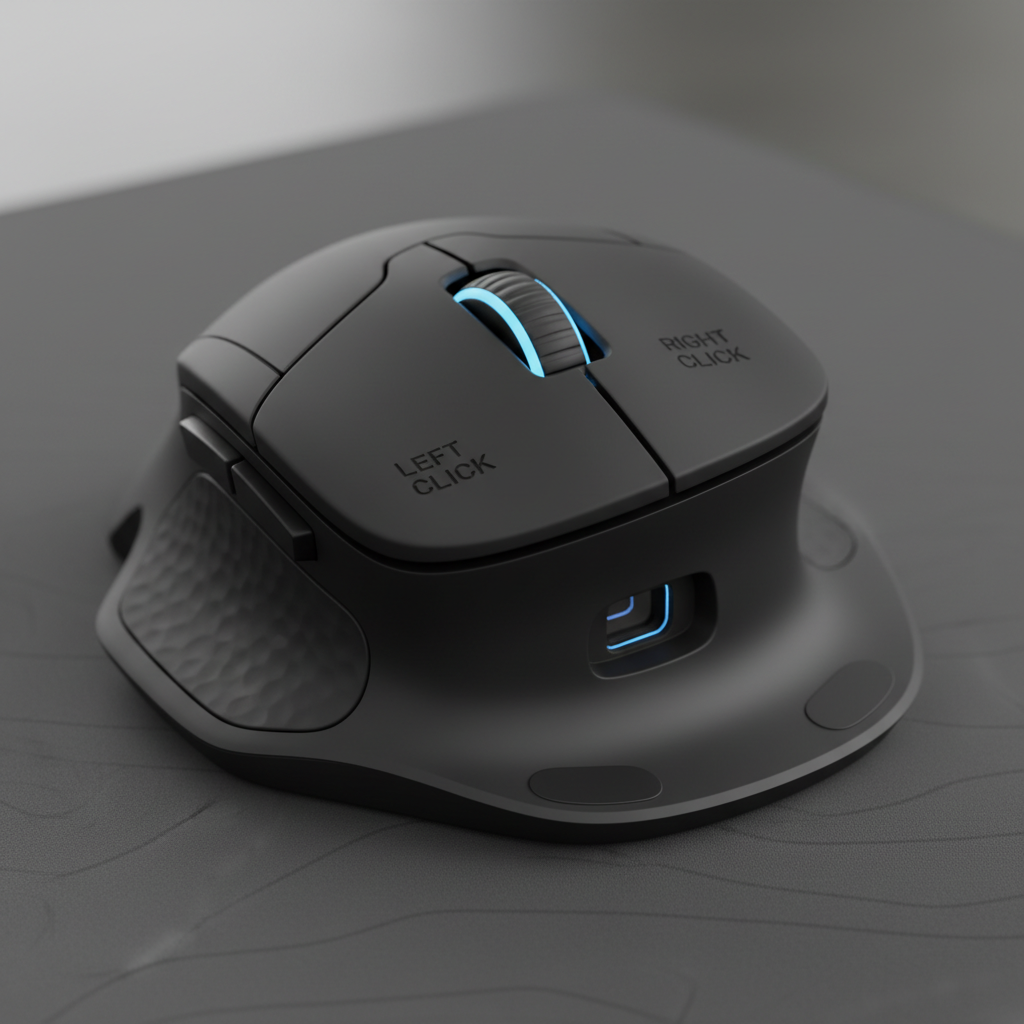
Important Parts of a Mouse:
- Left Button: This is the most used button. When you "click" it (press and release quickly), it's like tapping on something to select it or make it do something. It's often used to open programs, pick items, or follow links. Think of it as your 'Go!' button.
- Right Button: This button is usually for showing you more options or choices for whatever you're pointing at. It's like asking, "What else can I do with this?" and seeing a menu pop up.
- Scroll Wheel: This little wheel in the middle lets you roll up and down a page on your screen without having to click and drag. It's super handy for reading long websites or documents! It's like having tiny rollers to move paper up and down quickly.
- Sensor: Underneath the mouse, there's a special light (often red) or a tiny camera. This sensor sees how you're moving the mouse on the surface (like a table or mouse pad) and tells the computer exactly where to move the pointer. It's like the mouse's eyes seeing the surface it's on!
What you can do with a mouse:
- Point: Move the mouse to make the pointer land on something you want to look at or interact with.
- Click: Press the left button once quickly. This usually selects something, like picking a toy, or activating a button on the screen.
- Double-Click: Press the left button twice very quickly. This often opens things, like opening a door to a room or starting a game!
- Drag and Drop: Click and hold the left button, then move the mouse to move an item on the screen. Then, let go of the button to "drop" it in a new spot. It's like picking up a block and moving it to a new location on your desk.
Keyboard and Mouse: A Super Team!
Think of the keyboard and mouse as a fantastic team working together! You use the keyboard to type words and numbers, like writing a letter or filling out a form. You use the mouse to point at things, click on buttons, and move things around, like drawing pictures, playing games, or navigating websites.
They are both super important input devices that help you communicate with your computer and make it do amazing things! Without them, talking to your computer would be very, very hard.
Next time you sit down at a computer, remember how these clever devices are helping you "talk" to your digital friend and make all sorts of wonderful things happen!
Keep learning, free
Create a free Syllabax account to unlock practice questions and games for this topic.
Visual Learning Enhanced! 🚀
To help you master this topic, we use Advanced Syllabax AI to generate detailed diagrams and visual models.
Note on Visuals: The AI sometimes makes spelling errors in image labels. Please refer to the lesson text for the correct terminology.