Block Coding with ScratchJr
Watch this topic in 60 seconds
Free preview · Lesson 1
Understanding Block Coding with ScratchJr
Welcome to the Wonderful World of Block Coding with ScratchJr!
Hey there, future super coders! Have you ever wanted to tell a story where your favorite characters dance, jump, and talk? Or maybe create a game where you guide a little character through an adventure? Well, guess what? You can! And the way we do it is called coding, using a super fun tool called ScratchJr!
What is Coding? (It's Like Giving Instructions!)
Imagine you want to teach your dog a new trick, like "sit." You give your dog a set of instructions: "Dog, when I say 'sit,' you put your bottom on the floor." You break down the big idea (sitting) into smaller, easy-to-follow steps. That's exactly what coding is! It's like giving a computer, or characters on a screen, a list of step-by-step instructions so they know exactly what to do.
Think of it like building with LEGOs. Each LEGO brick is a small instruction. When you snap them together in the right order, you build something amazing! In ScratchJr, our "LEGO bricks" are colorful blocks of code.
Meet ScratchJr: Your First Coding Playground!
ScratchJr is a special app designed just for kids like you to learn coding in a simple and visual way. Instead of typing complicated words, you drag and drop colorful blocks to make your characters come to life. It's like playing with digital puzzle pieces!
Let's explore the different parts of the ScratchJr playground:
1. The Stage: Where the Magic Happens!
The "Stage" is like a movie screen or a theater stage. This is where your characters (we call them "Sprites") will move, dance, and tell their stories. It's where you see all your hard work come to life!
2. Sprites: Your Story's Characters!
Sprites are the actors in your story or game. They can be cats, dogs, people, spaceships, or anything you can imagine! You can pick different sprites, change how they look, and even draw your very own new ones. Each sprite needs its own set of instructions to know what to do.
3. The Coding Area: Your Instruction Pad!
The "Coding Area" is where you build your code. It's like a special pad where you drag and snap your colorful blocks together. This is where you tell your sprites exactly what to do, step by step, just like writing a recipe or drawing a treasure map for them.
4. The Block Palette: Your Toolbox of Magic Blocks!
The "Block Palette" is a special area that holds all the different types of coding blocks you can use. Think of it like a toolbox, but instead of wrenches and hammers, it has blocks that make characters move, talk, make sounds, and much more! Each color means something special.
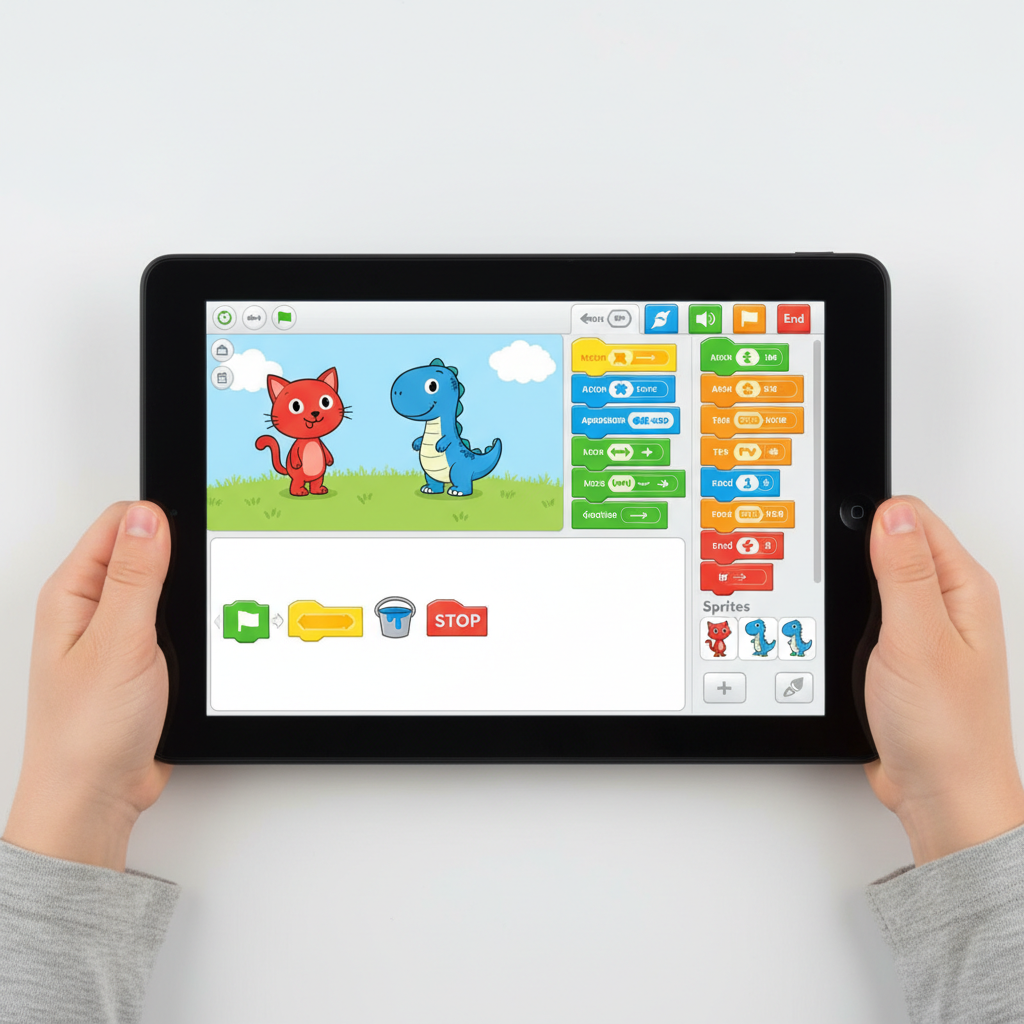 ⚠️ This picture may have spelling mistakes. Trust the words in the lesson.
Discovering the Power of Colorful Blocks!
Let's look at the different kinds of blocks you'll find in your Block Palette. Each color has a special job:
- Yellow Blocks (Start Here!): These are like the "Go!" button. They tell your code when to start. For example, a yellow block with a green flag means "start when I tap the green flag." Or a yellow block with a picture of a finger means "start when I tap this character." You always need a yellow block to kick off your instructions!
- Blue Blocks (Move It!): Want your sprite to walk, jump, or turn around? Blue blocks are your friends! They make your sprites move left, right, up, down, or even spin in a circle. It's like giving your character a remote control for their feet!
- Purple Blocks (Look and Talk!): These blocks change how your sprites look or what they say. You can make your sprite bigger or smaller, hide it, show it, or even make it say "Hello!" in a speech bubble. It's like putting different costumes on your actor or giving them a script to speak.
- Green Blocks (Sound Fun!): If you want your sprite to make a sound, like a "meow" or a "boing," you use green blocks. You can even record your own voice and make your sprite talk with your words!
- Orange Blocks (Control and Repeat!): These blocks help you control the flow of your story. You can make a sprite wait for a few seconds, or you can make it repeat an action many times (like making a character walk 10 steps over and over again). They're like the director telling the actors to "pause" or "do that again!"
- Red Blocks (Stop the Show!): These blocks are like the "Stop" button or "The End" of your story. They tell your program when to finish. You use them to end a sequence of instructions or stop the entire project.
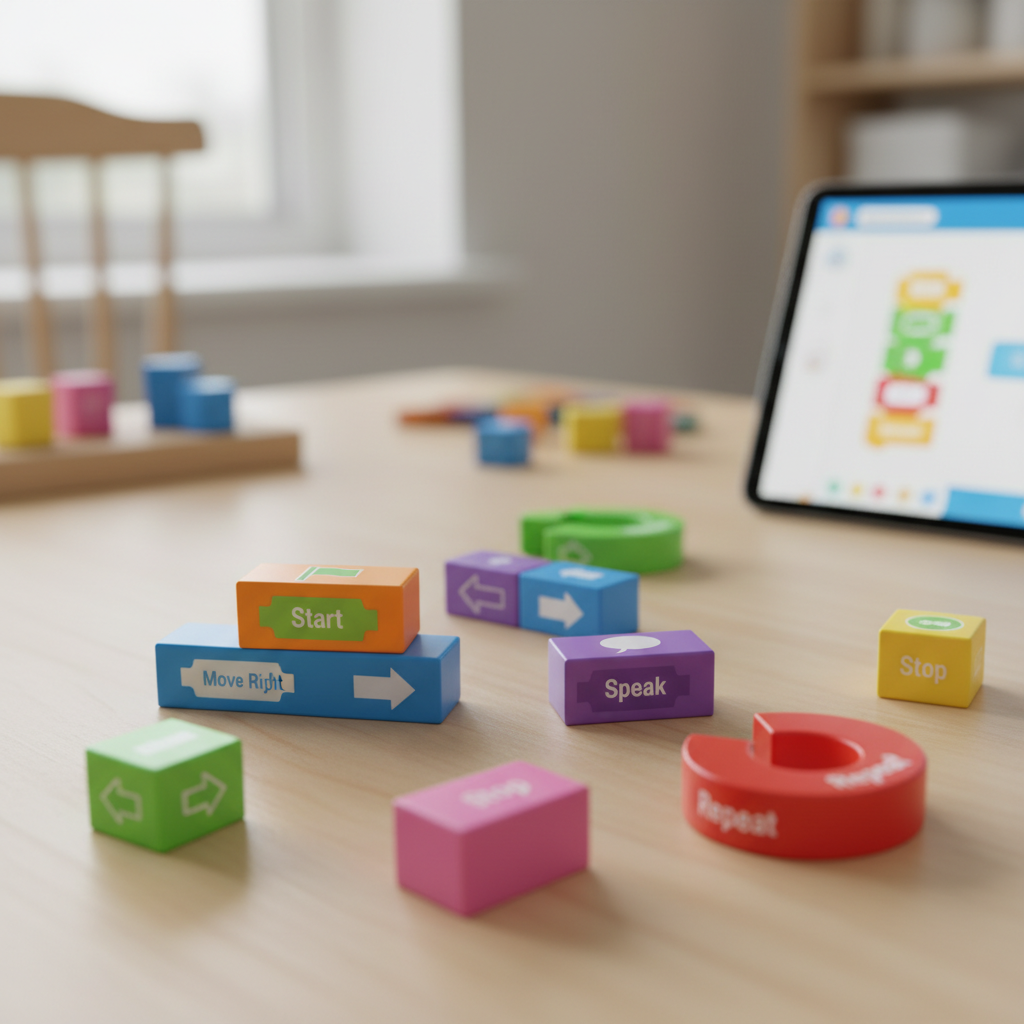
Building Your First Story: A Simple Example
Let's try to make a cat sprite walk forward and say "Meow!"
- First, pick a cat sprite (or use the default one).
- Go to the yellow blocks and drag out the "Green Flag Start" block. This tells your code to start when you tap the green flag.
- Next, go to the blue blocks. Find the "Move Right" block and drag it next to the yellow block. Snap them together like LEGOs. Maybe put the number "5" in the box to make it move 5 steps.
- Now, go to the purple blocks. Find the "Say" block. Drag it and snap it after the "Move Right" block. Tap the speech bubble and type "Meow!" inside.
- Finally, go to the red blocks and drag out the "End" block. Snap it at the very end.
Your code will look like a chain: Green Flag -> Move Right 5 steps -> Say "Meow!" -> End. Now, tap the green flag at the top of the screen, and watch your cat move and speak!
Oh No! A Bug! (Don't Worry, It's Part of Coding!)
Sometimes, your code might not do exactly what you want it to do. Maybe the cat moves too far, or says "Woof!" instead of "Meow!" This is called a "bug." Finding and fixing these mistakes is called "debugging." It's like being a detective! You look closely at your instructions, find the part that's wrong, and fix it. It’s a super important skill in coding, and it helps you learn to solve problems!
Why is Block Coding So Awesome?
- You Become a Creator! You can build anything you imagine – interactive stories, fun games, and animated scenes.
- You Become a Problem-Solver! When your code has a "bug," you learn to think step-by-step to figure out what went wrong and how to fix it.
- You Learn to Think Logically! You learn to put instructions in the right order to get the result you want.
- It's Just FUN! It's like playing with a super cool digital toy that lets you bring your ideas to life!
So, get ready to dive into ScratchJr. Start experimenting with different blocks, make your sprites do funny things, and create amazing projects. The world of coding is waiting for you!
Keep learning, free
Create a free Syllabax account to unlock practice questions and games for this topic.
Visual Learning Enhanced! 🚀
To help you master this topic, we use Advanced Syllabax AI to generate detailed diagrams and visual models.
Note on Visuals: The AI sometimes makes spelling errors in image labels. Please refer to the lesson text for the correct terminology.