Introduction to Word Processing
Watch this topic in 60 seconds
Free preview · Lesson 1
Understanding Introduction to Word Processing
Introduction to Word Processing: Your Digital Writing Workshop (Grade 10)
Welcome, 10th graders! Imagine you're writing an important essay, a creative story, or even a school newspaper article. What tools come to mind? A pen and paper? Maybe a trusty old typewriter? Well, in today's digital world, we have a super-powered tool that makes writing, editing, and designing documents incredibly easy and professional: it's called a Word Processor.
What is Word Processing? Think of a Magical Typewriter!
At its heart, word processing is simply using a computer to create, edit, format, store, and print text-based documents. Think of it like a souped-up, magical version of a typewriter. With a traditional typewriter, if you made a mistake, you'd have to use correction fluid or retype the entire page. If you wanted to change a paragraph, you'd have to literally cut and paste pieces of paper!
A word processor, however, lets you make changes instantly, move text around with a click, and even design your document to look beautiful without ever touching a bottle of correction fluid. It’s like having an infinitely adjustable, error-forgiving, and stylish writing assistant.
What is a Word Processor? Your Digital Desk for Documents!
A word processor is the software application (the program on your computer) that allows you to do word processing. Popular examples you might have heard of include Microsoft Word, Google Docs, Apple Pages, and LibreOffice Writer. These programs are your digital desk where you can create any kind of text document imaginable, from simple letters to complex reports.
Analogy: Imagine your word processor as a fully equipped artist's studio. Instead of paint and brushes, you have words and formatting tools. Your computer screen is the canvas, and your keyboard and mouse are your creative instruments.
Key Components & Features: Your Digital Toolbox!
Every word processor, no matter which one you use, will have similar core components and features. Let's explore them:
1. The Interface: Your Dashboard
When you open a word processor, you'll see a main window. This is your interface. It usually includes:
- Ribbon/Menu Bar: This is like the dashboard of a car, full of buttons and menus. It organizes all the tools you'll need for formatting, editing, inserting images, and more.
- Document Area: This is the large, blank space in the middle. It's your digital paper where you type your text.
- Cursor: This is the blinking vertical line you see on the document area. It shows you exactly where the next character you type will appear. Think of it as your tiny digital pen tip.
- Scroll Bars: These let you move up and down or left and right through your document if it's too large to fit on the screen.
- Status Bar: Usually at the bottom, it shows useful information like the current page number, word count, and zoom level.
2. Text Entry: Just Start Typing!
The most basic function: you simply type on your keyboard, and the characters appear on the screen at the cursor's position. It's as straightforward as writing on paper, but much more forgiving!
3. Editing: The "Undo" Button is Your Best Friend!
This is where word processors truly shine. Editing means making changes to your text after you've written it. Key editing features include:
- Cut, Copy, and Paste:
- Copy: Makes a duplicate of selected text without removing the original. Analogy: Like using a photocopier.
- Cut: Removes selected text from its original location. Analogy: Like using scissors to snip out a piece of paper.
- Paste: Inserts copied or cut text into a new location. Analogy: Like using glue to stick the paper somewhere else.
- Undo/Redo: These are lifesavers! Undo reverses your last action (like a 'go back in time' button). Redo reapplies an action you just undid.
- Delete: Removes selected text or characters.
4. Formatting: Making Your Words Look Good!
Formatting is all about changing the appearance of your text and document. This is where you make your document professional and appealing.
a. Character Formatting (How individual letters look):
- Font (Typeface): The design of the letters. Think of it as giving your words different outfits – Arial, Times New Roman, Calibri are popular 'outfits'.
- Font Size: How big or small the letters are.
- Font Color: The color of your text.
- Bold (B): Makes text thicker and darker for emphasis.
- Italic (I): Slants text to the right, often used for titles or emphasis.
- Underline (U): Puts a line beneath the text.
b. Paragraph Formatting (How blocks of text are arranged):
- Alignment: How text lines up on the page. Analogy: Think of arranging furniture in a room.
- Left Align: Text lines up on the left margin (most common).
- Center Align: Text is centered between the margins.
- Right Align: Text lines up on the right margin.
- Justify: Text lines up on both the left and right margins, spreading out evenly (like in books and newspapers).
- Line Spacing: The amount of vertical space between lines of text. Single, 1.5, Double are common options.
- Indentation: Moving a paragraph's edge in from the margin.
- Bullets and Numbering: Creating lists.
5. Saving and Opening: Storing Your Work Safely!
Once you've created a document, you'll want to save it so you can open it again later or share it. Analogy: Saving is like putting your masterpiece into a labelled folder in a digital filing cabinet. Opening is retrieving it.
- File Formats: Documents are saved in specific formats, like .docx (Microsoft Word Document), .pdf (Portable Document Format - great for sharing when you don't want changes to be made), or .txt (plain text).
6. Spell Check and Grammar Check: Your Built-in Editor!
Most word processors have tools that automatically check for spelling errors (often highlighted with a red wavy line) and grammar mistakes (often a blue or green wavy line). This is like having a diligent editor proofreading your work as you type!
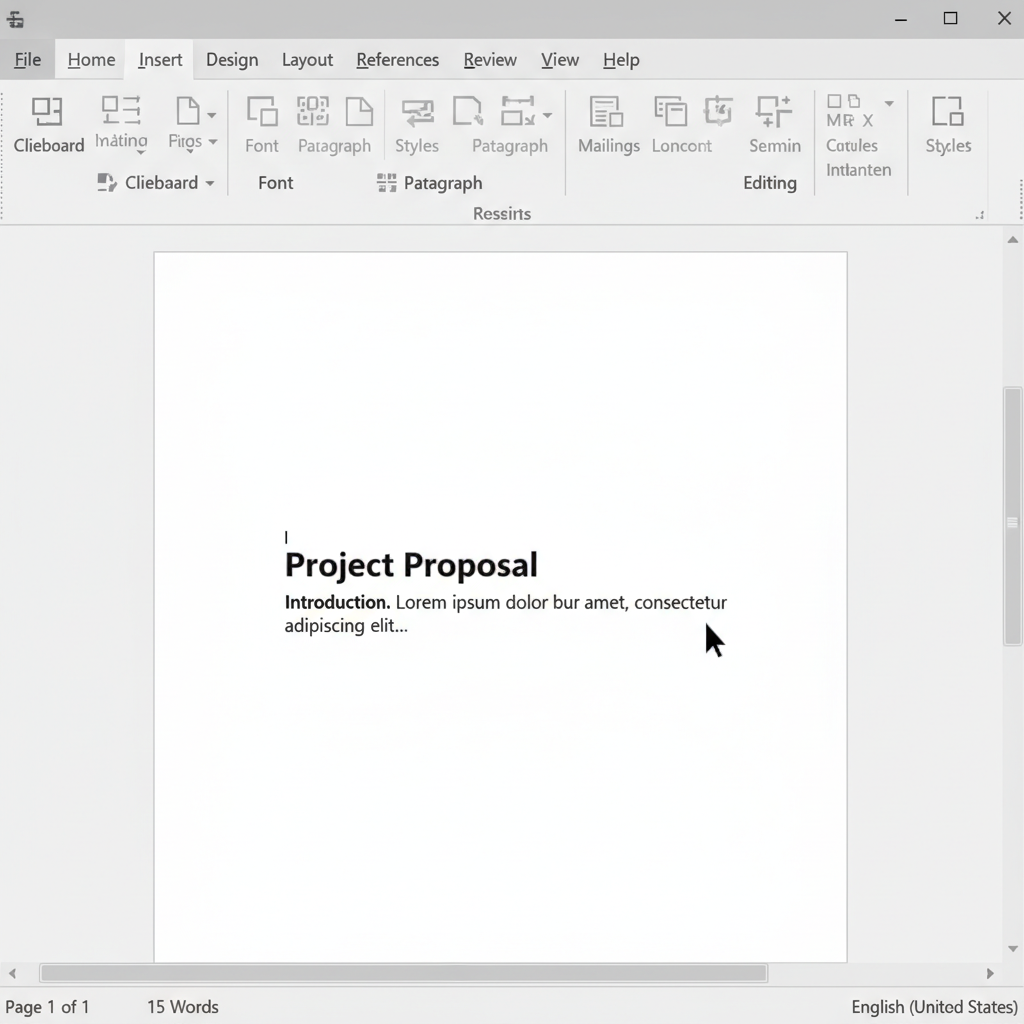 ⚠️ This picture may have spelling mistakes. Trust the words in the lesson.
7. Printing: From Digital to Paper!
After you've perfected your digital document, you can send it to a printer to get a physical copy.
Why is Word Processing So Important?
- Efficiency: Saves time by making editing and formatting quick and easy.
- Professionalism: Helps create neat, well-organized, and visually appealing documents.
- Flexibility: Easily make changes, create multiple versions, and share documents digitally.
- Accessibility: Modern word processors allow for collaboration and cloud storage, meaning you can work on documents from almost anywhere.
Conclusion
Word processing is a fundamental skill in today's digital age. It empowers you to create, refine, and present your written ideas with clarity and professionalism. By understanding these basic concepts and features, you're well on your way to mastering this essential tool!
Keep learning, free
Create a free Syllabax account to unlock practice questions and games for this topic.
Visual Learning Enhanced! 🚀
To help you master this topic, we use Advanced Syllabax AI to generate detailed diagrams and visual models.
Note on Visuals: The AI sometimes makes spelling errors in image labels. Please refer to the lesson text for the correct terminology.