Learning Journey
Watch this topic in 60 seconds
Free preview · Lesson 1
Understanding Managing Files and Folders
Mastering Your Digital Workspace: Managing Files and Folders
Imagine your computer as a giant digital office. Just like a physical office, if everything is scattered around, you'll spend more time searching for things than actually working. That's why managing your files and folders is such a crucial skill – it helps you stay organized, efficient, and makes your digital life much easier!
What is a File? Your Digital Document
Think of a file as a single piece of information, like a letter, a photograph, a song, or a video. It's a container for data. Just like every book on a shelf has a title and a type (novel, textbook, comic), every digital file has two main parts:
- File Name: This is what you call the file, like "My Homework" or "Vacation Photo." It helps you identify what's inside.
- File Extension: This is a short suffix (usually three or four letters) after a dot, like ".docx", ".jpg", ".mp3", or ".mp4". The extension tells your computer what type of file it is and which program should open it. For example:
.docx: A document, usually opened by Microsoft Word..xlsx: A spreadsheet, usually opened by Microsoft Excel..jpgor.png: An image file, opened by a photo viewer..mp3: An audio file, opened by a music player..mp4: A video file, opened by a video player.
Analogy: Think of a book. The file name is the book's title ("Harry Potter and the Sorcerer's Stone"), and the file extension is like the book's genre or format (".novel", ".textbook", ".cook-book"). The genre tells you what kind of book it is and what kind of experience to expect when you open it.
What is a Folder? Your Digital Filing Cabinet
Now, imagine having hundreds of books just lying on the floor. It would be a mess! That's where folders come in. A folder (sometimes called a directory) is a digital container that holds files and even other folders. They are designed to help you organize your digital items logically.
Analogy: If files are like individual pieces of paper or books, then folders are like the drawers in a filing cabinet or shelves in a bookcase. You wouldn't put all your school papers, photos, and music CDs into one giant pile; you'd separate them into different categories.
You can create folders for different subjects (e.g., "English Homework," "Math Notes," "Project X"), for different types of media ("Family Photos," "Music Library"), or for different projects. Folders within folders are called subfolders, creating a hierarchical structure. For example, you might have a "School" folder, and inside it, "Grade 10," and inside that, "English," "Math," "Science," etc.
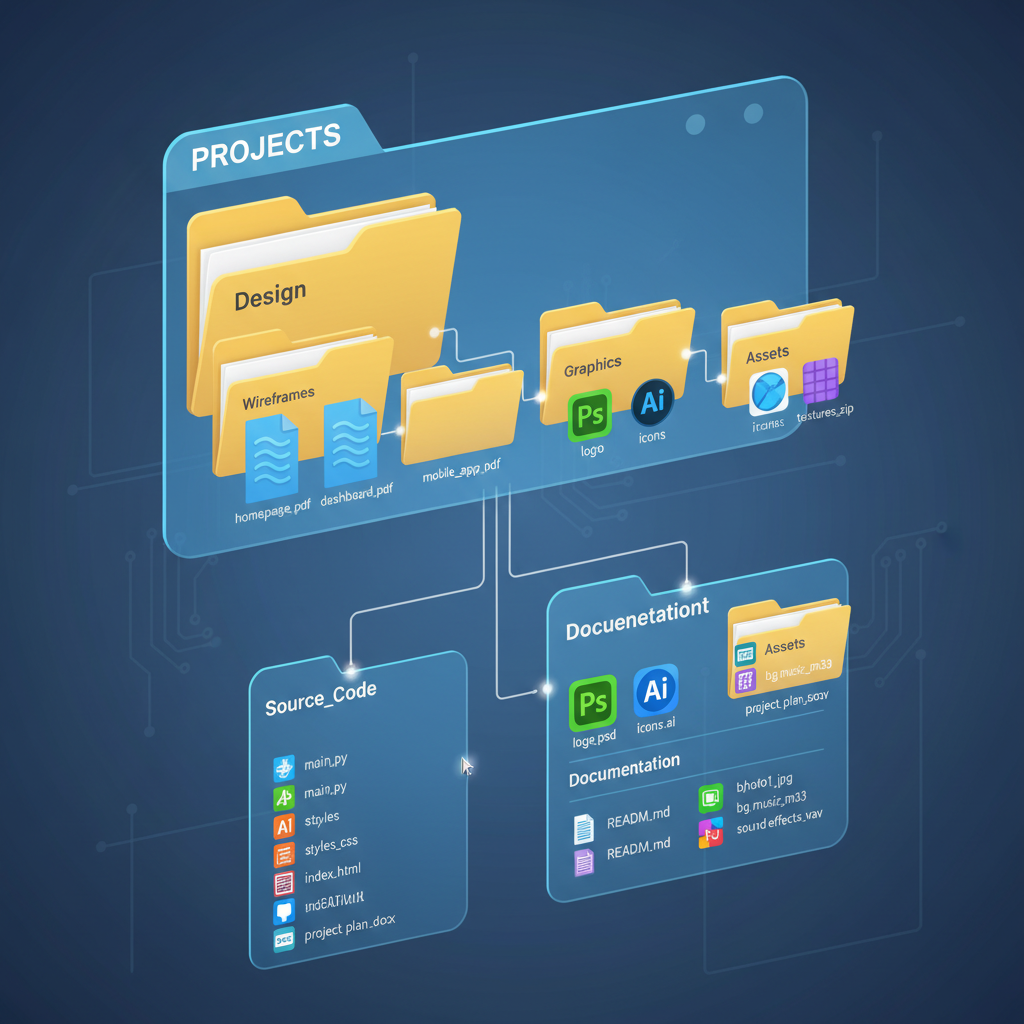 ⚠️ This picture may have spelling mistakes. Trust the words in the lesson.
Essential File and Folder Operations: Your Digital Toolkit
Let's learn the basic actions you can perform to manage your digital items:
1. Creating a New Folder
This is the first step to organization! To create a new folder:
- Go to the location where you want to create the new folder (e.g., your Desktop, Documents folder).
- Right-click on an empty space.
- Select "New" and then "Folder."
- Type a meaningful name for your new folder and press Enter.
Analogy: This is like labeling a new empty drawer in your filing cabinet so you know what kind of documents will go inside.
2. Saving Files
When you create a new document (like a Word document or a drawing), you need to save it. There are usually two options:
- Save: If you've already saved the file before, "Save" updates the existing file with your latest changes.
- Save As: This is used when you're saving a new file for the first time, or if you want to save an existing file with a different name or in a different location. When you "Save As," you choose the folder where you want to store your file.
Analogy: "Save" is like adding a new page to a document already in a specific folder. "Save As" is like deciding which folder to put a brand new document in, or making a copy of an existing document and putting the copy in a different folder or giving it a new name.
3. Renaming Files and Folders
Sometimes you need to change a name to make it clearer or correct a mistake.
- Click on the file or folder you want to rename.
- Click on its name again (or right-click and select "Rename").
- Type the new name and press Enter.
Analogy: This is like relabeling a folder tab or a book title so it accurately reflects its contents.
4. Moving Files and Folders (Cut, Copy, Paste)
These are fundamental operations for organizing. Imagine rearranging your physical files.
- Cut (Ctrl+X or Cmd+X): This removes the selected file(s) or folder(s) from its current location and prepares to move it. The original item disappears once pasted elsewhere.
- Copy (Ctrl+C or Cmd+C): This makes a duplicate of the selected file(s) or folder(s) and prepares to paste it. The original item remains in its place.
- Paste (Ctrl+V or Cmd+V): This places the cut or copied item(s) into the new location you've chosen.
Analogy: "Cut" is like taking a book off one shelf to put it on another – it's gone from the first shelf. "Copy" is like photocopying a document – the original stays where it is, and you have a new duplicate to put elsewhere. "Paste" is simply placing the item in its new home.
5. Deleting Files and Folders
When you no longer need a file or folder, you can delete it to free up space and reduce clutter.
- Select the file or folder.
- Press the "Delete" key or right-click and select "Delete."
Deleted items usually go to the Recycle Bin (Windows) or Trash (macOS), which acts like a temporary holding area. You can restore items from there if you accidentally delete something important. To permanently remove items, you need to empty the Recycle Bin/Trash.
Analogy: Deleting is like throwing a piece of paper into a wastebasket. It's usually still retrievable for a short time (the Recycle Bin/Trash), but once the wastebasket is emptied, it's gone for good.
6. Opening Files
The simplest operation! Usually, just double-clicking on a file will open it with its associated program (e.g., a .docx file opens in Word, a .jpg opens in a photo viewer).
Navigating Your Digital Landscape
To perform these operations, you need to be able to find your way around your computer's storage. Operating systems provide tools for this:
- File Explorer (Windows) / Finder (macOS): These are the primary tools for viewing, organizing, and accessing your files and folders. They show you a tree-like structure of your drives, folders, and files.
- File Path: This is like a precise address for a file or folder. For example,
C:\Users\YourName\Documents\School\English\Essay.docxtells you exactly where "Essay.docx" is located on the C: drive. - Search Bar: If you know part of a file's name but not its exact location, the search bar in File Explorer/Finder is incredibly useful. It can quickly locate files and folders based on keywords.
Analogy: Navigating with File Explorer is like using a map to find your way around a city. A file path is a specific address, and the search bar is like asking a librarian to help you find a book by its title even if you don't know which shelf it's on.
Best Practices for a Tidy Digital Life
Good habits make all the difference:
- Create a Logical Structure: Group related files together. For example, a main "School" folder, with subfolders for each subject, and then sub-subfolders for assignments, notes, etc.
- Use Meaningful Names: Avoid generic names like "document1" or "pic." Use names that clearly describe the content, e.g., "History_Project_WWII_Draft1.docx" or "Birthday_Party_Photos_2023.jpg."
- Don't Clutter Your Desktop: The Desktop is like your main work surface. Keep it relatively clear; move completed or permanent items into appropriate folders.
- Regular Cleanup: Periodically review your files and folders. Delete old, unnecessary items, and organize misplaced ones.
- Back Up Important Files: Always have copies of crucial files in another location (e.g., an external hard drive, cloud storage) in case your computer fails.
By understanding and applying these foundational concepts, you'll transform your digital workspace from a chaotic mess into an organized, efficient environment where you can easily find and manage all your important information. Happy organizing!
Keep learning, free
Create a free Syllabax account to unlock practice questions and games for this topic.
Visual Learning Enhanced! 🚀
To help you master this topic, we use Advanced Syllabax AI to generate detailed diagrams and visual models.
Note on Visuals: The AI sometimes makes spelling errors in image labels. Please refer to the lesson text for the correct terminology.