Learning Journey
Watch this topic in 60 seconds
Free preview · Lesson 1
Understanding Keyboard Basics: Typing Letters
Hello, Super Typers! Let's Explore the Magical Keyboard!
Imagine you want to tell a friend a secret message, or write your name on a drawing, but instead of using a pencil, you use a super cool machine! That machine is called a keyboard, and it's like the brain of your computer or tablet when you want to write things.
What is a Keyboard? It's a Typing Party!
A keyboard is a special board full of little buttons, called keys. Each key has a letter, a number, or a special symbol on it. Think of it like a giant secret code machine! When you press a key, it sends a message to your computer, and poof! The letter appears on the screen, just like magic.
Analogy: Imagine your keyboard is a giant piano, but instead of playing music, you're playing with letters to make words and stories!
Finding Your ABCs on the Keyboard
Do you know your ABCs? Of course, you do! All those letters are waiting for you on the keyboard. Look closely at the keys. You'll see all the letters from A to Z, just like in your alphabet book. They might not be in ABC order, which can be a little tricky at first, but don't worry, you'll learn where they live very quickly!
Activity Idea: Can you find the first letter of your name? How about the letters in "CAT" or "DOG"?
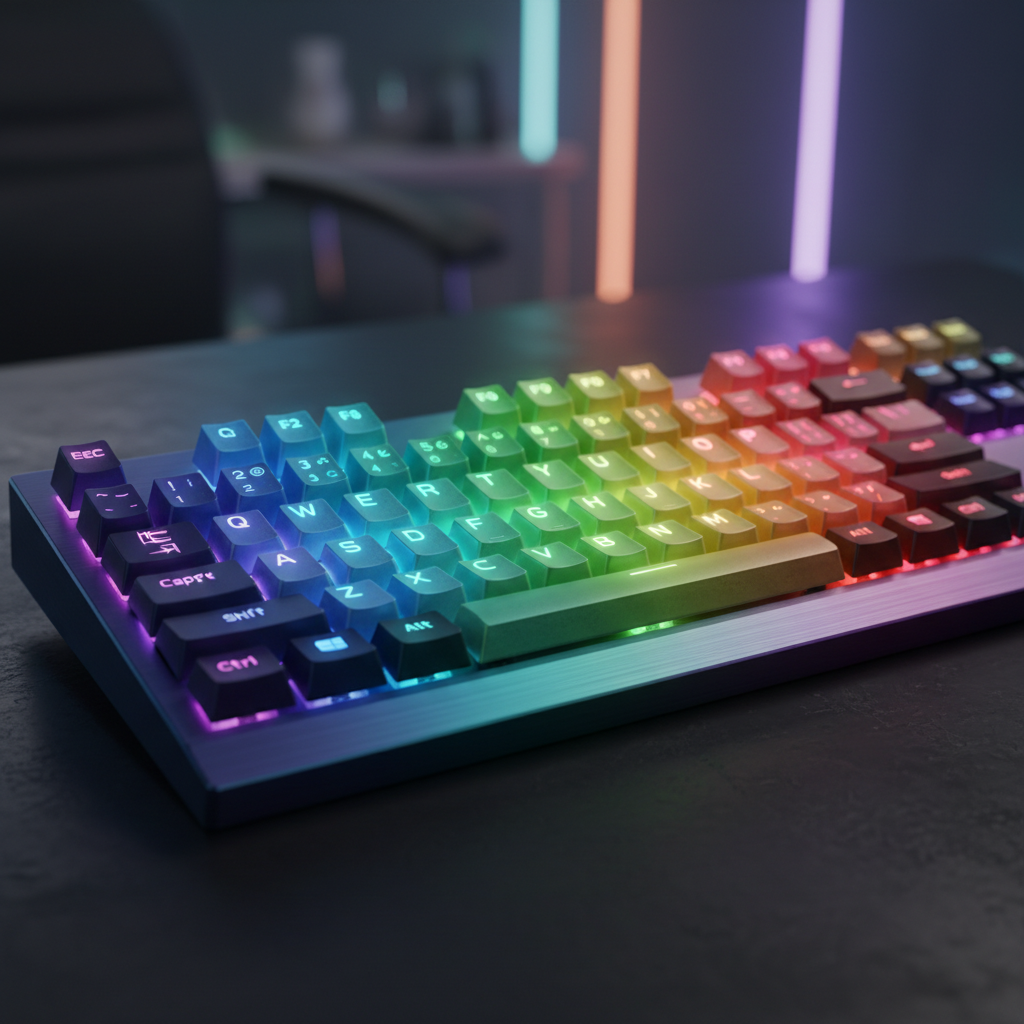 ⚠️ This picture may have spelling mistakes. Trust the words in the lesson.
This picture shows a keyboard. Can you see all the letter keys? They are usually in the middle part of the keyboard.
Pressing the Keys: Gentle Taps!
When you type, you don't need to push the keys very hard. Just a gentle tap is all it takes! Imagine you're giving the key a friendly poke. Your fingers are like little hammers, tapping out words onto the screen.
Analogy: Typing is like playing a light game of "pat-a-cake" with your fingers on the keys!
Meet the Special Keys: Shift and Space!
The Shift Key: Making Big Letters!
Sometimes you want to write a letter that's tall and strong, like the beginning of your name or the start of a new sentence. These are called capital letters. To make a capital letter, you need a helper key called the Shift key. There are usually two Shift keys on your keyboard, one on the left and one on the right, like two secret helpers!
How it works: Hold down one Shift key with one finger, and then press the letter key you want to make big with another finger. Let go of both, and ta-da! A big letter appears!
Analogy: The Shift key is like a magic potion that makes small letters grow big and strong!
The Space Bar: Giving Words Room to Breathe!
When you write words, they don't all stick together, do they? We put spaces between them so we can read them easily. On the keyboard, there's a very long key at the bottom called the Space Bar. It's the longest key because we use it all the time!
How it works: After you type a word, just tap the Space Bar once, and it puts a nice little gap before your next word.
Analogy: The Space Bar is like a friendly traffic cop, making sure words don't bump into each other and have enough room on the road!
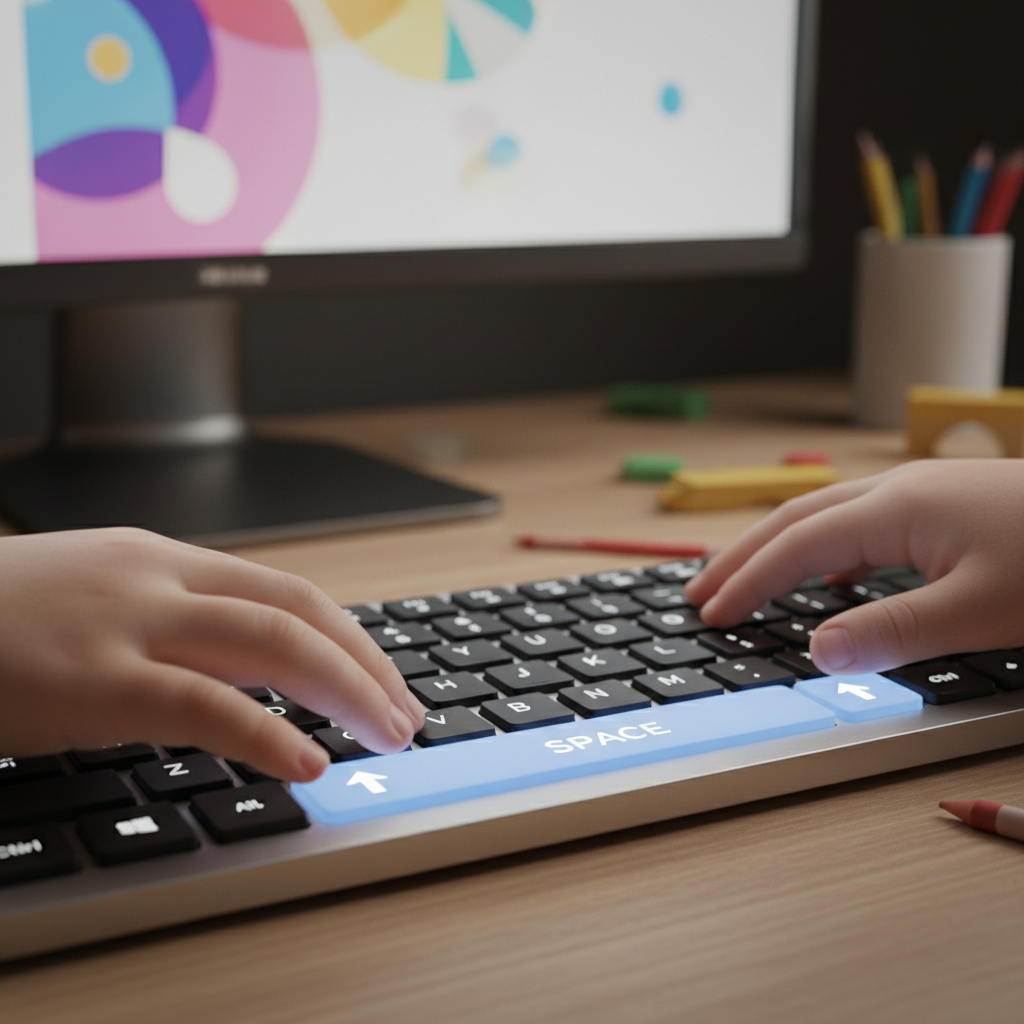
Look how the hands are resting on the keyboard. Can you spot the long Space Bar at the very bottom? And the Shift keys are usually on the left and right sides, a bit higher up.
Oops! Making a Mistake? No Problem!
Everyone makes mistakes, even expert typers! That's why there's a special key to help you fix them. It's usually called the Backspace key or sometimes Delete. It's often at the top right side of the letter keys.
How it works: If you type a wrong letter, just press the Backspace key, and it will erase the last letter you typed, like a magical eraser!
Analogy: The Backspace key is your super-speedy magic eraser that cleans up any little oopsies you make!
Let's Practice Our Typing Superpowers!
The best way to become a typing superstar is to practice! Start by finding the letters in your name. Then try typing simple words like "sun," "moon," "cat," "dog." Remember to use the Space Bar between words! And if you want to make the first letter of your name big, use the Shift key!
Keep looking at the screen as you type, not always at the keys. Your fingers will remember where the keys are with practice, just like you remember how to ride a bike without looking at your feet!
You are doing great! Keep practicing, and soon you'll be typing stories, messages, and all sorts of wonderful things!
Keep learning, free
Create a free Syllabax account to unlock practice questions and games for this topic.
Visual Learning Enhanced! 🚀
To help you master this topic, we use Advanced Syllabax AI to generate detailed diagrams and visual models.
Note on Visuals: The AI sometimes makes spelling errors in image labels. Please refer to the lesson text for the correct terminology.