Learning Journey
Watch this topic in 60 seconds
Free preview · Lesson 1
Understanding Email Essentials
Email Essentials: Your Digital Mailbox!
Hey there, future digital citizens! Have you ever wondered how people send messages around the world super fast, without needing a stamp or waiting for days? Welcome to the amazing world of Email! Think of email like sending a super-speedy letter through a magical digital post office.
What Exactly is Email?
The word 'email' is short for 'electronic mail.' It's a way to send messages, pictures, and files from one computer or device to another, almost instantly, using the internet. Imagine you want to tell your friend about your awesome weekend. Instead of writing it on paper and putting it in an envelope, you type it on your computer or tablet, hit 'send,' and *poof* – it arrives in their digital mailbox!
Analogy Time: The Digital Mailbox
Think of your email account like your own personal mailbox at home, but instead of physical letters, it receives digital messages. And just like a real mailbox, it has a unique address so people know where to send things!
Why Do We Use Email?
Email is super handy for lots of reasons:
- Speed: It's much faster than regular mail. Messages arrive in seconds!
- Convenience: You can send emails from almost anywhere with an internet connection.
- Keeping Records: Emails save a copy of your conversations, which can be helpful if you need to remember what was discussed.
- Sharing: You can easily send documents, photos, or videos to multiple people at once.
- Formal Communication: Grown-ups often use email for school, work, or important family messages. It's more formal than texting.
Your Email Address: Your Digital Home Address
Just like your house has a unique address (like 123 Main Street), your email account has a unique email address. It tells the internet exactly where to deliver your messages. An email address always looks something like this:
yourname@example.com
Let's break it down:
yourname(Username): This is your unique identifier. It's like your name on the mailbox. No two people can have the exact same username on the same service.@(At Symbol): This little symbol is super important! It separates your username from the rest of the address. Think of it as saying 'at' or 'located at.'example.com(Domain Name): This is the name of the email service provider. It's like the name of the post office or the neighborhood where your digital mailbox is located. Common ones are gmail.com, outlook.com, yahoo.com, or school.edu.
So, lilypad@school.edu means Lily Pad's email account is located at the 'school.edu' email service.
Composing an Email: Sending Your Message
When you write an email, it's called 'composing' an email. It's like writing a letter, but with some special digital parts:
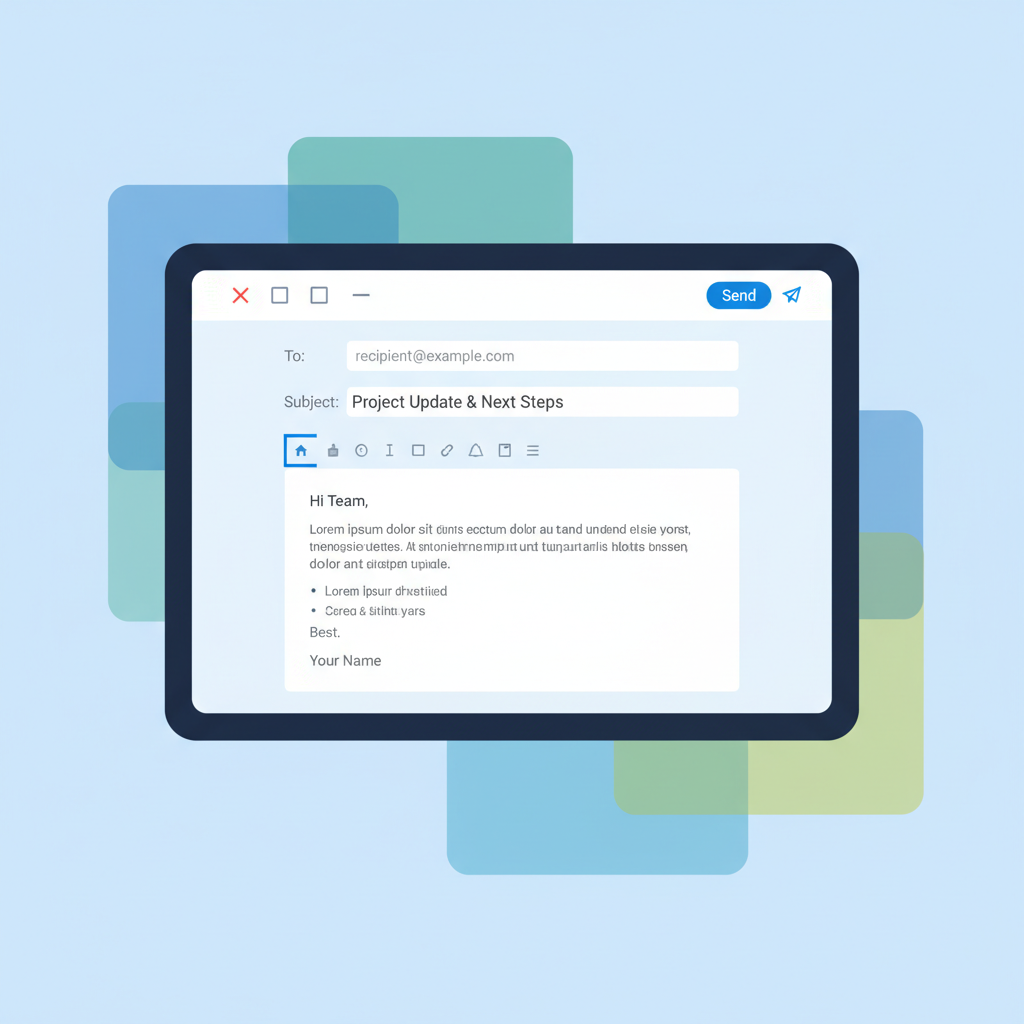 ⚠️ This picture may have spelling mistakes. Trust the words in the lesson.
- To: This is where you type the email address of the person (or people!) you want to send the email directly to. They are the main recipients.
- Cc: (Carbon Copy) Imagine you're sending a physical letter, and you want to send an exact copy to someone else so they know about it, but they're not the main person you're writing to. That's what Cc is for! It lets others see the email, but they aren't the primary recipient. Everyone in the 'To' and 'Cc' fields can see who else received the email.
- Bcc: (Blind Carbon Copy) This is a secret copy! If you put someone's email address in Bcc, they will receive a copy of the email, but no one else (not those in 'To' or 'Cc') will know that they received it. It's like sending a secret copy to someone. Use this carefully, usually when you need to send to many people and don't want to share everyone's email addresses with each other.
- Subject: This is a short, clear title for your email. It tells the recipient what your email is about before they even open it. Think of it like the title of a book or the headline of a newspaper article. A good subject line is key! (e.g., 'My Weekend Trip' or 'Homework Question').
- Body: This is the main part of your email where you write your message. This is where you share your thoughts, ask questions, or provide information.
- Attachment: Sometimes you want to send more than just text – like a photo of your pet, a school project document, or a video. An attachment lets you 'attach' these files to your email, like putting a photo inside a letter envelope.
Email Etiquette (Netiquette): Being Polite Online
Just like there are rules for being polite in person, there are rules for being polite and respectful when sending emails. We call this 'Netiquette' (Internet Etiquette).
- Be Clear with your Subject: Make sure your subject line accurately describes your email. No one likes guessing!
- Use Proper Greetings and Closings: Start with 'Dear [Name],' or 'Hello [Name],' and end with 'Sincerely,' 'Thanks,' or 'Best regards,' followed by your name.
- Write Clearly and Concisely: Get to the point! Try not to write super long paragraphs if a shorter one will do.
- Check your Spelling and Grammar: Always proofread your email before sending it. Mistakes can make your message hard to understand or look unprofessional.
- Avoid ALL CAPS: Writing in all capital letters is like shouting online. It can be rude and hard to read.
- Be Respectful: Always be kind and thoughtful in your messages. Remember there's a real person reading your words.
Email Safety: Staying Secure
Just like you wouldn't open a suspicious package delivered to your house, you need to be careful with emails!
- Don't Share Your Password: Your email password is like the key to your digital mailbox. Never share it with anyone, even your best friend!
- Be Careful with Unknown Senders: If you get an email from someone you don't know, or if it looks suspicious, don't open it. Ask a trusted adult first.
- Don't Click Suspicious Links: Sometimes emails contain links that can take you to unsafe websites or try to trick you into giving away personal information. If it looks fishy, don't click it!
- Think Before You Send: Once an email is sent, it's out there! Don't send anything you wouldn't want your parents, teachers, or future self to see.
Email is a powerful tool for communication, learning, and staying connected. By understanding these essentials, you're ready to use your digital mailbox wisely and safely!
Keep learning, free
Create a free Syllabax account to unlock practice questions and games for this topic.
Visual Learning Enhanced! 🚀
To help you master this topic, we use Advanced Syllabax AI to generate detailed diagrams and visual models.
Note on Visuals: The AI sometimes makes spelling errors in image labels. Please refer to the lesson text for the correct terminology.