Drawing with Paint Tools
Watch this topic in 60 seconds
Free preview · Lesson 1
Understanding Drawing with Paint Tools
🎨 Welcome to Your Digital Art Studio! 🎨
Hello, young artists! Have you ever wanted to draw and color without needing paper, crayons, or paint that might get messy? Well, guess what? Your computer has a super cool secret! It has a special art kit right inside it, called Paint Tools.
Think of your computer as a magical art box. Inside this box, there are different programs, and one of the most fun ones is a drawing program. It’s like having an entire art studio right on your screen!
🌟 Getting Started: Opening Your Art Kit! 🌟
To start your art adventure, you first need to open the drawing program. Usually, there's a little picture, called an icon, on your computer screen that looks like a paint palette, a brush, or a simple drawing. When you click on it, poof! Your digital art studio opens up.
It's just like how you open your real art kit at home – you open the box, and all your wonderful tools are waiting inside!
🖼️ Your Digital Canvas: The Blank Page! 🖼️
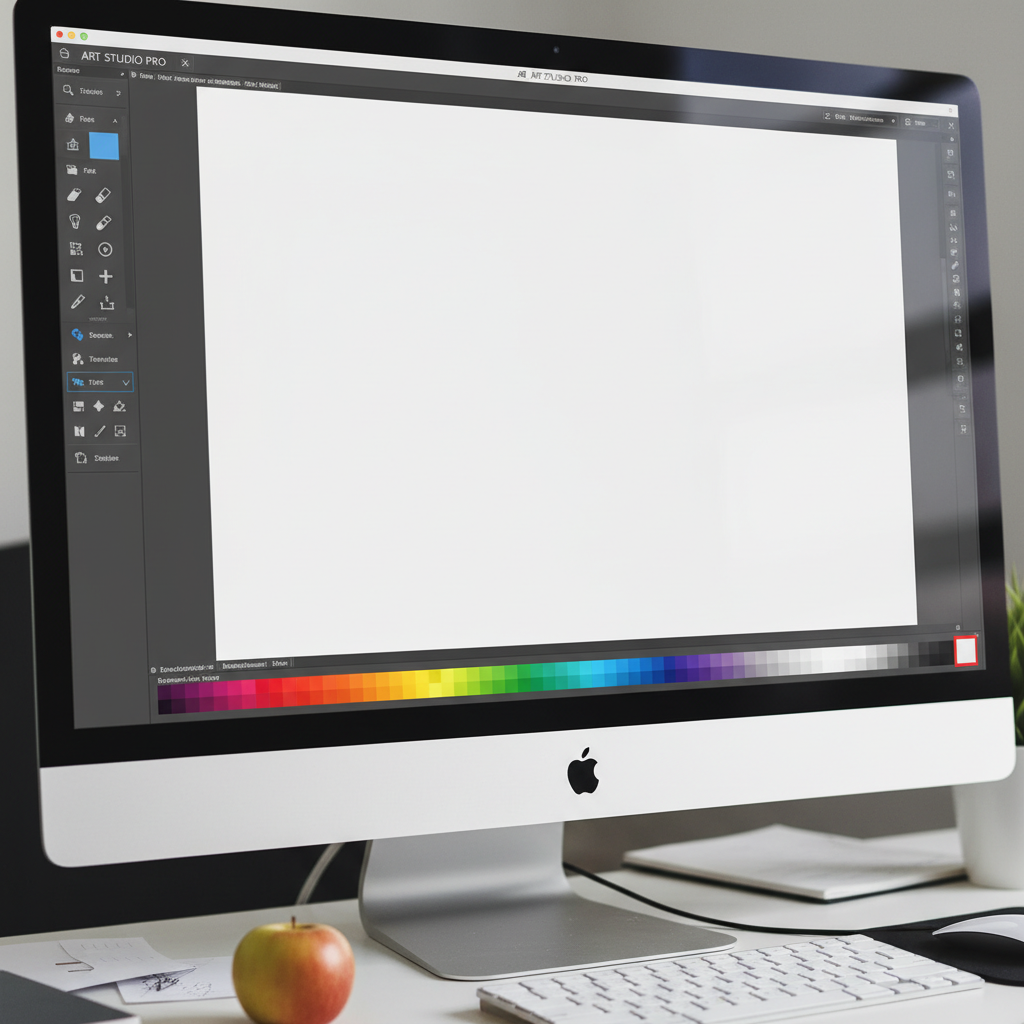
Once your drawing program is open, you'll see a big, usually white, empty space. This is your canvas! It's like a brand new, clean sheet of paper, just waiting for your amazing ideas to come to life. This is where all your drawings will appear.
Just like an artist uses a canvas or paper to draw, you'll use this digital canvas to create your masterpieces!
 ⚠️ This picture may have spelling mistakes. Trust the words in the lesson.
🖌️ Meet Your Awesome Art Tools! 🖌️
Now for the most exciting part: the tools! On the side or top of your screen, you'll see lots of little pictures. Each picture is a different tool, ready to help you draw, color, and create.
✏️ 1. The Pencil Tool
Imagine you have a real pencil in your hand. What can you do with it? You can draw thin lines, sketch outlines, and write! The Pencil Tool on your computer does exactly the same thing. Click on it, and then move your mouse (or finger on a tablet) across the canvas, and you'll see a thin line appear. It's great for drawing the edges of shapes or adding tiny details.
Analogy: It's your trusty sketching pencil, perfect for drawing the first lines of your creation.
🎨 2. The Brush Tool
Do you love painting? The Brush Tool is like having a whole set of paintbrushes! Unlike the pencil, the brush tool can draw thicker lines. You can often choose different sizes and shapes for your brush, just like you might have a big brush for painting a sky and a tiny brush for painting a flower's petals.
It's wonderful for coloring in larger areas or making broad, sweeping strokes. Some programs even let you choose brushes that look like crayons, markers, or even spray paint!
Analogy: It's your collection of paintbrushes, from thick ones for big splashes of color to thin ones for delicate touches.
↩️ 3. The Eraser Tool
Oh no! Did you draw something you didn't mean to? Don't worry! Every artist makes mistakes, and the computer has a super helper for that: the Eraser Tool. It usually looks like a pink rubber eraser.
Click on the eraser, move it over your drawing, and poof! The lines disappear. You can often make the eraser bigger or smaller too, just like you might use a big eraser for a big mistake or a small one for a tiny smudge.
Analogy: It’s your magical rubber eraser that helps make drawing mistakes vanish, so you can try again!
bucket 4. The Fill Tool (Paint Bucket)
Imagine you've drawn a big circle and you want to color it red. Would you color it in with a pencil or brush, bit by bit? That takes a long time, right? The Fill Tool, which often looks like a tipping paint bucket, is here to save the day!
First, pick a color from your color box (we'll talk about that next!). Then, click the paint bucket tool. Now, click inside the shape you want to color. Whoosh! The entire shape instantly fills with your chosen color!
But be careful! If your shape has a tiny gap in its outline, the color might 'leak out' and fill your whole canvas! Make sure your shapes are completely closed.
Analogy: It's like pouring a big bucket of juice into a cup – it fills up super fast!
🌈 5. The Color Palette (Your Crayon Box!)
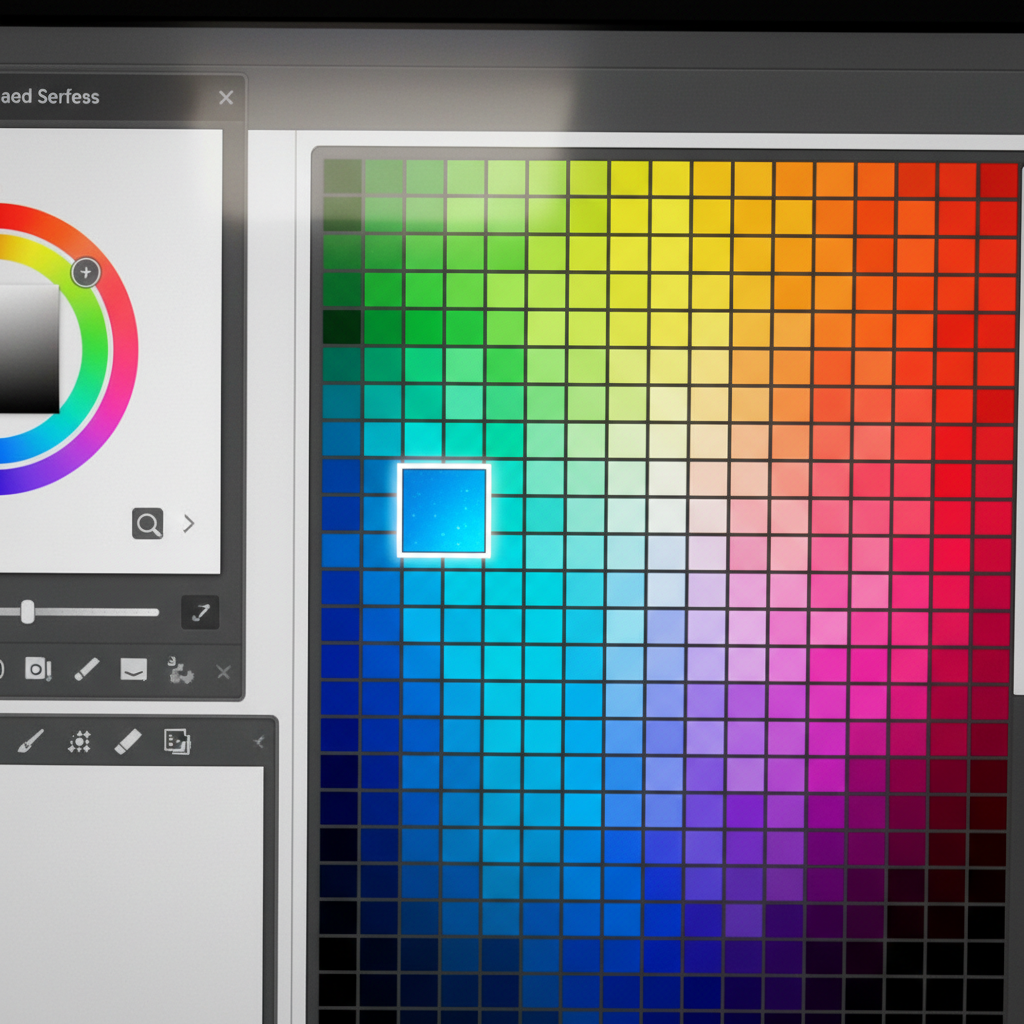
What's art without color? On your screen, you'll see a box or strip with lots of different colors. This is your Color Palette. It's like having a giant box of crayons or a tray full of paints, all ready for you to choose from!
To pick a color, simply click on the one you like. Once you've chosen, your pencil, brush, or fill tool will use that color until you pick a new one. Want to draw a sunny yellow sun? Click yellow! Want a blue ocean? Click blue!
 ⚠️ This picture may have spelling mistakes. Trust the words in the lesson.
Analogy: It’s your super-duper crayon box, filled with every color you can imagine!
🎨 Putting It All Together: Making Art! 🎨
Let's imagine you want to draw a happy house with a garden.
- First, use the Pencil Tool to draw the outline of your house, windows, door, and a roof.
- Then, select the Brush Tool, pick a green color from the Color Palette, and draw some bushes and grass for the garden.
- Oops, the roof looks a bit crooked! Grab the Eraser Tool and carefully fix it.
- Now for some fast coloring! Choose a red color from the Color Palette, click the Fill Tool (Paint Bucket), and click inside the roof shape to make it red in a flash!
- Continue filling in other parts of your house with different colors you like!
💾 Saving Your Masterpiece! 💾
You've worked hard and created something wonderful! You don't want to lose your drawing, do you? Just like you might put a real drawing in a special folder or hang it on the fridge, you need to save your digital art.
Look for a button that says 'File' at the top of your screen, then click 'Save' or 'Save As'. Your teacher or a grown-up can help you pick a good name for your drawing and save it in a safe place on the computer. Then, you can open it again later to show your friends or add more details!
Analogy: Saving your drawing is like putting it in a special treasure chest so it's safe and you can look at it whenever you want.
🎉 Keep Creating! 🎉
Drawing with paint tools is so much fun! The more you practice, the better you'll become at using all the different tools to make amazing pictures. Don't be afraid to experiment and try new things. Your imagination is the only limit!
Keep learning, free
Create a free Syllabax account to unlock practice questions and games for this topic.
Visual Learning Enhanced! 🚀
To help you master this topic, we use Advanced Syllabax AI to generate detailed diagrams and visual models.
Note on Visuals: The AI sometimes makes spelling errors in image labels. Please refer to the lesson text for the correct terminology.