Understanding Software Types
Watch this topic in 60 seconds
Free preview · Lesson 1
Understanding Understanding Software Types
Understanding Software Types: Your Digital Toolboxes! (Grade 7)
Imagine your computer or smartphone as a super-smart robot. It has arms, legs, eyes, and a screen – these are its physical parts, like bones and muscles. But what tells it what to do? How does it know to show you a video, play a game, or help you write a report? That's where software comes in!
Think of software as the brain, the instructions, or the recipes that tell the robot (your computer) exactly what actions to perform. Without software, your super-smart robot is just a pile of plastic and metal. It can't do anything useful!
Software vs. Hardware: A Team Effort!
Before we dive into different types of software, let's quickly remember the difference between software and hardware.
- Hardware: These are the physical parts of a computer that you can touch and see. Think of the screen, keyboard, mouse, printer, and the actual computer box. They are like the body of the robot.
- Software: These are the non-physical instructions and programs that tell the hardware what to do. You can't touch software, but you interact with what it does. It's like the robot's brain and the commands you give it.
Analogy: Think of a car. The car itself (the engine, wheels, seats, steering wheel) is the hardware. The rules of the road, the driver's knowledge of how to operate it, and the GPS instructions guiding you to your destination – that's the software. Both are essential for the car to move and get you somewhere!
Two Big Families of Software: System Software and Application Software
Just like tools in a toolbox, software comes in different types, each with its own special job. We can broadly divide software into two main families: System Software and Application Software.
Family 1: System Software - The Behind-the-Scenes Boss!
System software is like the manager or the conductor of an orchestra. Its main job is to make sure the computer itself runs smoothly and efficiently. It handles all the important background tasks so that other programs can work. You might not always "see" system software, but it's always working hard behind the scenes!
Analogy: Imagine a school. The system software is like the principal, the teachers, the janitors, and the school rules. They make sure the school building is safe, organized, and that classes can run properly. Students don't usually interact directly with the principal every minute, but their work makes everything else possible.
Key Types of System Software:
- Operating System (OS): This is the most important piece of system software! It's the master program that manages all the hardware and other software on your computer. When you turn on your computer, the OS is the first thing that starts up.
- What it does: It manages memory, processes (like opening apps), input (keyboard, mouse), and output (screen, printer). It provides the "desktop" or "home screen" you see and allows you to open other programs.
- Analogy: The operating system is like the brain of your computer. Or, think of it as the traffic cop at a busy intersection, directing all the cars (programs) and making sure they don't crash into each other.
- Examples: Windows (on many desktop computers), macOS (on Apple computers), Android (on most smartphones), iOS (on iPhones and iPads).
- Utility Software: These are like handy tools that help the operating system keep your computer healthy, clean, and safe.
- What it does: They perform maintenance tasks.
- Analogy: These are like the cleaning crew, the mechanic, or the security guards for your computer.
- Examples:
- Antivirus Software: Protects your computer from harmful viruses (like a security guard).
- Disk Defragmenter: Organizes files on your hard drive to make your computer run faster (like tidying up a messy room).
- File Compression Software: Makes files smaller to save space (like packing clothes tightly in a suitcase).
- Device Drivers: These are small programs that allow your operating system to communicate with hardware devices like printers, keyboards, or webcams.
- What it does: They translate commands between the OS and a specific piece of hardware.
- Analogy: Think of a translator speaking two different languages. The operating system speaks one language, and your printer speaks another. The device driver translates so they can understand each other.
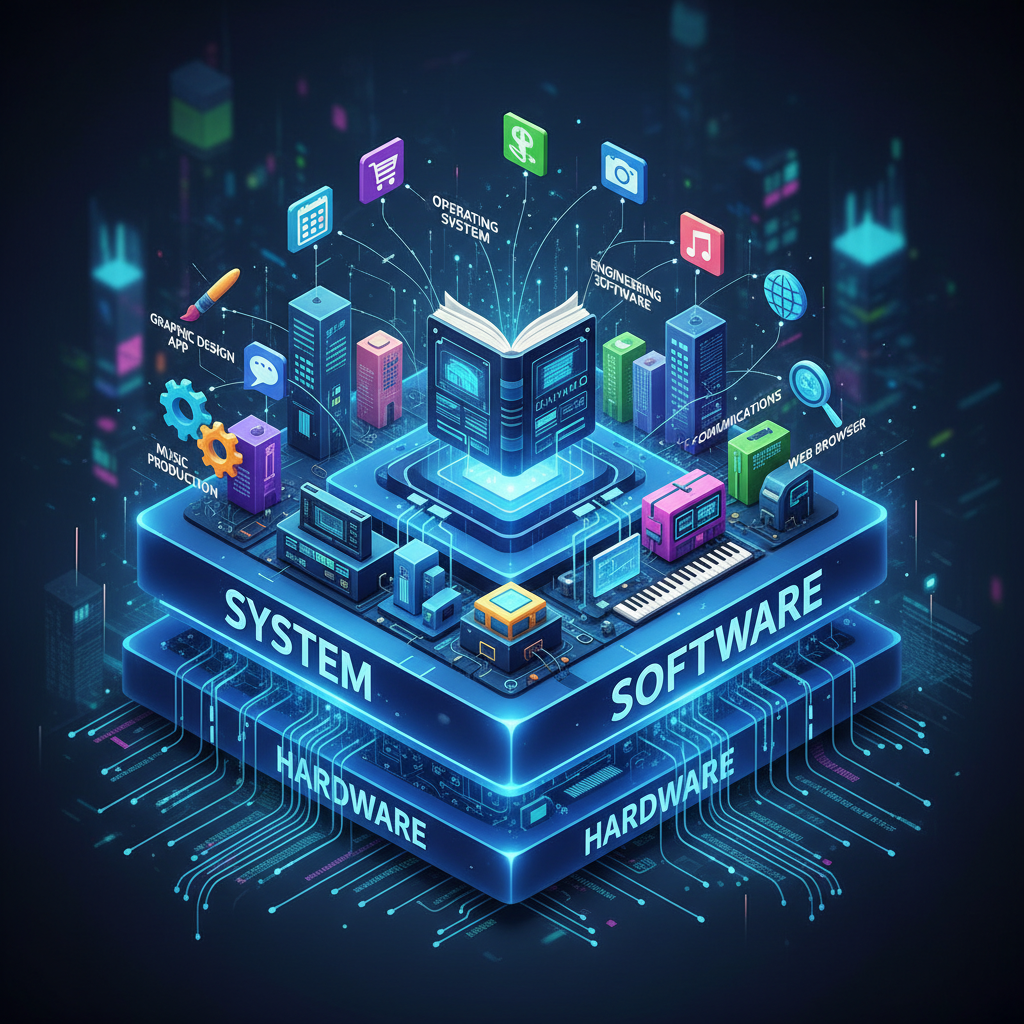 ⚠️ This picture may have spelling mistakes. Trust the words in the lesson.Family 2: Application Software - Your Everyday Tools!
Application software, often just called "apps," are the programs you use to perform specific tasks or activities that you want to do. These are the tools that help you get things done, have fun, or communicate with others.
Analogy: Going back to our school analogy, application software is like all the actual classes and activities that happen inside the school – math class, art class, sports practice, the school play. They are built on top of the school's foundation (system software) and allow students to learn and create.
Key Types of Application Software:
- Productivity Software: These apps help you create things, organize information, and be more productive (get work done efficiently).
- Analogy: Your school backpack filled with notebooks, pens, and a calculator.
- Examples:
- Word Processors: For writing documents, essays, or letters (e.g., Microsoft Word, Google Docs).
- Spreadsheet Software: For organizing numbers, data, and making calculations (e.g., Microsoft Excel, Google Sheets).
- Presentation Software: For creating slideshows with text and images (e.g., Microsoft PowerPoint, Google Slides).
- Communication Software: These apps help you talk, share, and connect with people near and far.
- Analogy: Telephones, mail, and walkie-talkies.
- Examples: Email programs (e.g., Gmail, Outlook), Messaging apps (e.g., WhatsApp, Telegram), Video conferencing apps (e.g., Zoom, Google Meet).
- Entertainment Software: These apps are all about fun!
- Analogy: Board games, movies, music players.
- Examples: Video games, music streaming services (e.g., Spotify, Apple Music), video streaming services (e.g., Netflix, YouTube).
- Educational Software: Apps designed to help you learn new things or practice skills.
- Analogy: Textbooks, flashcards, or a tutor.
- Examples: Language learning apps (e.g., Duolingo), encyclopedias, interactive learning games.
- Web Browsers: While they help you access a wide range of content (which can be productive, entertaining, or educational), web browsers are a unique and essential type of application software that allows you to explore the internet.
- Analogy: A special vehicle or map that takes you to different websites on the vast "internet highway."
- Examples: Google Chrome, Mozilla Firefox, Microsoft Edge, Apple Safari.
Working Together: A Perfect Partnership!
It's important to remember that system software and application software aren't enemies; they are a team! Application software relies on system software to function. You can't play a game (application software) without an operating system (system software) running your computer first.
Think of it like building a house. The foundation, walls, and roof (system software) need to be in place before you can put in the furniture, paint the walls, and add decorations (application software). Both are crucial for a complete and useful experience!
Now you know the two main families of software and how they make your digital world go round!
Keep learning, free
Create a free Syllabax account to unlock practice questions and games for this topic.
Visual Learning Enhanced! 🚀
To help you master this topic, we use Advanced Syllabax AI to generate detailed diagrams and visual models.
Note on Visuals: The AI sometimes makes spelling errors in image labels. Please refer to the lesson text for the correct terminology.