Creating New Files
Watch this topic in 60 seconds
Free preview · Lesson 1
Understanding Creating New Files
Let's Create! Making New Files on Your Computer
Welcome, digital explorers! Today, we're going on an exciting adventure to learn a super important skill: making brand new files on your computer. Think of your computer as a giant, magical workshop, and files are like the different projects or creations you make inside it. Every story you write, every picture you draw, and every game you play lives inside a file!
What Exactly is a Computer File?
Imagine your classroom. You have notebooks for different subjects, drawing paper for art, and maybe even a special folder for important notices. A computer file is very much like one of these physical items, but it's digital! It's a special place on your computer where you store information.
- Document Files: These are like your blank lined notebook pages, perfect for writing stories, doing homework, or making lists. Programs like Microsoft Word or Google Docs help you make these.
- Picture Files: These are like a blank canvas ready for your colorful drawings or a photo album where you keep all your favorite pictures. Paint programs or photo editors work with these.
- Music Files: Think of these as a CD or a record. They hold your favorite songs or sound recordings.
- Video Files: These are like an empty video tape or a space on a video-sharing website where you can save a movie or a special moment you recorded.
Each type of file has a special job, and they all need a place to start: a brand new, empty space!
Why Do We Need to Make New Files?
Creating a new file is like getting a fresh start! Here's why it's so helpful:
- To Start Fresh: Just like you'd grab a brand new, empty piece of paper to start a new drawing, you create a new file to begin a fresh project without any old information on it.
- To Keep Things Organized: Imagine if all your schoolwork for every subject was on just one giant piece of paper! It would be a mess! New files help you keep each project separate and tidy, like having a different notebook for each subject.
- To Save Your Ideas: When you have a brilliant idea for a story or a cool design for a robot, you need a place to put it. A new file is that perfect, safe space to store your wonderful creations so you can come back to them later.
How Do We Make a New File? (Method 1: Inside a Program)
One of the most common ways to create a new file is when you're already using a program, like a drawing app or a word processor.
Imagine you've just opened your favorite drawing program (like Microsoft Paint or a simple online drawing tool). Sometimes it opens up with a picture you were working on last, or maybe just a blank grey area. But what if you want to start a completely new drawing?
Here's how you do it:
- Look for the 'File' Menu: At the very top-left corner of almost every program, you'll see a word that says "File." This is like the 'control panel' for your project. Click on it!
- Find 'New': When you click 'File,' a list of options will drop down. Look for words like "New," "New Document," or "New Project." This is your magic button for a fresh start!
- Click and Create!: Click on "New," and poof! A brand new, empty canvas or document will appear, ready for your imagination to fill it up.
Analogy Time: Think of it like being in a kitchen and wanting to bake a new cake. You wouldn't use the same pan with leftover crumbs from yesterday's cake, right? You'd get a *new*, clean baking pan! Clicking "File > New" is like getting that fresh, clean pan for your digital creation.
Here's what it might look like:
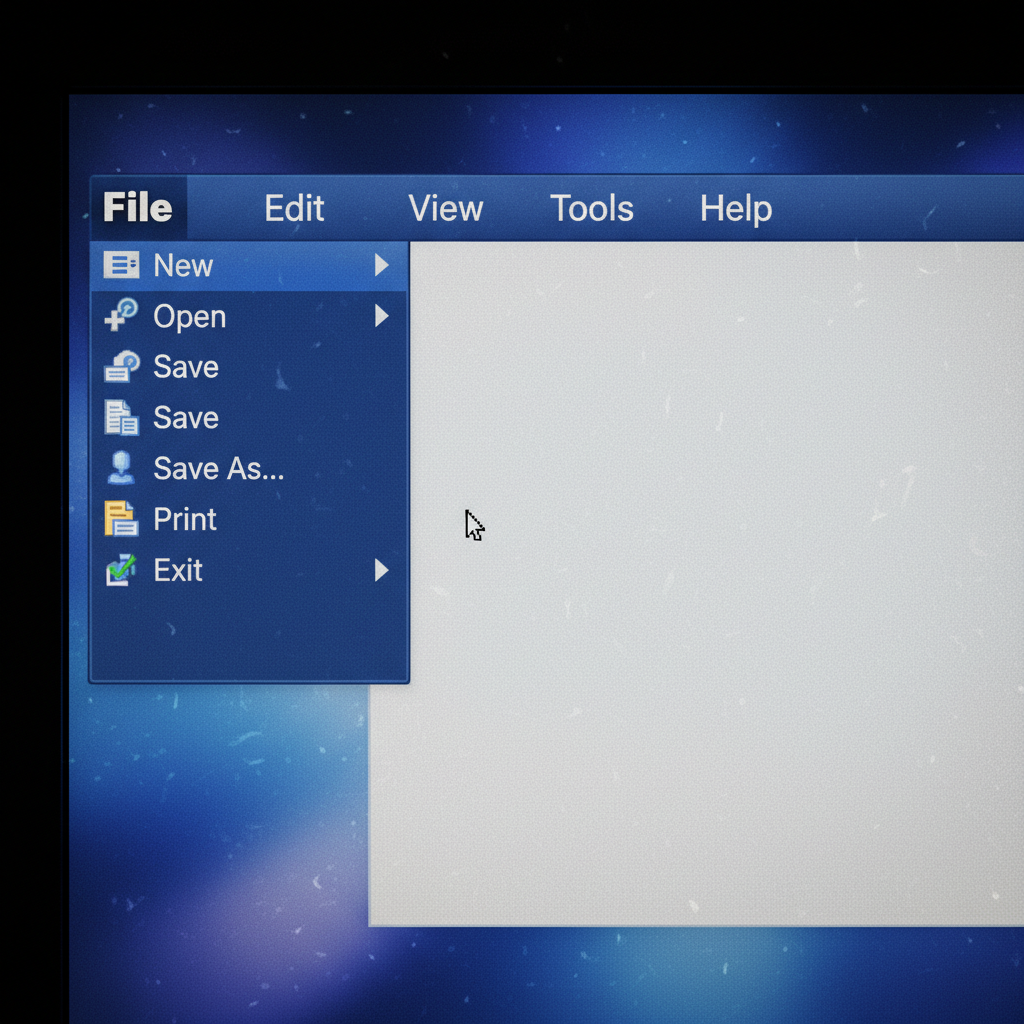 ⚠️ This picture may have spelling mistakes. Trust the words in the lesson.
How Do We Make a New File? (Method 2: On Your Desktop or in a Folder)
Sometimes, you want to create an empty "container" or a blank piece of paper ready for something, even before you've opened a specific program. You can do this right on your computer's desktop (the main screen you see when you turn on your computer) or inside any folder.
Here’s how this magic trick works:
- Find an Empty Spot: Move your mouse cursor to an empty space on your desktop, or open a folder and find an empty area inside it.
- Right-Click Your Mouse: This is a special click! On most computer mice, it's the button on the right side. If you're using a laptop trackpad, you might need to tap with two fingers at the same time, or press the bottom-right part of the trackpad.
- A Pop-Up Menu Appears: After you right-click, a small menu will magically pop up! This menu gives you many options.
- Look for 'New': In that pop-up menu, you'll see an option called "New." Hover your mouse over it (don't click yet!).
- Choose Your File Type: When you hover over "New," another smaller menu will appear next to it. This menu shows you different types of files you can create, like "New Text Document," "New Microsoft Word Document," "New Folder," or sometimes even options for new drawing or spreadsheet files. Choose the type of file you want to make.
- Voila!: Click on your chosen file type, and an empty file will instantly appear right where you right-clicked, waiting for you to name it!
Analogy Time: This is like you're organizing your backpack. Before you even start writing, you might take out a *new*, empty binder, label it "Science," and put it in your bag. You're preparing the space for future papers, even though it's empty right now!
Here's what it might look like:
Don't Forget to Name Your New File!
This step is super, super important! Just like you label your school folders or your lunchbox, you need to give your computer files clear names. When you create a new file, it usually gets a boring default name like "Untitled" or "New Document."
Right after the file appears, its name will probably be highlighted, ready for you to change it. Click on the name, delete the old text, and type something clear and descriptive so you know exactly what's inside. For example, instead of "Untitled," you could name it "My Robot Story" or "Favorite Animal Drawing."
Analogy Time: You wouldn't put an unlabelled bottle of juice in the fridge and hope you remember if it's apple or orange juice later, would you? You'd label it! Naming your files helps you find them easily later and keeps your computer organized.
Saving Your Work - The Super Important Step!
Creating a new file gives you a blank space. Now, fill it up with your amazing ideas! But remember, just because you've typed something or drawn something doesn't mean it's saved forever. Computers need you to tell them to remember your work.
After you've done some work in your new file, always remember to save it! You can usually do this by going back to the "File" menu and choosing "Save" or "Save As." If it's your very first time saving the file, the computer will ask you where you want to keep it and might let you change its name again. Make sure you save often!
Analogy Time: After you finish writing in your school notebook, you close it and put it in your backpack or on your shelf where it's safe. You don't leave it open on the floor where it might get lost, crumpled, or messed up! Saving is like putting your digital work safely away.
You're a File Creator!
Congratulations! You've learned the fundamental steps to create new files on your computer. This skill is like having a key to unlock endless possibilities for writing, drawing, organizing, and saving all your digital adventures. Practice makes perfect, so try creating a few new files today! You're now a true digital builder!
Keep learning, free
Create a free Syllabax account to unlock practice questions and games for this topic.
Visual Learning Enhanced! 🚀
To help you master this topic, we use Advanced Syllabax AI to generate detailed diagrams and visual models.
Note on Visuals: The AI sometimes makes spelling errors in image labels. Please refer to the lesson text for the correct terminology.