Learning Journey
Watch this topic in 60 seconds
Free preview · Lesson 1
Understanding Opening and Closing Programs
Welcome, Young Computer Explorers! Learning to Open and Close Programs
Hello there, super smart 4th graders! Today, we're going on an exciting adventure into the world of computers. Don't worry, it's not scary, it's actually super helpful and fun! Think of your computer like a magic toolbox, and inside this toolbox are lots of different tools. Each tool helps you do something special, like drawing a picture, writing a story, or playing a game. These 'tools' are what we call programs or applications (apps for short!).
What Exactly IS a Program?
Imagine you want to draw a beautiful rainbow. You wouldn't use a hammer, right? You'd use crayons and paper. On a computer, if you want to draw, you use a 'drawing program' like Paint. If you want to write a letter, you use a 'writing program' like WordPad. So, a program is just a special set of instructions that tells the computer how to do a specific job.
Analogy Time! Programs are Like Toys!
Think about your favorite toys at home. You have building blocks, a board game, and maybe a toy car. Each toy does something different, right? Building blocks let you build, the board game lets you play a game with rules, and the car lets you zoom around. In the computer world, programs are just like those toys! A drawing program is like your art supplies, a game program is like your board game, and an internet browser program is like a special car that takes you to different websites.
Opening a Program: Inviting Your Toy to Play!
Before you can play with your toy car, you have to take it out of its box or off the shelf, right? It's the same with computer programs! To use a program, you first need to open it. Opening a program means telling the computer, "Hey, I want to use this now!"
How Do We Open Programs? Let's Find Out!
There are usually a few ways to open a program, like having different doors to enter the same room:
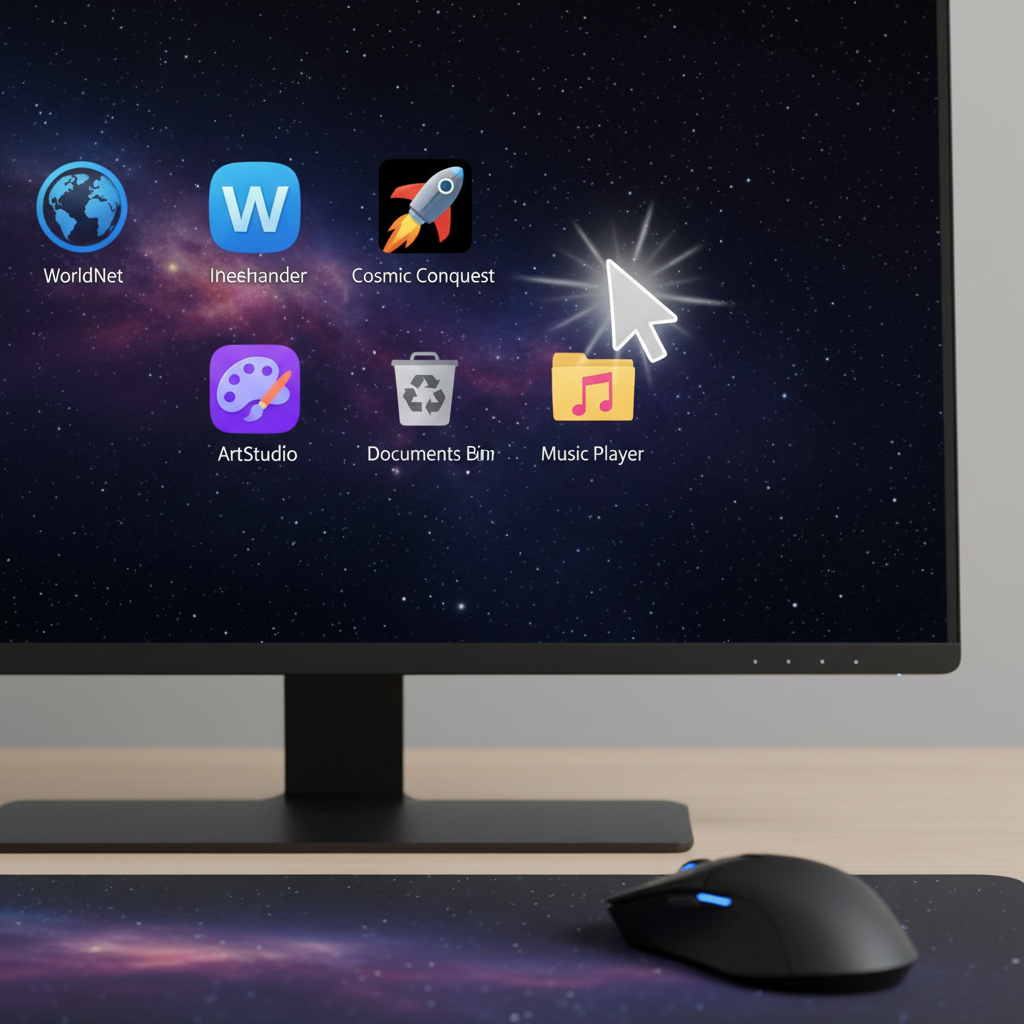
- Clicking on an Icon on the Desktop: Your desktop is like the main table in your room. Sometimes, you'll see small pictures (we call them icons) on this 'table'. These icons are shortcuts to your programs. To open a program from here, you usually need to double-click it. That means clicking your mouse button twice very quickly. It's like knocking twice on a door to make sure someone hears you!
 ⚠️ This picture may have spelling mistakes. Trust the words in the lesson.
- Using the Start Menu: If you don't see your program icon on the desktop, don't worry! There's a special button, usually at the bottom left of your screen, called the Start button (it often looks like a window or a circle). Clicking this button opens the Start Menu, which is like a giant list of all the programs on your computer. You can then scroll through the list and single-click (just one click!) on the program you want to open. This is like looking at a menu in a restaurant to choose your food – you just point to what you want!
- Clicking on an Icon on the Taskbar: The taskbar is the long strip at the very bottom of your screen. Sometimes, you'll see program icons 'pinned' there, like important tools you always keep handy on your desk. A single-click on one of these icons will open the program. It's super fast!
Once you click or double-click, a window will pop up on your screen, and VOILA! The program is open and ready for you to use. It's like opening a book to start reading or pressing 'play' on your favorite video game!
Closing a Program: Time to Put Your Toys Away!
After you've finished playing with your toys, what do you usually do? You put them away, right? You don't leave them scattered all over the floor! It's the same with computer programs. When you're done using a program, it's very important to close it. Closing a program is like telling the computer, "Okay, I'm finished with this now, you can put it away."
Why is Closing Programs Important?
Imagine you have a lot of toys out. Your room might get messy, and it might be hard to find space for new toys. Your computer is similar! When programs are open, they use up some of the computer's 'brainpower' (called memory) and energy. If you have too many programs open, your computer can become slow, just like a grown-up trying to do too many things at once!
How Do We Close Programs? Three Easy Ways!
Just like opening, there are a few ways to close a program. Think of them as different ways to say "goodbye!":
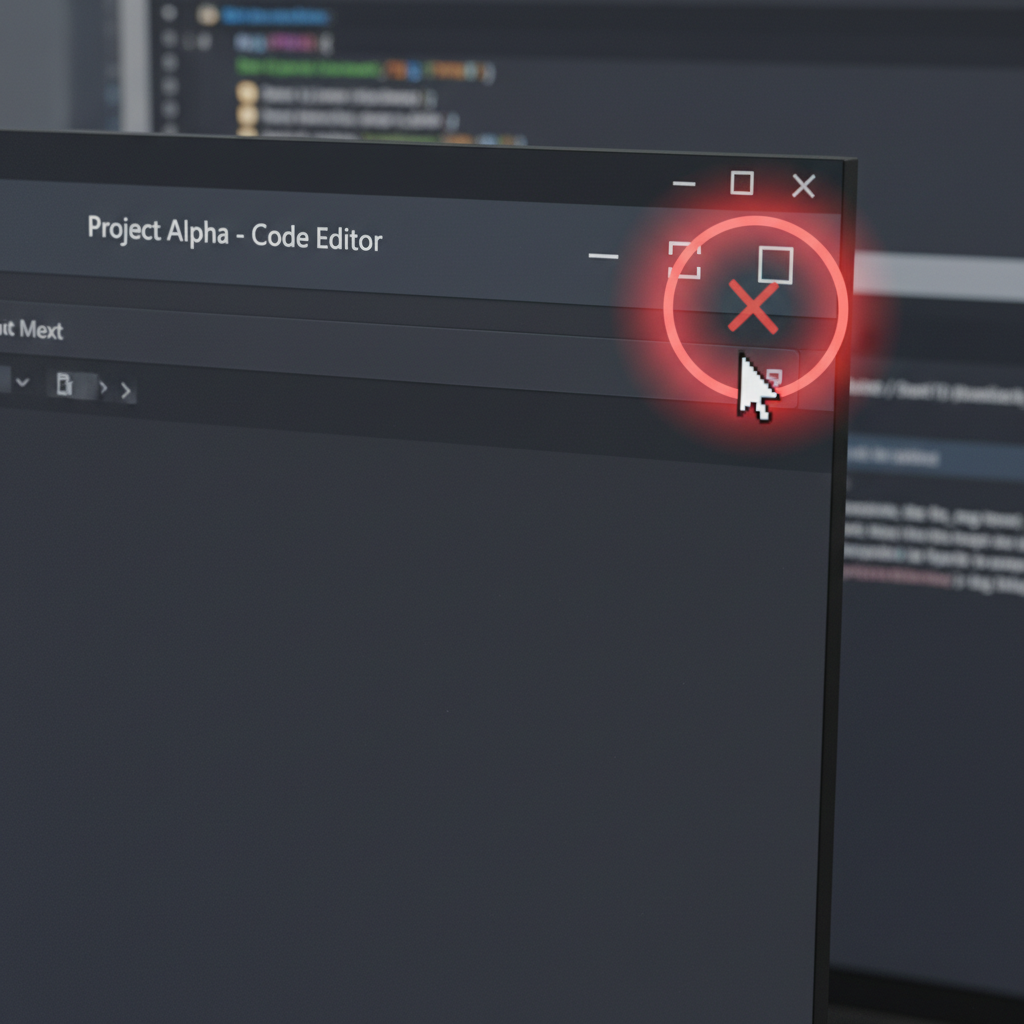
- Using the 'X' Button: This is the most common way! Look at the very top-right corner of the program's window. You'll see three small buttons. The one furthest to the right is usually a red square or circle with a white 'X' inside it. This 'X' stands for "Exit" or "Close". Clicking this button is like gently closing the door when you leave a room.
 ⚠️ This picture may have spelling mistakes. Trust the words in the lesson.
- Using the "File" Menu: Sometimes, at the very top of the program's window, you'll see words like "File," "Edit," "View." If you click on "File," a menu will drop down. Somewhere in that list, you'll often see "Exit" or "Close." Clicking that will close the program. This is like telling someone, "I'm leaving now," in a polite way.
- Right-Clicking the Taskbar Icon: Remember the taskbar at the bottom? If a program is open, its icon will show up there. You can right-click (using the other mouse button, usually the one on the right for right-handed people) on that icon. A small menu will pop up, and you'll often see an option like "Close window" or "Close." Click that, and poof, the program is gone!
Don't Forget to SAVE!
This is super, super important! If you're drawing a picture, writing a story, or building something in a program, and you don't want to lose your hard work, you MUST save it before you close the program! Saving is like putting your finished artwork in a special folder so you can look at it again later. If you close a program without saving, all your new work will disappear, like magic (but not the fun kind!). The computer will often ask you, "Do you want to save your changes?" If you want to keep your work, always click "Yes" or "Save."
You're a Program Pro!
See? Opening and closing programs are like learning to open and close doors – simple once you know how, and very important for moving around comfortably in the computer world. Keep practicing, and you'll be a computer expert in no time!
Keep learning, free
Create a free Syllabax account to unlock practice questions and games for this topic.
Visual Learning Enhanced! 🚀
To help you master this topic, we use Advanced Syllabax AI to generate detailed diagrams and visual models.
Note on Visuals: The AI sometimes makes spelling errors in image labels. Please refer to the lesson text for the correct terminology.