File & Folder Management
Watch this topic in 60 seconds
Free preview · Lesson 1
Understanding File & Folder Management
Understanding Your Digital World: Files and Folders (Grade 7)
Imagine your backpack or your bedroom. If everything was just thrown in there without any order, how hard would it be to find your math homework, your favorite book, or even a specific sock? Pretty hard, right? Well, your computer is a lot like that backpack or bedroom. It stores tons of information, and just like you need a system to organize your physical belongings, you need a system to organize your digital stuff! That system is called File and Folder Management.
What is a File? Your Digital Stuff!
Think of a file as a single item of information on your computer. It's like a single sheet of paper, a photograph, a song on a CD, or a short video clip. Each file has a specific purpose and contains certain data.
- Document Files: These are like your written reports, stories, or homework assignments. Examples include a research paper you typed in Microsoft Word (often ending in .docx) or a presentation you created (like a PowerPoint .pptx).
- Image Files: These are your digital photos or pictures you find online. Think of your selfies, pictures of your pet, or drawings you scan (often ending in .jpg, .png, or .gif).
- Audio Files: These are your music, podcasts, or recordings of your voice. If you listen to music on your computer, you're interacting with audio files (often ending in .mp3 or .wav).
- Video Files: These are your movies, short clips, or videos you record with your phone. That funny cat video you watched? It's a video file (often ending in .mp4 or .mov).
Every file has a name, and often a little secret label at the end called an 'extension' (like .docx or .jpg) that tells the computer what type of file it is, much like a book's cover tells you if it's a novel or a textbook.
What is a Folder? Your Digital Containers!
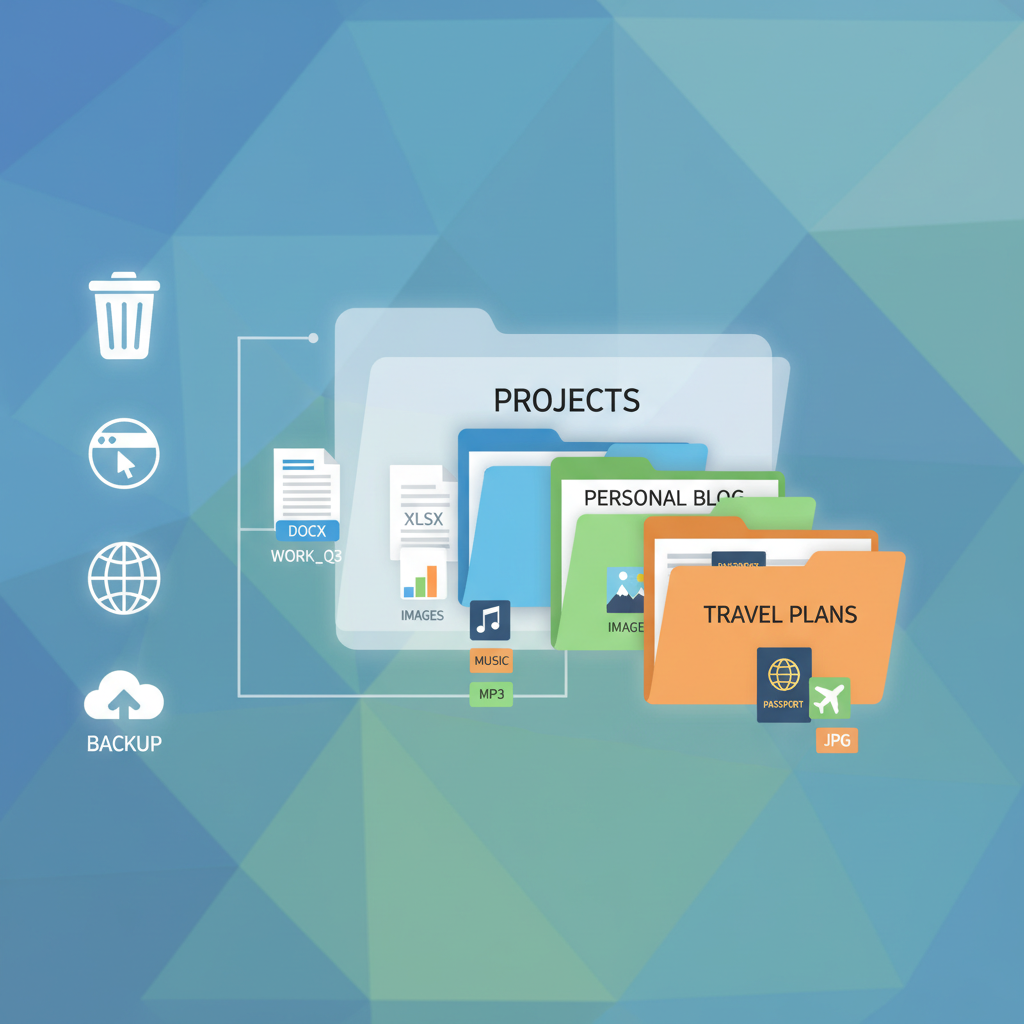
Now that we know what files are, how do we keep them organized? We use folders! Think of a folder as a box, a drawer, or a physical file folder you might use for school papers. Its job is to hold and organize your files, and even other folders!
Analogy: Your Locker at School
Imagine your school locker. Inside, you don't just throw all your books, notebooks, and gym clothes onto the floor, right? You probably have shelves or maybe even smaller bins for specific items. Your locker (the computer's main storage) holds everything. Your textbooks go on one shelf (a folder), your notebooks in another section (another folder), and maybe your gym clothes in a separate bag (yet another folder!). Folders help you group similar items together.
 Creating and Naming Files and Folders: Be a Digital Librarian!
The first step to organizing is creating your containers and giving them useful labels.
How to Create a Folder:
- Go to the area on your computer where you want to create the folder (like your 'Documents' folder or your 'Desktop').
- Right-click an empty space. A menu will pop up.
- Hover your mouse over 'New' (or 'New Folder' directly on some systems).
- Click on 'Folder'. A new folder icon will appear, usually named 'New Folder'.
Naming Files and Folders: Keep it Clear!
This is super important! Giving your files and folders clear, descriptive names is like labeling your storage boxes. If you label a box 'Stuff', you'll have no idea what's inside! But if you label it 'Summer Vacation Photos 2023' or 'Science Project Notes - Volcanoes', you'll know exactly what to expect.
- Be Specific: Instead of 'My Story', try 'Fantasy Story - Dragon's Tale - Draft 1'.
- Avoid Special Characters: Stick to letters, numbers, spaces, and sometimes hyphens or underscores. Characters like /, \, :, *, ?, ", <, >, | can cause problems.
- Consistency is Key: Decide on a naming style and try to stick with it. This makes it easier to find things later.
Moving, Copying, and Deleting: Managing Your Digital Goods
Once you have files and folders, you'll need to move them around, make copies, or get rid of things you no longer need.
Moving Files and Folders (Cut & Paste or Drag & Drop):
Analogy: Moving an Item from One Drawer to Another
When you 'move' a file, it's like taking a toy out of one drawer and putting it into another. The toy is no longer in the first drawer; it's only in the second.
- Drag & Drop: Click on the file or folder you want to move, hold down the mouse button, drag it over to the new folder, and release the button.
- Cut & Paste: Right-click the file/folder, select 'Cut'. Then go to the new destination folder, right-click an empty space, and select 'Paste'.
Copying Files and Folders (Copy & Paste):
Analogy: Photocopying a Document
When you 'copy' a file, it's like making a photocopy of a document. You still have the original document, but now you also have an identical copy in a different location.
- Copy & Paste: Right-click the file/folder, select 'Copy'. Then go to the new destination folder, right-click an empty space, and select 'Paste'. Now you have two identical versions of that file/folder. This is useful for backups!
Deleting Files and Folders: Cleaning Up!
Analogy: Throwing Trash into the Recycling Bin
When you delete a file or folder, it doesn't usually disappear forever immediately. It typically goes into a special temporary holding place, like a recycling bin or trash can. This gives you a chance to change your mind and retrieve it if you made a mistake!
- How to Delete: Right-click the file/folder and select 'Delete' (or 'Move to Trash' on some systems). You can also select it and press the 'Delete' key on your keyboard.
- The Recycle Bin/Trash: This is a special folder on your desktop where deleted items go. You can open it, see what's inside, and 'Restore' items back to their original location if needed.
- Emptying the Recycle Bin/Trash: To permanently remove items and free up space, you'll need to right-click the Recycle Bin/Trash icon and select 'Empty Recycle Bin' (or 'Empty Trash'). Be very sure before you do this, as once it's empty, the items are much harder (sometimes impossible) to get back!
Why Bother? The Power of Organization!
You might be thinking, "This sounds like a lot of work!" But trust me, good file and folder management saves you so much time and frustration in the long run.
- Find Things Faster: No more wasting time searching endlessly for that one report.
- Keep Your Computer Tidy: A cluttered digital space can feel as overwhelming as a messy room.
- Stay Organized: It helps you keep track of your projects, assignments, and personal memories.
- Prevent Loss: Knowing where things are and making copies can prevent accidental loss of important work.
Think of your computer as a giant library. If all the books were just piled on the floor, it would be impossible to find anything! But with proper shelves (folders) and labels (names), finding the book you need is quick and easy. By becoming a good digital organizer, you become the librarian of your own computer!
Keep learning, free
Create a free Syllabax account to unlock practice questions and games for this topic.
Visual Learning Enhanced! 🚀
To help you master this topic, we use Advanced Syllabax AI to generate detailed diagrams and visual models.
Note on Visuals: The AI sometimes makes spelling errors in image labels. Please refer to the lesson text for the correct terminology.