Changing Font Size and Color
Watch this topic in 60 seconds
Free preview · Lesson 1
Understanding Changing Font Size and Color
Changing Font Size and Color: Making Your Words Pop!
Hey there, young digital artists and storytellers! Have you ever wanted to make your words look super special on a computer? Maybe you want a title to be huge and exciting, or an important word to stand out in bright red? Well, today, we're going to learn two magical tricks that let you do just that: changing the font size and font color of your text!
Think of your words on a screen like people at a party. Sometimes you want them to be very noticeable, like someone wearing a big hat. Other times, you want them to blend in, like someone in a regular outfit. Font size and color are like choosing the outfits and accessories for your words!
What is a Font?
Before we jump into changing things, let's understand what a 'font' is. A font is simply the style or design of the letters and numbers you see on your screen. It’s like how different people have different handwriting styles – some might be swirly, some very neat, some blocky. Fonts are the pre-designed handwriting styles for your computer!
1. Making Your Words Bigger or Smaller: Changing Font Size
Imagine you're writing a secret message. You'd probably write it in tiny letters, right? But if you're making a giant poster for a school bake sale, you'd want the words to be huge so everyone can see them from far away! This is what font size does – it makes your letters and words larger or smaller.
Why Change Font Size?
- To Grab Attention: Like a headline on a newspaper, bigger words shout, "Look at me!"
- For Important Information: Making key words bigger helps people notice them right away.
- To Help People Read: Sometimes, small text can be hard to read, especially for little eyes or grown-ups with glasses. Making it bigger makes it easier for everyone!
- To Show What's a Title: The title of a story or a report usually has a bigger font size than the rest of the text. This tells you it's the main idea!
How Do You Change Font Size? (It's Super Easy!)
In most computer programs where you type, like when you're writing a story in Google Docs or Microsoft Word, you'll find a special button for font size. Look for a number, often something like '11' or '12', usually with a small arrow next to it. This number tells you the current size of your letters.
- Select Your Words: First, you need to tell the computer which words you want to change. To do this, click and drag your mouse over the words you want to make bigger or smaller. This highlights them, usually in blue.
- Find the Size Button: Look for the font size number.
- Pick a New Size: Click the small arrow next to the number. A list of other numbers will pop up. Choose a bigger number (like 24 or 36) to make your words large, or a smaller number (like 8 or 10) to make them tiny!
Analogy: Think of font size like the volume on a radio. A bigger number makes your words 'louder' and more prominent, while a smaller number makes them 'quieter' and more subtle.
2. Giving Your Words a New Outfit: Changing Font Color
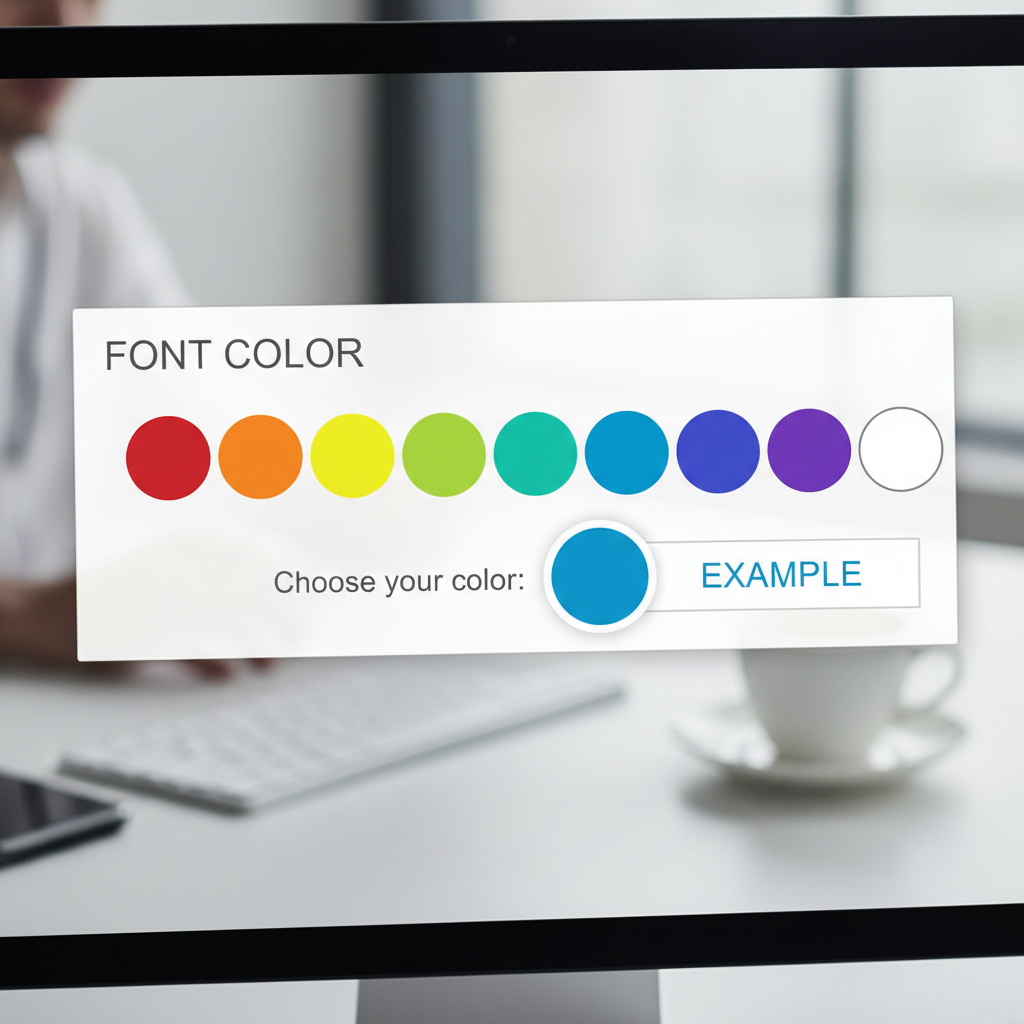
Now, let's talk about making your words colorful! Just like you wouldn't want to draw a picture with only one color crayon, you don't have to make all your words black. Font color lets you change the color of your letters to red, blue, green, purple, or any other color you can imagine!
Why Change Font Color?
- To Highlight: Like using a highlighter pen in a book, different colors can make important sentences jump out.
- To Show Feelings or Mood: Red might show excitement or danger, blue might show calm or sadness, green could be for nature.
- To Organize Information: You could make all your questions blue and all your answers green. This helps keep things neat and easy to follow.
- To Make it Fun and Pretty: Adding color makes your text more interesting and visually appealing!
How Do You Change Font Color? (It's Like Choosing a Paint Color!)
Changing font color is just as easy as changing the size. You'll usually find the color button right next to the font size button.
- Select Your Words: Just like before, highlight the words you want to color by clicking and dragging your mouse over them.
- Find the Color Button: Look for a button that often has the letter 'A' with a colored bar underneath it, or sometimes it looks like a small paint palette or a rainbow.
- Pick a New Color: Click the small arrow next to the color button. A bunch of different colors will appear! Click on the color you like, and watch your words magically change!
Analogy: Changing font color is like picking out different colored clothes for your words. Do they want to wear a bright red shirt today, or a calm blue one? The color you choose helps them express themselves!
Putting it All Together: Be a Smart Designer!
You can use font size and color together to make your text truly fantastic! Imagine a big, bold, red title for your superhero story, and then the actual story text in a regular size but a calm blue color. The possibilities are endless!
However, a good designer knows not to use too many different sizes or colors all at once. If every word is a different size and color, your page might look messy and confusing, like a clown wearing all their clothes at once! Try to pick a few colors and sizes that work well together and help your words tell their story clearly.
Congratulations! You've just learned how to make your words more exciting and easier to read by changing their size and color. Now go forth and create some amazing, colorful documents!
Keep learning, free
Create a free Syllabax account to unlock practice questions and games for this topic.
Visual Learning Enhanced! 🚀
To help you master this topic, we use Advanced Syllabax AI to generate detailed diagrams and visual models.
Note on Visuals: The AI sometimes makes spelling errors in image labels. Please refer to the lesson text for the correct terminology.