Playing Mouse Games
Watch this topic in 60 seconds
Free preview · Lesson 1
Understanding Playing Mouse Games
Let's Play Mouse Games! Your First Adventure with the Computer Mouse!
Hello, young explorer! Are you ready to meet a super helpful friend that lives next to your computer? It's called a computer mouse! No, not a real tiny mouse that nibbles cheese, but a special kind of mouse that helps us tell the computer what to do!
What is a Computer Mouse?
Imagine your computer screen is a giant drawing board, and you want to draw a picture or point to something. You can't reach inside the screen with your finger, right? That's where your computer mouse comes in! It's like a magic remote control for your computer screen. It helps you move a little arrow, called a cursor, around the screen.
Think of it like this: your computer mouse is a little car, and the table is its road. When you move the car, a special passenger (the arrow!) moves on the big screen! It's very clever!
Meeting Your Mouse: Its Parts!
Your computer mouse has a few important parts:
- The Body: This is the main part you hold. It usually fits perfectly in your hand!
- Left Button: This is the button on the left side. It's the most used button! It's like the "go" button or the "yes" button.
- Right Button: This is the button on the right side. We don't use it as much when we're just starting, but it can show us more choices. It's like the "show more options" button.
- Scroll Wheel (sometimes!): Some mice have a little wheel in the middle. You can roll it up and down with your finger. It's like a tiny elevator that helps you move up and down long pages on the screen!
How to Hold Your Mouse Friend!
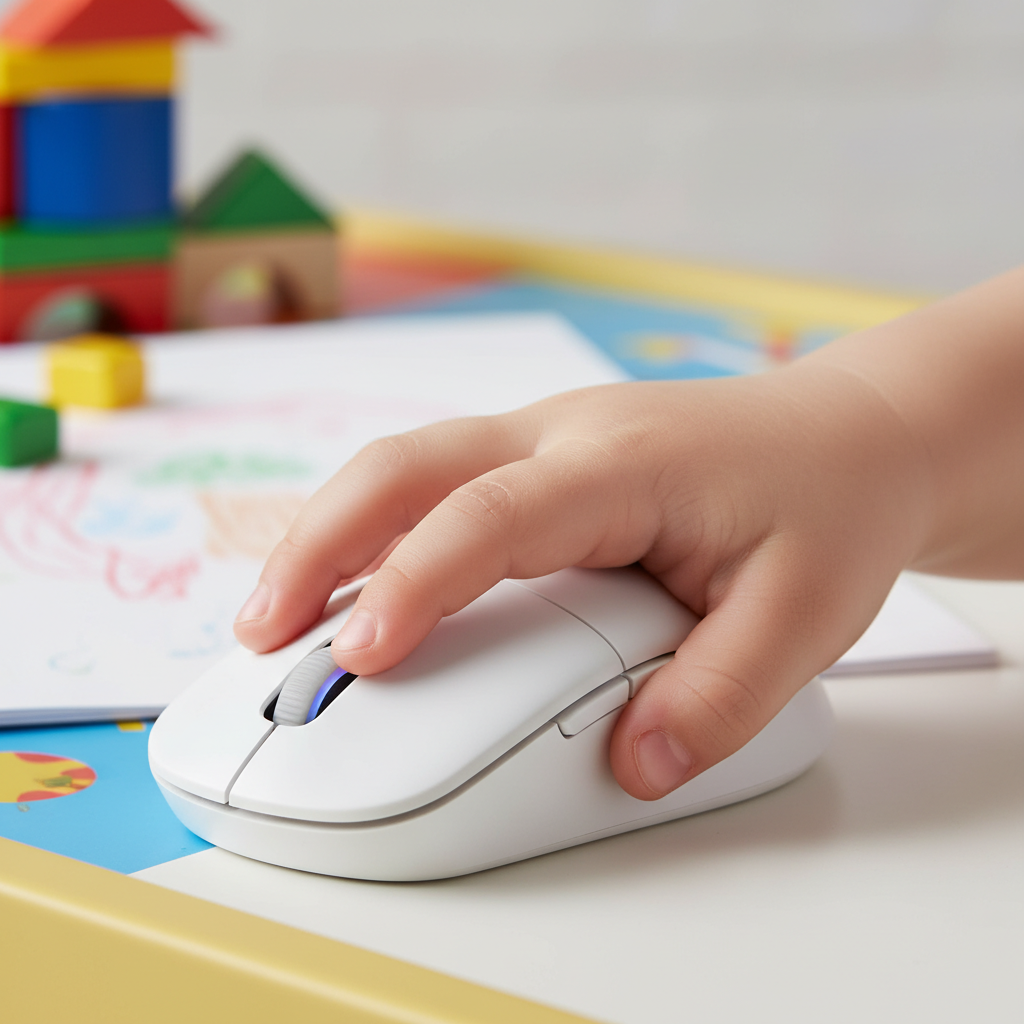
Holding your mouse is super easy and comfy! You want to hold it like you're gently holding a sleepy little pet or a small toy car. Rest your palm on its back, and let your index finger (the one you point with) rest gently on the left button. Your middle finger can rest on the right button. You don't need to squeeze it tight, just a gentle hold.
Making the Arrow Move: The Cursor!
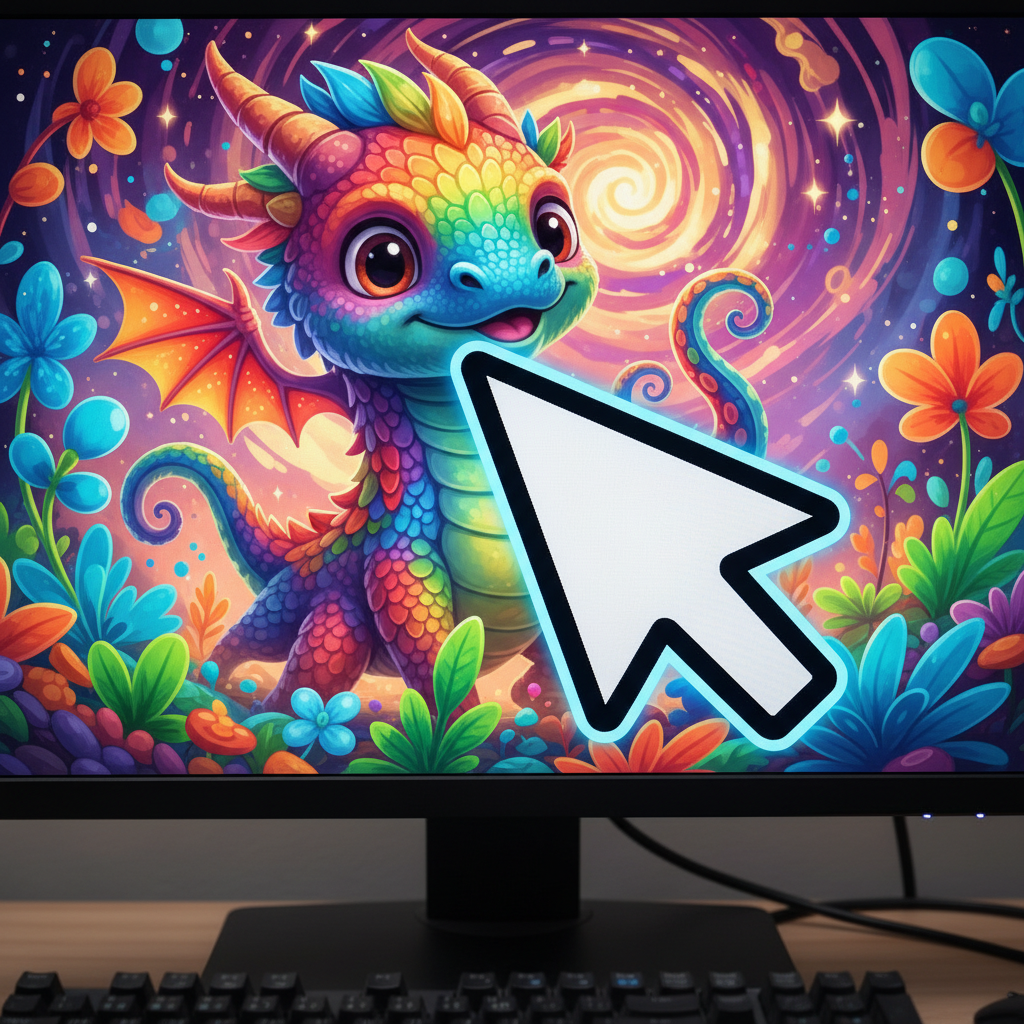
Now for the fun part! When you gently slide your mouse on the table (or on a mouse pad), what happens on the screen? You'll see a little arrow or a hand move! This little arrow is called the cursor (say: KUR-sor). It's like the mouse's magic finger, pointing to everything on the screen!
Imagine the cursor is a little tiny robot on your screen, and your mouse is its controller! Everywhere you move your mouse on the table, the robot (cursor) moves on the screen. Try moving your mouse left, right, up, and down! Watch your robot cursor follow along!
 ⚠️ This picture may have spelling mistakes. Trust the words in the lesson.
Clicking Fun: Talking to the Computer!
Moving the cursor is great, but how do we tell the computer what to do? We click! Clicking is like pressing a doorbell or tapping someone gently on the shoulder to get their attention.
- Left-Click: This is your most important click! When you press the left button quickly and let go, that's a left-click. It's like saying "YES!" or "OPEN THIS!" to the computer. You use it to pick things, open games, or select buttons. Try clicking on a big button on the screen!
- Double-Click: Sometimes, to open a game or a folder, you need to click the left button two times very fast! It's like knocking twice on a door: "Knock, knock! Let me in!"
Let's Play Mouse Games!
The best way to get good at using your mouse is to play games! Here are some simple "mouse games" you can try:
- Cursor Hide and Seek: Move your mouse all over the table and try to make the cursor visit every corner of the screen! Can you make it touch the top, bottom, left, and right?
- Click the Big Target: Ask an adult to open a simple game or a drawing program where you can click on big shapes or buttons. Try to click them accurately! It's like playing "pin the tail on the donkey," but with your cursor!
- Scroll Wheel Fun (if you have one!): If your mouse has a scroll wheel, open a long story or a list of pictures. Try rolling the wheel up and down. See how the page goes up and down too! It's like magic!
Remember, practice makes perfect! The more you play with your mouse, the better you'll become at telling your computer what you want it to do. You're becoming a computer wizard!
Keep learning, free
Create a free Syllabax account to unlock practice questions and games for this topic.
Visual Learning Enhanced! 🚀
To help you master this topic, we use Advanced Syllabax AI to generate detailed diagrams and visual models.
Note on Visuals: The AI sometimes makes spelling errors in image labels. Please refer to the lesson text for the correct terminology.