Understanding the Desktop
Watch this topic in 60 seconds
Free preview · Lesson 1
Understanding Understanding the Desktop
Exploring Your Computer's Desktop: Your Digital Workspace!
Hey there, young explorers! Have you ever wondered what that first screen you see when you turn on a computer is called? It's like the welcome mat to your digital world! We're going to learn all about it today. It's called the Desktop, and it's super important for how you use a computer.
What is the Desktop? (It's Like Your Real Desk!)
Imagine your desk at home or at school. It's a flat surface where you keep all your important things: your books, pencils, drawings, and maybe even some toys. You spread everything out so you can see what you need and pick things up easily, right? Your computer's Desktop is just like that, but it's a digital desk inside your computer screen!
It's the main screen you see where you can find and open programs, documents, and much more. It's your personal workspace where everything is organized and ready for you to use.
Parts of Your Digital Desk:
1. The Wallpaper (Your Desk's Background Design!)
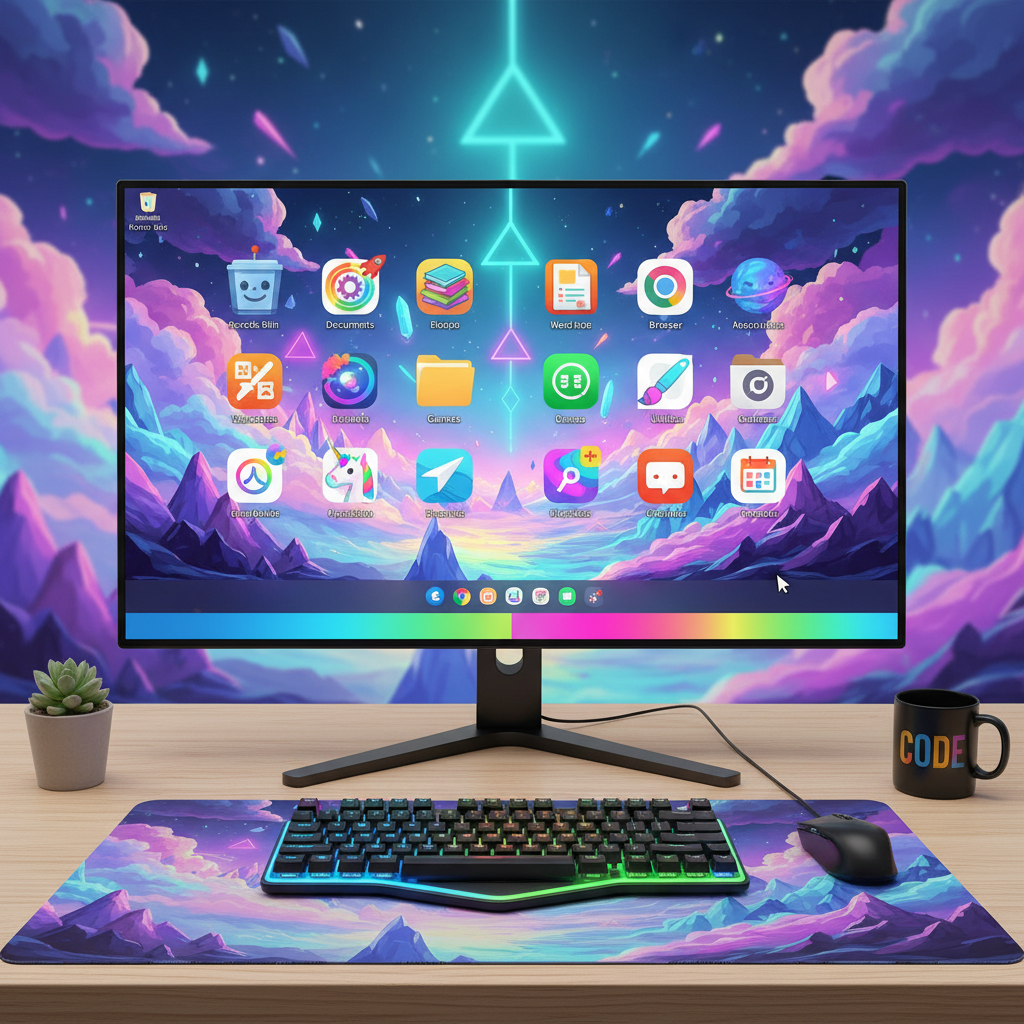
Just like you might have a favorite tablecloth on your real desk, or your desk might be painted a cool color, your computer's Desktop has a background image called the Wallpaper. It could be a picture of nature, a cartoon character, a pattern, or anything you like! It's just there to make your digital desk look nice and personal. It doesn't do anything special, it just sits there looking pretty.
 ⚠️ This picture may have spelling mistakes. Trust the words in the lesson.
2. Icons (Your Desk's Little Helpers and Toys!)
Now, look at all the little pictures on your Desktop! These are called Icons. Think of them as the items you keep on your real desk. Each icon is a tiny picture that represents something on your computer. It could be:
- A program or app: Like a calculator, a drawing program, or a game. (Imagine a pencil icon meaning 'drawing' or a controller icon meaning 'game').
- A document or file: Like a story you wrote or a picture you drew. (Imagine a paper icon for a story).
- A folder: This is like a special box where you can keep many files or other folders organized. (Imagine a little yellow folder icon).
To open an icon, you usually use your mouse to move a little arrow (the cursor, like your pointing finger!) over the icon and then click it twice very quickly (this is called double-clicking). It's like picking up a toy from your desk to play with it!
3. The Taskbar (Your Desk's Handy Shelf!)
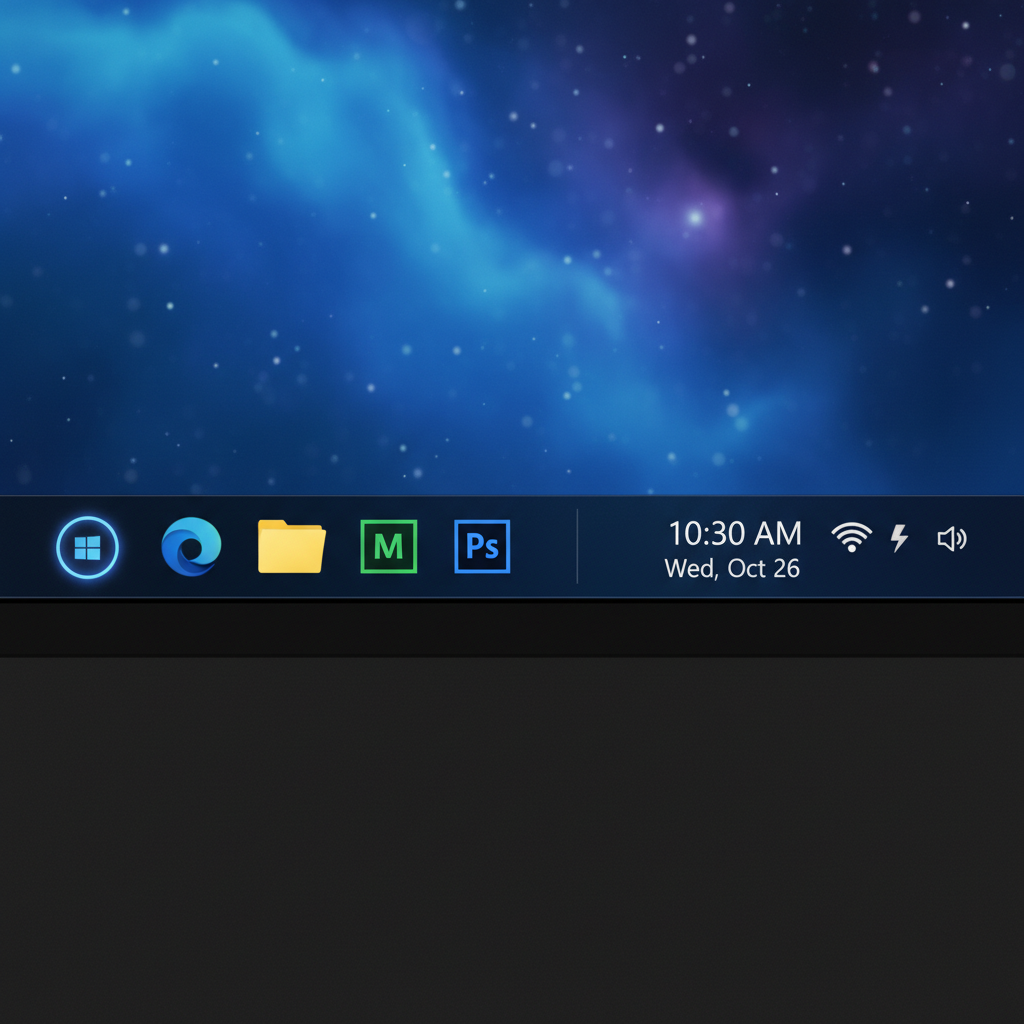
Look at the very bottom of your computer screen. See that long bar? That's called the Taskbar (sometimes called a Dock on other computers). Think of it like a handy shelf or a drawer organizer at the edge of your real desk. It holds very important things!
- The Start Button: Usually on the far left, it's like a magic door to everything on your computer! Clicking it opens a menu where you can find all your programs, settings, and even turn off the computer.
- Pinned Programs: These are like your favorite toys or tools that you want to keep handy all the time, even when you're not using them. They're stuck to the shelf so you can open them with just one click.
- Running Programs: When you open a program, it often shows up on the Taskbar. This is like having a toy you're currently playing with on your desk – it's open and ready for action! You can easily switch between programs by clicking their icons on the Taskbar.
- Notification Area/System Tray: On the far right, this tiny corner is like a little message board or a place for tiny tools. It shows you important messages (like if your computer needs an update), the time, and icons for things like Wi-Fi or speaker volume.
4. The Mouse Pointer / Cursor (Your Digital Finger!)
Remember that little arrow that moves around on your screen when you move your mouse? That's the Mouse Pointer or Cursor. It's like your own finger, but for your computer! You use it to point at icons, click on buttons, and drag things around. It helps you interact with everything on your digital desktop.
How Do We Use Our Digital Desk?
- Clicking: Pressing the left mouse button once. This is like gently tapping an item to select it.
- Double-Clicking: Pressing the left mouse button twice very quickly. This is usually how you open a program or a file from an icon. It's like picking up a toy and immediately starting to play with it!
- Dragging: Clicking and holding the left mouse button, then moving the mouse. This lets you move icons around on your desktop, just like you can slide things around on your real desk.
Putting It All Together!
So, the Desktop is your computer's main screen, like your personal desk. It has a beautiful Wallpaper, little picture Icons that open programs and files, a handy Taskbar at the bottom with a Start button, and a Mouse Pointer to help you interact with everything. Learning these basic parts will help you feel much more comfortable and confident when you use a computer!
Keep learning, free
Create a free Syllabax account to unlock practice questions and games for this topic.
Visual Learning Enhanced! 🚀
To help you master this topic, we use Advanced Syllabax AI to generate detailed diagrams and visual models.
Note on Visuals: The AI sometimes makes spelling errors in image labels. Please refer to the lesson text for the correct terminology.