Opening Programs and Apps
Watch this topic in 60 seconds
Free preview · Lesson 1
Understanding Opening Programs and Apps
Let's Open Programs and Apps! Your Digital Adventure Begins!
Welcome, young explorers, to the exciting world of computers and tablets! Just like you have different toys for different games, your computer has special tools called programs or apps. These programs and apps help your computer do many wonderful things, like drawing pictures, playing games, writing stories, or watching videos. Think of them as special rooms in a big digital house, and each room is for a different activity!
What Are Programs and Apps?
Imagine your toy box at home. Inside, you have different toys: building blocks, a car, a doll, and perhaps some art supplies. Each toy lets you do something different, right? Programs and apps are just like those toys for your computer or tablet!
- A Program (often used for bigger computers) is like a full art studio with lots of paint, brushes, and paper.
- An App (often used for tablets and phones, but also on computers) is like a smaller, handy art kit you can take anywhere.
Even though they have slightly different names, they both mean the same thing: a set of instructions that tells your computer what to do so you can have fun or get work done!
Why Do We Open Them?
Why do you open a book? To read a story! Why do you open a box of crayons? To draw a picture! We open programs and apps for the exact same reason: to start an activity! If you want to draw, you open a drawing app. If you want to play a game, you open a game app. It's like choosing which toy you want to play with from your toy box.
How to Open Programs and Apps - Way 1: The Desktop Icon!
When you first turn on a computer, you see a big, colorful screen called the desktop. It's like your desk at home. On this desktop, you'll see many small pictures. These small pictures are called icons.
Analogy: Imagine your desktop is a big, magical playground. Scattered around this playground are little signs, and each sign has a picture on it. One sign might have a picture of a paintbrush (for a drawing app), and another might have a picture of a game controller (for a game app). These signs are your icons!
To open a program using its icon:
- Find the Icon: Look for the picture that matches the program you want to use.
- Point with the Mouse: Your mouse pointer (usually an arrow on the screen) is like your magic finger. Move your physical mouse on your desk to make the arrow move on the screen, until it's sitting right on top of the icon you want.
- Double-Click: This is the special trick! To open most programs from the desktop, you need to double-click the icon. This means you press the left mouse button two times very quickly, one right after the other.
Analogy: Think of double-clicking like knocking on a door twice, knock-knock, really fast! If you knock too slowly, the door might just wiggle a little bit instead of opening. You need to be quick! If it doesn't open the first time, try moving your mouse away and trying again.
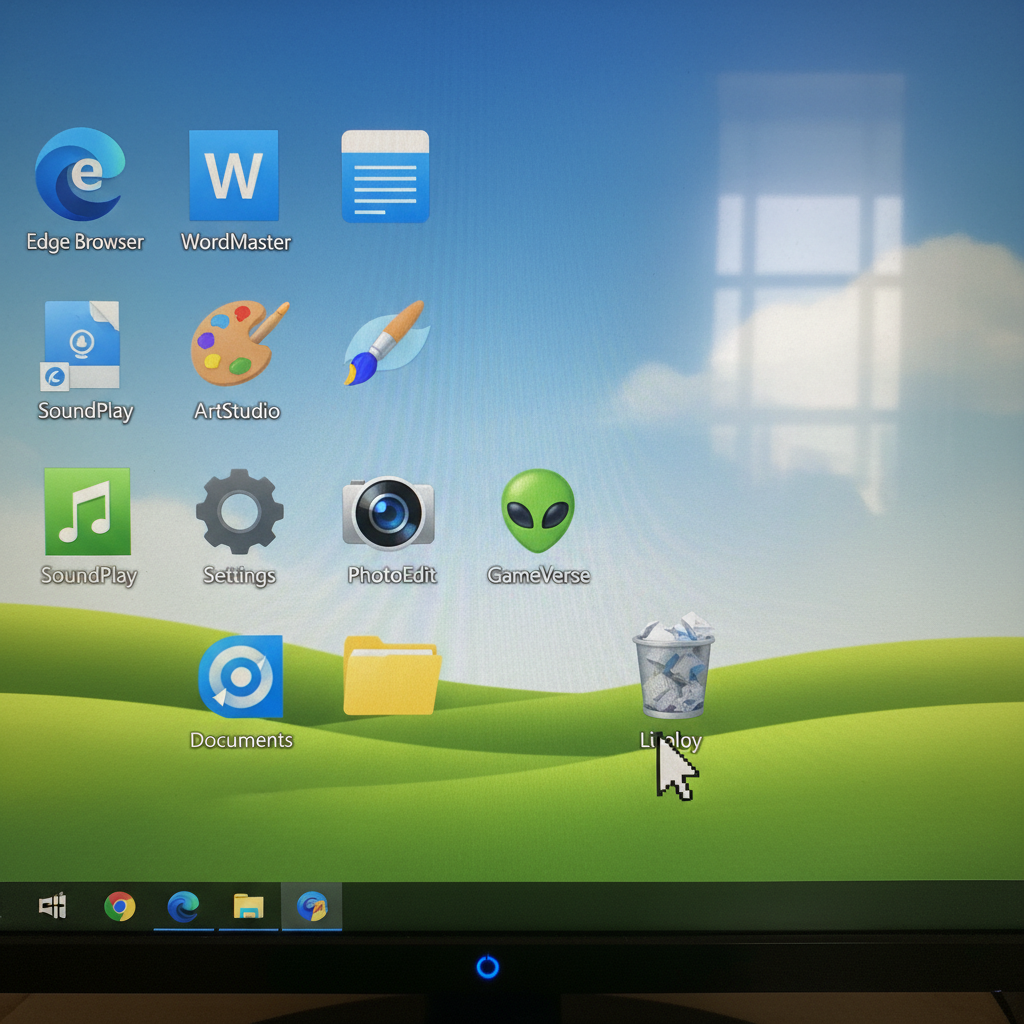 ⚠️ This picture may have spelling mistakes. Trust the words in the lesson.
How to Open Programs and Apps - Way 2: The Start Menu (Windows) or Applications Folder (Mac)!
Sometimes, the app you want isn't on your desktop. It's like having a big library full of books, and you need to go inside to find the one you want. This is where the Start Menu (on Windows computers) or the Applications Folder/Launchpad (on Mac computers) comes in handy!
On a Windows Computer (Look for the Start Menu):
- Find the Start Button: Look in the very bottom-left corner of your screen. You'll usually see a button that looks like a small window logo (sometimes it just says "Start"). This is your Start button!
- Click Once: Click the Start button once with your left mouse button.
- Explore the Menu: A big menu will pop up! This is like a giant list of all the programs on your computer. You might see a list of programs you use often, or you might need to click on "All apps" or scroll down to find the one you want.
- Click the App: Once you find the app you want (like "Paint" or "Calculator"), click it once with your left mouse button. It will usually open right up!
Analogy: The Start button is like opening a magical book that has a table of contents for ALL the apps on your computer. You click it to see the list, then click on the name of the app you want to 'jump' to!
On a Mac Computer (Look for the Applications Folder or Launchpad):
- Using the Finder: Find the "Finder" icon in the "Dock" (the row of icons at the bottom of your screen). It looks like a blue square with a happy face. Click it once. In the new window, look on the left side for "Applications" and click it. Now you'll see a list of all your apps. Double-click the one you want!
- Using Launchpad: Even easier! Find the "Launchpad" icon in the Dock. It looks like a rocket ship. Click it once. Your screen will fill up with all your apps, just like on an iPad! Simply click the app you want once, and it will open.
Analogy: Launchpad is like laying out all your favorite picture books on the floor so you can see them all at once and pick one with just one touch!
How to Open Programs and Apps - Way 3: The Taskbar (Windows) or Dock (Mac)!
Do you have a favorite toy that you always keep close by, perhaps on a shelf right next to your bed? Computers do something similar for your favorite programs!
At the very bottom of your screen, you'll see a long bar. This is called the Taskbar on Windows computers and the Dock on Mac computers. It holds icons for programs you use a lot or that are currently open.
Analogy: The Taskbar or Dock is like a quick-access shelf on your desk. Your most-used pencils, scissors, or markers are right there, easy to grab without opening a drawer or going to your toy box!
To open a program from the Taskbar or Dock:
- Find the Icon: Look for the program's icon on the Taskbar or Dock.
- Click Once: Simply click the icon once with your left mouse button. Because it's a special 'quick access' spot, you only need one click, not two!
Programs open from here very quickly, which is why it's great for apps you use all the time, like your internet browser or a calculator.
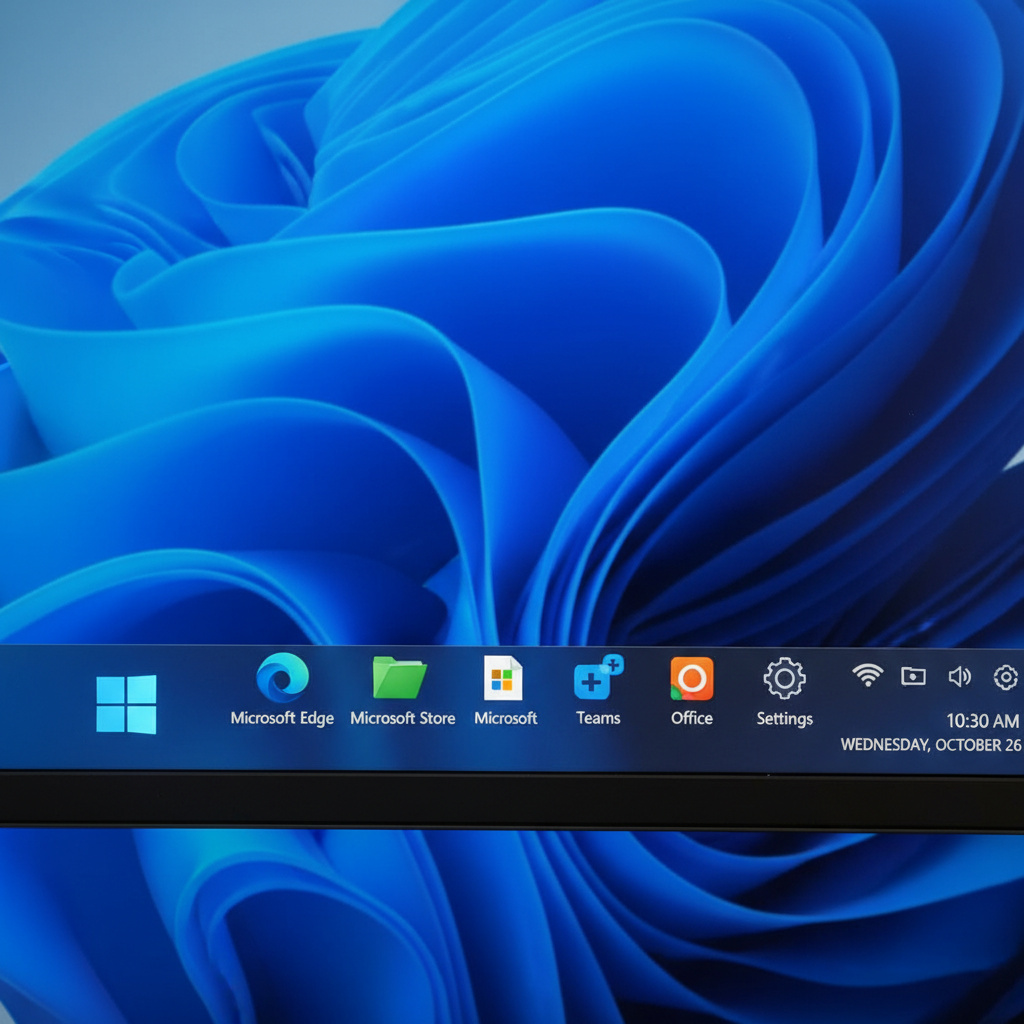 ⚠️ This picture may have spelling mistakes. Trust the words in the lesson.
Closing Programs and Apps
When you're finished playing with a toy, you put it away, right? When you're done using a program or app, it's good practice to close it. This helps keep your computer tidy and running smoothly.
To close most programs on a computer:
- Look for a small "X" button, usually in the top-right corner of the program's window.
- Click that "X" button once with your left mouse button.
Analogy: The "X" button is like saying "goodbye" to the program or putting the lid back on your toy box. It tells the program, "I'm done for now!"
Remember These Important Tips!
- Be Patient: Learning new things takes time. It's perfectly normal if it takes a few tries to get the double-click just right!
- Ask for Help: If you get stuck, don't worry! Ask an adult, an older sibling, or your teacher for help. They can guide you.
- Practice Makes Perfect: The more you open and close programs, the easier and faster it will become!
You are now ready to begin your digital adventure, opening programs and apps to learn, play, and create!
Keep learning, free
Create a free Syllabax account to unlock practice questions and games for this topic.
Visual Learning Enhanced! 🚀
To help you master this topic, we use Advanced Syllabax AI to generate detailed diagrams and visual models.
Note on Visuals: The AI sometimes makes spelling errors in image labels. Please refer to the lesson text for the correct terminology.