Navigating with the Mouse
Watch this topic in 60 seconds
Free preview · Lesson 1
Understanding Navigating with the Mouse
Navigating with the Mouse: Your Computer's Best Friend!
Hello, young explorers! Today, we're going on an adventure to learn all about a very special tool that helps us talk to our computers: the mouse! Think of the mouse as your computer's best friend, always ready to help you point, click, and explore. It's like having a magic wand that lets you touch and move things on your computer screen without ever actually touching the screen itself!
What is a Computer Mouse?
Imagine you have a big coloring book, and you want to point to a specific picture. You'd use your finger, right? Well, a computer mouse is like your finger for the computer screen! It's a small device that fits in your hand, and when you move it on your desk, a little arrow, called a pointer (or cursor), moves on the computer screen. This pointer shows you where you are looking, just like your finger shows someone what you're pointing at.
The mouse helps us do many important things, like opening games, drawing pictures, visiting websites, and even writing stories. Without it, using a computer would be much harder, like trying to play a board game without dice!
Meet the Parts of Your Mouse
Most computer mice have a few main parts, and each part has a special job:
- The Body: This is the main part you hold in your hand. It's usually smooth and comfortable. Think of it as the 'car' you're driving!
- Left Button: This is the button on the left side of the mouse, usually under your index finger. This is the most used button! We use it to 'select' things, like picking up a toy, or to 'open' things, like pressing a doorbell to open a door. We call this action a 'click' or 'left-click'.
- Right Button: This button is on the right side, usually under your middle finger. It's like a 'secret menu' button! When you click it, a special list of options might pop up on your screen, giving you more choices for whatever you pointed at. It's like asking for extra toppings at an ice cream shop! We call this a 'right-click'.
- Scroll Wheel: Many mice have a little wheel in the middle, between the left and right buttons. This is like a mini 'elevator' or 'page turner' for your screen! If you're looking at a long document or a website, you can roll this wheel forward or backward to move up and down the page quickly, without having to drag the scroll bar with your pointer.
- Sensor (underneath): You usually can't see it easily, but under the mouse, there's a special 'eye' or 'laser' that watches how your mouse moves on the desk. This is how the computer knows where to move your pointer!
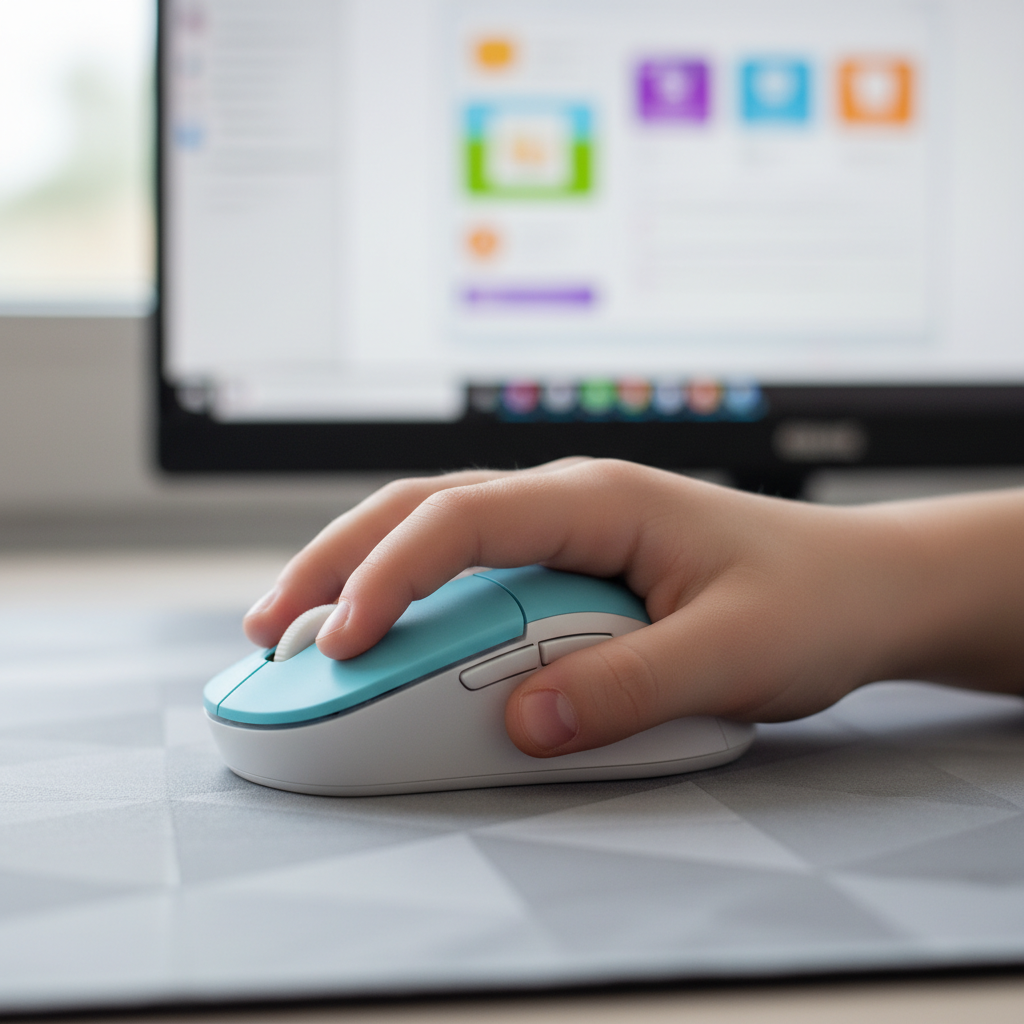
Holding and Moving Your Mouse Like a Pro!
Holding the mouse correctly is important for comfort and control. Imagine you're holding a small, smooth toy car or a friendly little pet. You want to hold it gently but firmly.
- Grip: Place your palm gently over the back of the mouse. Your index finger should rest naturally on the left button, and your middle finger on the right button. Your thumb and other fingers can rest on the sides to help you guide it.
- Movement: When you move the mouse on your desk or on a mouse pad, watch how the pointer on the screen moves in the same direction! If you move your mouse to the left, the pointer goes left. If you push it forward, the pointer goes up. It's just like driving a tiny car!
- Mouse Pad: A mouse pad is a special mat that gives your mouse's 'eye' a good surface to track on. It's like a smooth, clear road for your mouse car to drive on, helping it move smoothly and accurately.
Practice moving your mouse slowly and quickly. Try to make the pointer go to different corners of your screen. It might feel a bit tricky at first, but with a little practice, you'll be a master navigator!
Understanding Clicks: Your Computer's Language
The Left Click (or Just 'Click')
This is your most common interaction! A quick press and release of the left button is a 'click'.
- To Select: If you click once on an icon (a small picture that represents a program or file), it usually selects it, highlighting it to show it's chosen, like pointing at an item on a menu.
- To Open: If you click twice very quickly (this is called a 'double-click') on an icon, it usually opens that program or file. Think of it like knocking twice on a door to open it and go inside!
- To Activate: Clicking buttons or links on a website or in a program will make something happen, like turning on a light switch.
The Right Click
Remember our 'secret menu' button? When you right-click on something, a small menu will pop up near your pointer. This menu offers special options related to what you clicked on. For example, if you right-click on a picture, you might see options to 'copy' it, 'save' it, or 'print' it. It's like finding a hidden treasure chest of choices!
Scrolling Up and Down
When you have a very long page on your screen, like a big story or a list of many pictures, you can use the scroll wheel to move up and down. Just roll the wheel with your finger! Rolling it forward usually moves the page down, and rolling it backward moves the page up. It's much faster than clicking and dragging those tiny scroll bars on the side of the screen!
Why Mouse Skills are So Important
Learning to use a mouse well is like learning to ride a bicycle. Once you get the hang of it, you can go anywhere! It helps you:
- Control your computer easily and quickly.
- Play games and use creative apps.
- Explore educational websites and learn new things.
- Become more independent in using technology.
So, keep practicing! The more you use your mouse, the more natural it will feel, and you'll be navigating the digital world like a true expert in no time. Happy clicking!
Keep learning, free
Create a free Syllabax account to unlock practice questions and games for this topic.
Visual Learning Enhanced! 🚀
To help you master this topic, we use Advanced Syllabax AI to generate detailed diagrams and visual models.
Note on Visuals: The AI sometimes makes spelling errors in image labels. Please refer to the lesson text for the correct terminology.