Printing from a Computer
Watch this topic in 60 seconds
Free preview · Lesson 1
Understanding Printing from a Computer
Let's Print! Making Your Computer Pictures Real!
Hey amazing learners! Have you ever drawn a beautiful picture on your computer screen or written a story using a keyboard and wished you could hold it in your hands? Well, guess what? You can! It's like magic, but it's really called printing!
What is Printing? Like a Special Copy Machine!
Imagine you have a drawing in your head. When you draw it on a piece of paper, you're making your idea real, right? Printing is very similar! Your computer has lots of cool pictures and words inside it, like ideas in its "brain." A printer is a special machine that helps take those ideas from inside your computer and put them onto a piece of paper, so you can touch them and share them!
Think of your computer as a super-smart storyteller, and the printer is like a friendly robot artist. When you tell the storyteller (computer) to print, the robot artist (printer) gets to work making a copy of the story or picture on paper!
What Do We Need to Print? Our Printing Team!
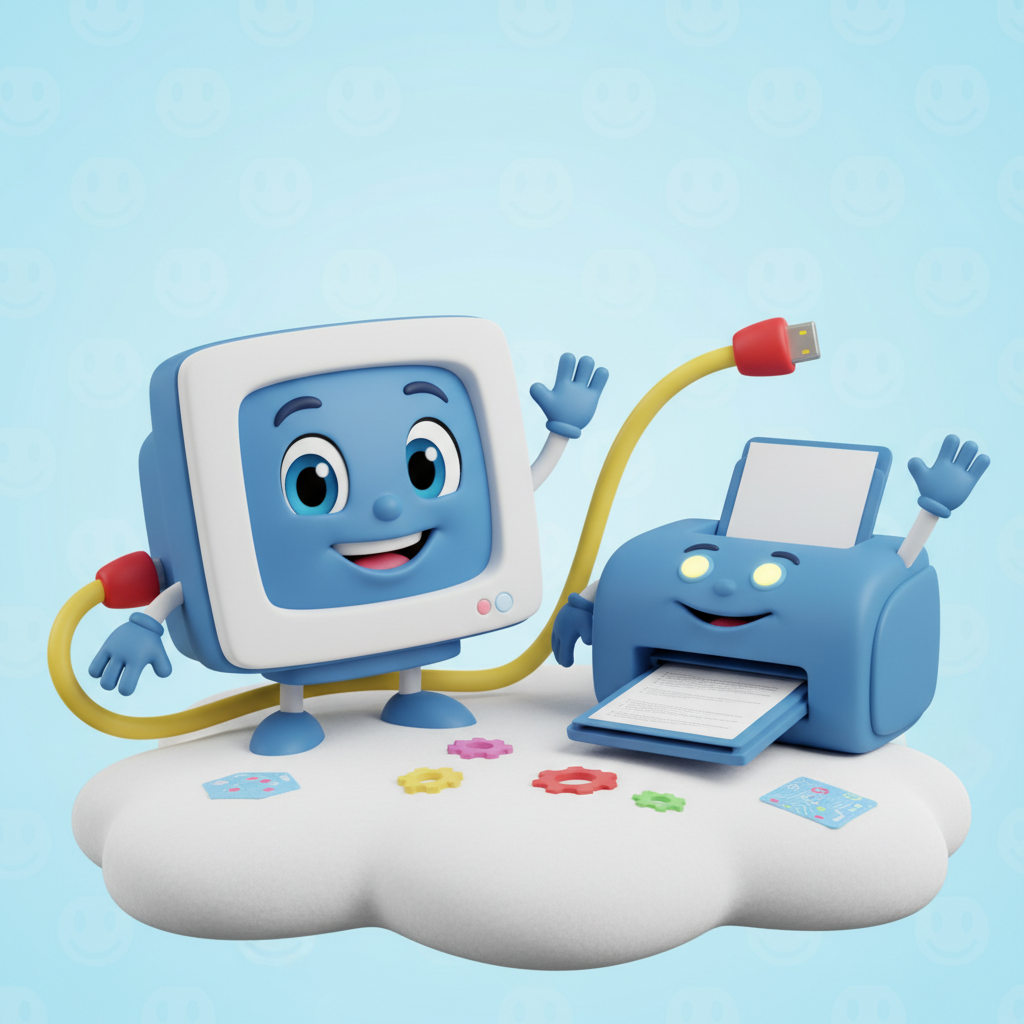
To make our computer pictures and words real, we need a few friends on our printing team:
- A Computer: This is like the boss of our team, holding all the amazing pictures and words. It's where you create your drawings or type your stories.
- A Printer: This is our busy artist robot! It's the machine that actually puts the colors and words onto the paper. It sits next to the computer, ready to work.
- Paper: This is like the blank canvas for our artist robot. The printer needs plain paper to draw on! We put the paper inside the printer.
- Ink or Toner: Imagine trying to draw with a pen that has no ink – it wouldn't work, right? Printers need special "ink" (like liquid paint) or "toner" (like super fine powder) to make colors and words appear on the paper. This is the printer's paint!
 ⚠️ This picture may have spelling mistakes. Trust the words in the lesson.
How Do We Tell the Printer What to Do? Simple Steps!
Learning to print is like learning a secret handshake with your computer and printer. Here are the super easy steps:
- Make Your Masterpiece: First, use your computer to draw a picture, write a story, or find something cool you want to print. This is like deciding what drawing you want to make!
- Find the "Print" Button: Once your masterpiece is ready, you need to tell the computer, "Hey, I want to print this!" Usually, there's a special button or word that says "Print." It often looks like a little printer machine or is found in a menu called "File." It's like pressing the "GO" button for our artist robot.
- Say "OK": Sometimes, a little box will pop up on the screen asking, "Are you sure you want to print?" or "How many copies?" Just click "OK" or "Print" to tell the computer, "Yes, please print it now!" This is like giving the final approval to our robot artist.
- Watch the Printer Work! Now, your computer sends a message to the printer (they "talk" through a special wire, like a telephone line!). The printer then starts making whirring and buzzing noises. It pulls a piece of paper from its paper tray (like getting a fresh canvas) and carefully "draws" your picture or words using its ink.
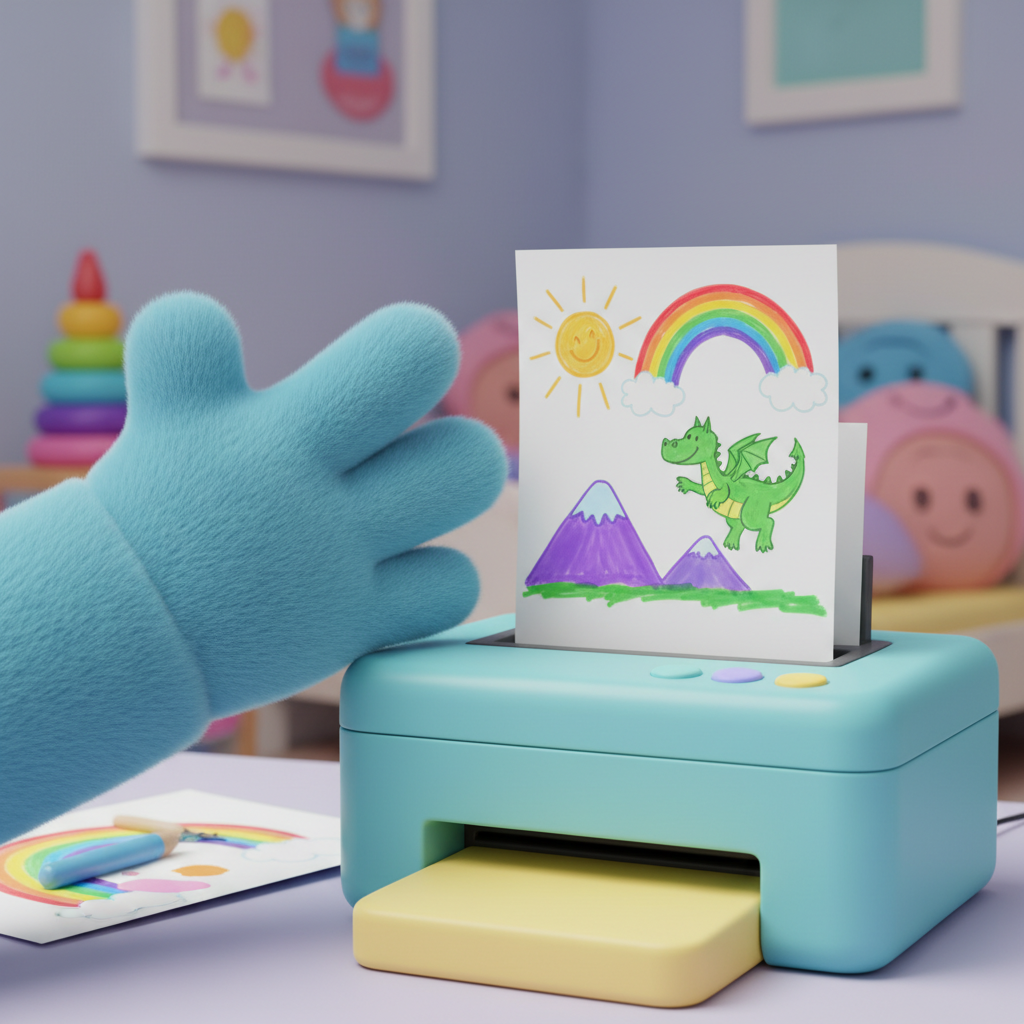
- Voila! Your Print is Ready! In just a few moments, your picture or words will magically appear on the paper, sliding out of the printer. It's like watching a magician pull a rabbit out of a hat, but instead, it's your amazing print!
Important Tips for Super Printers!
Just like a good artist checks their brushes, here are some things to remember:
- Is the Printer ON? Make sure the printer has power and is turned on. It usually has a light that tells you it's awake and ready.
- Is There Paper? Check if the printer has enough paper in its tray. If it's empty, it can't print, just like a drawing pad with no paper!
- Is There Ink? If your prints look very light or have missing colors, the printer might be running low on ink. Sometimes, the computer will even tell you!
- Is it Connected? Make sure the computer and printer are connected with the right wires, or if it's a wireless printer, that they are talking to each other.
You're a Printing Expert!
Now you know the magic of printing! You can take your digital creations and hold them in your hands. Keep exploring and creating wonderful things, both on your computer and on paper!
Keep learning, free
Create a free Syllabax account to unlock practice questions and games for this topic.
Visual Learning Enhanced! 🚀
To help you master this topic, we use Advanced Syllabax AI to generate detailed diagrams and visual models.
Note on Visuals: The AI sometimes makes spelling errors in image labels. Please refer to the lesson text for the correct terminology.