Learning Journey
Watch this topic in 60 seconds
Free preview · Lesson 1
Understanding Input Devices: Mouse & Keyboard
Let's Explore How We Talk to Computers!
Hey there, future tech explorers! Have you ever wondered how we tell a computer what to do? It's like how you tell your dog to sit, or how you tell your friend a secret. You use your voice, or your hands, right?
Well, computers don't have ears to hear us talk directly, and they can't understand if we just wave our hands. So, we use special tools called Input Devices! Think of input devices as the computer's 'senses' or its 'ears and hands' that help it understand what you want to do. Today, we're going to learn about two super important input devices: the Keyboard and the Mouse.
The Keyboard: Your Computer's Typewriter!
Look at a keyboard. It's a flat board with lots and lots of little buttons, right? We call these buttons 'keys'. Imagine the keyboard is like a magic talking pad! Every time you press a key, you're telling the computer a letter, a number, or a special command. It's how you 'talk' to the computer using words and numbers.
What do you use a keyboard for?
- Typing stories and emails: Just like you write in your notebook, you can type words on the computer to write letters, stories, or even jokes!
- Typing numbers: You can type your age, your house number, or practice your math problems.
- Giving commands: Some keys tell the computer to do special things, like start a new line or make a letter big.
Let's look at some important keys on your keyboard:
- Letter Keys (A-Z): These are the biggest group of keys. They have all the letters of the alphabet! When you press them, those letters appear on the screen. It's like having all the letters in a book right under your fingers.
- Number Keys (0-9): You'll find these at the top of the keyboard, above the letter keys. Some keyboards also have a special number pad on the right, like a calculator. They help you type numbers.
- The Spacebar: This is the long, skinny key at the very bottom. What do you think it does? When you type two words, like 'red' and 'car', you need a space in between, right? The Spacebar makes that space! It's like taking a tiny hop between words.
- The Enter Key: This key is usually on the right side. When you're typing and you want to start a new line, like when you're writing a new paragraph in a story, you press 'Enter'. It's like pressing a button to start a fresh, new line!
- The Shift Key: You'll find two 'Shift' keys, one on each side. If you want to type a CAPITAL letter (like 'A' instead of 'a'), you hold down the Shift key and then press the letter key. It also helps you type special symbols like '!', '@', or '#'. Think of 'Shift' as a 'superpower' key for other keys!
- The Backspace / Delete Key: Oops! Did you make a mistake and type the wrong letter? No worries! The Backspace key (usually on the top right) lets you erase a letter you just typed. It's like an eraser for your computer words!
There are many other keys too, like the arrow keys (which let you move around your writing) and special keys that do many different jobs. The keyboard is truly a powerful tool for talking to your computer!
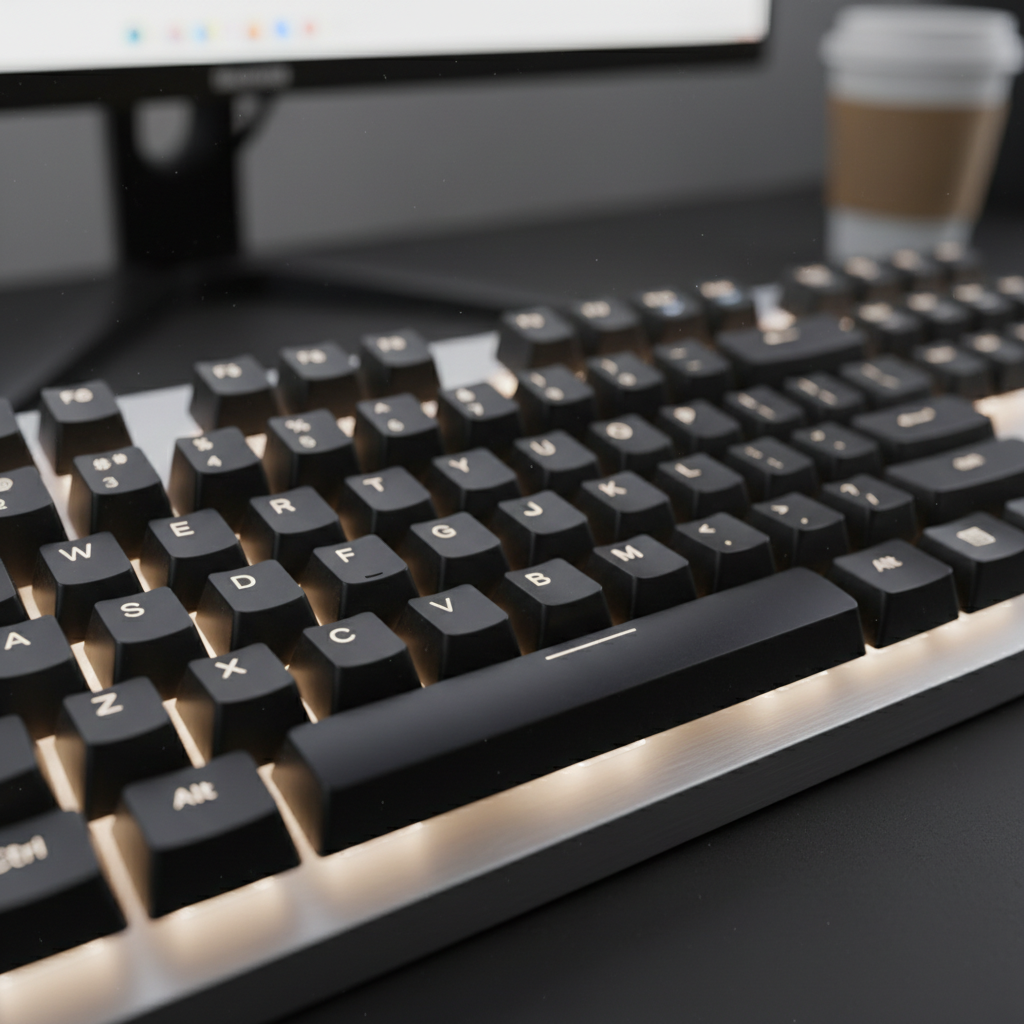 ⚠️ This picture may have spelling mistakes. Trust the words in the lesson.
The Mouse: Your Computer's Pointing Finger!
Now, let's look at the mouse. It's usually a small, smooth object that fits in your hand. Imagine the mouse is like your pointing finger, but for the computer screen! It helps you move a little arrow, called a cursor or pointer, around on the screen.
What do you use a mouse for?
- Pointing at things: You can point the cursor at pictures, buttons, or words on the screen.
- Clicking: When you want to open something, select it, or press a button on the screen, you 'click' the mouse. It's like tapping your finger on something to make it work!
- Dragging: You can even use the mouse to pick up and move things around on the screen, like moving a picture from one side to another. It's like picking up a toy and moving it across the floor.
Let's look at the parts of your mouse:
- Left Button: This is the button you use most often. When someone says 'click', they usually mean press this button once. It's like the 'OK' button for almost everything.
- Right Button: This button often opens up special menus with more options. It's like asking the computer, 'What else can I do here?'
- Scroll Wheel: This little wheel in the middle is super handy! You can roll it up or down to move a page on your screen without clicking. It's like rolling up or down a window blind to see more of what's inside!
To use the mouse, you gently hold it and move it around on your desk or a mouse pad. As you move the mouse, the little arrow on your screen moves too. Try it! It's like steering a tiny car that controls the pointer on the screen.
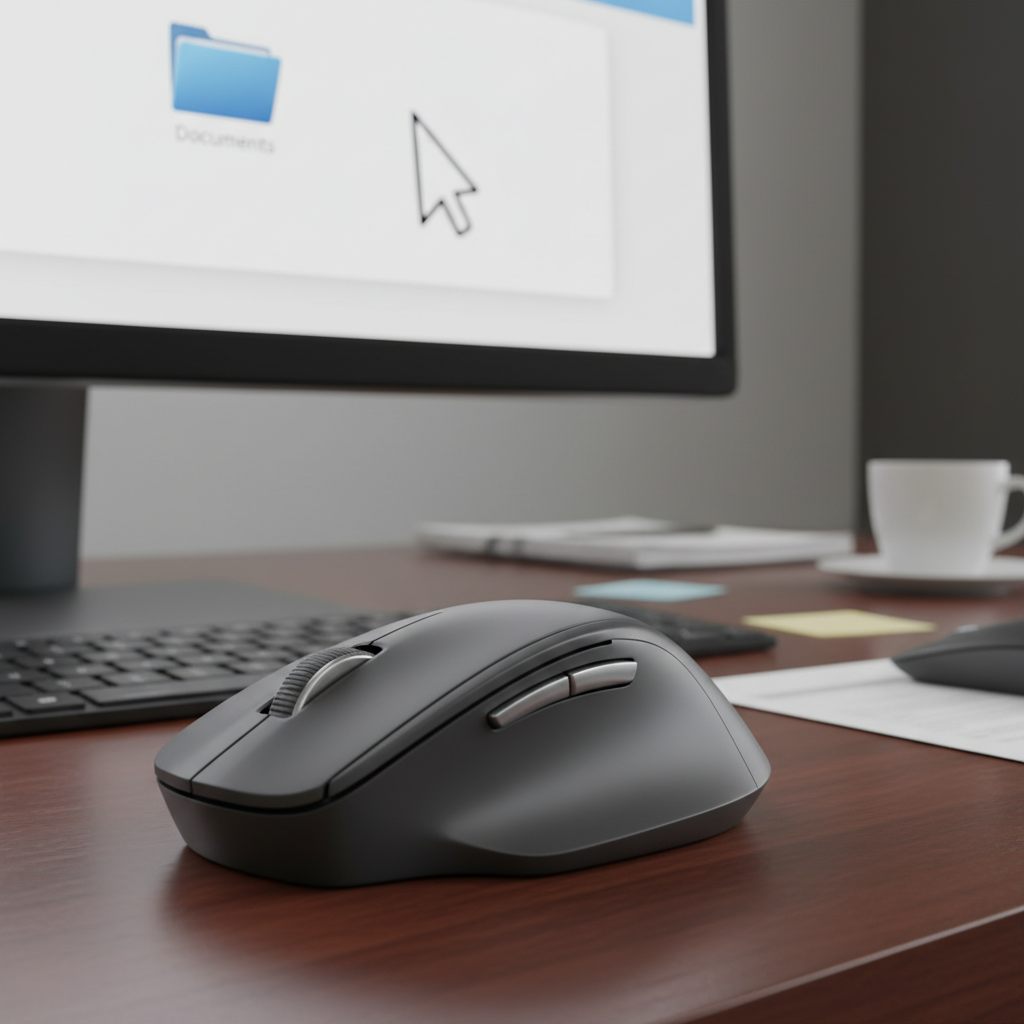 ⚠️ This picture may have spelling mistakes. Trust the words in the lesson.
Keyboard and Mouse: A Team Effort!
So, you see, the keyboard and mouse work together as a super team! You use the keyboard when you want to type words, numbers, or specific commands. You use the mouse when you want to point, click on pictures, or move things around on the screen. One is for 'talking' with words, the other is for 'pointing' and 'picking things up'.
They are both fantastic tools that help you explore the amazing world of computers. Practice using them, and soon you'll be a computer wizard!
Keep learning, free
Create a free Syllabax account to unlock practice questions and games for this topic.
Visual Learning Enhanced! 🚀
To help you master this topic, we use Advanced Syllabax AI to generate detailed diagrams and visual models.
Note on Visuals: The AI sometimes makes spelling errors in image labels. Please refer to the lesson text for the correct terminology.