Computer Software: An Overview
Watch this topic in 60 seconds
Free preview · Lesson 1
Understanding Computer Software: An Overview
Computer Software: An Overview for 9th Graders
Welcome to the fascinating world of computer software! When you think about computers, you might first picture the physical parts: the screen, the keyboard, the mouse, or even the towering computer case. These physical parts are called hardware. But a computer with just hardware is like a car without an engine, or a body without a brain – it can't do anything on its own! This is where software comes in.
What is Software? The Brain of the Computer
Imagine your computer as a robot. The hardware is the robot's body: its arms, legs, sensors, and wires. But what tells the robot to walk forward, pick up an object, or speak? That's the software! Software is simply a set of instructions, or programs, that tells the hardware what to do and how to do it. It's the 'brain' or 'mind' of the computer, bringing the hardware to life.
Think of it another way: If hardware is a musical instrument (like a guitar or a piano), then software is the sheet music or the song itself. Without the music, the instrument just sits there. With the music, it can create beautiful sounds and perform complex pieces.
Hardware vs. Software: A Clear Distinction
- Hardware: These are the physical components of a computer that you can touch and see. Examples include the central processing unit (CPU), memory (RAM), hard drive, monitor, keyboard, and mouse.
- Software: These are the intangible programs and instructions that tell the hardware what tasks to perform. You can't touch software, but you interact with its results.
They are completely dependent on each other. Hardware cannot function without software, and software cannot run without hardware. They are two sides of the same coin, working in perfect harmony to make your computer useful.
The Two Big Families of Software
Software can be broadly divided into two main categories: System Software and Application Software. Think of these as two big families, each with different responsibilities.
1. System Software: The Manager of the Computer
System software is like the operating system of a busy city or the conductor of an orchestra. Its primary job is to manage and control the computer's hardware, allowing other programs to run and keeping everything running smoothly. It creates an environment where users can interact with the computer and where application software can perform its tasks.
There are several important types of system software:
-
a. Operating System (OS)
This is the most crucial piece of system software. The OS is like the main manager or traffic cop of your computer. When you turn on your computer, the OS is the first software to load. It manages all the computer's resources: the CPU, memory, storage, and all input/output devices (like your keyboard and printer).
It also provides a user interface (what you see on the screen) that allows you to interact with the computer and launch other programs. Without an OS, you wouldn't be able to open a web browser, play a game, or even see your desktop.
Common Examples:
- For Desktop/Laptop Computers: Microsoft Windows, Apple macOS, Linux.
- For Mobile Devices: Google Android, Apple iOS.
Analogy: The operating system is like the principal of a school. It ensures all the classrooms (applications) have what they need, manages the teachers (hardware resources), and makes sure the school day runs according to schedule.
-
b. Utility Software
These are like the handy tools or maintenance crew for your computer. Utility software helps to analyze, configure, optimize, or maintain the computer. They perform specific tasks to keep your computer running efficiently and securely.
Common Examples:
- Antivirus Software: Protects your computer from harmful viruses and malware. (Like a security guard for your house.)
- Disk Cleanup: Removes unnecessary files to free up space. (Like tidying up your room.)
- File Compression Tools: Shrink file sizes to save storage space or make them easier to send. (Like packing a large suitcase efficiently.)
- Backup Software: Creates copies of your important files to prevent data loss. (Like making extra keys for your house.)
-
c. Device Drivers
Imagine you buy a new printer. How does your computer know how to 'talk' to it? That's where device drivers come in! A device driver is a special type of software that acts as a translator between the operating system and a specific hardware device (like a printer, scanner, or graphics card). Each piece of hardware needs its own driver to communicate properly with the OS.
Analogy: If your OS speaks English and your printer speaks French, the device driver is the interpreter that allows them to understand each other.
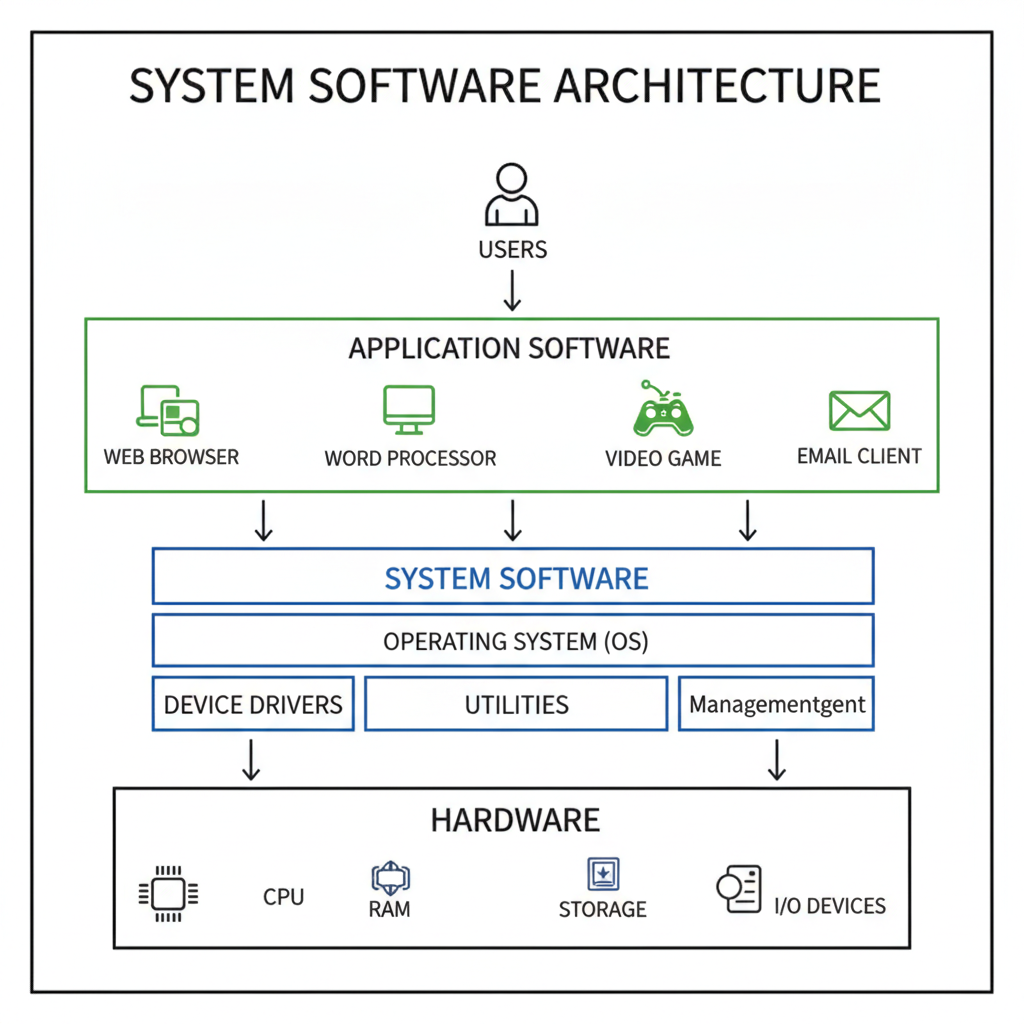 ⚠️ This picture may have spelling mistakes. Trust the words in the lesson.
2. Application Software: The User's Tools for Specific Tasks
Application software, often simply called 'apps,' is what most people think of when they talk about software. These are programs designed to perform specific tasks for the user. They run 'on top' of the operating system and use the services provided by the system software.
Think of application software as all the different tools in a workshop. Each tool (a hammer, a saw, a screwdriver) is designed for a particular job. Similarly, each application software is designed for a particular purpose.
Common Examples:
- Word Processors (e.g., Microsoft Word, Google Docs): Used for writing and editing documents. (Like a fancy typewriter.)
- Web Browsers (e.g., Google Chrome, Mozilla Firefox, Safari): Used to access and view websites on the internet. (Like a window to the internet.)
- Media Players (e.g., VLC Player, Spotify): Used for playing music and videos. (Like a music or video player.)
- Image Editing Software (e.g., Adobe Photoshop, GIMP): Used for creating and editing digital images. (Like a digital art studio.)
- Games (e.g., Minecraft, Fortnite): Designed for entertainment.
- Email Clients (e.g., Outlook, Gmail app): Used for sending and receiving emails. (Like a digital post office.)
- Spreadsheet Programs (e.g., Microsoft Excel, Google Sheets): Used for organizing and analyzing data in tables. (Like an advanced calculator and ledger.)
Application software makes your computer truly useful and personal, allowing you to create, communicate, learn, and entertain yourself in countless ways.
How Software is Made: A Quick Peek
Software doesn't just appear out of nowhere! It is created by people called programmers or developers. They write instructions using special languages called programming languages (like Python, Java, C++, JavaScript). These languages are like recipes that tell the computer exactly what to do, step-by-step. Once written, these instructions are compiled or interpreted into a format that the computer's hardware can understand and execute.
Keeping Your Software Healthy: Installation and Updates
Just like you need to put clothes on your body, you need to 'install' software onto your computer's storage (hard drive or SSD) before you can use it. Installation places all the necessary files on your system. Also, software needs regular 'updates' to fix bugs, improve performance, and add new features. These updates are crucial for keeping your computer secure and running efficiently.
Conclusion
In summary, computer software is the invisible force that brings our hardware to life. It's the instructions, programs, and data that make computers so incredibly versatile and powerful. Understanding the difference between system software (the computer's manager) and application software (your personal tools) is a foundational step in becoming computer literate. With this knowledge, you can better appreciate the complex dance between hardware and software that makes modern technology possible!
Keep learning, free
Create a free Syllabax account to unlock practice questions and games for this topic.
Visual Learning Enhanced! 🚀
To help you master this topic, we use Advanced Syllabax AI to generate detailed diagrams and visual models.
Note on Visuals: The AI sometimes makes spelling errors in image labels. Please refer to the lesson text for the correct terminology.