System Utilities & Maintenance
Watch this topic in 60 seconds
Free preview · Lesson 1
Understanding System Utilities & Maintenance
System Utilities & Maintenance: Your Computer's Health Check
Hey there, future tech whiz! Imagine your computer as a high-performance race car or even a super-smart robot. Just like these amazing machines, your computer needs regular care and attention to run smoothly, stay fast, and keep your data safe. This isn't just about making it shiny on the outside; it's about what goes on under the hood! That's where System Utilities & Maintenance comes in. Think of system utilities as the special tools in a mechanic's toolbox, and maintenance as the regular check-ups and tune-ups that keep everything running perfectly.
Why Bother? The Superpowers of a Well-Maintained Computer
You might be thinking, "My computer works fine, why should I do anything?" Good question! Here's why:
- Speed Demon: A clean and organized computer runs faster. No more waiting forever for programs to open or websites to load!
- Reliability Rock Star: Ever had your computer suddenly crash or freeze? Regular maintenance reduces these frustrating hiccups, making your computer more dependable.
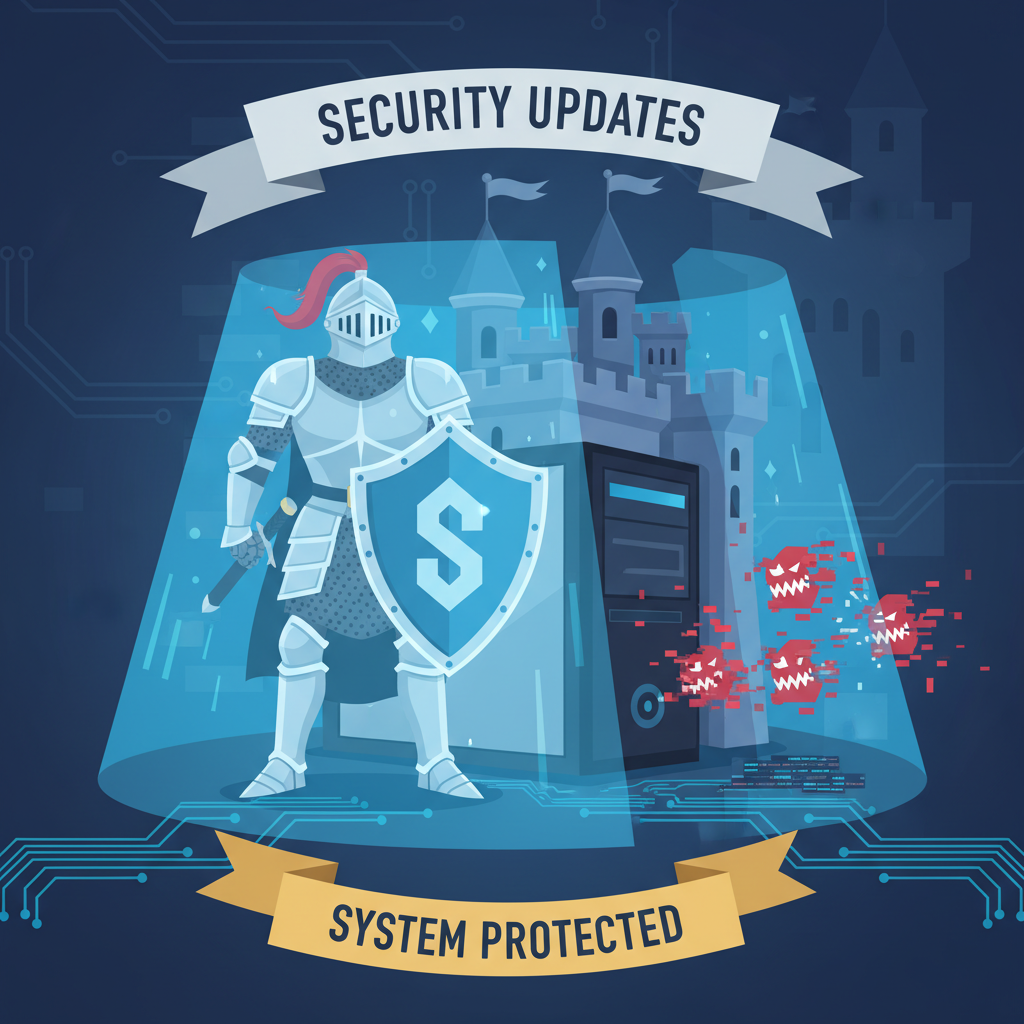
- Security Shield: The internet can be a jungle, full of digital critters trying to sneak onto your computer. Maintenance helps you build a strong fortress to keep them out.
- More Space, More Fun: Deleting unnecessary junk frees up space for new games, movies, photos, and school projects!
- Longer Life: Just like a well-cared-for car lasts longer, so does a well-maintained computer, saving you money in the long run.
1. The Digital Declutter: Disk Cleanup
Imagine your backpack after a long school year. It’s probably full of old notes, forgotten snack wrappers, crumpled papers, and maybe even a random sock! Your computer’s hard drive can get just as messy, but with digital "junk." These are temporary files, old downloaded updates, items in your recycle bin, and other things that take up space but aren't needed anymore.
What it is: Disk Cleanup is a built-in utility that helps you find and delete these unnecessary files to free up valuable storage space on your hard drive. It's like having a tidy-up robot for your computer!
Analogy: Think of Disk Cleanup as cleaning out your locker or bedroom. You go through everything, decide what to keep, what to throw away (like old tests you don't need), and what to put in storage. The goal is to make space and make it easier to find what you *do* need.
Why it’s important:
- Frees up space for new stuff.
- Can make your computer run a little faster because it doesn’t have to dig through as much clutter.
2. Getting Organized: Disk Defragmentation (and SSD Optimization)
This utility has a bit of a fancy name, but the idea is simple. Let’s use another analogy:
For Traditional Hard Drives (HDDs): Imagine you're writing a story, but every time you add a sentence, you have to write it on a random page in a giant binder. Later, when you want to read your story, you have to flip back and forth, jumping from page 3 to page 57, then to page 12, just to read it in order. This takes a lot of time!
In a traditional Hard Disk Drive (HDD), files are saved in "blocks" on spinning platters. Over time, as you save, delete, and modify files, these blocks can become scattered all over the disk. This is called fragmentation. When your computer needs to read a file, it has to make its mechanical "read head" jump all over the place to collect all the pieces, which slows things down.
Disk Defragmentation is a utility that rearranges these scattered pieces of files so they are stored together in one continuous block. It’s like putting all the pages of your story back in order, making it much faster to read from start to finish.
Analogy: This is like organizing books on a shelf. If all the chapters of a book are scattered across different shelves, it takes forever to read. Defragmentation puts all the chapters of a book (file) side-by-side, making it quick and easy to access.
For Solid State Drives (SSDs): Now, if your computer has a newer type of drive called a Solid State Drive (SSD), it works differently. SSDs don't have spinning parts; they store data electronically, like a giant USB stick. Fragmentation isn't really an issue for SSDs because they can access data bits almost instantly, no matter where they are. In fact, defragmenting an SSD can actually wear it out faster!
Instead, SSDs use a feature called TRIM. TRIM tells the SSD which data blocks are no longer in use (because you deleted files) so the SSD can clear them out efficiently and prepare them for new data. It’s like having a super-smart librarian who immediately knows which books have been returned and where to put new ones, without ever having to physically rearrange everything.
Analogy: Think of TRIM as a recycling crew for your digital memory. When you delete a file, TRIM instantly flags that space as "empty" so the SSD can reuse it without delay, keeping it running fast and efficient.
3. The Constant Upgrade: System and Software Updates
Imagine your favorite video game. Sometimes, the game developers release updates – maybe new levels, new characters, or fixes for annoying bugs. Your computer's operating system (like Windows or macOS) and all your other software (like web browsers, word processors, or photo editors) work similarly.
System Updates (or Operating System updates) are crucial. They often include:
- Security Patches: These are like tiny digital shields that fix newly discovered weaknesses in the system that hackers could exploit. Keeping these up-to-date is like having the latest security system for your home.
- Bug Fixes: Software isn't perfect, and sometimes there are glitches or errors ("bugs"). Updates squash these bugs, making your computer more stable and reliable.
- New Features & Performance Improvements: Sometimes, updates bring exciting new tools, make existing features work better, or even speed up your computer's overall performance.
Analogy: Think of system updates as regular tune-ups for your car, or getting a new, improved version of your favorite app. They fix problems, make things run smoother, and sometimes add cool new capabilities. Ignoring updates is like driving a car with old, worn-out tires or never updating your smartphone apps – you miss out on improvements and could be vulnerable.
It's important to allow your computer to install these updates, usually by restarting when prompted. Don't put it off too long!
4. Your Digital Immune System: Antivirus & Anti-Malware
The internet can be a fantastic place, but it also has its dangers, just like a busy city can have pickpockets. On the internet, these dangers come in the form of viruses, malware, spyware, and other malicious software that try to harm your computer or steal your information.
Antivirus software is like your computer's immune system or a vigilant security guard. It constantly watches out for these digital threats, detects them, and then neutralizes or removes them before they can cause damage. Many operating systems (like Windows Defender in Windows) come with built-in protection, but sometimes people choose to use third-party antivirus programs for extra layers of security.
Analogy: Imagine your computer as your body, and malware as harmful germs or viruses. Antivirus software is like your immune system, or getting a vaccine – it protects you from getting sick and helps fight off infections if they try to attack. Just like you wouldn't go out in a pandemic without protection, you shouldn't use the internet without good antivirus software!
Key actions:
- Keep your antivirus software updated (it needs to know about the latest threats!).
- Run regular scans to check for hidden dangers.
- Be careful about what you click, download, or open from unknown sources.
5. The Safety Net: Backup and Restore
Have you ever spent hours working on a project, only for your computer to crash and lose everything? It's a terrible feeling! This is where backup and restore come in.
Backup means making copies of your important files (documents, photos, videos, school projects) and storing them in a separate, safe place. This could be an external hard drive, a USB flash drive, or cloud storage services like Google Drive, OneDrive, or Dropbox.
Restore is the process of getting those copies back onto your computer if something happens to the originals (e.g., your hard drive fails, you accidentally delete something, or your computer gets infected with a virus that locks your files).
Analogy: Think of it like making copies of your house key and giving them to a trusted friend, or saving your progress in a video game. If you lose your original key, or your game crashes, you have a spare or can pick up right where you left off. Without backups, losing your data is like losing the only copy of your house key – you're locked out!
Why it’s crucial:
- Protects against accidental deletion.
- Safeguards your data from hardware failures (your computer breaking).
- Helps you recover from malware attacks that might encrypt or delete your files.
- Gives you peace of mind!
6. The Control Center: Task Manager (Windows) / Activity Monitor (macOS)
Sometimes, an app on your computer might stop responding, or your computer might suddenly feel sluggish. How do you figure out what’s going on?
The Task Manager (on Windows) or Activity Monitor (on macOS) is like a mini-control panel for your computer. It shows you:
- Running applications: Which programs are currently open and active.
- Processes: All the little background tasks your computer is performing.
- Performance: How much of your computer's brain (CPU), memory (RAM), and storage (Disk) are currently being used.
Its most common use for a beginner is to force-close an unresponsive application. If an app freezes, you can open Task Manager, find the app, and "End Task" (or "Quit Process" on macOS) to shut it down without having to restart your entire computer.
Analogy: Imagine you're a teacher in a classroom, and some students are working diligently, while one student is just sitting there frozen, or another is running around wildly. The Task Manager/Activity Monitor is like your teacher's dashboard, showing who's doing what. If a student (app) is frozen, you can politely but firmly tell them to take a break (end task) to restore order.
Bringing It All Together: Your Computer's Wellness Plan
Just like you brush your teeth every day or get regular check-ups with a doctor, your computer benefits from a regular "wellness plan." This doesn't mean you need to do everything every day, but understanding and performing these basic maintenance tasks will keep your digital life smoother, safer, and much more enjoyable. Think of yourself as the captain of your digital ship, ensuring it's always shipshape and ready for adventure!
Keep learning, free
Create a free Syllabax account to unlock practice questions and games for this topic.
Visual Learning Enhanced! 🚀
To help you master this topic, we use Advanced Syllabax AI to generate detailed diagrams and visual models.
Note on Visuals: The AI sometimes makes spelling errors in image labels. Please refer to the lesson text for the correct terminology.