Clicking and Dragging Fun
Watch this topic in 60 seconds
Free preview · Lesson 1
Understanding Clicking and Dragging Fun
Let's Learn About Clicking and Dragging Fun!
Hello, super digital explorers! Today, we're going on an exciting adventure to learn two super cool tricks you can do with a computer mouse or a trackpad: clicking and dragging! These are like secret codes that tell your computer what you want it to do. It's going to be so much fun!
What is a Computer Mouse or a Trackpad?
First, let's meet our helper! You might have a computer mouse, which looks a little like a small, smooth toy car that you move on your desk. It often has buttons that feel like little clicks when you press them. Or, if you use a laptop, you might have a trackpad, which is a flat square where you use your finger to slide and tap.
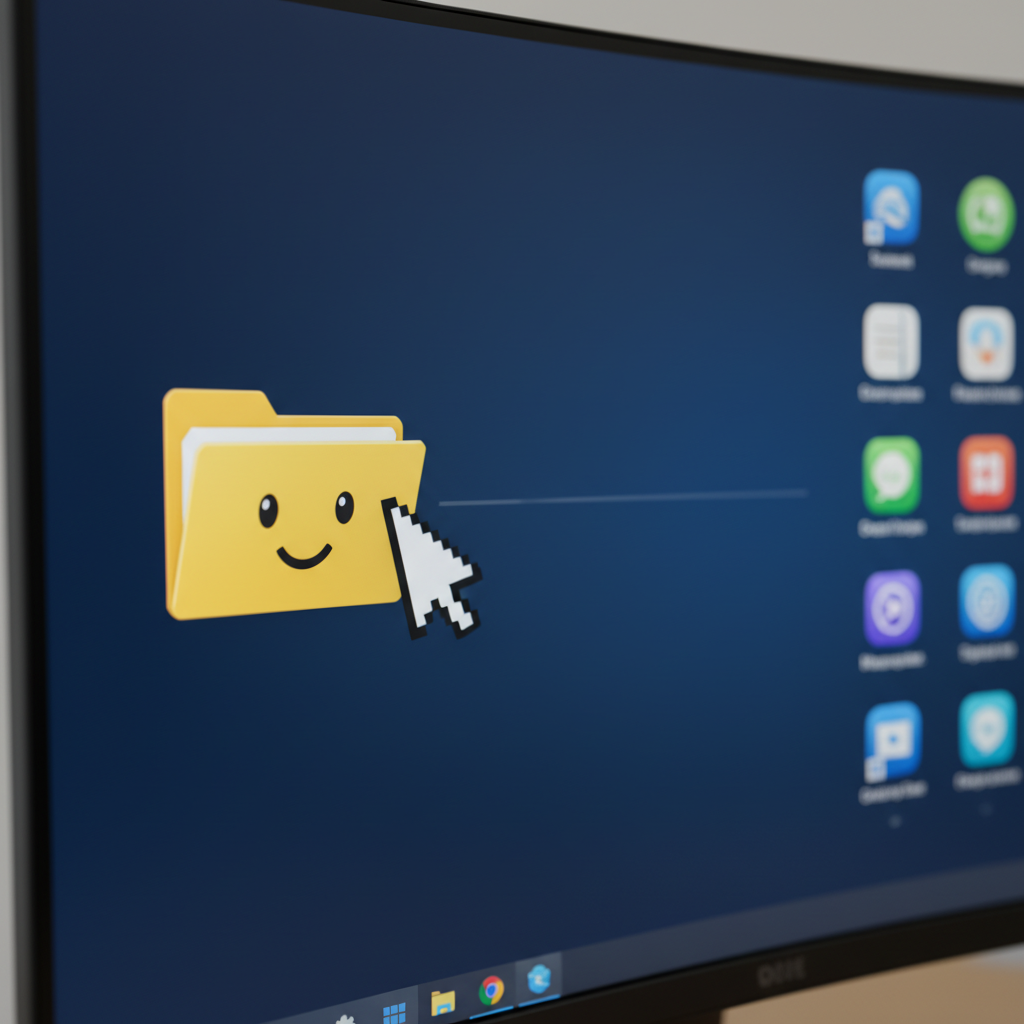
Both the mouse and the trackpad help you move a little arrow, called a cursor, around on your computer screen. Think of the cursor as your computer's finger, pointing to all the interesting things on the screen!
 ⚠️ This picture may have spelling mistakes. Trust the words in the lesson.
"Clicking!" - Like Tapping a Button!
Now, let's learn about "clicking"! Clicking is like tapping a button, just once or twice. On a mouse, you'll feel a button under your pointer finger (usually the left one). On a trackpad, you press down with your finger, or sometimes just tap it quickly.
What happens when you Click?
When you click, you're telling the computer to do something right where your cursor is pointing. It's like:
- Ringing a Doorbell: When you click on a button on the screen, it's like ringing a doorbell. Ding-dong! Something happens! Maybe a new window pops up, or a sound plays.
- Turning on a Light Switch: Click! The light turns on. Click! The light turns off. Clicking on things on the screen can turn them "on" or "off" too, or make them show you something new, like opening a folder to see what's inside.
Most of the time, we do a single click. That's just one quick tap. It's great for picking something, like choosing a color to draw with, or selecting a picture to look at. If you want to choose a toy from a shelf, you just point and pick it up, right? A single click is like pointing and picking.
Sometimes, we do a double click! That's two quick clicks, one right after the other, like a speedy drum beat: click-click! Double clicking is often used to open something, like opening a door to a new room. For example, if you want to open a drawing program, you might double click its picture (called an icon) on the screen. It's like knocking twice to make sure the door opens!
"Dragging!" - Picking Up and Moving Things!
Next up is "dragging"! This is a super fun trick, like moving your favorite toy from one spot to another. To drag, you click and hold down the mouse button (or keep your finger pressed on the trackpad), and then you move the mouse or your finger. While you're holding, the item on the screen moves with your cursor! When you let go of the button or lift your finger, the item stops moving and stays in its new spot.
What happens when you Drag?
When you drag, you're picking something up on the screen and moving it to a new place. It's like:
- Moving a Toy Car: Imagine you have a toy car. You pick it up, move it across the floor, and then put it down in a new parking spot. That's exactly what dragging does on the computer! You pick up an icon, move it across the screen, and drop it.
- Putting Blocks in a Tower: You pick up a block, carry it over to your tower, and let go to add it to the top. On the computer, you can drag pictures, words, or even parts of a drawing to build your own digital creations!
Dragging is amazing for making art! You can open a drawing program, pick a crayon tool, and then drag it across the screen to draw colorful lines, circles, and squares. You can also drag pictures or icons (those little pictures on your screen) to organize them or put them where you want them, just like tidying up your toys.
Why are Clicking and Dragging Important?
Clicking and dragging are super important because they help you tell the computer what to do! Without them, it would be much harder to play games, draw pictures, or learn new things on the computer. They are your magic tools that help you communicate with the digital world!
Practice Makes Perfect!
Learning to click and drag might feel a little tricky at first, just like learning to tie your shoes or ride a bike. But don't worry! With a little practice, your fingers will become super speedy and smart. Remember to be gentle with the mouse or trackpad, and most importantly, have fun exploring!
Try these things to practice (always with a grown-up's permission!):
- Click on different icons on your desktop or in a simple game. See what happens!
- Open a simple drawing program and try clicking to select different colors or brush sizes.
- In a drawing program, try dragging the paintbrush tool to draw a long line or a big circle.
- If you have a simple computer puzzle game, try dragging the puzzle pieces into place!
You are now a clicking and dragging champion! Keep practicing, and you'll become a computer wizard in no time!
Keep learning, free
Create a free Syllabax account to unlock practice questions and games for this topic.
Visual Learning Enhanced! 🚀
To help you master this topic, we use Advanced Syllabax AI to generate detailed diagrams and visual models.
Note on Visuals: The AI sometimes makes spelling errors in image labels. Please refer to the lesson text for the correct terminology.