What is a Computer?
Watch this topic in 60 seconds
Free preview · Lesson 1
Understanding What is a Computer?
What is a Computer? Your Amazing Helper Machine!
Hey there, future tech whizzes! Have you ever wondered what a computer really is? It might seem like a magical box, but it's actually a super-smart helper machine designed to make our lives easier and more fun!
Imagine you have a super-duper helpful robot friend. This robot can listen to your instructions, think really fast, do exactly what you ask, and even remember things for a long, long time. Well, a computer is a bit like that robot friend! It's an electronic machine that helps us do all sorts of things, from playing games to learning new things to talking to family far away.
The Four Super Jobs of a Computer
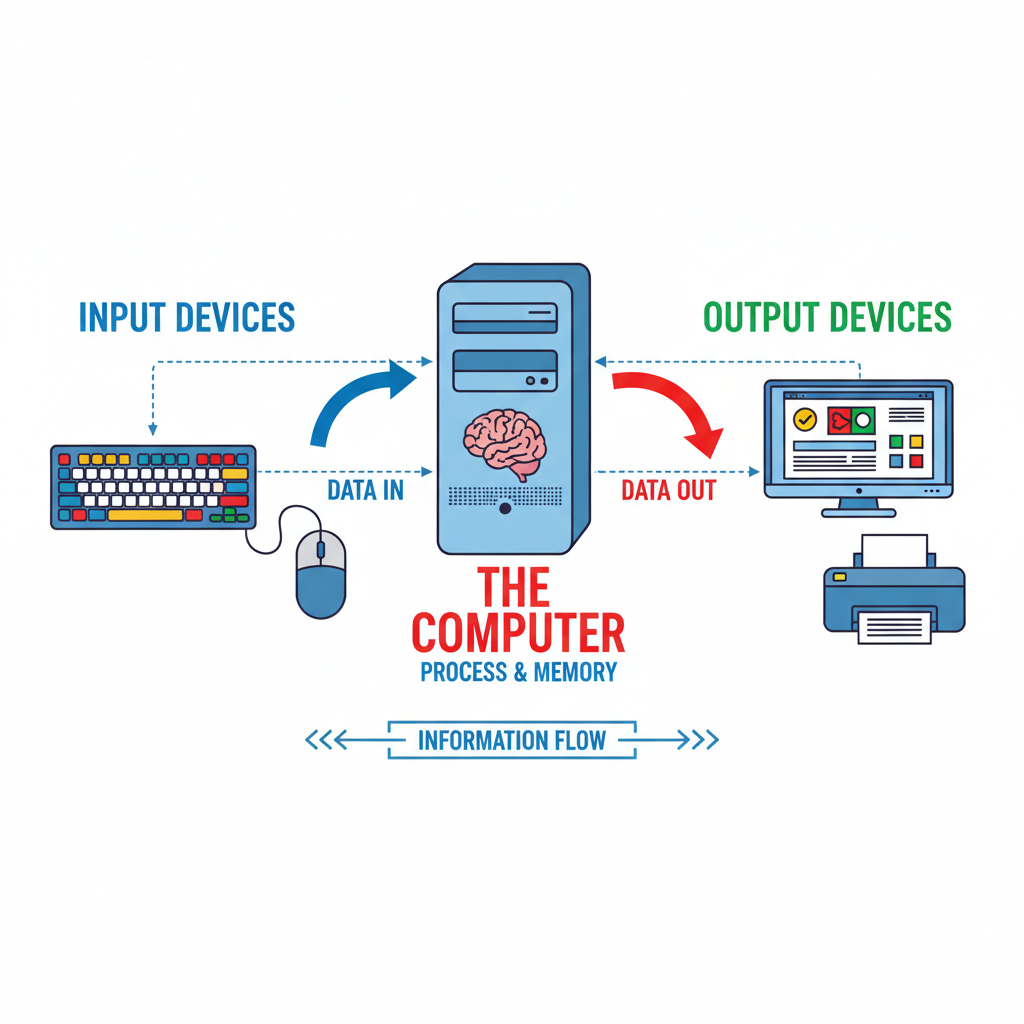
Every computer, no matter how big or small, does four main things. Think of it like a chef in a kitchen:
-
1. Input: Listening to You!
Before a chef can cook, they need ingredients and a recipe, right? A computer is the same! It needs to hear what you want it to do. This is called input. It’s how you give instructions to the computer.
- Keyboard: Like writing a note to your robot friend. When you type letters and numbers, you're giving the computer input.
- Mouse: Like pointing your finger to tell your robot where to go. You click and move things on the screen.
- Microphone: Like talking to your robot. When you speak into it, the computer hears your voice.
- Touchscreen: Like tapping on a special board. On a tablet or phone, you use your finger to tell it what to do.
So, input is simply how you talk to the computer!
-
2. Processing: The Computer's Thinking Brain!
Once the chef has the recipe, they start chopping, mixing, and cooking. This is the 'thinking' part! For a computer, this is called processing. It's when the computer's super-fast 'brain' (called the CPU, but you can just call it the brain!) takes your instructions and figures out what to do.
If you tell the computer to add 2 + 2, the processing part quickly does the math. If you click on a game, the processing part makes the game start running! It happens super fast, so fast you don't even notice!
-
3. Output: Showing You the Answer!
After the chef cooks, they present the delicious meal! For a computer, this is called output. It's how the computer shows you what it has done or what it has found out.
- Screen (Monitor): Like a magic window! It shows you pictures, videos, and words. When you type on the keyboard, you see the letters appear on the screen.
- Speakers/Headphones: Like your robot friend talking back! They let you hear music, game sounds, or people talking.
- Printer: Like a special drawing machine! It takes what's on the screen and puts it onto paper.
Output is how the computer talks back to you!
-
4. Storage: Remembering Everything!
What if the chef wants to remember a super yummy recipe for next time? They write it down in a recipe book! A computer also needs to remember things. This is called storage. It’s where the computer keeps all your games, pictures, videos, and important documents so you can use them again later.
- Hard Drive: This is like a giant, super-organized memory box inside the computer where almost everything is stored.
- USB Drive (Flash Drive): This is like a small, portable memory stick you can plug into the computer to save and carry files.
Without storage, computers would forget everything as soon as you turned them off!
Different Kinds of Computer Friends
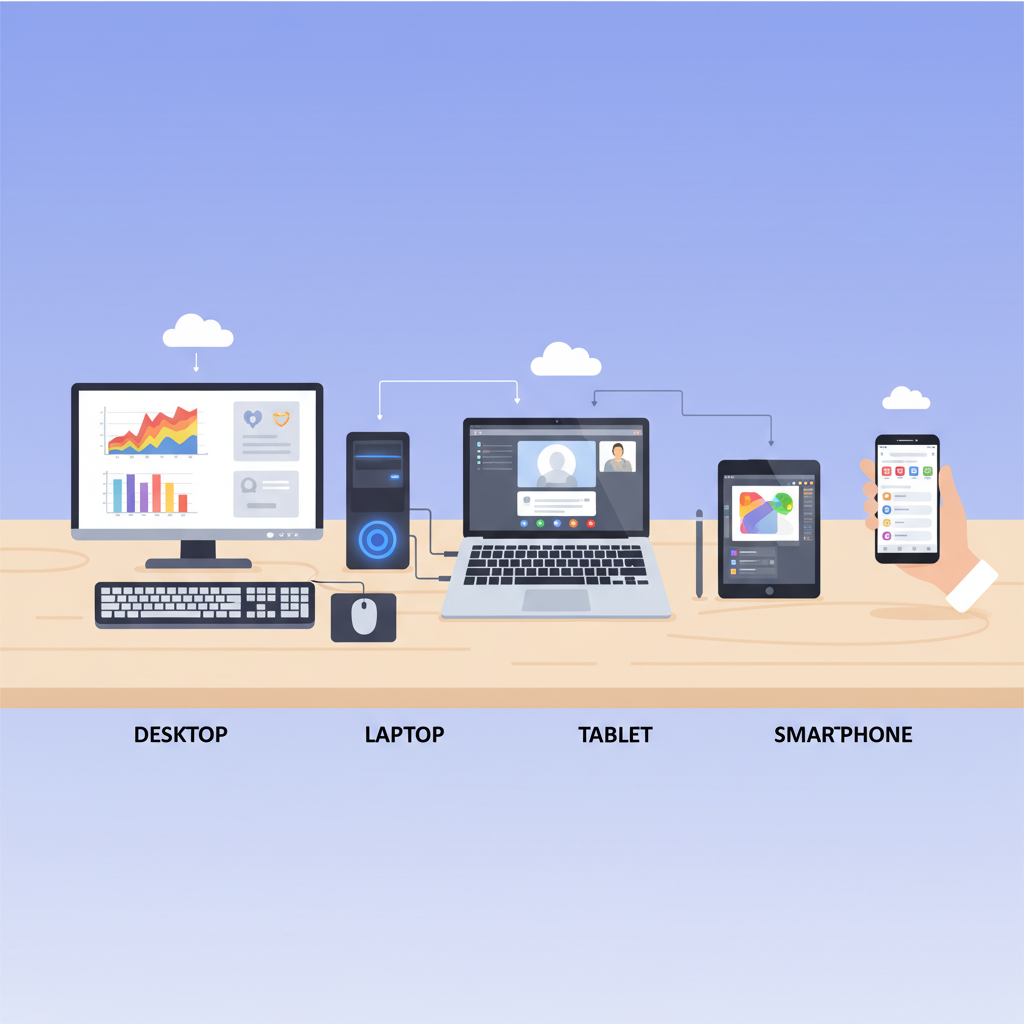
Just like there are different kinds of pets (dogs, cats, fish), there are different kinds of computers! They all do the same four super jobs, but they look different and are used in different ways:
-
Desktop Computers: The Big Helpers
These are usually found at home or school, sitting on a desk. They have a separate screen, keyboard, and mouse. Think of them as the big, sturdy base for your computer adventures!
-
Laptop Computers: Portable Power!
Laptops are like desktop computers, but they're all put together in one handy package that you can carry around! They have a screen, keyboard, and a special touch pad (like a mouse) all built-in. Great for learning and playing on the go.
-
Tablets: Touch and Go!
Tablets are like super-flat screens that you control mostly by touching them with your fingers! They don't usually have a physical keyboard, but you can see one pop up on the screen when you need to type. Perfect for drawing, reading, and watching videos.
-
Smartphones: Computers in Your Pocket!
Surprise! That phone your grown-ups use? It's a tiny, powerful computer! It has a screen, a microphone, speakers, and it can do almost everything a bigger computer can do, just in your hand.
-
Hidden Computers: Everywhere!
Computers are everywhere, even in places you might not expect! Your smart TV, a washing machine, your parent's car, even some toys have tiny computers inside that help them work! These are called embedded computers.
 ⚠️ This picture may have spelling mistakes. Trust the words in the lesson.
Why Are Computers So Awesome?
Computers are amazing tools because they help us:
- Learn: Play educational games, find information for school projects, watch learning videos.
- Create: Draw pictures, write stories, make music, build things in virtual worlds.
- Communicate: Talk to friends and family who live far away using video calls or messages.
- Play: Enjoy all sorts of fun games!
- Get Work Done: Help grown-ups with their jobs and make everyday tasks easier.
So, a computer isn't just a complicated machine. It's a fantastic, super-smart helper that uses its input, processing, output, and storage abilities to do incredible things for us every single day!
Keep learning, free
Create a free Syllabax account to unlock practice questions and games for this topic.
Visual Learning Enhanced! 🚀
To help you master this topic, we use Advanced Syllabax AI to generate detailed diagrams and visual models.
Note on Visuals: The AI sometimes makes spelling errors in image labels. Please refer to the lesson text for the correct terminology.