Creating Simple Animations with Code
Watch this topic in 60 seconds
Free preview · Lesson 1
Understanding Creating Simple Animations with Code
Bringing Drawings to Life: Simple Animations with Code!
Have you ever watched your favorite cartoon character zoom across the screen, or seen a video game character jump and run? That’s animation! Animation is the art of making still pictures look like they are moving. It’s like magic, but it’s really just a clever trick played on your eyes by showing many slightly different pictures very, very quickly.
The Magic of Flipbooks: Our First Animation Analogy
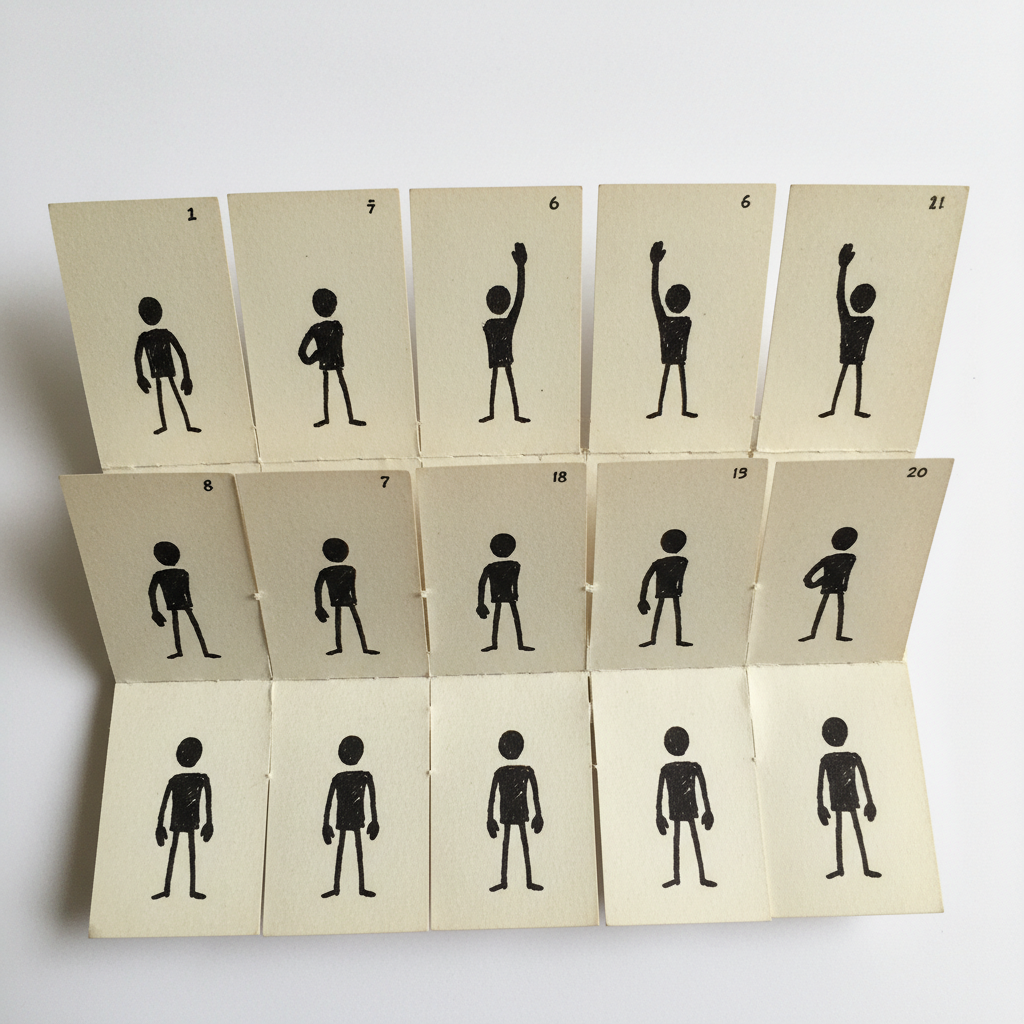
Think about a flipbook. You draw a simple character on the first page. On the next page, you draw the same character, but with its arm moved just a tiny bit. On the third page, its arm moves a little bit more. If you quickly flip through all the pages, it looks like the character is waving! Each page in your flipbook is what we call a frame in animation. A frame is just one single picture in a sequence of many pictures.
Computers are like super-fast flipbook makers! Instead of drawing by hand, we use code to tell the computer what to draw in each 'frame' and how to change it a tiny bit for the next 'frame'. Then, the computer flashes these frames on the screen so quickly that our brains get tricked into seeing smooth motion. Usually, computers show 30 to 60 frames every single second!
The Building Blocks of Animation with Code
To create animations with code, we need to understand a few key ideas:
1. Position: Where Things Are
Imagine you have a treasure map. To find the treasure, you need to know exactly where it is! On a computer screen, we use something similar called coordinates to tell the computer where to draw something. We usually have an 'X' number for how far left or right something is, and a 'Y' number for how high or low something is.
- X-coordinate: This tells you how far across the screen something is, from left to right. Think of it like walking left or right.
- Y-coordinate: This tells you how far up or down the screen something is, from top to bottom. Think of it like walking up or down.
So, if you want to draw a ball in the middle of the screen, you'd give it specific X and Y coordinates, like (100, 150).
2. Movement: Changing Position Over Time
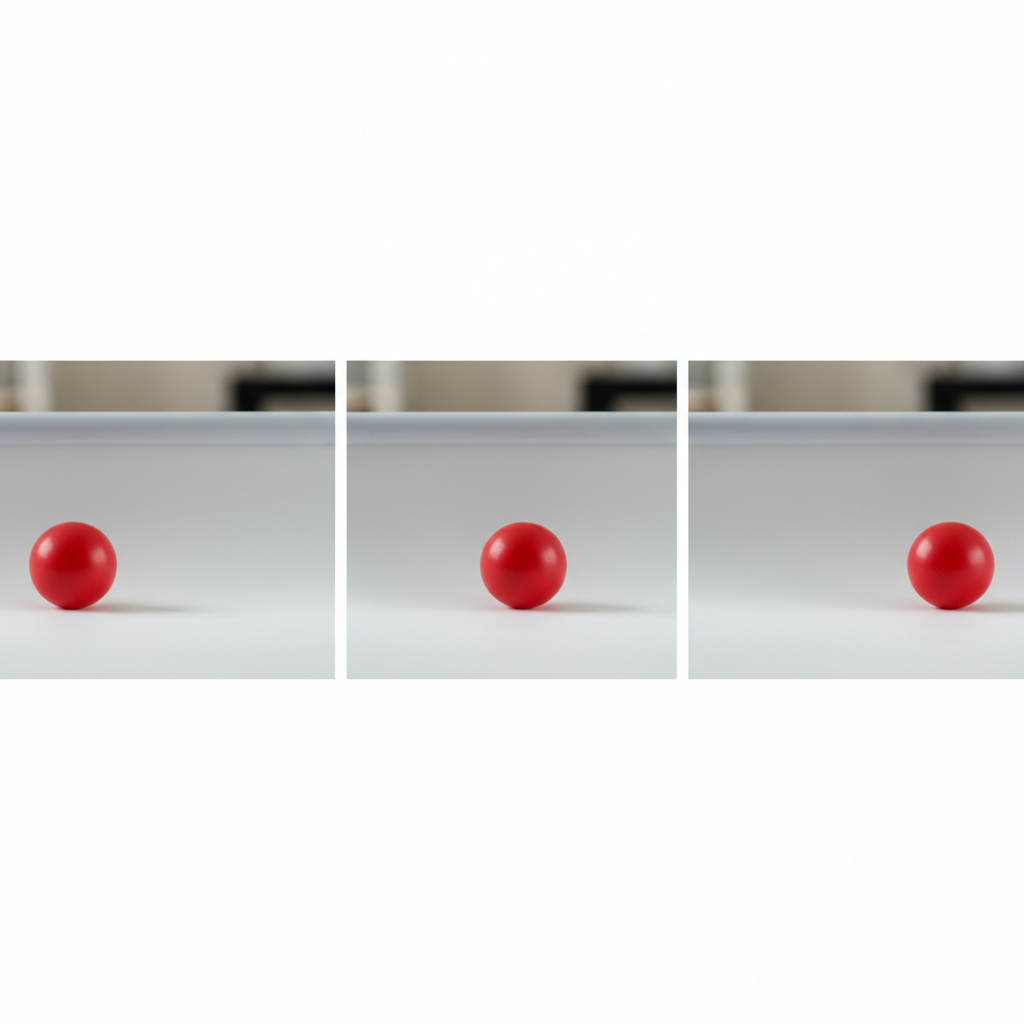
To make something move, we just tell the computer to change its X or Y coordinates (or both!) by a little bit in each new frame. It’s like sliding a toy car a tiny bit, taking a photo, sliding it a tiny bit more, taking another photo, and so on. If we change the X-coordinate, the object moves left or right. If we change the Y-coordinate, it moves up or down.
3. Appearance Changes: More Than Just Moving
Animations aren't just about things moving! You can also make objects change their look. You could make a character:
- Get bigger or smaller (changing its size).
- Change color (like a traffic light turning green to yellow to red).
- Even change its shape or switch to a different drawing (sometimes called a 'costume' or 'sprite').
Think of blowing up a balloon – it gets bigger! Or a chameleon changing its skin color. We can tell our code to do these changes too, frame by frame.
4. Loops: Doing Things Over and Over
Imagine you want your animation to keep playing forever, like a GIF on a website. This is where a loop comes in handy. A loop is like telling the computer, “Keep doing these steps again and again and again.” In animation, we often use a loop to constantly update the screen, draw new frames, and make things move without us having to tell it to draw each frame individually.
5. Time and Delay: Giving Your Eyes a Chance
Even though computers are super-fast, we sometimes need to tell them to wait a tiny, tiny fraction of a second between frames. This small delay ensures that each frame is shown just long enough for your eyes to register the change, making the movement look smooth rather than a blurry mess.
 ⚠️ This picture may have spelling mistakes. Trust the words in the lesson.
The Simple Recipe for Animation with Code
So, how do we put all this together to make a simple animation with code? Here’s the basic recipe:
- Draw something: Tell the computer to draw an object (like a circle or a square) at a starting X and Y position.
- Start a loop: Tell the computer to keep repeating a set of instructions.
- Clear the screen (or draw over it): In each loop, you first need to prepare for the new frame. Sometimes this means erasing what was there before, or just drawing the new version on top.
- Change something: Inside the loop, tell the computer to change the object’s position (X or Y), size, or color by a tiny amount. For example, add 1 to its X-coordinate to make it move right.
- Draw the changed object: Draw the object again, but this time with its new position, size, or color.
- Wait a little bit: Add a tiny pause before the loop starts again for the next frame.
- Repeat! The loop continues, and because the changes are small and happen quickly, it looks like smooth animation!
Imagine animating a bouncing ball. In code, you'd start the ball at the top (a certain Y coordinate). In your loop, you'd constantly subtract a little from its Y coordinate (making it go down). When it reaches the bottom, you'd then start adding to its Y coordinate (making it go up again). This simple change in Y, repeated many times a second, makes the ball appear to bounce!
Your Turn!
Even though we didn't write actual code here, understanding these basic ideas of frames, position, movement, changes, and loops is the first step to becoming an animation coder! Many kid-friendly coding tools, like Scratch, use these very same concepts with easy-to-use 'blocks' instead of typing. So, go ahead and imagine what you could make move or change on screen. The world of animation is waiting for you to bring your ideas to life!
Keep learning, free
Create a free Syllabax account to unlock practice questions and games for this topic.
Visual Learning Enhanced! 🚀
To help you master this topic, we use Advanced Syllabax AI to generate detailed diagrams and visual models.
Note on Visuals: The AI sometimes makes spelling errors in image labels. Please refer to the lesson text for the correct terminology.