Drawing with a Computer
Watch this topic in 60 seconds
Free preview · Lesson 1
Understanding Drawing with a Computer
Let's Draw with a Computer!
Hello, young artists! Get ready for a super exciting adventure into the world of drawing. Today, we're going to learn about a really cool way to draw: using a computer! Imagine you have a magic drawing pad that never runs out of paper and has every color crayon you could ever dream of. That's a bit like drawing with a computer!
What You Need to Be a Digital Artist
Just like you need paper and crayons for drawing, you need a few special things to draw with a computer:
- A Computer: This is like your drawing desk. It's the big machine that does all the thinking and shows you what you're drawing.
- A Mouse or Trackpad: This is like your hand holding the crayon or paintbrush. You move it around to tell the computer exactly where you want to draw. Think of it like steering a tiny car across your screen!
- A Drawing Program (or App): This is like your special drawing book or a big box of art supplies. It's a special kind of software that has all the tools you need to create your masterpieces! Some popular ones for kids might be Paint, Google Drawings, or simple drawing apps.
Your Digital Canvas: The Screen
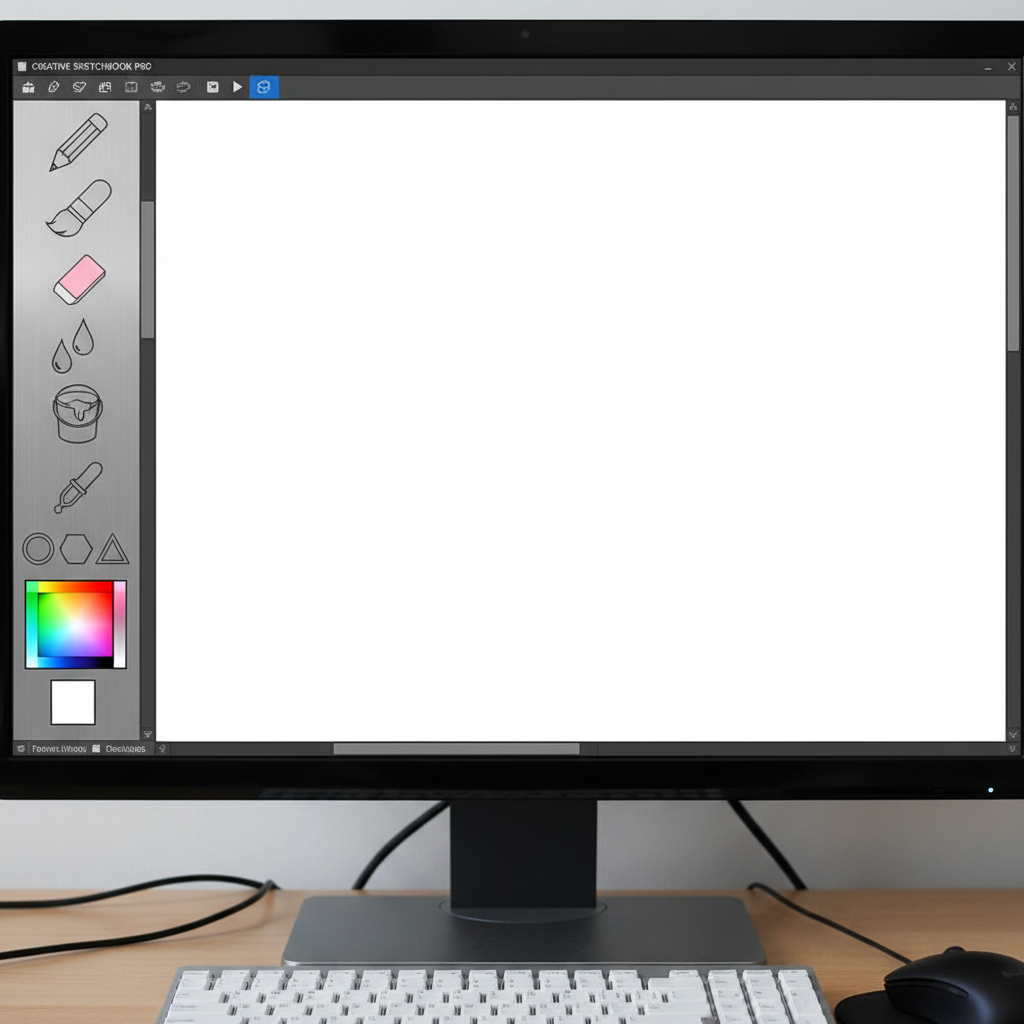
When you open a drawing program, you'll see a big, usually white, space on your computer screen. Guess what? This is your "digital canvas"! It's just like a fresh, blank piece of paper waiting for all your wonderful ideas to come to life. You can draw anything you imagine on this digital canvas, and the best part is, you never run out of paper!
 ⚠️ This picture may have spelling mistakes. Trust the words in the lesson.
Magic Tools at Your Fingertips
On the side or top of your screen, you'll see lots of little pictures. These are your amazing "digital tools"! They're like your super-powered art supplies:
- Pencil Tool: This is just like a real pencil. You can use it to draw thin lines, outlines, and add tiny details to your drawing.
- Brush Tool: This is like a paintbrush! It can make thicker, softer lines, perfect for painting big areas or adding fuzzy textures. You can even change how big or small your brush is!
- Shapes Tool: Imagine having cookie cutters for perfect circles, squares, and stars! This tool lets you make perfect shapes very easily, without having to draw them carefully yourself.
- Fill Tool (Paint Bucket): Once you draw a shape, you can use this tool to quickly color it in! It's like pouring paint into a cup – whoosh! – the whole shape fills with color instantly!
- Eraser Tool: Oops! Made a tiny mistake? Just like a real eraser, this tool lets you rub away parts of your drawing you don't want.
Choosing Your Colors
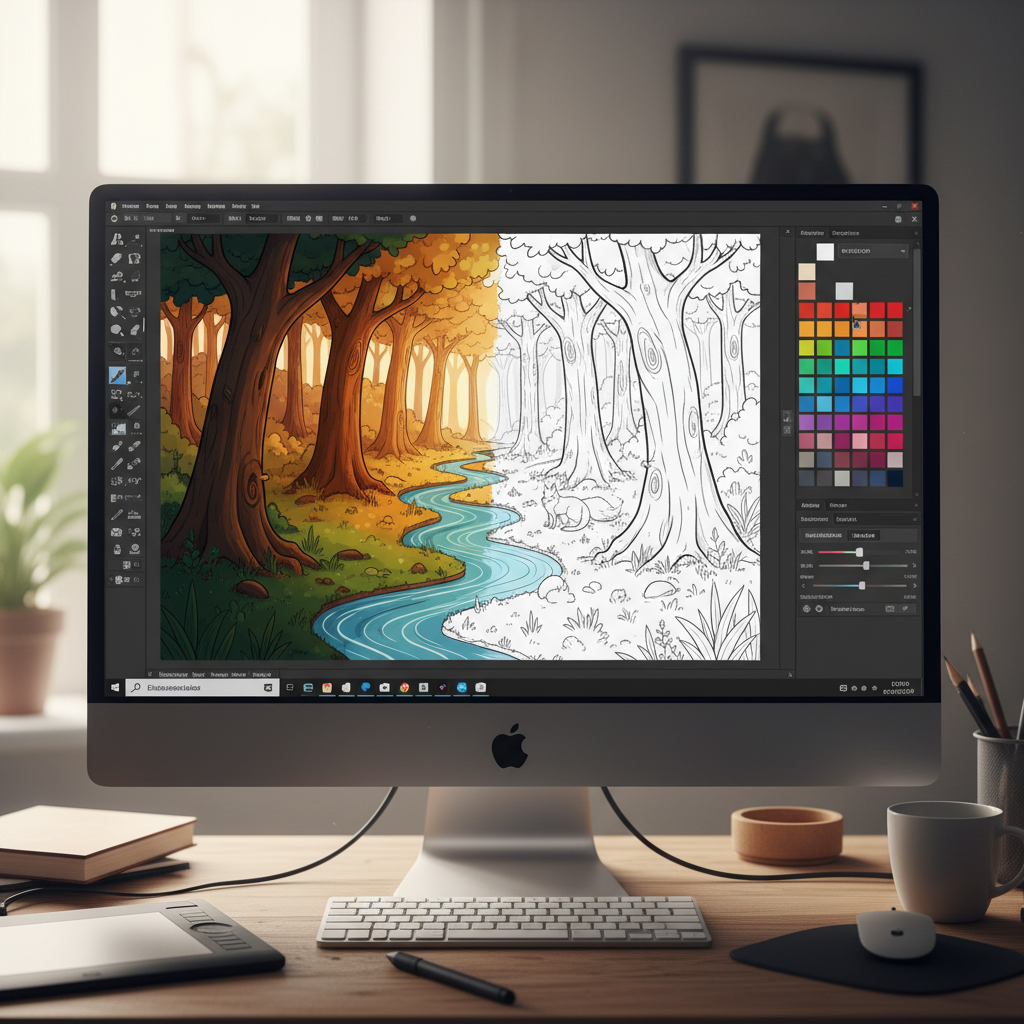
Near your tools, you'll find something called a "color palette." This is like a giant box of every crayon, marker, or paint color imaginable! Instead of picking up a physical crayon, you just click on the color you want with your mouse, and *poof!* – your digital pencil or brush will draw in that color. It's like having an infinite supply of your favorite flavored jelly beans, but for colors!
 ⚠️ This picture may have spelling mistakes. Trust the words in the lesson.
Making Mistakes Disappear (Like Magic!)
Don't worry if you draw something you didn't mean to! Drawing with a computer is very forgiving:
- The Undo Button: This is the *most magical* tool of all! It's usually a curved arrow pointing to the left. If you click it, your very last action simply disappears! It's like time travel for your drawing – you can go back one step at a time. Made a big messy line? Click undo! Accidentally colored the wrong part? Click undo! It's like having a rewind button for your art.
Saving Your Masterpiece
Once you're all done with your amazing artwork, you definitely want to keep it, right? Look for a "Save" button. It often looks like a tiny old floppy disk (even though we don't use those much anymore!) or simply says "Save." When you save, your drawing becomes a "file" that the computer remembers. It's like putting your drawing in a special folder or frame so you can look at it later, print it out, or even share it with your friends and family!
Why Drawing with a Computer is So Much Fun!
- You can try new things without worrying about messing up paper or running out of supplies.
- You have an endless supply of colors and amazing tools.
- The "Undo" button means you never have to be afraid of making a mistake.
- You can share your beautiful artwork with friends and family with just a few clicks!
- It's a super fun way to be creative and learn new skills that will help you in school and beyond.
So go ahead, explore, experiment, and have a blast being a digital artist!
Keep learning, free
Create a free Syllabax account to unlock practice questions and games for this topic.
Visual Learning Enhanced! 🚀
To help you master this topic, we use Advanced Syllabax AI to generate detailed diagrams and visual models.
Note on Visuals: The AI sometimes makes spelling errors in image labels. Please refer to the lesson text for the correct terminology.