Computer Memory & Storage
Watch this topic in 60 seconds
Free preview · Lesson 1
Understanding Computer Memory & Storage
Computer Memory & Storage: Where Computers Keep Their Thoughts!
Have you ever wondered how your computer remembers all your games, photos, and homework? Or how it can run so many different programs at once without getting confused? It's all thanks to something called Computer Memory and Storage! Think of your computer as having its very own brain, but instead of one big brain, it has two different places to keep information: one for what it's thinking right now, and another for what it needs to remember forever.
The Computer's 'Desk' vs. Its 'Filing Cabinet'
Analogy Time! Your Brain vs. Your Backpack
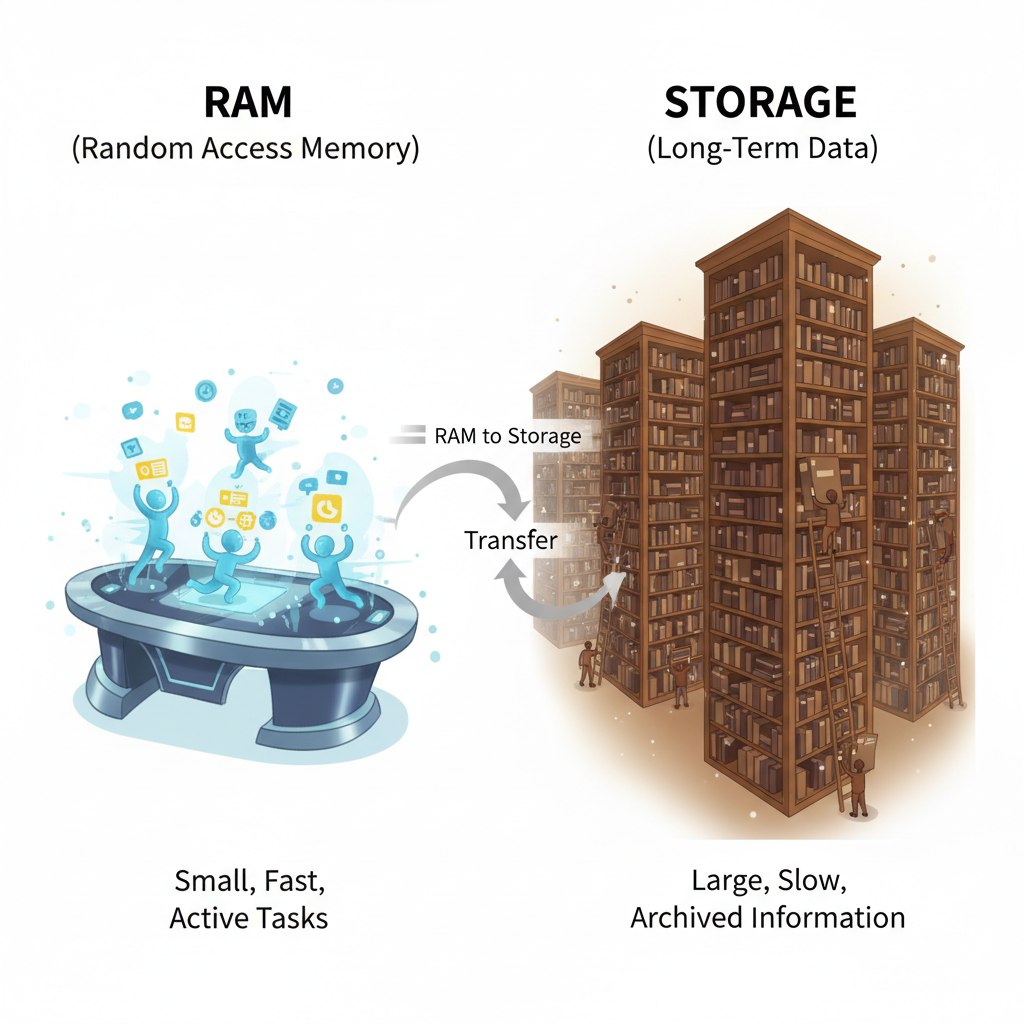
Imagine you're doing your homework. You have your notebook, pens, and calculator all spread out on your desk. This desk is where you do your active work – it's fast, easy to access, and holds only what you're using at the moment. When you're done, you pack everything neatly into your backpack or a filing cabinet to save it for later. Your backpack can hold many more things than your desk, but it takes a little longer to find exactly what you need.
Your computer works similarly! It has a 'desk' for active work and a 'backpack' (or filing cabinet) for everything else.
1. Computer Memory (RAM): The Computer's Short-Term Workspace
The 'desk' in our analogy is what we call RAM, which stands for Random Access Memory. This is where your computer keeps track of everything it's doing right now. It's super fast, allowing the computer to quickly grab information it needs immediately.
What is RAM and What Does It Do?
- Active Workspace: When you open a game, a web browser, or a document, the computer quickly loads parts of that program into RAM. It's like pulling out the ingredients you need from the pantry and placing them on your kitchen counter to start cooking.
- Super Fast: RAM is incredibly fast because it's designed for constant, immediate access. Imagine how quickly you can pick up a pencil from your desk compared to digging through your backpack to find one.
- Temporary Information: Here's a very important part: RAM is like a whiteboard. When you turn off your computer, everything in RAM gets erased. It doesn't save anything permanently. That's why if your computer suddenly shuts down, you might lose unsaved work.
- How Much RAM? The more RAM your computer has, the more programs and tasks it can handle smoothly at the same time without slowing down. Think of a bigger desk – you can spread out more work!
RAM Analogy: The Chef's Cutting Board
Think of a chef preparing a meal. The cutting board on the kitchen counter is like RAM. It's where the chef keeps the ingredients they are actively chopping, mixing, and preparing for the dish. It's quick to reach, but only holds a small amount of ingredients at a time. Once the dish is cooked (or the computer task is finished/computer is off), the cutting board is cleared, and those specific ingredients are no longer there.
2. Computer Storage: The Computer's Long-Term Memory Bank
Now let's talk about the 'filing cabinet' or 'backpack' – this is your computer's Storage. This is where all your files, programs, photos, and videos live permanently, even when you turn off your computer. Storage is designed to hold huge amounts of information and keep it safe for a very long time.
What is Storage and What Does It Do?
- Permanent Home: Unlike RAM, storage keeps information even when the power is off. It's like a library where all the books (your files) are stored safely on shelves, waiting for you to pick them up again.
- Slower but Bigger: Storage is generally slower than RAM. It takes a little longer for the computer to find and retrieve a file from storage compared to grabbing something from RAM. But storage can hold much, much more information!
- Two Main Types:
- Hard Disk Drives (HDDs): These are like old record players inside your computer. They have spinning metal platters where data is stored magnetically. They are common, good for lots of storage, but can be a bit slower and make noise.
- Solid State Drives (SSDs): These are newer and much faster! They don't have any moving parts and store data using flash memory, similar to a USB stick. Think of them as super-fast, silent electronic libraries.
- What's Stored Here? Your operating system (like Windows or macOS), all your installed programs, every photo, video, document, and game you've ever saved – they all live on your computer's storage drive.
Storage Analogy: The Library or Photo Album
Imagine a giant library filled with thousands of books. Each book is a file or program on your computer. You can find any book you want, but it might take a few moments to walk to the right shelf and pull it out. Once you take a book, it's still there for the next time you need it. A family photo album is another great example – it keeps all your memories safe and sound for years to come.
How Memory and Storage Work Together
RAM and storage are like best friends working together. When you want to open a game, the game's information is moved from your computer's storage (the library) into its RAM (your desk). While you're playing, all the active game data is quickly processed in RAM. When you save your game, that new saved data is then copied back from RAM onto your storage drive, so it's there the next time you want to play!
How Do We Measure Memory and Storage? Bits, Bytes, and Beyond!
Computers speak in a language of 0s and 1s, called bits. These bits are tiny, tiny pieces of information. To make sense of them, we group them into larger units:
- Bit: The smallest unit, a single 0 or 1. Think of it as a single letter.
- Byte: 8 bits grouped together. This is enough to store one character, like the letter 'A' or the number '5'. Think of it as a single word.
- Kilobyte (KB): About a thousand bytes (1,024 bytes). A very short email might be a few KBs. Think of it as a short sentence.
- Megabyte (MB): About a million bytes (1,024 KBs). A small picture or a short song might be a few MBs. Think of it as a page of text.
- Gigabyte (GB): About a billion bytes (1,024 MBs). A full-length movie, many high-resolution photos, or a large game might be several GBs. Modern phones and basic computers often have 64GB or 128GB of storage. Think of it as an entire book.
- Terabyte (TB): About a trillion bytes (1,024 GBs). This is a huge amount! Large external hard drives or powerful computers might have 1TB or more of storage. Think of it as an entire library!
Remember: Generally, the more RAM you have, the better your computer can multitask. The more Storage you have, the more files and programs you can keep on your computer.
Conclusion
So, there you have it! RAM is your computer's speedy, temporary workspace, perfect for what it's doing right now. Storage is its vast, permanent library, keeping everything safe for later. Both are super important and work hand-in-hand to make your computer run smoothly, remember your favorite things, and let you create amazing new ones!
Keep learning, free
Create a free Syllabax account to unlock practice questions and games for this topic.
Visual Learning Enhanced! 🚀
To help you master this topic, we use Advanced Syllabax AI to generate detailed diagrams and visual models.
Note on Visuals: The AI sometimes makes spelling errors in image labels. Please refer to the lesson text for the correct terminology.