Input Devices & Their Uses
Watch this topic in 60 seconds
Free preview · Lesson 1
Understanding Input Devices & Their Uses
Input Devices & Their Uses: How We Talk to Computers
Have you ever wondered how you tell a computer what to do? How does it know when you want to type a letter, play a game, or even just click on an icon? The answer lies in something called Input Devices. Think of computers like very smart robots that need instructions. Input devices are the 'tools' we use to give those instructions and feed information into the computer, just like you use your mouth to speak, your eyes to see, or your hands to touch and interact with the world around you.
In this lesson, we're going to explore what input devices are, why they're so important, and look at some of the most common ones you use every day. We'll break them down into simple terms, making sure you understand the core concepts without getting bogged down in complex jargon.
What are Input Devices? The Computer's Senses
At its core, an input device is any piece of hardware equipment that allows you to send data, control signals, or information to a computer. It's the bridge between you (the user) and the computer, enabling communication.
- Analogy: Imagine a chef in a kitchen. The chef (the computer) needs ingredients (data) and instructions (commands) to cook a meal. Your hands, eyes, and voice (input devices) are how you give those ingredients and instructions to the chef. Without them, the chef wouldn't know what to do!
Without input devices, a computer would just be a fancy box sitting there, unable to receive any commands or data from you. You couldn't type, click, speak, or draw. They are absolutely essential for interacting with any digital system, from your smartphone to a supercomputer.
Common Input Devices and Their Superpowers
Let's dive into some of the most common input devices and understand how they work and what they're used for:
1. The Keyboard: Your Digital Typewriter
The keyboard is probably the most familiar input device. It's a panel with an arrangement of buttons, or 'keys', that represent letters, numbers, symbols, and special functions. When you press a key, the keyboard sends a signal to the computer, telling it which key was pressed.
- Use: Typing text documents, emails, messages, entering numbers into spreadsheets, giving commands (like 'Ctrl+S' to save).
- Analogy: Think of a keyboard like an old-fashioned typewriter, but instead of putting ink on paper directly, it sends digital signals to your computer screen. Or, imagine it's a giant remote control with hundreds of buttons, each doing something specific!
2. The Mouse: Your Digital Pointing Finger
A mouse is a small, handheld device that you move across a flat surface (like a desk or mouse pad). As you move the mouse, a pointer or cursor moves on the computer screen. It usually has two or three buttons and often a scroll wheel.
- Use: Navigating web pages, clicking on icons, selecting text, dragging and dropping files, playing games.
- Analogy: The mouse is like your finger pointing at things on a digital canvas. Instead of physically touching the screen, you're using the mouse to guide an on-screen pointer. The left-click is like tapping something, and the right-click is like asking for more options.
3. The Touchscreen: Direct Interaction
Touchscreens are special display screens that can detect the presence and location of a touch within the display area. You can interact with them directly using your finger or a special stylus.
- Use: On smartphones, tablets, some laptops, ATMs, and interactive kiosks for tapping, swiping, pinching to zoom, and drawing.
- Analogy: This is perhaps the easiest to understand! It's like having physical buttons right on the screen that you can press. Instead of using a mouse to click, you just reach out and touch what you want. Imagine a digital whiteboard you can write on with your finger.
4. The Microphone: The Computer's Ears
A microphone is a device that converts sound waves into electrical signals. These signals can then be recorded, transmitted, or processed by a computer.
- Use: Voice commands (like 'Hey Google' or 'Siri'), recording audio, online calls (Zoom, Teams), speech-to-text dictation, podcasting.
- Analogy: A microphone is exactly like the computer's ear. It 'listens' to sounds from the real world and translates them into a language the computer can understand. Just like your ears hear someone talking, the microphone 'hears' your voice.
5. The Webcam: The Computer's Eyes
A webcam is a digital camera connected to a computer, either built-in (like on a laptop) or connected externally. It captures still images or full-motion video.
- Use: Video calls, online meetings, recording videos, security monitoring, live streaming.
- Analogy: The webcam is the computer's eye! It 'sees' what's in front of it and turns those images into data the computer can use. When you're on a video call, your webcam is literally showing the other person what your computer 'sees'.
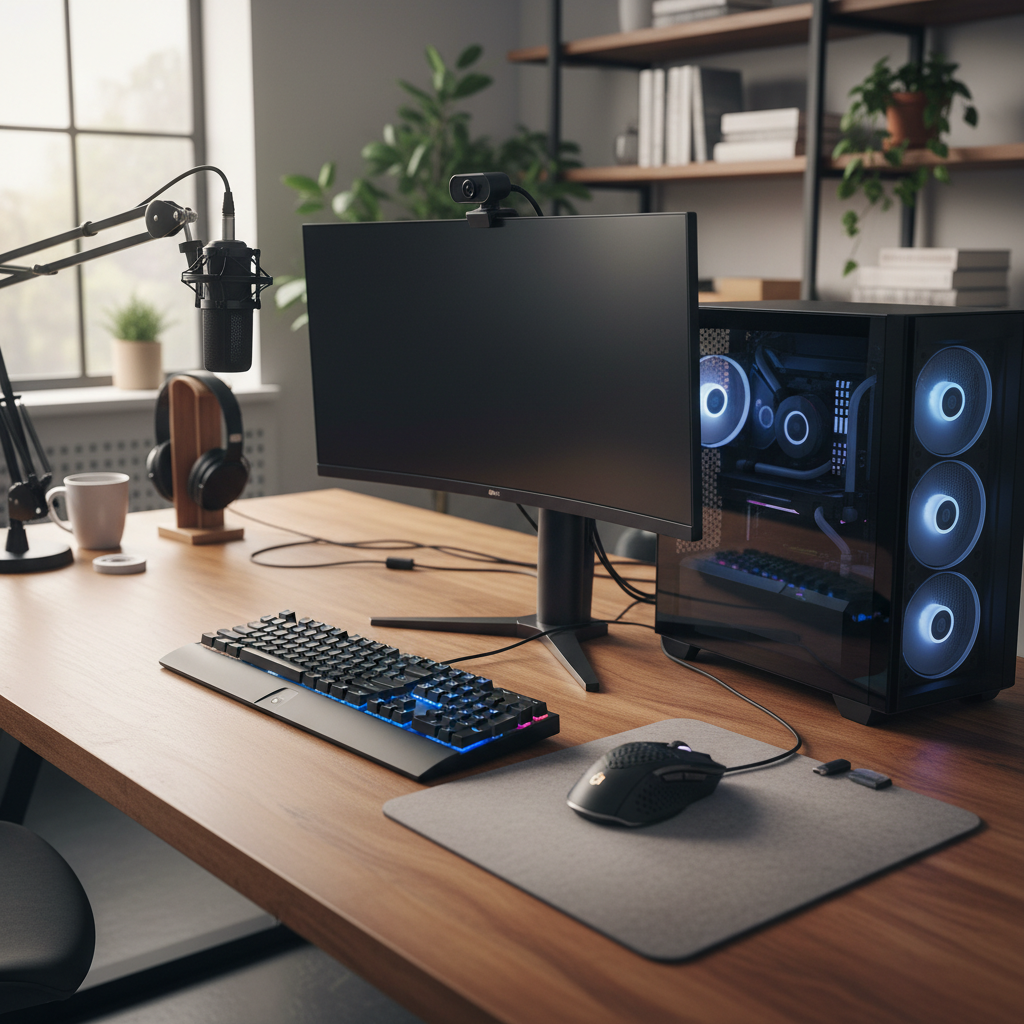 ⚠️ This picture may have spelling mistakes. Trust the words in the lesson.
6. The Scanner: From Paper to Pixels
A scanner is a device that optically 'reads' images, printed text, or objects and converts them into a digital image. It essentially takes a picture of a physical item and saves it on your computer.
- Use: Digitizing old photos, scanning important documents (birth certificates, contracts), creating digital copies of artwork.
- Analogy: Think of a scanner like a high-tech photocopy machine that saves the copy as a picture file on your computer instead of printing it on another piece of paper. Or, imagine it's a very precise camera specifically designed for flat objects.
7. Joystick and Gamepad: For Playtime Control
These are input devices primarily used for playing video games. A joystick usually consists of a stick that pivots on a base and reports its angle or direction to the computer. A gamepad (or joypad) is a handheld controller with multiple buttons and often two thumbsticks.
- Use: Controlling characters in video games, flying simulations, operating heavy machinery remotely.
- Analogy: A joystick is like the steering wheel in a car, but for a game character! A gamepad is like having a mini-control panel in your hands, giving you specific buttons and levers to control your game.
Other Important Input Devices:
- Graphics Tablet: A flat surface you draw on with a special pen, used by artists and designers. (Analogy: A digital sketchbook and pencil.)
- Barcode Reader: Scans those black and white lines on products to identify them. (Analogy: A digital eye that reads product codes very quickly.)
- Card Reader: Reads information from memory cards (like from cameras) or magnetic stripes on credit cards. (Analogy: A slot where you insert a 'data key'.)
- Digital Camera: Captures photos and videos directly into digital format. (Analogy: A high-tech notebook for images.)
Why So Many Input Devices?
You might wonder why we need so many different ways to give information to a computer. The answer is simple: efficiency and specialization. Each device is designed for a specific type of input and purpose. You wouldn't use a keyboard to draw a picture, and you wouldn't use a microphone to select an icon on your screen. Different tasks require different tools to make the interaction as easy and effective as possible.
Understanding input devices is fundamental to understanding how computers work and how we interact with the digital world. They are the essential link that translates our human intentions into signals a machine can process, allowing us to create, communicate, and explore.
Keep learning, free
Create a free Syllabax account to unlock practice questions and games for this topic.
Visual Learning Enhanced! 🚀
To help you master this topic, we use Advanced Syllabax AI to generate detailed diagrams and visual models.
Note on Visuals: The AI sometimes makes spelling errors in image labels. Please refer to the lesson text for the correct terminology.