Using a Keyboard: Typing Letters
Watch this topic in 60 seconds
Free preview · Lesson 1
Understanding Using a Keyboard: Typing Letters
Let's Type! Your Amazing Keyboard Adventure (Grade 3)
Hello, young learners! Get ready to embark on a super exciting adventure into the world of computers! Today, we're going to become keyboard detectives and learn all about typing letters. Think of your computer keyboard like a magical box full of buttons, and each button has a special job.
What is a Keyboard and Why Do We Use It?
Imagine you want to tell a story or write your name on the computer screen. How do you do it? You use the keyboard! The keyboard is a tool that helps us 'talk' to the computer by pressing buttons. When you press a letter button, that letter appears on the screen, just like magic!
Analogy: Think of the keyboard as a super cool remote control for your computer. Instead of changing channels, you're typing words and telling the computer what to do!
Meet the Letter Keys: Your Alphabet Friends!
Look at your keyboard. Do you see all the letters from A to Z? These are your letter keys. They are arranged in a special way, but don't worry, you'll get to know where they live very soon! Each time you press one of these keys, its letter pops up on the screen.
Analogy: The letter keys are like your alphabet blocks, but instead of building towers, you're building words on the computer screen!
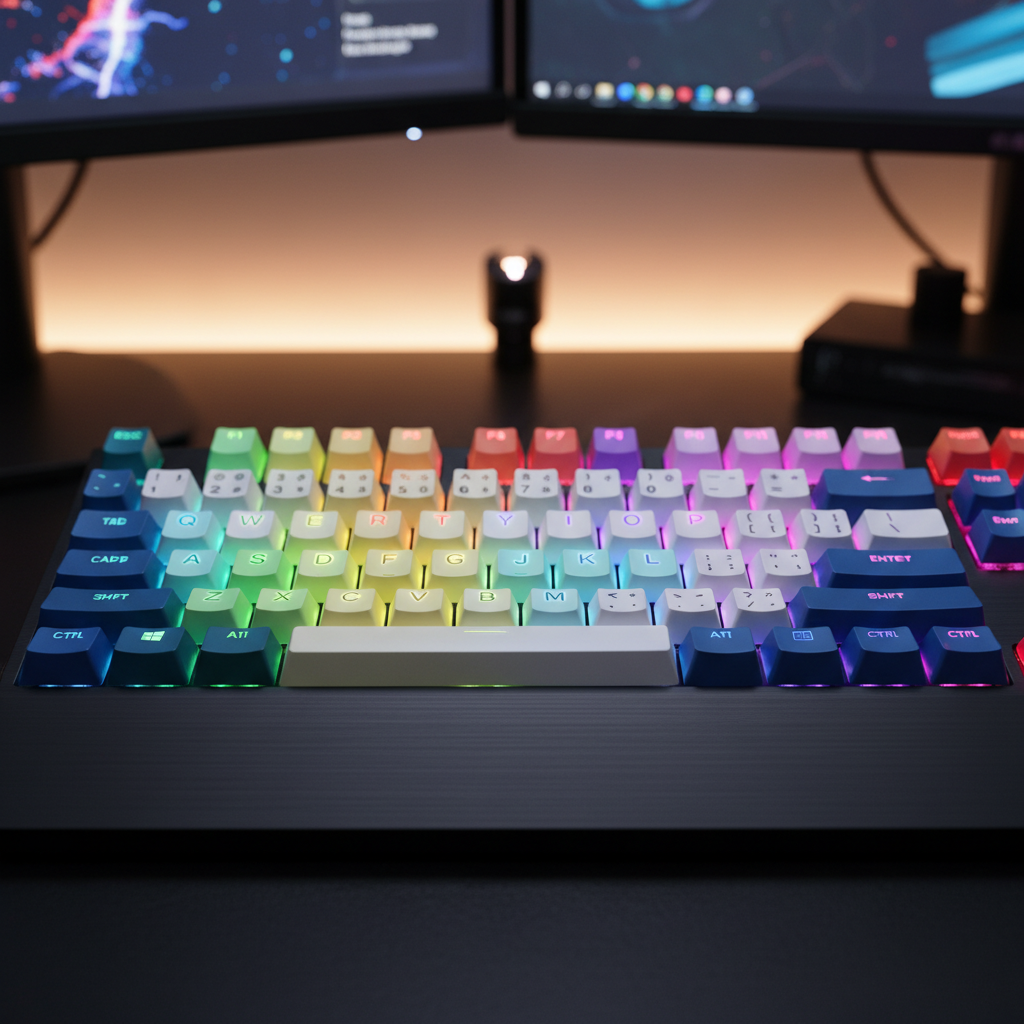 ⚠️ This picture may have spelling mistakes. Trust the words in the lesson.
The Big Comfy Sofa: The Spacebar
Have you ever noticed that there's always a little space between words when you write? Like 'hi' [space] 'there'? On the keyboard, we have a very long key called the Spacebar. It's usually at the bottom, right in the middle, and it's the longest key on the whole keyboard!
What it does: When you press the Spacebar, it puts a space between your words. It’s super important because without spaces, all your words would look like one long, confusing word! (likethisexample)
Analogy: The Spacebar is like a big, comfy sofa for your thumb. It creates a little gap for your words to breathe and makes them much easier to read!
The Power-Up Button: The Shift Keys
Sometimes you need to type a capital letter, like at the beginning of a sentence or for your name (e.g., 'Hello' or 'Maya'). How do you do that?
You use the Shift key! There are usually two Shift keys on a keyboard, one on the left and one on the right, right below the letter keys.
How to use it: To type a capital letter, you hold down one of the Shift keys with one finger, and then press the letter key you want to make capital with another finger. Then, let go of both keys.
Analogy: The Shift key is like a 'power-up' button for your letter keys. It temporarily makes them bigger and stronger (capital!).
The 'Go To Next Line' Button: The Enter Key
When you're writing a story and you want to start a new paragraph or a new line, you use the Enter key. It's usually a large key on the right side of the keyboard.
What it does: Pressing the Enter key moves your typing cursor (that little blinking line) down to the next line, just like you would start a new line when writing on paper.
Analogy: The Enter key is like a 'start a new page' or 'next line' button. It gives your words a fresh start!
The Magic Eraser: The Backspace Key
Oops! Did you make a mistake? Don't worry, everyone does! The keyboard has a special key to help you fix those little oopsies. It's called the Backspace key.
What it does: The Backspace key is usually above the Enter key. When you press it, it erases the letter or character right before your blinking cursor. So, if you typed 'caty' and meant 'cat', just press Backspace once, and the 'y' will disappear!
Analogy: The Backspace key is like a magical eraser. It helps you quickly clean up any typing mistakes you make.
Practice Makes Perfect!
Learning to use a keyboard is like learning to ride a bike – it takes practice! Here are some tips:
- Look at the Screen: Try to look at the computer screen as you type, not down at your fingers. This helps you get faster.
- Use Both Hands: As you get better, try to use fingers from both hands to reach different keys.
- Start Simple: Practice typing your name, the names of your friends, or simple words like 'cat', 'dog', 'sun'.
The more you practice, the faster and more confidently you'll be able to type! Soon, you'll be writing amazing stories and messages with ease.
Keep learning, free
Create a free Syllabax account to unlock practice questions and games for this topic.
Visual Learning Enhanced! 🚀
To help you master this topic, we use Advanced Syllabax AI to generate detailed diagrams and visual models.
Note on Visuals: The AI sometimes makes spelling errors in image labels. Please refer to the lesson text for the correct terminology.