Operating Systems: Functions & Types
Watch this topic in 60 seconds
Free preview · Lesson 1
Understanding Operating Systems: Functions & Types
Operating Systems: Your Computer's Master Conductor
Have you ever thought about what makes your computer, tablet, or smartphone actually work? It's not just the screen you tap or the keyboard you type on. Underneath all the apps and hardware is a special program that acts like the brain and boss of your device. This unsung hero is called the Operating System (OS).
Imagine your computer is a big, busy restaurant. It has a kitchen (the hardware like CPU, memory, storage), ingredients (your data and files), and customers (the applications you want to run, like games or web browsers). Who makes sure the chefs (CPU) cook the right dishes, the ingredients are in the right place, and customers are served efficiently? That's the restaurant manager. In the world of computers, the Operating System is that ultimate manager!
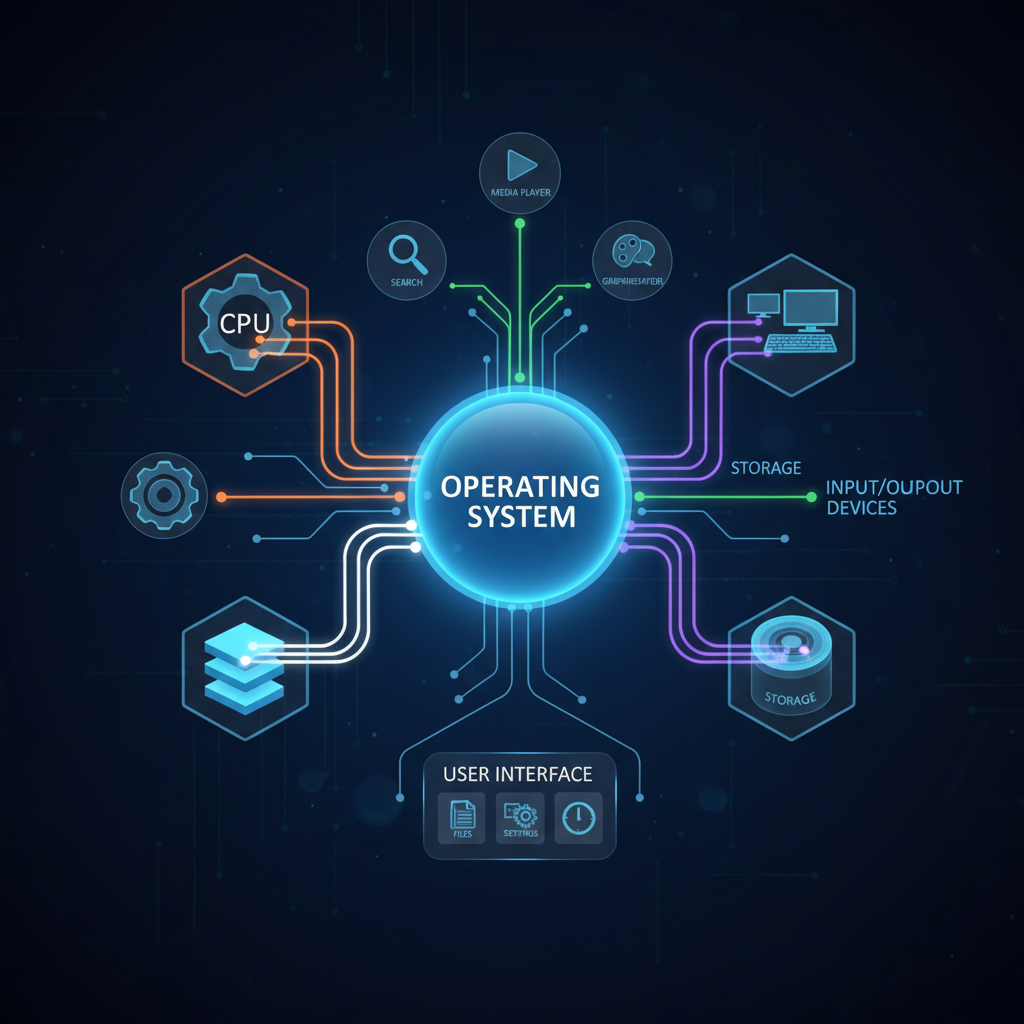
In simple terms, an Operating System is the most important software on your computer. It manages all the hardware and software resources, provides a user interface, and allows you to run other programs (applications).
What Does an Operating System Do? The "Manager" Analogy
Let's dive deeper into the vital jobs your OS performs, using our restaurant manager analogy:
1. Resource Management (The Allocator)
Just like a manager allocates tasks to staff and manages supplies, the OS manages your computer's internal resources. This is crucial because many programs often want to use the same resources at the same time.
- CPU (The Head Chef): Your computer's Central Processing Unit (CPU) is like the main chef who does all the cooking. The OS decides which task (e.g., opening a document, playing a song, browsing the web) the CPU should work on at any given moment and for how long. It's like the manager telling the chef, "First, prepare the soup; then, start grilling the steak." Without the OS, different apps would fight over the CPU, causing chaos!
- Memory (The Kitchen Counter/Workspace): Random Access Memory (RAM) is your computer's short-term workspace, like a kitchen counter where the chef keeps ingredients needed right now. The OS allocates specific parts of this counter space to different programs. When you open a game, the OS finds a spot for it in RAM. When you close the game, the OS cleans up that space, making it available for other tasks. The manager makes sure there's enough clear counter space for each dish being prepared.
- Storage (The Pantry/Warehouse): This is your long-term storage, like the hard drive (HDD) or Solid State Drive (SSD), where files and programs are kept even when the computer is off. The OS keeps track of where everything is stored, ensuring files don't get lost or overwritten. The manager knows exactly where to find the pasta, spices, or fresh vegetables in the pantry.
2. User Interface (Your Communication Bridge)
How do you tell your computer what to do? The OS provides the way!
- Graphical User Interface (GUI - The Dashboard): This is what most of us use today – icons, windows, menus, and pointers you click with a mouse. It's like the easy-to-use dashboard in a modern car, with buttons and screens you can tap. Windows, macOS, Android, and iOS all use GUIs. You click an icon, and the OS understands you want to open that program.
- Command Line Interface (CLI - Typing Instructions): Before GUIs became popular, people interacted with computers by typing specific commands into a text-based screen. It's like telling a robot exactly what to do by typing a precise instruction, rather than pressing a button on a remote. While less common for everyday users, CLIs are still used by programmers and system administrators for powerful, precise control.
3. Process Management (The Taskmaster)
Every program you run, like your web browser or a word processor, is considered a 'process' by the OS. The OS is responsible for starting, stopping, and managing these processes. It ensures that multiple programs can run at the same time without interfering with each other. Our restaurant manager ensures all the different orders (processes) are being worked on, some simultaneously, some waiting their turn, and none are forgotten.
4. Memory Management (The Organizer of Workspace)
This is a more detailed aspect of resource management. The OS constantly monitors how much RAM each program needs and uses. If a program needs more memory, the OS tries to find it. If memory runs low, the OS might move less-used data from RAM to temporary storage on the hard drive (called 'virtual memory') to free up RAM for active programs. The manager knows exactly how much space is left on the kitchen counter and might temporarily move less urgent items to a side table if the main counter gets too crowded.
5. File Management (The Digital Librarian)
Think about all your documents, photos, videos, and applications. These are all 'files.' The OS organizes these files into folders (directories) and keeps track of their locations, names, and access permissions. When you save a document, the OS finds a spot on your storage drive for it and updates its internal records. It's like a highly organized librarian who knows exactly where every book (file) is kept and who is allowed to read it.
6. Device Management (The Gadget Coordinator)
Your computer isn't just a CPU and memory; it also has a keyboard, mouse, printer, speakers, webcam, and many other 'devices.' The OS provides special software called 'drivers' that allow it to communicate with these devices. When you click your mouse, the OS receives that signal and translates it for the application. When you print, the OS sends the document to the printer. The manager ensures all the kitchen appliances – ovens, blenders, dishwashers – are connected properly and work when needed.
7. Security (The Guardian)
The OS plays a vital role in protecting your data and system from unauthorized access and malicious software. It manages user accounts (passwords!), firewalls, and permissions, determining who can access what files and programs. It's like a vigilant bouncer at the restaurant's entrance, checking IDs and ensuring only authorized personnel are allowed into the kitchen or storerooms, protecting valuable recipes and ingredients.
 ⚠️ This picture may have spelling mistakes. Trust the words in the lesson.
Types of Operating Systems: Different Jobs, Different OS
Just as different managers are suited for different types of restaurants, there are various types of OS, each designed for specific purposes:
1. Single-User, Single-Task OS
This is the simplest type. It can only run one program at a time for one user. Think of very old, basic calculators or early mobile phones that could only make calls or play one simple game at a time. They are rarely used today for general computing.
2. Single-User, Multi-Task OS
This is what you probably use every day! It allows a single user to run multiple programs simultaneously. You can browse the web, listen to music, and type a document all at once. Examples include:
- Microsoft Windows: The most popular OS for personal computers worldwide.
- Apple macOS: Popular for Apple's Mac computers, known for its user-friendly design.
- Linux: An open-source OS that comes in many versions (called "distributions" like Ubuntu or Fedora) and is used on desktops, servers, and many other devices.
3. Multi-User OS
These operating systems allow multiple users to access and use the same computer simultaneously. Each user gets a separate environment and can run their own programs. This is common in large organizations, data centers, and web servers, where many people might connect to one powerful computer at the same time. Think of a very large restaurant chain with one central management system accessed by many branch managers.
4. Real-time OS (RTOS)
RTOS are designed for applications where precise timing is critical. They process data with very strict time constraints, meaning they must respond to inputs almost instantly. If there's a delay, it could be dangerous or cause a system failure. Examples include:
- Systems controlling industrial robots in factories.
- Medical imaging equipment (like MRI machines).
- Car engine management systems.
- Aircraft control systems.
5. Mobile OS
These are operating systems specifically designed for mobile devices like smartphones and tablets. They are optimized for touchscreens, portability, and efficient power usage. The most common examples are:
- Google Android: Used on a vast majority of smartphones and tablets from various manufacturers.
- Apple iOS: Exclusively used on Apple's iPhone and iPad devices.
6. Embedded OS
An embedded OS is a specialized OS built into non-computer devices to perform a specific set of tasks. They are often lightweight and optimized for low power consumption and specific functions. You might not even realize these devices have an OS! Examples include:
- Smart TVs and gaming consoles.
- GPS navigation systems.
- Digital cameras.
- Household appliances like smart refrigerators or washing machines.
- Industrial control systems and some medical devices.
Conclusion
The Operating System is the backbone of almost every digital device we use. From managing the smallest task to coordinating complex hardware, it works tirelessly behind the scenes to make our digital lives possible, smooth, and secure. Understanding its functions and different types helps you appreciate the incredible complexity and ingenuity that powers our modern world!
Keep learning, free
Create a free Syllabax account to unlock practice questions and games for this topic.
Visual Learning Enhanced! 🚀
To help you master this topic, we use Advanced Syllabax AI to generate detailed diagrams and visual models.
Note on Visuals: The AI sometimes makes spelling errors in image labels. Please refer to the lesson text for the correct terminology.