Learning Journey
Free preview · Lesson 1
Understanding Operating Systems Overview
Operating Systems Overview: Your Computer's Brain and Boss!
Ever wondered what makes your computer, tablet, or smartphone actually *work*? It's not just the fancy screen or the powerful processor. There's a hidden master at play, a super-efficient organizer that makes everything tick. That's your Operating System (OS).
What is an Operating System?
Imagine a bustling city. You have cars, pedestrians, traffic lights, buildings, and utilities. Without rules, a traffic controller, or city planners, it would be pure chaos! Cars would crash, people wouldn't know where to go, and nothing would get done.
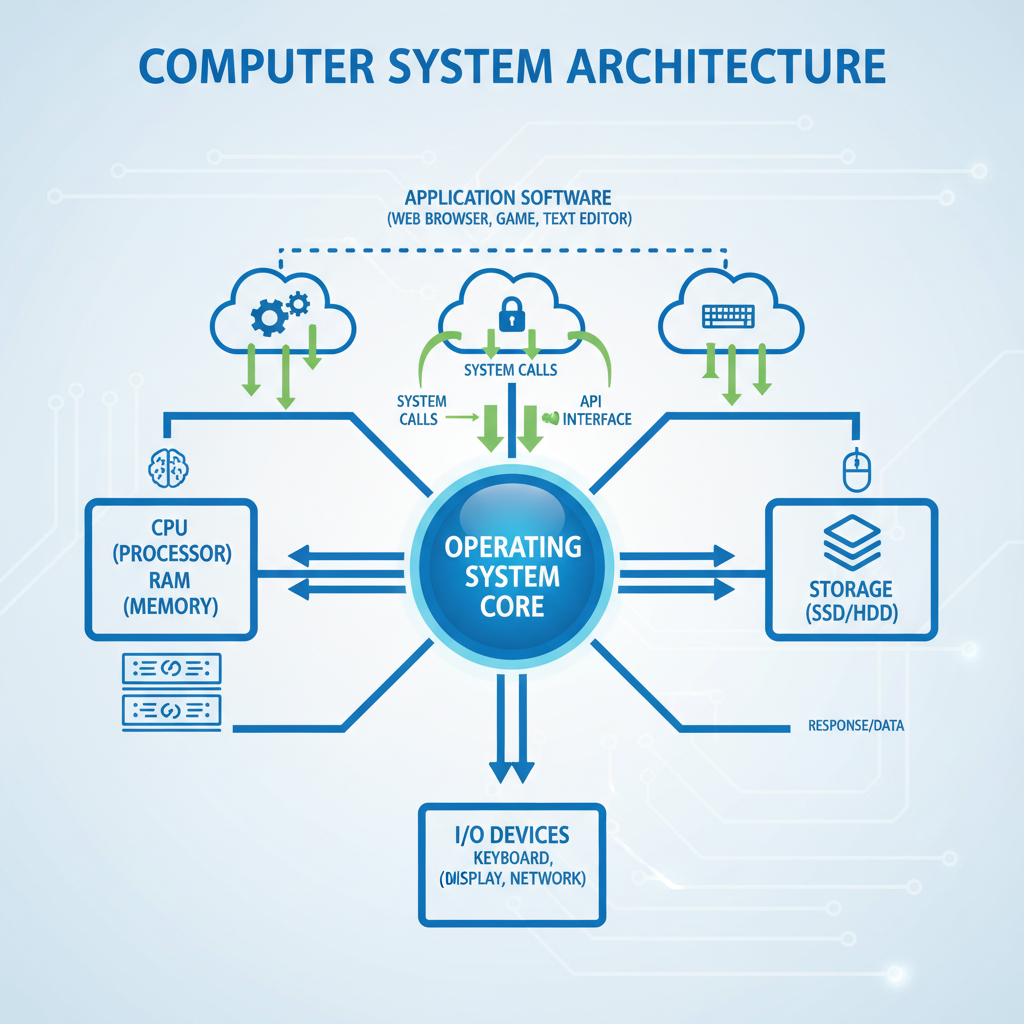
Your computer is like that city, and the Operating System is the city's traffic controller, mayor, and utility manager all rolled into one! It's a special type of software that acts as an intermediary between you (the user) and the computer hardware (the physical parts like the CPU, memory, and hard drive).
The OS's main job is to manage all the computer's resources and allow other programs (like your web browser, games, or word processor) to run smoothly and efficiently.
Core Functions of an Operating System
Let's break down what this powerful boss actually does:
1. Resource Management: The Master Juggler
Think of your computer as a kitchen, and the OS as the head chef. The chef has many ingredients (data), cooking tools (hardware like CPU, memory, storage), and multiple dishes to prepare (programs). The chef needs to decide which ingredients go into which dish, which tools to use for how long, and make sure everything is cooked perfectly and on time.
- CPU Management (The Brain Power): The Central Processing Unit (CPU) is the "brain" of your computer. It can only do one thing at a time, but it does it incredibly fast. The OS decides which program gets to use the CPU at any given moment and for how long. It rapidly switches between programs, making it seem like your computer is doing many things simultaneously. (Analogy: A single tennis player playing against multiple opponents, quickly hitting the ball back to each one in turn).
- Memory Management (The Workspace): Memory (RAM - Random Access Memory) is like your desk. When you're working on something, you need space on your desk for your books, papers, and pens. The OS allocates sections of RAM to different programs so they have space to store the data they're currently using. When you close a program, the OS frees up that space for other programs. (Analogy: A librarian finding empty shelves for new books and clearing shelves when books are returned).
- Storage Management (The Filing Cabinet): Your hard drive (HDD) or Solid State Drive (SSD) is where all your files (documents, photos, videos, programs) are stored permanently, even when the computer is off. The OS organizes these files into folders, helps you find them, save them, and delete them. (Analogy: A meticulous office manager who keeps all important documents neatly filed and easily retrievable).
2. Process Management: Keeping Programs in Line
A "process" is just a fancy word for a running program or a part of a program. When you open your web browser and then your music player, those are two different processes. The OS manages these processes: starting them, stopping them, and making sure they don't interfere with each other. (Analogy: A traffic controller guiding different cars (processes) on the road, making sure they start, stop, and don't collide).
3. Device Management: The Hardware Translator
Your computer has many devices: keyboard, mouse, printer, speakers, webcam, network card, etc. The OS acts as a translator, allowing programs to communicate with these devices. When you click your mouse, the OS interprets that click and sends the signal to the right program. When you print a document, the OS sends the data to the printer. (Analogy: A universal remote control that knows how to operate your TV, DVD player, and sound system, translating your button presses into commands the devices understand).
4. User Interface (UI): Your Window to the Computer
This is how *you* interact with the computer. The OS provides this interface.
- Graphical User Interface (GUI - "Gooey"): This is what most of us use today. It's all about icons, windows, menus, and pointers (like your mouse cursor). You click, drag, and drop. (Analogy: A car dashboard with dials, buttons, and a touchscreen that makes driving easy and intuitive).
- Command Line Interface (CLI): This is an older, text-based interface where you type commands to tell the computer what to do. It's less common for everyday users but still powerful for advanced tasks and programming. (Analogy: Speaking a specific language directly to a machine, like giving precise instructions to a robot in code).
5. Security and Access Control: The Digital Bouncer
The OS also helps protect your computer from unauthorized access and malicious software. It manages user accounts, passwords, and permissions, deciding who can access what files and programs. (Analogy: A security guard at a building, checking IDs and making sure only authorized people enter certain areas).
Types of Operating Systems
Operating systems come in many flavors, designed for different purposes:
- Desktop OS: Used on personal computers and laptops. Examples: Microsoft Windows, Apple macOS, various distributions of Linux (like Ubuntu).
- Mobile OS: Designed for smartphones and tablets. Examples: Google Android, Apple iOS.
- Server OS: Optimized for powerful servers that host websites, databases, and network services. They often prioritize stability and security over a fancy user interface. Examples: Windows Server, Linux distributions (like Red Hat, Debian), Unix.
- Embedded OS: Found in specialized devices like smart TVs, car infotainment systems, smartwatches, and industrial machines. They are highly specialized and often have limited resources.
Why are Operating Systems so Important?
Without an OS, your computer hardware would be a pile of inert components. It wouldn't know how to start up, how to display anything on the screen, or how to react when you press a key. The OS brings it all to life, making it a useful, interactive tool that can run countless applications and connect you to the world.
So, the next time you effortlessly open multiple programs, switch between tasks, or save a document, remember the silent, diligent work of your Operating System – the true hero behind the screen!
Keep learning, free
Create a free Syllabax account to unlock practice questions and games for this topic.
Visual Learning Enhanced! 🚀
To help you master this topic, we use Advanced Syllabax AI to generate detailed diagrams and visual models.
Note on Visuals: The AI sometimes makes spelling errors in image labels. Please refer to the lesson text for the correct terminology.