Input Devices: How We Tell Computers
Watch this topic in 60 seconds
Free preview · Lesson 1
Understanding Input Devices: How We Tell Computers
Input Devices: How We Tell Computers What to Do!Input Devices: How We Tell Computers What to Do!
Imagine you have a super smart friend, but this friend can't hear or see you unless you use special tools to talk to them. That's a bit like a computer! Computers are amazing machines that can do all sorts of things, from helping you write stories to playing games or showing you videos. But how do we, as humans, tell these incredible machines what we want them to do?
Analogy: The Robot Butler
Think of a robot butler that needs very specific instructions. You can't just wish for it to make you toast; you have to press buttons, speak into a microphone, or tap on a screen to give it clear commands. The tools you use to give those commands are like input devices for your computer!
What Are Input Devices?
Simply put, input devices are the tools we use to send information, commands, or data *into* a computer. This information can be anything from letters and numbers you type, to sounds you speak, pictures you take, or even movements you make with your hand.
Definition: Input Device
A piece of hardware that allows users to send data, signals, or commands to a computer.
Without input devices, a computer would just sit there, not knowing what you want it to do. It would be like having a brilliant mind that's completely cut off from the outside world. Input devices are our way of opening a communication channel with the computer, giving it the 'ingredients' it needs to perform its tasks.
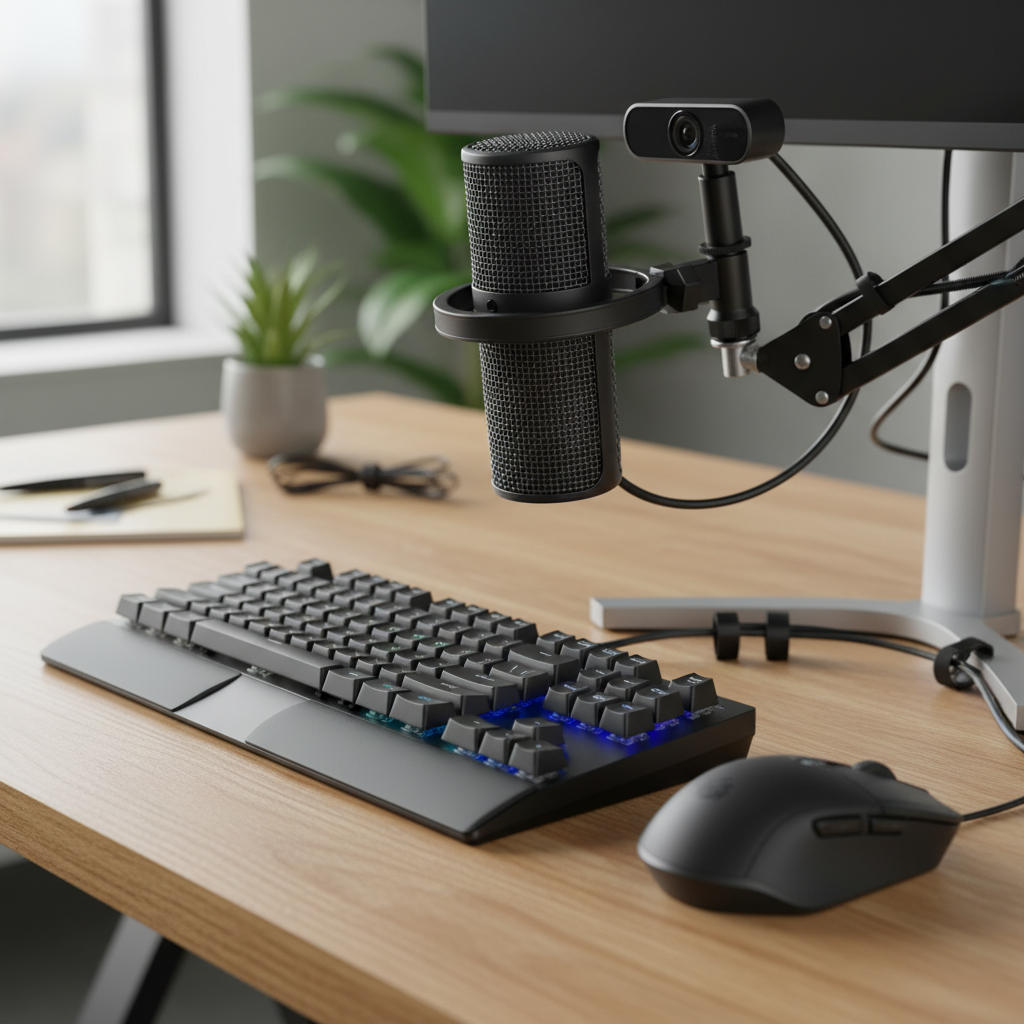 ⚠️ This picture may have spelling mistakes. Trust the words in the lesson.Meet the Stars: Common Input Devices
Let's look at some of the most common ways we 'talk' to our computers:
1. Keyboard
- What it does: This is probably the most famous input device! A keyboard lets you type letters, numbers, and symbols. Each time you press a key, you are sending a specific instruction or piece of data to the computer.
- Analogy: Think of a keyboard like a super-smart typewriter that doesn't use ink. Instead, it sends digital signals to the computer, which then shows your words on the screen.
- Examples: When you write an email, type a school report, or even search for a video online, you're using a keyboard.
2. Mouse
- What it does: The mouse helps you move a little arrow (called a cursor or pointer) around on your computer screen. You can click on things to select them, double-click to open them, or drag things from one place to another.
- Analogy: Imagine your screen is a big map, and the mouse is your finger, pointing exactly where you want to go or what you want to touch on that map.
- Examples: Clicking on an app icon, selecting text, or moving a character in a game are all done with a mouse.
3. Microphone
- What it does: A microphone is like the computer's ear! It takes sounds from the real world – like your voice, music, or other noises – and turns them into digital information the computer can understand and store.
- Analogy: If your computer had ears, the microphone would be them. It listens to what you say and tells the computer.
- Examples: Recording your voice for a project, talking to friends online, or giving voice commands to a smart assistant (like "Hey Google" or "Siri").
4. Webcam (Web Camera)
- What it does: A webcam is like the computer's eye. It captures images and videos of you or your surroundings and sends them into the computer.
- Analogy: Your computer uses the webcam to 'see' what's in front of it, just like your eyes help you see the world.
- Examples: Video calls with family, taking a quick picture of yourself, or recording a video message.
5. Touchscreen
- What it does: Found on many phones, tablets, and some laptops, a touchscreen lets you give commands by touching the screen directly with your finger or a special pen (stylus). You can tap, swipe, pinch, and spread your fingers to interact.
- Analogy: Think of a touchscreen as a magical window that you can literally poke, push, and draw on to make things happen inside the computer.
- Examples: Tapping on an app on your tablet, swiping through photos on a phone, or drawing directly onto a screen.
6. Scanner
- What it does: A scanner takes a picture of a physical document or photo (like a drawing you made or a page from a book) and turns it into a digital image that the computer can store and display.
- Analogy: It's like a special photocopy machine for your computer. Instead of printing a copy, it creates a digital copy that lives inside the computer.
- Examples: Digitizing old family photos, turning a handwritten assignment into a digital file, or scanning a drawing to share online.
7. Game Controller (Joystick/Gamepad)
- What it does: These devices are specially designed to control characters or actions in video games. They have buttons, joysticks, and triggers that send specific commands to the computer or gaming console.
- Analogy: If you're driving a remote-control car, the controller in your hands is your input device, telling the car to go left, right, faster, or slower. A game controller does the same for characters in a digital game world.
- Examples: Guiding a character through a virtual world, performing special moves in a sports game, or flying a virtual airplane.
Why Are Input Devices So Important?
Input devices are crucial because they bridge the gap between us and the computer. They translate our human actions – a tap, a click, a word, a movement – into a language the computer can understand (binary code, which is just 0s and 1s!). Without them, computers would be powerful but silent boxes, unable to interact with the world and carry out our instructions.
Analogy: The Conductor's Baton
Imagine an orchestra with all the instruments and musicians ready to play, but no conductor! The music wouldn't start because no one is giving the signals. Input devices are like the conductor's baton, signaling the computer when to start, what to do, and how to perform.
Conclusion
So, the next time you type on a keyboard, click your mouse, or tap on a screen, remember that you are using an important input device! You are giving instructions and sharing information with your computer, allowing it to become the helpful and powerful tool it is. These devices are your voice and hands in the digital world!
Keep learning, free
Create a free Syllabax account to unlock practice questions and games for this topic.
Visual Learning Enhanced! 🚀
To help you master this topic, we use Advanced Syllabax AI to generate detailed diagrams and visual models.
Note on Visuals: The AI sometimes makes spelling errors in image labels. Please refer to the lesson text for the correct terminology.