Internal Storage & Memory
Watch this topic in 60 seconds
Free preview · Lesson 1
Understanding Internal Storage & Memory
Welcome to Your Computer's Brain: Understanding Internal Storage & Memory
Imagine your computer is like a highly organized kitchen, or even better, a super-smart student preparing for a big test! Just like you need a brain to think and remember things, your computer needs special parts to store information and help it 'think'. These two crucial parts are Internal Storage and Memory (also known as RAM).
Part 1: Memory (RAM) – The Computer's Short-Term Workspace
Think of your computer's Memory (which stands for Random Access Memory, or RAM) as your desk when you're doing homework. When you're actively working on a project, you pull out your textbook, notebook, pens, and calculator, and spread them all out on your desk. Your desk holds everything you're using right now so you can get to it quickly.
- What it is: RAM is like a super-fast, temporary workspace for your computer. When you open an app, like your web browser or a game, the computer quickly loads parts of that app into RAM.
- Speed is Key: RAM is incredibly fast. It allows your computer's brain (the Central Processing Unit, or CPU) to access information almost instantly. This is vital for keeping everything running smoothly and responsively.
- It's Temporary (Volatile): Here's a big difference: everything on your desk disappears when you're done studying and put things away, right? Similarly, when you turn off your computer, or if the power goes out, everything stored in RAM is immediately forgotten. It's like a whiteboard that gets erased every time.
- Why it's important: The more RAM your computer has, the more applications it can run smoothly at the same time, or the more complex tasks it can handle without slowing down. If you have too many apps open and not enough RAM, your computer will feel sluggish, just like trying to work on a tiny desk with too many books piled up!
Analogy Recap: RAM is your active desk, a chef's cutting board, or a student's open textbook – ready for immediate use, but temporary.
Part 2: Internal Storage – The Computer's Long-Term Archive
Now, where do all those textbooks, notebooks, and supplies go when you're not using them? They go into your bookshelf, filing cabinet, or backpack for safekeeping. This is exactly what your computer's Internal Storage does! This is where all your files, programs, and the operating system (like Windows or macOS) live permanently.
- What it is: Internal storage is where data is saved for the long haul. This includes your family photos, videos, school projects, games, and all the software you've installed.
- It's Permanent (Non-Volatile): Unlike RAM, data stored on your internal storage stays there even when you turn off your computer. It's like writing in a permanent marker or putting a book back on the shelf – it's there until you decide to erase or remove it.
- Slower than RAM, but Huge Capacity: While not as blazing fast as RAM, internal storage can hold a massive amount of information. Think of a giant library compared to a single desk.
Two Main Types of Internal Storage:
There are two primary types of internal storage you'll find in modern computers:
-
Hard Disk Drive (HDD):
- How it works: Imagine a tiny record player inside your computer. HDDs use spinning platters (like CDs) with a read/write head that floats above them, magnetically storing and retrieving data.
- Pros: Generally cheaper and can offer very large storage capacities for the price.
- Cons: Because they have moving parts, they are slower, consume more power, and are more fragile (a drop can damage them). You can sometimes hear a subtle whirring sound from an HDD.
-
Solid State Drive (SSD):
- How it works: SSDs are much newer technology and work more like giant, super-fast USB flash drives. They use flash memory (electronic cells) to store data, with no moving parts at all.
- Pros: Extremely fast (your computer boots up much quicker, apps open instantly!), very durable (no moving parts to break), quiet, and more energy-efficient.
- Cons: Traditionally more expensive per gigabyte than HDDs, though prices are coming down.
Analogy Recap: Internal Storage is your filing cabinet, a large library, or a pantry – where everything is kept safe and sound for later use.
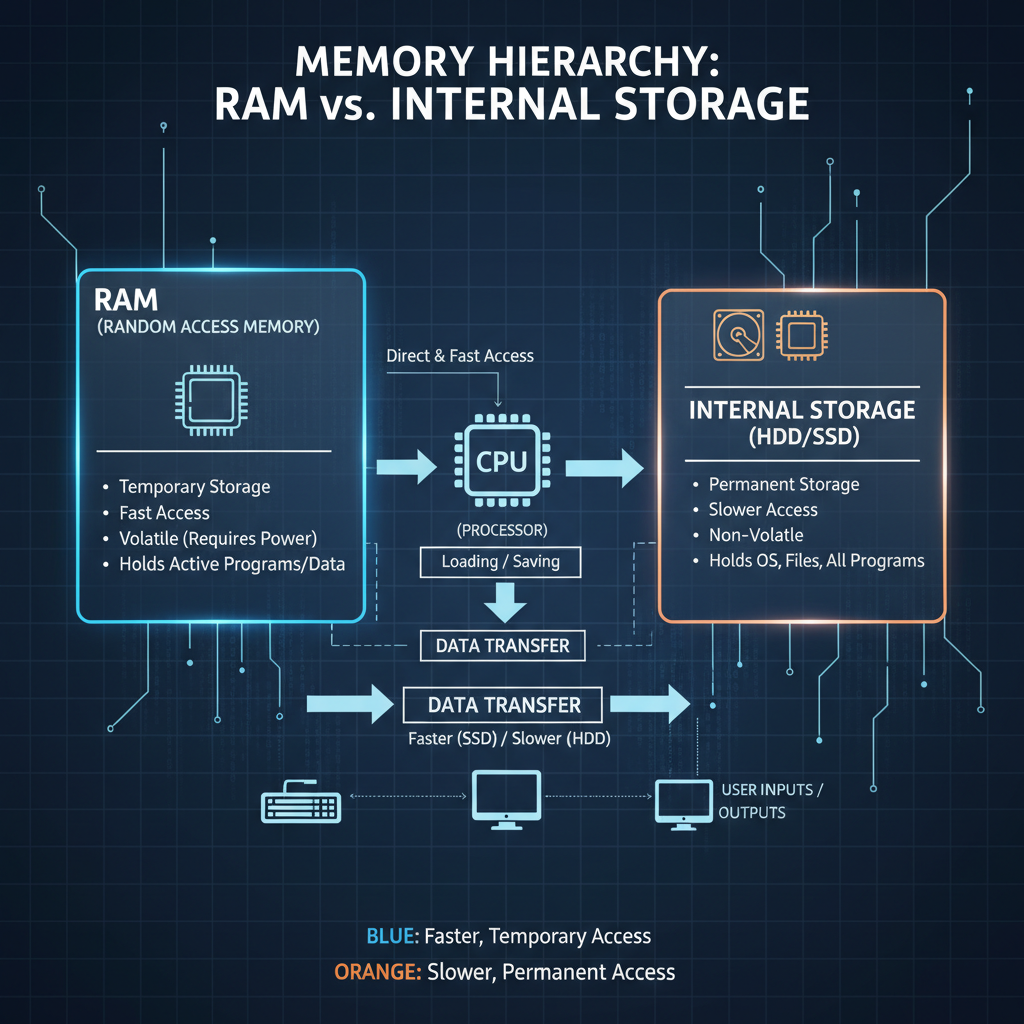
Part 3: Working Together – A Team Effort!
So, how do RAM and Internal Storage work together? They are a team, and your computer's brain (the CPU) is the boss orchestrating everything.
Let's go back to our kitchen analogy: You (the CPU) want to cook a meal (run a program). All your ingredients (files and programs) are stored in the pantry (Internal Storage). You don't cook directly in the pantry, right? You pull out the ingredients you need right now and place them on your kitchen counter (RAM). You then chop, mix, and cook on the counter (CPU processing data in RAM).
- When you click to open a game, the computer's CPU goes to the Internal Storage (the pantry) to find the game files.
- It then loads the essential parts of that game into RAM (the kitchen counter).
- Once in RAM, the CPU (you, the chef) can access these game parts incredibly quickly to make the game run smoothly and respond to your commands.
- When you save your game progress, that data is moved from the temporary RAM back to the permanent Internal Storage.
Think of it this way:
- RAM = What your computer is thinking about and doing RIGHT NOW.
- Internal Storage = What your computer REMEMBERS and keeps for LATER.
Both are absolutely essential for a computer to function. RAM gives your computer the speed to multi-task and run programs efficiently, while internal storage provides the permanent home for all your digital life!
Keep learning, free
Create a free Syllabax account to unlock practice questions and games for this topic.
Visual Learning Enhanced! 🚀
To help you master this topic, we use Advanced Syllabax AI to generate detailed diagrams and visual models.
Note on Visuals: The AI sometimes makes spelling errors in image labels. Please refer to the lesson text for the correct terminology.