Copying and Pasting Text
Watch this topic in 60 seconds
Free preview · Lesson 1
Understanding Copying and Pasting Text
Let's Learn About Copying and Pasting Text!
Hello, young explorers! Today, we're going on a super useful adventure into the world of computers, where we'll discover a magic trick called Copying and Pasting. Imagine you're drawing a beautiful picture, and you want to draw the same fluffy cloud in three different spots without having to draw it perfectly each time. Wouldn't it be great if you could just make copies? That's exactly what copying and pasting does for words and sentences on a computer!
What is 'Copying' Text?
Think of 'copying' like this: You have your favorite toy car. If you 'copy' it, it's like taking a perfect photograph of your car. You still have your original toy car right in front of you, and now you also have a picture (a copy!) of it. The original car hasn't moved, but you have a duplicate image you can use somewhere else.
On a computer, when you 'copy' text, you're telling the computer, 'Hey, remember these words! Make an exact twin of them.' The original words stay right where they are, but a secret duplicate is stored in a special temporary spot in the computer's memory, kind of like a hidden clipboard. We call this the 'clipboard'.
How Do You 'Copy' Text?
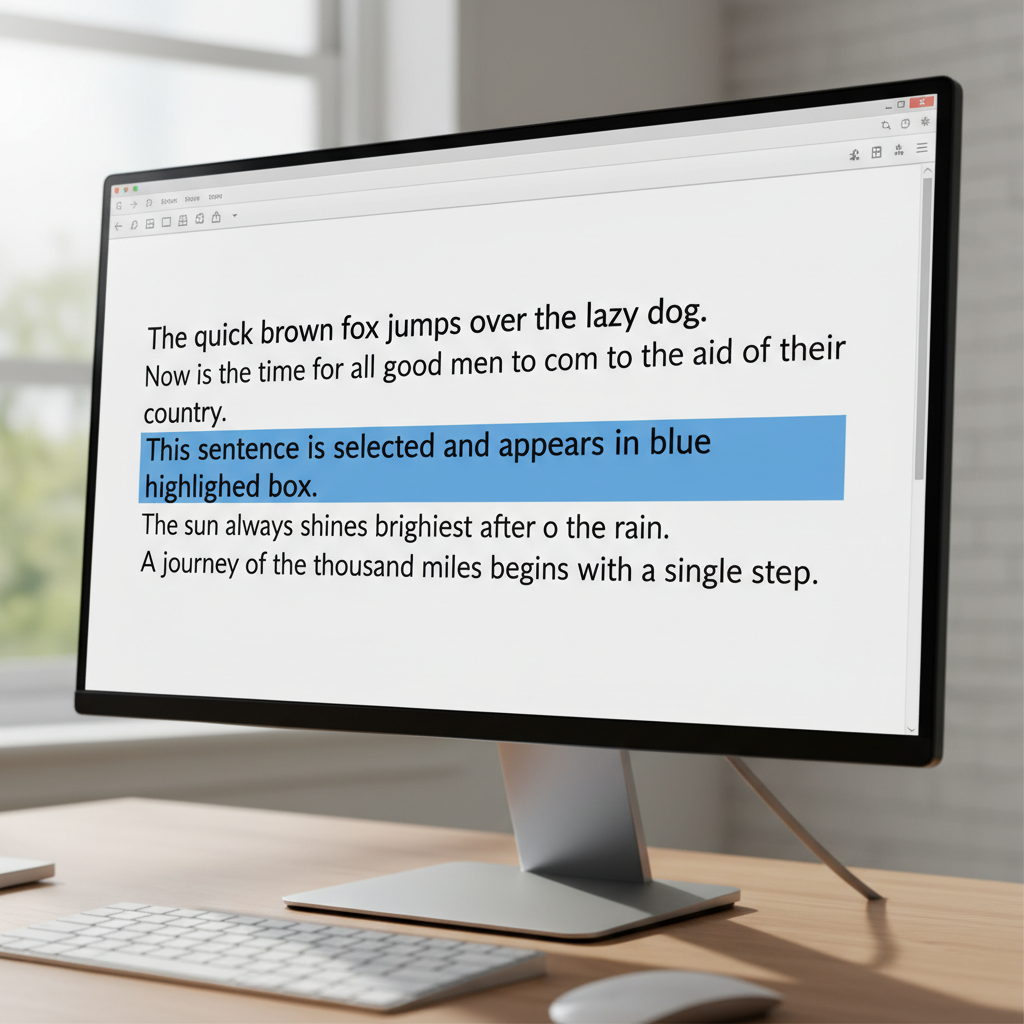
- Highlight the words: First, you need to show the computer which words you want to copy. This is like using a special magic marker to color over the words you want to duplicate. You do this by clicking your mouse at the beginning of the words, holding the button down, and dragging the mouse across all the words until they are highlighted (they'll often turn a different color, like blue).
 ⚠️ This picture may have spelling mistakes. Trust the words in the lesson.
- Tell the computer to Copy: Once your words are highlighted, you have a few ways to tell the computer to copy them:
- Right-Click Magic: Move your mouse pointer over the highlighted words and click the right button on your mouse. A little menu will pop up like a secret message! Find the word 'Copy' and click on it with your left mouse button.
- Keyboard Shortcuts (Super Speedy Way!): This is like having a secret code! Hold down the 'Ctrl' key (it's usually in the bottom-left corner of your keyboard) and, while holding it, press the letter 'C' key once. (So it's 'Ctrl + C'). This is a super-fast way to copy!
What is 'Pasting' Text?
Now that you have a 'copy' of your toy car picture on your clipboard, what do you do with it? You 'paste' it! Pasting is like taking that picture and sticking it onto a new page in a scrapbook, or maybe taping it onto the fridge. You're taking the duplicate from the computer's hidden clipboard and placing it exactly where you want it to appear.
When you 'paste' text, you're telling the computer, 'Okay, take those words you remembered, and put them right here!'
How Do You 'Paste' Text?
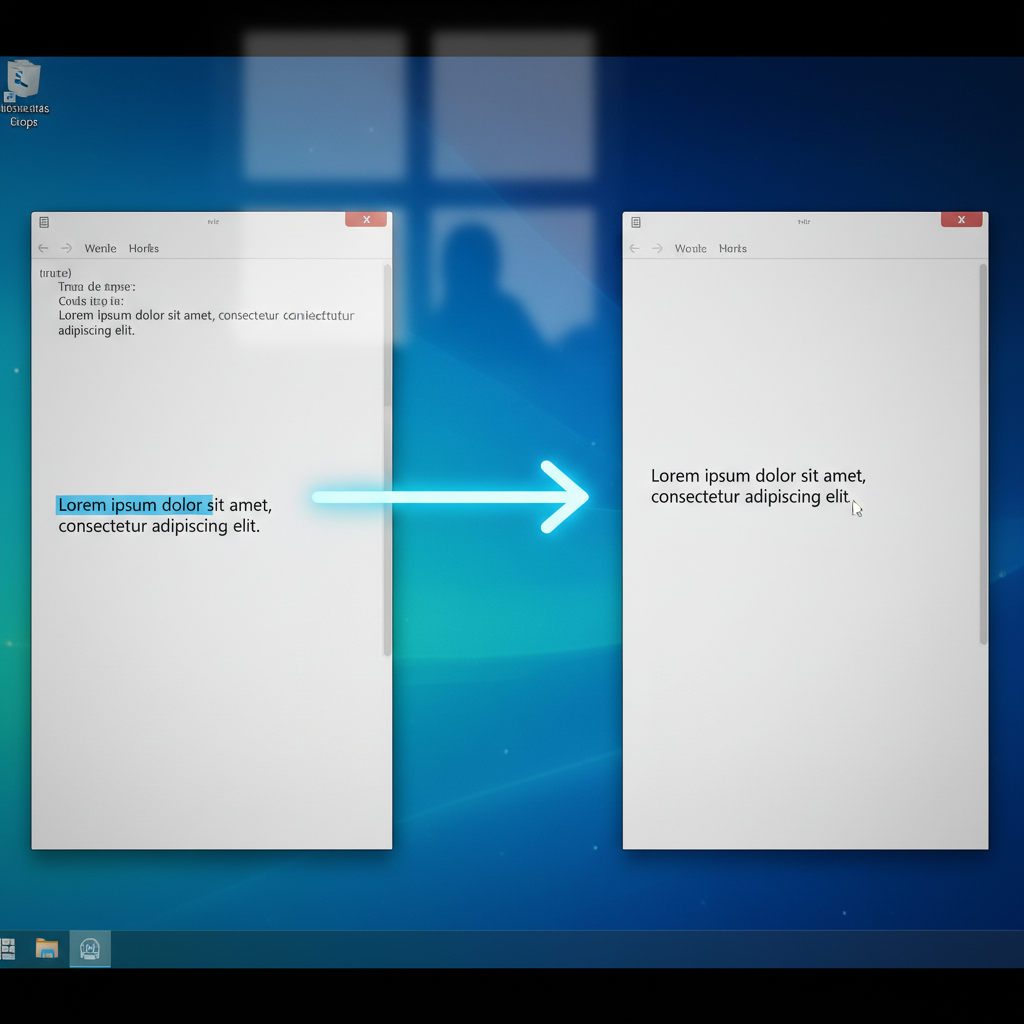
- Choose where to put it: First, you need to show the computer exactly where you want the copied words to go. This is like pointing to the empty spot in your scrapbook. Click your mouse in the exact spot where you want the new words to appear. You'll see a blinking line (called a cursor) that shows you where the words will be placed.
- Tell the computer to Paste: Once you've chosen your spot, it's time to paste:
- Right-Click Magic (Again!): Move your mouse pointer to the spot where your blinking cursor is and click the right button on your mouse. The secret menu will pop up again! This time, find the word 'Paste' and click on it with your left mouse button.
- Keyboard Shortcuts (Super Speedy Way, Part Two!): Remember our secret code? For pasting, hold down the 'Ctrl' key and, while holding it, press the letter 'V' key once. (So it's 'Ctrl + V'). Voilà! Your words magically appear!
 ⚠️ This picture may have spelling mistakes. Trust the words in the lesson.
What About 'Cutting' Text? (It's a little different!)
Sometimes, you don't want to just make a copy; you want to *move* the original! Think about your toy car again. If you 'cut' the car, it's like picking up your real toy car from one shelf and moving it to a completely different shelf. It's no longer on the first shelf.
On a computer, when you 'cut' text, the words disappear from where they were, and they are stored in that same secret 'clipboard' spot. Then you can 'paste' them somewhere else. So, 'cut' is like 'copy and delete' all in one step!
How Do You 'Cut' Text?
It's very similar to copying! You:
- Highlight the words you want to move.
- Tell the computer to Cut:
- Right-Click Magic: Right-click on the highlighted words, and in the menu, choose 'Cut'.
- Keyboard Shortcut: Hold down 'Ctrl' and press the letter 'X' key once. (So it's 'Ctrl + X'). The words will disappear!
- Then, you can 'Paste' them in a new spot using the same methods as before (right-click and 'Paste', or 'Ctrl + V').
Why is Copying and Pasting So Useful?
- Saves Time: Instead of typing the same long word or sentence again and again, you can just copy and paste it in seconds! It's like having a magic stamper for words.
- Avoids Mistakes: If you type something correctly once, copying and pasting it means you won't make spelling errors when you use it again. It's like making perfect clones of your good work.
- Organizing Ideas: You can easily move sentences or paragraphs around in your story or report, making it neat and tidy without retyping everything.
So there you have it! Copying, cutting, and pasting are super handy tools that make working with words on a computer much easier and faster. Keep practicing, and you'll be a master in no time!
Keep learning, free
Create a free Syllabax account to unlock practice questions and games for this topic.
Visual Learning Enhanced! 🚀
To help you master this topic, we use Advanced Syllabax AI to generate detailed diagrams and visual models.
Note on Visuals: The AI sometimes makes spelling errors in image labels. Please refer to the lesson text for the correct terminology.