Email Communication & Etiquette
Watch this topic in 60 seconds
Free preview · Lesson 1
Understanding Email Communication & Etiquette
Email Communication & Etiquette: Your Digital Mailbox Rules!
Hello, 7th Graders! Get ready to dive into the world of email – a super important way we communicate today, kind of like sending a letter, but way faster and all digital! Learning how to send good emails is like learning good manners for the internet. It helps you make a great impression and get your message across clearly.
What is Email? Imagine a Super-Fast Digital Mailbox!
Think about sending a letter in the old days. You'd write it, put it in an envelope, address it, put a stamp on it, and drop it in a mailbox. Then, a mail carrier would deliver it. Email (short for "electronic mail") is exactly like that, but it all happens instantly on computers, tablets, and phones!
- Your Email Address: This is like your unique street address for your digital mailbox. It usually looks something like
yourname@example.com. - Sending and Receiving: You can send messages (emails) to anyone with an email address, and they can send messages back to you. It's like having a private conversation or sending an announcement to many people at once.
Why is email so important? Well, it's used for almost everything: talking to teachers, signing up for clubs, getting updates from schools, asking questions, and even just staying in touch with friends and family (though instant messaging is often preferred for quick chats). It's a skill you'll use for the rest of your life!
The Essential Parts of an Email: What Goes Where?
Just like a physical letter needs a sender, recipient, and message, an email has key parts. Let's break them down!
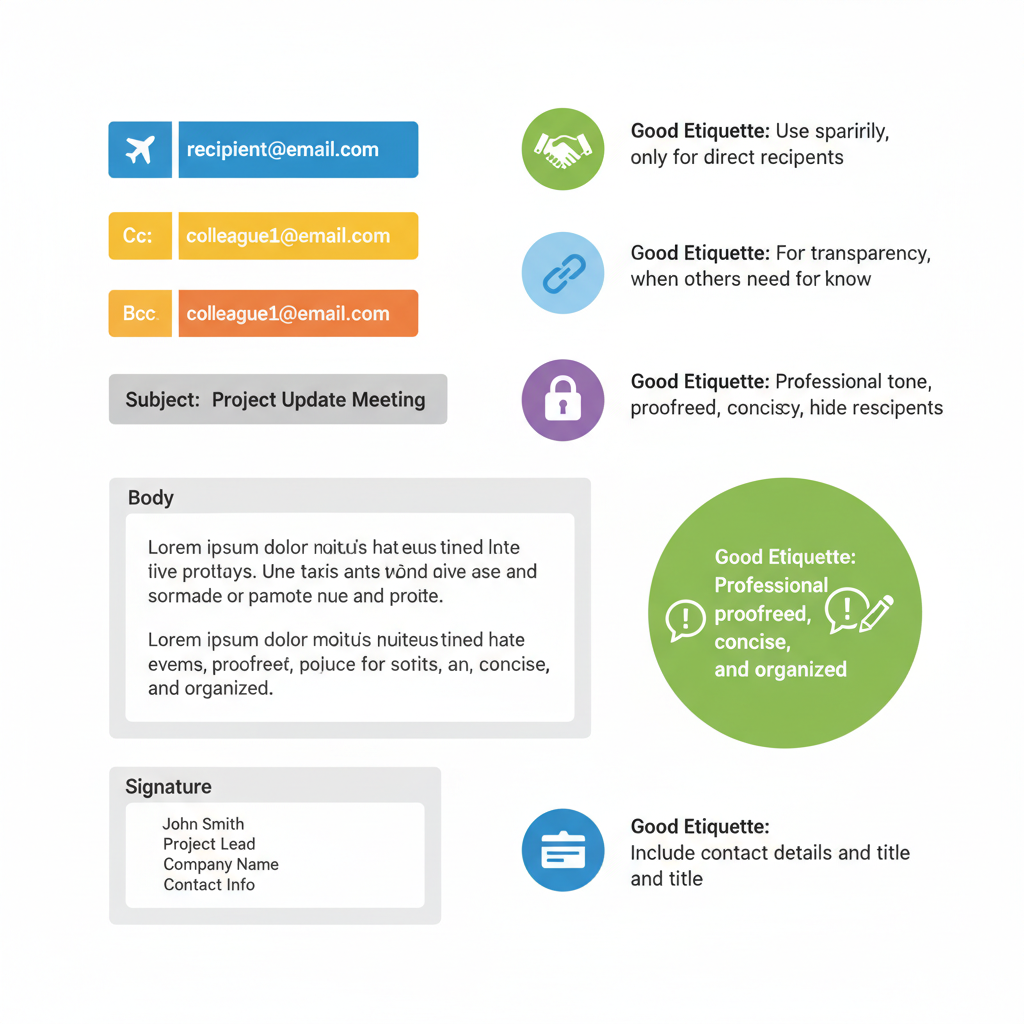
1. The "To" Field: Who are you talking to?
This is where you type the email address of the person (or people) you want to send the message to directly. It's like writing the main address on an envelope. If you're sending an email to your teacher, Ms. Smith, you'd type ms.smith@school.com here.
Analogy: Imagine you're handing a note directly to your friend. Your friend is the "To" person.
2. The "Cc" Field: Let others know (Carbon Copy)
"Cc" stands for "Carbon Copy." Remember old typewriters? If you put a special carbon paper between two sheets, whatever you typed on the top sheet would also appear on the bottom sheet. In email, it means you're sending a copy of the email to someone else, usually so they are "in the loop" or aware of the conversation, but they aren't the main person you're talking to.
Analogy: You write a thank-you note to your teacher, but you also give a copy to your parents so they know you sent it. Your teacher is "To," and your parents are "Cc."
3. The "Bcc" Field: The Secret Copy (Blind Carbon Copy)
"Bcc" stands for "Blind Carbon Copy." This is similar to "Cc," but with a secret twist! Anyone listed in the "Bcc" field will receive a copy of the email, but none of the other recipients (in "To" or "Cc") will see that they received it. It's often used when sending an email to a large group of people where you don't want everyone to see each other's email addresses (for privacy).
Analogy: You're sending an invitation to a party to many different friends, but you don't want everyone to see each other's phone numbers. You put everyone's email in "Bcc" to keep their addresses private.
4. The "Subject" Line: The Sneak Peek!
This is one of the most important parts! The subject line is a short, clear phrase that tells the recipient what your email is about before they even open it. It's like the title of a book or the headline of a newspaper article. A good subject line helps people decide if your email is important and if they need to read it right away.
- Good Subject: "Question about History Homework - [Your Name]"
- Bad Subject: "Hey" or "Important" or leaving it blank!
Analogy: When you see a package delivered to your house, the label on the outside tells you what's inside (e.g., "Fragile - Electronics"). The subject line is that label for your email!
5. The Body: Your Message!
This is the main part of your email where you write your actual message. It's like the story in your letter. Make sure it's clear, polite, and easy to understand. You can write paragraphs, ask questions, or provide information here.
 ⚠️ This picture may have spelling mistakes. Trust the words in the lesson.
6. The Signature: Who are you?
At the end of your email, you should always include your name. For school-related emails, it's also a good idea to include your grade and maybe even your student ID. This helps the recipient know exactly who is sending the message.
- Example:
Sincerely,
[Your Full Name]
7th Grade
Student ID: 12345
Analogy: Signing your name at the bottom of a card or letter.
Email Etiquette: The Rules for Polite Digital Communication!
Just like there are rules for polite conversation or good manners at the dinner table, there are rules for sending emails. This is called "email etiquette." Following these rules makes you look respectful and helps your message get taken seriously.
1. Always Start with a Greeting (Say "Hello"!)
Never just jump right into your message! Start with a polite greeting. This shows respect.
- Good: "Dear Ms. Davis," "Hello Mr. Lee," "Hi Dr. Chen,"
- Avoid: "Hey," "Yo," or no greeting at all.
2. Be Clear and Concise (Get to the Point!)
Your message should be easy to read and understand. Don't write super-long paragraphs. Try to break your ideas into shorter paragraphs or use bullet points. Get straight to your main point without a lot of extra words.
Analogy: Think of it like a newspaper article. It has a clear headline (subject) and then the most important information is in the first paragraph, followed by more details. People are busy, so don't make them search for your main question!
3. Check Your Tone (How You "Sound"!)
Because people can't see your face or hear your voice, it's easy for your message to be misunderstood. Always try to sound polite and respectful.
- AVOID ALL CAPS: Writing in all capital letters is like SHOUTING! People will think you're angry or being rude.
- Be careful with emojis: While fun for friends, avoid using too many emojis in formal emails (like to teachers or adults). One smiley face might be okay if you know the person well, but generally, keep it professional.
- Use proper grammar and spelling: This makes you look smart and serious about your message.
4. Proofread, Proofread, Proofread! (Check for Mistakes!)
Before you click "Send," ALWAYS read your email carefully. Check for spelling errors, grammar mistakes, and make sure all the names and email addresses are correct. A sloppy email can make you look careless.
Analogy: Just like you proofread your homework before turning it in to make sure you didn't miss anything, you should proofread your emails!
5. Respond in a Timely Manner (Don't Leave Them Waiting!)
If someone sends you an email that requires a response, try to reply within 24-48 hours. If you need more time, it's polite to send a quick email saying something like, "Thanks for your email, I'll get back to you with an answer by Friday."
Analogy: If someone asks you a question in person, you wouldn't just ignore them and walk away, would you? Responding to emails shows you're engaged.
6. Be Careful with Attachments (Files You Send)
If you need to send a file (like a homework assignment or a picture), you'll "attach" it to the email.
- Mention the attachment: Always write in the email body that you've attached a file (e.g., "I have attached my essay for review.").
- Check the file type and size: Make sure the file type is something the recipient can open (like a PDF or Word document) and that it's not too big.
7. Respect Privacy and Security
Emails can contain personal information.
- Don't share secrets: Never email sensitive personal information like your home address, phone number, or passwords unless you are absolutely sure it's safe and necessary.
- Be wary of unknown links: If an email comes from someone you don't know, or if something looks suspicious, don't click on links or open attachments. It could be a "phishing" attempt trying to trick you.
Putting It All Together: A Sample Email
Let's look at a good email example:
    To: Ms.Davis@school.com
    Cc: (empty)
    Bcc: (empty)
    Subject: Question about Science Project - Jamie Lee (7B)

    Dear Ms. Davis,

    I hope this email finds you well.

    I am writing because I have a quick question about the upcoming science project. I was wondering if it is okay to use recycled materials for the 'habitat model' part, or if we should use new materials only.

    Thank you for your time and guidance.

    Sincerely,
    Jamie Lee
    7th Grade, Section B
    Student ID: 56789
See how Jamie used a clear subject line, a polite greeting, got straight to the point, and included a proper closing and signature? That's excellent email etiquette!
Mastering email communication and etiquette is a skill that will help you succeed in school and in life. By understanding the parts of an email and following these simple rules, you'll be a digital communication pro in no time!
Keep learning, free
Create a free Syllabax account to unlock practice questions and games for this topic.
Visual Learning Enhanced! 🚀
To help you master this topic, we use Advanced Syllabax AI to generate detailed diagrams and visual models.
Note on Visuals: The AI sometimes makes spelling errors in image labels. Please refer to the lesson text for the correct terminology.