Output Devices: How Computers Tell Us
Watch this topic in 60 seconds
Free preview · Lesson 1
Understanding Output Devices: How Computers Tell Us
Output Devices: How Computers Tell Us Things!
Imagine your computer is like a really smart friend who has lots of ideas and information inside its brain. How does this friend share those ideas with you? It can't just talk like you and me, and it doesn't have hands to write notes. That's where output devices come in!
Think of output devices as the computer's way of talking, showing, or even drawing things for us to understand. They take the information (the "thoughts" or "ideas") from inside the computer and change it into something we can see, hear, or even feel!
What Exactly is an Output Device?
In simple terms, an output device is any piece of computer hardware that takes processed data from the computer and converts it into a form that a human can understand. It's how the computer "outputs" information.
- "Output" means to send something out.
- "Device" just means a piece of equipment or a machine.
So, an output device is a machine that sends information out from the computer to you!
Let's use an analogy: Imagine you're playing a video game. The computer is doing all the hard work: figuring out where your character moves, what enemies appear, and what sounds to make. But how do YOU see the game? How do you hear the music? That's all thanks to output devices!
The Computer's Face: Monitors and Screens
The most common output device you probably use every day is a monitor or a screen (like on a tablet or phone). This is like the computer's "face" or a tiny TV that shows you everything that's happening inside!
- What they do: Monitors display pictures, videos, text, and graphics. When you move your mouse, type a letter, or open an app, you see it all on the screen.
- How it works (simply): The computer sends electrical signals to the monitor. The monitor then uses tiny little colored lights (called pixels) to create the images you see. It's like having millions of tiny light switches that can turn on and off and change color super fast to draw a picture!
- Analogy: Think of a monitor like a magic window that lets you peek directly into the computer's mind and see what it's thinking or doing in real-time. Or, it's like a TV that shows you your computer's favorite shows and documents.
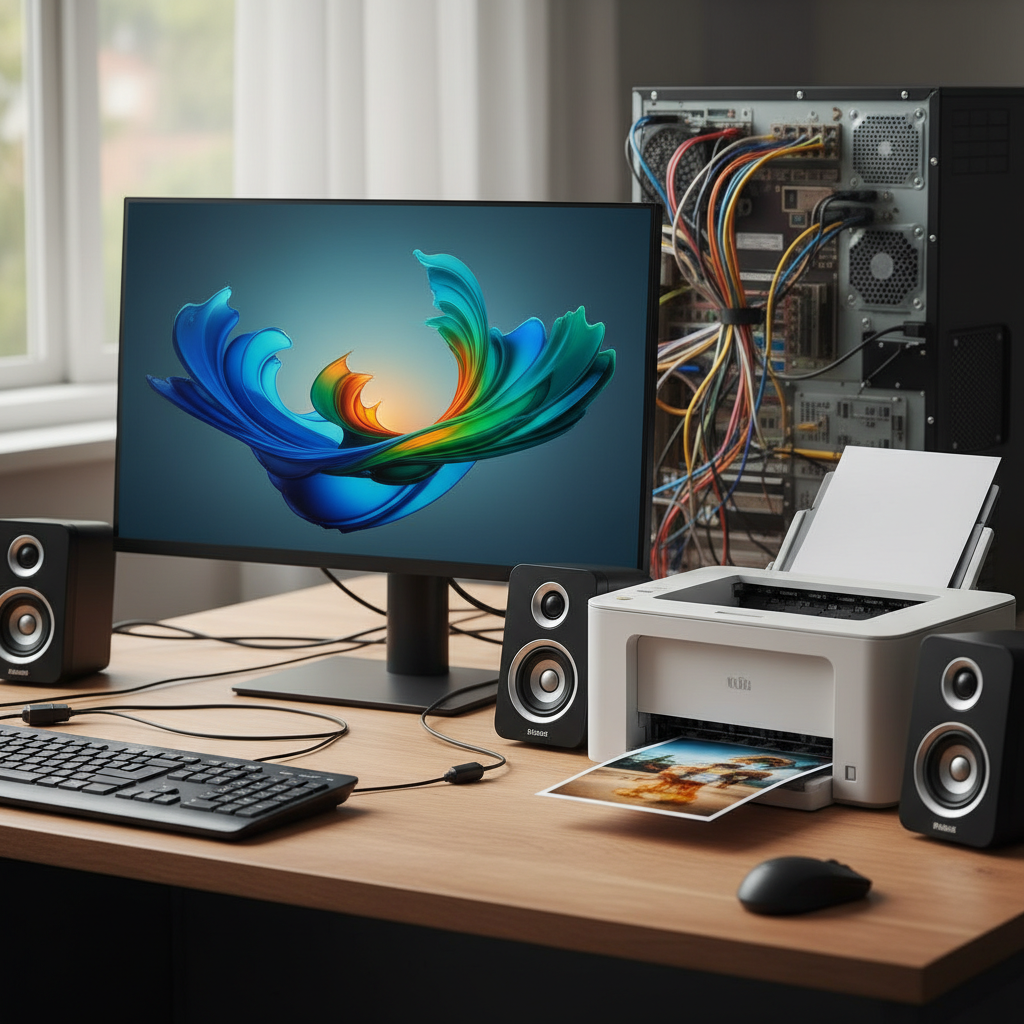
The Computer's Voice: Speakers and Headphones
If the monitor is the computer's face, then speakers and headphones are its voice! They let the computer make sounds.
- What they do: They produce audio – music, sound effects, spoken words, alerts, and more.
- How it works (simply): The computer sends digital sound information to the speakers. The speakers then use tiny vibrating parts (called diaphragms) to create sound waves that travel through the air to your ears.
- Analogy: When you talk, sound waves come out of your mouth. Speakers and headphones do the same thing for the computer. If you're listening to music, the speakers are singing the song for your computer! If you're watching a movie, they're providing the dialogue and sound effects.
The Computer's Writing Hand: Printers
Sometimes you don't just want to see something on a screen; you want a physical copy you can hold in your hand. That's where a printer comes in!
- What they do: Printers take digital text or images from the computer and put them onto paper. They create "hard copies."
- How it works (simply): The computer tells the printer exactly where to put tiny dots of ink or toner powder on a piece of paper.
- Types of Printers:
- Inkjet Printers: These are common for homes and small offices. They spray tiny droplets of liquid ink onto the paper. Think of them like tiny painters using very fine brushes!
- Laser Printers: Often used in offices. They use a laser to draw an image onto a special drum, which then attracts toner (a fine powder) and transfers it to paper using heat. Imagine a fancy stamp that uses powder instead of ink!
- Analogy: A printer is like the computer's dedicated artist or writer, able to take its digital ideas and draw or write them onto real paper for you to keep.
The Computer's Cinema: Projectors
What if you want to show what's on your computer screen to a really, really big group of people? A monitor might be too small. That's when you use a projector!
- What they do: Projectors take the image from your computer screen and project it onto a large flat surface, like a wall or a special screen.
- How it works (simply): They use a powerful light and lenses to magnify and display the computer's image.
- Analogy: A projector is like a magical flashlight that can turn your computer screen into a giant movie screen for everyone to see. It's your computer's way of hosting a big presentation or a movie night!
Other Cool Output Devices
- Braille Embossers: These are special printers for people who are visually impaired. Instead of printing ink, they raise tiny bumps on paper to create Braille characters that can be read by touch. It's the computer communicating through touch!
- Plotters: These are like super-sized printers, often used by engineers and architects to print very large, detailed drawings, blueprints, or maps. They can draw with pens or use cutting tools.
Why Are Output Devices So Important?
Without output devices, computers would be pretty useless to us! They would be like super-smart robots stuck in a box, unable to tell us anything they've learned or done. Output devices are the bridges that connect the digital world of the computer to our human world, allowing us to see, hear, and interact with the amazing things computers can do.
So, the next time you see something on your screen, hear a song, or print a picture, remember that you're experiencing the incredible power of output devices – the computer's way of telling you all about its thoughts and adventures!
Keep learning, free
Create a free Syllabax account to unlock practice questions and games for this topic.
Visual Learning Enhanced! 🚀
To help you master this topic, we use Advanced Syllabax AI to generate detailed diagrams and visual models.
Note on Visuals: The AI sometimes makes spelling errors in image labels. Please refer to the lesson text for the correct terminology.