Advanced Word Processing Features
Watch this topic in 60 seconds
Free preview · Lesson 1
Understanding Advanced Word Processing Features
Unlocking the Power of Advanced Word Processing Features
Welcome, Grade 10 learners! You've likely mastered the basics of typing, formatting text (like making words bold or italic), and saving documents. But word processors, like Microsoft Word or Google Docs, are far more powerful than just digital typewriters! Imagine having a superhero toolkit for your documents – that's what advanced features are all about. They help you create professional, organized, and collaborative documents with speed and precision.
Think of it this way: if basic formatting is like choosing different colors of crayons, advanced features are like having a full artist's studio with brushes, different types of paint, and even digital design software. They let you do more, faster, and with better results.
1. Styles: Your Document's Fashion Designer
Have you ever seen a beautifully designed magazine or a professional report? Notice how all the titles look the same, all the main paragraphs have a consistent font, and bullet points are always indented just right? That's thanks to Styles.
What are Styles? Styles are like pre-set formatting packages. Instead of manually choosing font (e.g., Arial), size (e.g., 14pt), color (e.g., blue), and bold for every single heading in your 20-page report, you can simply apply a 'Heading 1' style. This style already contains all those formatting choices.
Analogy: Imagine you have a wardrobe full of clothes. Instead of picking a shirt, pants, and shoes one by one every morning, you have complete 'outfits' ready to go. You just choose 'The School Outfit' or 'The Party Outfit,' and everything matches perfectly. Styles work the same way for your text!
Core Concept: Styles ensure consistency across your document. If you decide you want all 'Heading 1' titles to be green instead of blue, you just change the 'Heading 1' style once, and every heading formatted with 'Heading 1' instantly updates throughout your entire document. This saves an incredible amount of time and ensures your document looks polished and professional.
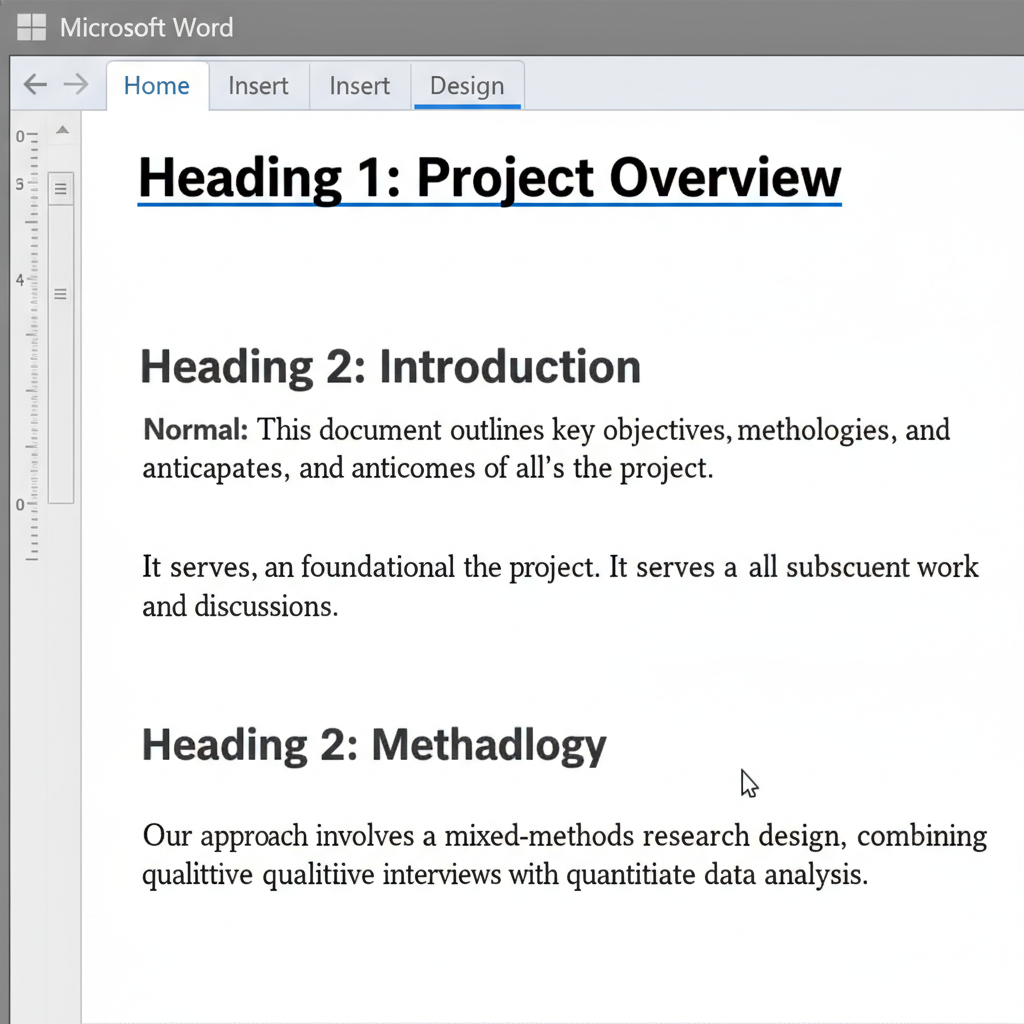 ⚠️ This picture may have spelling mistakes. Trust the words in the lesson.
2. Automatic Table of Contents: Your Document's GPS
Think about a textbook. At the beginning, there's usually a Table of Contents (ToC) that lists all the chapters and page numbers. Wouldn't it be amazing if your word processor could create that for you automatically? It can, using Automatic Table of Contents!
How it Works: This feature relies heavily on the 'Styles' we just discussed. When you use 'Heading 1' for your main chapters, 'Heading 2' for sub-sections, and so on, your word processor understands the structure of your document. It then gathers all these headings and their corresponding page numbers to build a ToC for you.
Analogy: Imagine you're building a massive Lego castle. Instead of manually writing down every tower's location and height, you've used different colored bricks for different sections (e.g., red for main towers, blue for smaller turrets). The word processor is like a smart robot that can scan your castle, identify all the red and blue sections, and list them out with their exact positions. If you move a tower, the robot automatically updates its list!
Benefits: Not only does it save you from manually typing and updating page numbers, but an automatic ToC is also interactive in digital documents. You can click on an entry, and it will jump you directly to that section!
3. Mail Merge: Personalized Mass Communication
Have you ever received a letter addressed specifically to you, but you know it was sent to hundreds or thousands of other people too? Like a school newsletter with your name at the top, or a university acceptance letter? That's likely thanks to Mail Merge.
What is Mail Merge? It's a powerful tool that allows you to create a batch of personalized documents (like letters, envelopes, or labels) by combining a 'main document' with a 'data source.'
- Main Document: This is your template, the general letter or form that stays mostly the same for everyone. It has placeholders (like 'Dear [Name]') where the personalized information will go.
- Data Source: This is usually a list (like a spreadsheet or a database) containing all the unique information for each person – names, addresses, specific grades, etc.
Analogy: Think of it like a cookie cutter and a batch of dough. The main document is the cookie cutter – it defines the shape. The data source is like a list of different toppings you want for each cookie (chocolate chips, sprinkles, nuts). Mail Merge cuts out hundreds of cookies (documents) and automatically puts the right topping on each one, making them all unique but starting from the same base.
Core Concept: Mail Merge automates the creation of many unique documents from a single template and a list of varying data, making mass communication efficient and personal.
4. Track Changes and Comments: Your Document's Review Crew
Imagine you're working on a group project, and everyone needs to review and make edits to the same document. How do you keep track of who changed what, and how do you discuss specific parts without rewriting the whole paper?
This is where Track Changes and Comments come in handy!
Track Changes: When you turn on 'Track Changes,' your word processor acts like a detective. Every single change you make – adding a word, deleting a sentence, changing a font – is recorded and shown with a different color or highlight, usually with the author's name next to it. It doesn't permanently alter the document until someone decides to 'Accept' or 'Reject' the change.
Analogy: It's like writing on a transparent overlay placed on top of your original document. You can see your original text underneath, and all the edits (additions, deletions) are visible on the overlay. The original document isn't touched until you decide which changes from the overlay you want to make permanent.
Comments: These are like digital sticky notes. You can highlight a specific word or paragraph and attach a note to it. This is perfect for asking questions, suggesting alternatives, or explaining why a change was made, without directly changing the main text.
Analogy: If Track Changes is the transparent overlay showing direct edits, Comments are like writing little notes on actual sticky notes and sticking them next to specific parts of your document. They're separate from the main text but point to it.
Benefits: These features are essential for collaboration, allowing multiple people to contribute, review, and refine a document efficiently. You can see all proposed changes, discuss them via comments, and then decide which changes to keep.
Conclusion: Master Your Word Processor!
By understanding and using these advanced features – Styles for consistency, Automatic Table of Contents for navigation, Mail Merge for personalized communication, and Track Changes/Comments for collaboration – you transform your word processor from a basic typing tool into a powerful productivity machine. These skills are invaluable for school projects, future careers, and personal organization. Start exploring them today, and you'll be amazed at how much more you can achieve!
Keep learning, free
Create a free Syllabax account to unlock practice questions and games for this topic.
Visual Learning Enhanced! 🚀
To help you master this topic, we use Advanced Syllabax AI to generate detailed diagrams and visual models.
Note on Visuals: The AI sometimes makes spelling errors in image labels. Please refer to the lesson text for the correct terminology.