Organizing Files & Folders
Watch this topic in 60 seconds
Free preview · Lesson 1
Understanding Organizing Files & Folders
Organizing Your Digital World: Files and Folders!
Imagine your computer as a giant digital backpack or a super-sized digital room. Just like you keep your school supplies, books, and toys organized in your backpack or room, your computer needs the same kind of organization! This is where files and folders come in. Learning to use them well is like gaining a superpower for your computer!
What is a File? Your Digital Stuff!
Think of a file as a single piece of your digital stuff. It could be:
- A school report you typed (like a piece of paper with writing on it).
- A picture you took with a camera (like a printed photograph).
- A song you listen to (like a single music CD).
- A video you watched (like one movie on a DVD).
Each file has a unique name, like "My Science Project.docx" or "Birthday Party Photo.jpg." The part after the dot (.docx, .jpg) tells your computer what kind of file it is, just like a label telling you if a book is fiction or non-fiction.
What is a Folder? Your Digital Containers!
Now, imagine you have a lot of those single pieces of paper, photos, or CDs lying all over your desk. It would be a huge mess, right? That's where folders come in! A folder is like a digital container or a box where you can put many related files together.
Think of a folder as:
- A physical folder you use for school to keep all your Math worksheets together.
- A shoebox where you store all your small toys.
- A drawer in your dresser dedicated to socks.
- A shelf in a library for books on a specific topic.
Folders can hold not just files, but also other folders! These are called subfolders. It's like having a big box, and inside that big box, you have smaller boxes, and inside those smaller boxes, you have your items.
Why Should We Organize Files and Folders? The Superpower of Tidiness!
You might be thinking, "Why bother?" Well, organizing your files and folders gives you many superpowers:
- Find Things Fast: Have you ever tried to find a specific toy in a completely messy room? It takes forever! The same goes for your computer. When files are organized, you can find what you need in seconds. It's like knowing exactly which shelf in the library holds the book you want.
- Keep Your Computer Tidy: A well-organized computer desktop and file system look clean and are easier to navigate. It's like having a clean bedroom – everything feels better!
- Save Time and Frustration: Imagine you need to submit your "History Essay.docx" for school. If it's saved in a messy "Downloads" folder with hundreds of other random files, you'll spend valuable time searching for it. If it's neatly tucked away in a "School Work > History > Essays" folder, you'll find it instantly!
- Backup and Share Easily: When your files are organized, it's much easier to back them up (make copies so you don't lose them) or share them with teachers or friends because you know exactly where they are.
How Do We Organize? Your Digital Cleaning Toolkit!
1. Create New Folders
This is your first step! When you start a new project or category, make a new folder for it. It's like getting a new empty box and labeling it.
- How to do it: Usually, you right-click on an empty space on your desktop or inside another folder, then choose "New" and then "Folder."
- Analogy: You just bought a new "Art Supplies" box.
2. Name Your Files and Folders Clearly
This is SUPER important! Give your files and folders names that clearly tell you what's inside, even months later.
- Good Names: "Science Project - Volcanoes 2024", "Photos - Summer Vacation 2023", "Math Homework - Chapter 3.pdf"
- Bad Names: "stuff", "pic1", "document_final_final_really_final"
- Analogy: Labeling your school binders "Math," "Science," "English" instead of just "Binder 1," "Binder 2."
3. Move Files and Folders
Once you've created your folders, you need to put your files and other folders into them.
- How to do it: The easiest way is to click and drag the file or folder from where it is to the new folder. You can also right-click on the file/folder, choose "Cut" (to move) or "Copy" (to make a duplicate), then go to the new folder, right-click in an empty space, and choose "Paste."
- Analogy: Picking up your crayons and putting them into your "Art Supplies" box.
4. Delete Unwanted Files and Folders
Sometimes you create temporary files or decide you don't need something anymore. Deleting keeps your digital space clutter-free.
- How to do it: Right-click on the file or folder and choose "Delete." It usually goes to a special place called the Recycle Bin (Windows) or Trash (macOS). This is like your home's recycling bin – you can often get things back if you change your mind, but eventually, it gets emptied!
- Analogy: Putting old, broken toys into the trash can, but having a chance to take them out again before the garbage truck comes.
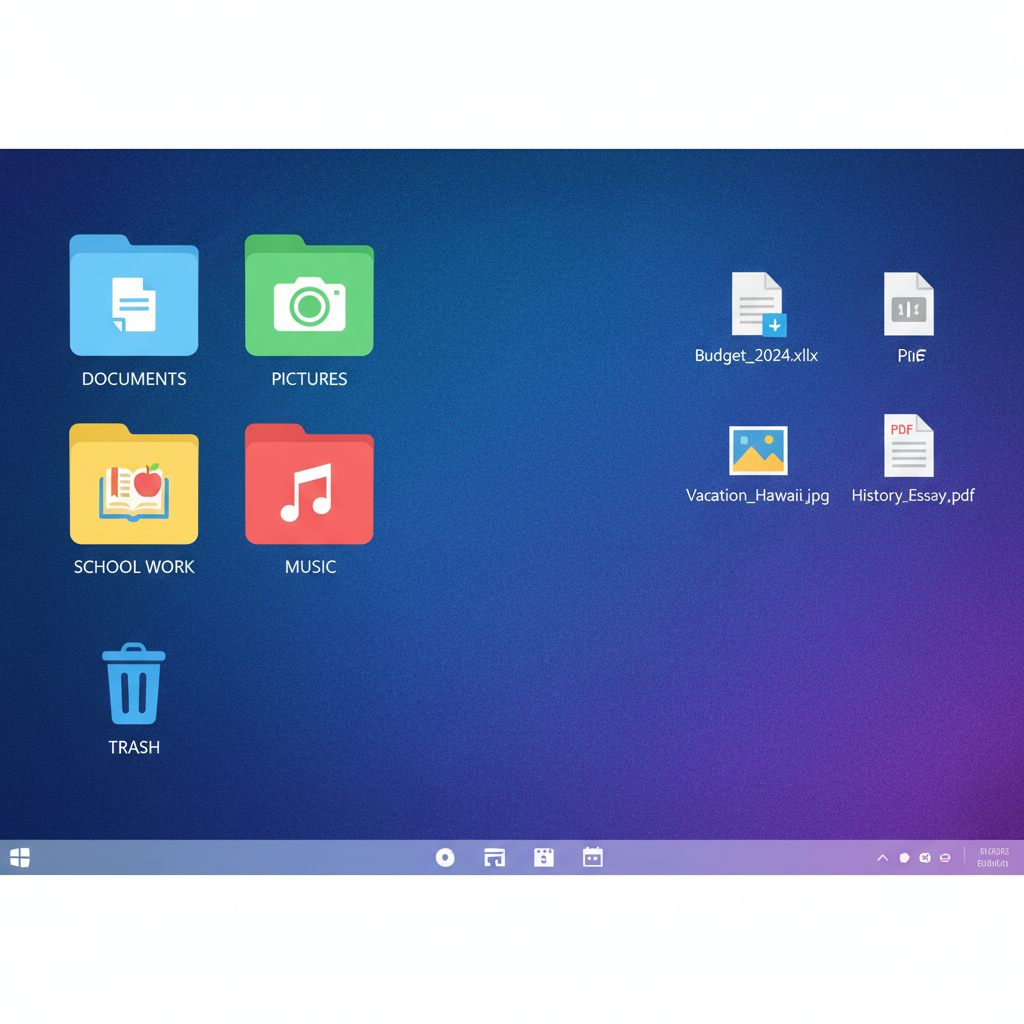 ⚠️ This picture may have spelling mistakes. Trust the words in the lesson.
Top Tips for Being a File and Folder Master!
- Create a "Main" Folder: Have a main folder for yourself, maybe called "My Name's Stuff" or "School Work." Then, put all your school-related folders inside that.
- Use Categories: Think about broad categories first. For school, maybe "Subjects," "Projects," "Homework." Inside "Subjects," you'd have "Math," "Science," "English."
- Be Consistent: Try to use the same naming style every time. If you use "Year - Project Name" for one, try to use it for all similar projects.
- Don't Over-Organize: Don't make a folder for every single tiny thing. It's okay to have a few related files in one folder. The goal is easy finding, not endless clicking!
- Regular Cleanup: Just like you clean your room, take a few minutes once a week or month to tidy up your digital files. Delete old, unnecessary things, and move new files into their proper places.
Mastering file and folder organization is a super useful skill that will help you throughout school and beyond. It makes your digital life easier, faster, and much less stressful!
Keep learning, free
Create a free Syllabax account to unlock practice questions and games for this topic.
Visual Learning Enhanced! 🚀
To help you master this topic, we use Advanced Syllabax AI to generate detailed diagrams and visual models.
Note on Visuals: The AI sometimes makes spelling errors in image labels. Please refer to the lesson text for the correct terminology.