Storage Devices: Saving Work
Watch this topic in 60 seconds
Free preview · Lesson 1
Understanding Storage Devices: Saving Work
Storage Devices: Saving Your Awesome Work!
Imagine you've just built the most amazing Lego castle ever! You spent hours on it, piece by piece, making it perfect. Would you just leave it on the floor for someone to accidentally kick, or would you want to put it somewhere safe so you can play with it again tomorrow? You'd probably want to put it on a sturdy table or a shelf, right? That's exactly why we have storage devices for our computers!
What are Storage Devices?
A storage device is like a special digital cupboard or a treasure chest for all the amazing things you create or find on a computer. It's a place where your computer can remember pictures, stories, games, and videos, even after you turn it off! Without a storage device, everything you do on a computer would disappear the moment you press the 'off' button. That would be like writing a beautiful story and then watching all the words vanish from the paper!
Think of your brain as a storage device for your memories. It remembers your favorite color, your best friend's name, and what you had for breakfast. Computers have their own 'brains' too, but they need help remembering the specific things you make, like your drawings or your homework. That's where storage devices come in!
Why Do We Need to 'Save' Our Work?
When you're working on a computer, whether you're typing a story in Google Docs, drawing a picture in Paint, or building a world in a game, all that work is happening in a special, temporary part of the computer's memory. It's like having your Lego castle pieces spread out on the floor while you're building. If someone accidentally trips over them, or if the power goes out, all your hard work could be lost!
When you 'save' your work, you're telling the computer: "Hey! This is important! Please take this and put it in a safe place on a storage device so I can find it later." Saving is like taking a picture of your amazing Lego castle and putting that picture into a photo album to keep forever.
Different Kinds of Digital Treasure Chests (Storage Devices)
Just like you might have different places to store your toys (a toy box, a shelf, a backpack), computers have different kinds of storage devices. Let's look at some common ones:
1. The Computer's Built-In Storage (Hard Drive/SSD)
Almost every computer has a storage device built right inside it. This is usually called a Hard Drive or an SSD (Solid State Drive). It's like the computer's biggest closet, where it keeps most of its important programs and all the things you save.
Imagine your house has a giant, secret room where you keep all your most important things – your family photos, your favorite books, and all your clothes. That's what the internal hard drive is like for your computer. It's always there, working quietly inside.
Some hard drives use tiny spinning disks to store information, like a record player. Others, called SSDs, use special electronic memory chips, which are much faster, like lightning-fast bookshelves!

2. USB Flash Drives (Thumb Drives or Jump Drives)
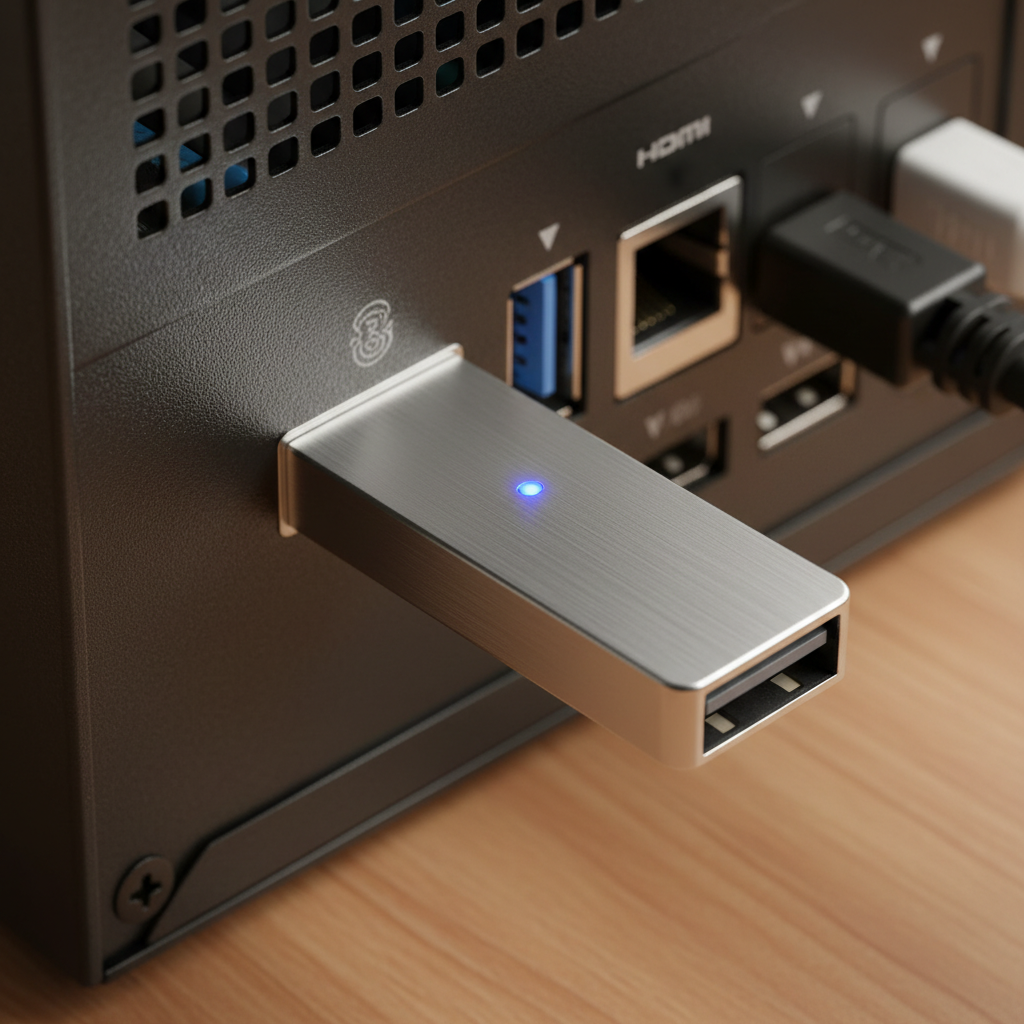
Have you ever seen a small, stick-like device that you can plug into a computer? That's a USB Flash Drive! They are super handy because they are small, light, and you can carry them in your pocket. They are like a tiny, portable lunchbox for your digital files.
Think of it this way: You finish an amazing drawing on the computer at school, and you want to take it home to show your parents. You can save your drawing onto a USB flash drive, unplug it, and carry it home. Then, you can plug it into your computer at home and open your drawing again! It's like having a digital key that unlocks your work on any computer.
3. Cloud Storage (Storage in the 'Sky'!)
This one is a bit different because you can't actually touch it! Cloud storage is like saving your work on a giant, invisible computer system that's connected to the internet. It's called 'the cloud' because it's not in one specific place on Earth, but rather spread out and accessed through the internet.
Imagine you have a magic locker that you can open from any library, any school, or even your friend's house, as long as you have the secret code. Your files are not on your computer; they are online! Popular cloud storage services include Google Drive, Dropbox, and iCloud.
The best part about cloud storage is that you can get to your files from almost any computer, tablet, or phone, as long as you have an internet connection. It's great for sharing files with friends or working on a project with a classmate from different places.
How Do You 'Save' Your Work? (The Magic Words!)
Saving your work is usually quite simple! Most programs have a 'File' menu at the top. When you click 'File', you'll often see options like:
- Save: If you've saved this work before, 'Save' will update the file with your latest changes.
- Save As...: This is important when you're saving something for the very first time! It lets you choose where you want to save your file (like your computer's hard drive, a USB drive, or to the cloud) and what you want to name it. Giving your file a good name (like 'My Awesome Robot Drawing' instead of 'Picture1') makes it easy to find later!
It's a super good habit to save your work often! Just like you wouldn't want to build half your Lego castle and then leave it without saving it, you should save your digital work every 5-10 minutes. This way, if something unexpected happens, you won't lose too much of your precious work.
Conclusion
Storage devices are digital heroes! They make sure that all your incredible creations – your stories, your drawings, your game scores, and your homework – don't disappear into thin air. Whether it's inside your computer, on a little USB stick, or floating in the 'cloud,' knowing how to save your work is one of the most important computer skills you can learn. Keep saving, and keep creating awesome things!
Keep learning, free
Create a free Syllabax account to unlock practice questions and games for this topic.
Visual Learning Enhanced! 🚀
To help you master this topic, we use Advanced Syllabax AI to generate detailed diagrams and visual models.
Note on Visuals: The AI sometimes makes spelling errors in image labels. Please refer to the lesson text for the correct terminology.