Learning Journey
Watch this topic in 60 seconds
Free preview · Lesson 1
Understanding Troubleshooting Common Issues
Unlocking the Detective Within: Troubleshooting Common Issues (Grade 9)
Welcome, future problem-solvers! Have you ever had a computer freeze, a game glitch, or a Wi-Fi connection drop, and felt completely stuck? You're not alone! These are 'common issues,' and learning to fix them is called troubleshooting. Think of troubleshooting like being a detective for technology. When something goes wrong, you put on your detective hat, gather clues, and logically figure out what's causing the trouble so you can fix it.
What is Troubleshooting? (The Detective's Job)
In simple terms, troubleshooting is a systematic process of identifying and resolving problems, often with computers, software, or networks. It's not just randomly trying things until something works. It's a method! Just like a doctor follows steps to diagnose an illness, or a mechanic follows steps to fix a car, you follow steps to fix technology problems.
Why is it important? Because technology is everywhere! Knowing how to troubleshoot saves you time, money, and a lot of frustration. It empowers you to be more independent with your devices and helps you understand how they work.
The Foundational Steps of Troubleshooting (Your Detective's Playbook)
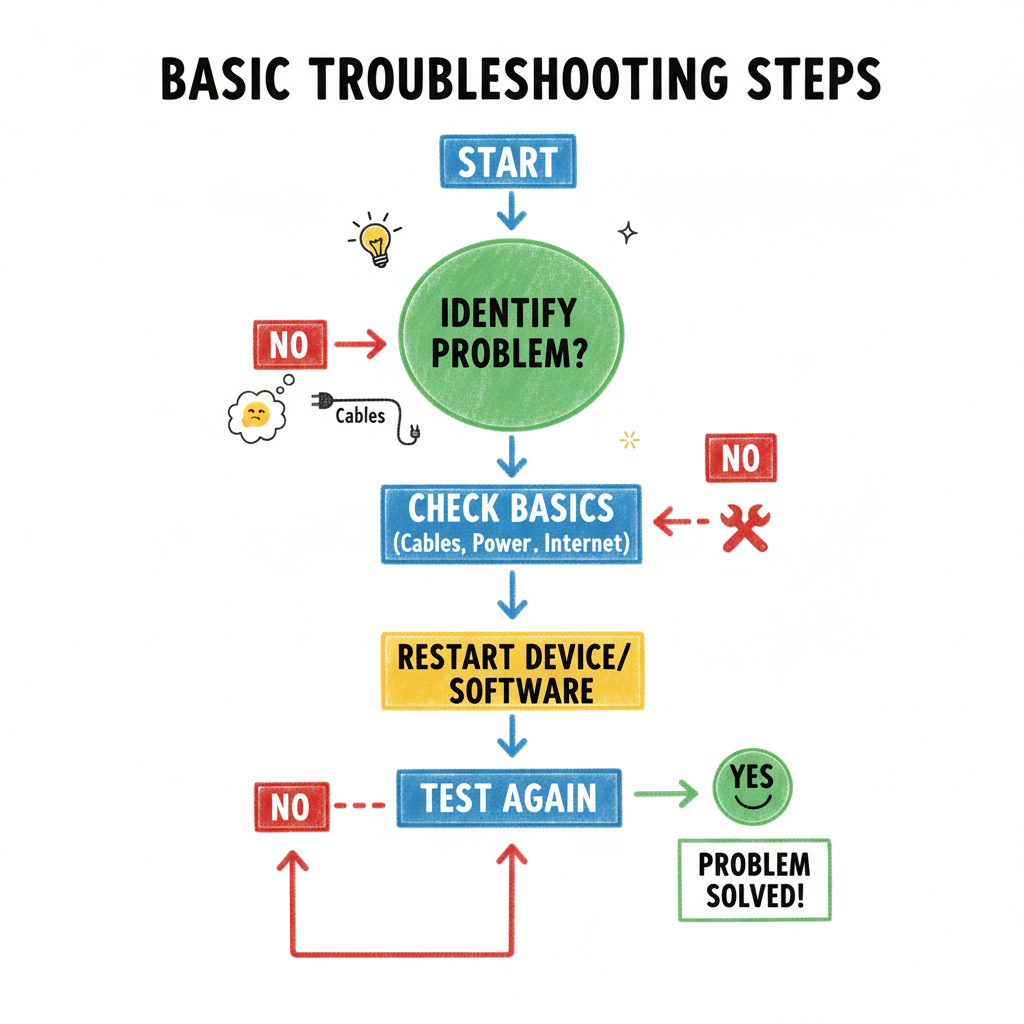
Every good detective follows a process. Here are the core steps:
Step 1: Understand the Problem (Gather Clues!)
Before you can fix something, you need to know what's broken and how it's behaving. This is the information-gathering stage. Ask yourself:
- What is the exact problem? (e.g., "My computer is slow," "The printer isn't printing," "The internet isn't working on my phone.")
- When did it start? (Did it happen suddenly? After installing something new? After an update?)
- What changed recently? (Did you download new software? Plug in a new device? Change a setting?)
- What were you doing when it happened? (Playing a game? Browsing a website? Typing a document?)
- Is anyone else experiencing the same issue? (e.g., Is the internet down for everyone in the house, or just your device?)
Analogy: Imagine your friend tells you their bike isn't working. Your first question isn't, "Let's replace the tires!" It's "What's wrong with it? Is the chain off? Is a pedal loose?" You need details!
Step 2: Check the Obvious (The "Is it Plugged In?" Rule)
You'd be surprised how often simple things are overlooked. Before diving into complex solutions, always check the basics. This is like checking if the light switch is on before assuming the bulb is broken.
- Is the device turned on?
- Are all cables securely plugged in? (Power cables, HDMI, Ethernet, USB, etc.)
- Is the volume turned up? (If it's an audio issue)
- Is the Wi-Fi turned on on your device?
- Have you restarted the device? (The magical restart often clears temporary glitches. It's like giving your device a fresh start for the day!)
Analogy: If your car won't start, the first thing you check isn't the engine's internal mechanics; it's whether there's gas in the tank or if the battery terminals are loose. Simple stuff first!
Step 3: Isolate the Problem (Finding the Weak Link)
Once you've checked the obvious, try to narrow down where the problem is coming from. Is it the device? The software? The network? A specific component?
- Try another device: Does the internet work on your phone but not your laptop? Then the problem is likely with the laptop, not the internet service itself.
- Try another port/cable: If a USB device isn't working in one port, try another. If a monitor isn't working with one cable, try a different cable.
- Test in Safe Mode (for computers): This starts your computer with only essential programs, helping you see if a recently installed program is causing issues.
Analogy: If a string of Christmas lights goes out, you don't replace every bulb. You look for the one faulty bulb or a break in the wire, isolating the part that's causing the problem.
Step 4: Formulate a Hypothesis and Test It (Your Best Guess & Action)
Based on your clues and isolation, make an educated guess about what's wrong (your hypothesis) and then try a solution. Test one thing at a time! If you try multiple solutions at once and it fixes the problem, you won't know which specific action actually worked.
- Hypothesis: "My internet is out because the router needs a reset." Test: Unplug the router, wait 30 seconds, plug it back in.
- Hypothesis: "My computer is slow because I have too many programs open." Test: Close unnecessary programs.
Analogy: A chef tasting a dish that needs something. They might hypothesize, "It needs more salt." They add a little salt, then taste again. If it's still not right, they don't add pepper, sugar, and chili all at once; they try one thing at a time.
Step 5: Document and Learn (The Detective's Logbook)
Whether you fixed the problem or not, make a mental note (or even a physical one!) of what you tried, what worked, and what didn't. This helps you next time and can help others.
- What was the problem?
- What steps did you take?
- What was the solution?
Analogy: A scientist keeps a lab notebook for every experiment, noting procedures, observations, and results. This builds knowledge for future experiments.
Common Issues and Quick Detective Fixes
Issue 1: Computer Won't Turn On / No Display
- Clues: Black screen, no lights, no sounds.
- Obvious Check: Is it plugged into a working outlet? Is the power strip on? Are all cables (especially to the monitor) securely connected?
- Quick Fix: Try a different power outlet. Check the power button on the monitor. Restart by holding the power button down for 10-15 seconds if it's frozen.
Issue 2: Computer is Running Very Slowly
- Clues: Programs take forever to open, webpages load slowly, lots of waiting.
- Obvious Check: Restart your computer. Close unnecessary programs running in the background.
- Isolation: Is it slow all the time, or only when using a specific program?
- Quick Fix: Check your hard drive space (if it's almost full, it slows down!). Run a disk cleanup. Update your operating system and web browser. Avoid having too many tabs open.
Issue 3: Internet Not Working
- Clues: Can't load websites, streaming stops, error messages about no internet.
- Obvious Check: Is Wi-Fi turned on on your device? Are you connected to the correct network?
- Isolation: Is it just your device, or is no one in the house connecting? (Check another device.)
- Quick Fix: Restart your Wi-Fi router and modem (unplug for 30 seconds, then plug back in). Forget the Wi-Fi network on your device and reconnect. Check for loose Ethernet cables if you're using one.
Issue 4: A Specific Program or App Isn't Responding (Frozen)
- Clues: App is unresponsive, cursor turns into a spinning wheel, can't click anything within the app.
- Obvious Check: Wait a moment (sometimes it just needs time).
- Quick Fix: Force quit the program. On Windows, press
Ctrl+Shift+Escto open Task Manager, select the program, and click 'End task'. On Mac, pressCmd+Option+Esc, select the app, and click 'Force Quit'. Then, try opening it again.
Become a Tech Detective!
Troubleshooting isn't about knowing every single solution; it's about knowing the process to find the solution. With practice, you'll become much more confident in tackling tech issues, saving yourself headaches, and maybe even helping others out!
Keep learning, free
Create a free Syllabax account to unlock practice questions and games for this topic.
Visual Learning Enhanced! 🚀
To help you master this topic, we use Advanced Syllabax AI to generate detailed diagrams and visual models.
Note on Visuals: The AI sometimes makes spelling errors in image labels. Please refer to the lesson text for the correct terminology.