Caring for Your Computer
Watch this topic in 60 seconds
Free preview · Lesson 1
Understanding Caring for Your Computer
Caring for Your Computer: Like Taking Care of a Pet or a Plant!
Hello, young tech explorers! Imagine you have a very special friend who helps you with your homework, lets you play games, and connects you to amazing stories and pictures. This friend is your computer!
Just like a pet dog needs food and walks, or a plant needs water and sunshine, your computer needs your care too. When we take good care of our computers, they stay happy, work well, and last for a very long time. It’s like keeping your favorite toy in tip-top shape!
Why is Caring for Your Computer Important?
Think about it this way: if you don't feed your pet, it gets hungry and sick. If you don't water your plant, it wilts and dries up. The same goes for your computer! If we don't treat it kindly and keep it clean, it can get 'sick' and stop working. This means no more games, no more learning fun!
Imagine your computer is like a helpful robot friend. You want your robot friend to be strong and ready to help you every day, right? Caring for it makes sure it stays strong!
1. Keeping Your Computer Clean and Tidy (The Outside Job!)
The first step to a happy computer is keeping its outside clean. It's like brushing your pet's fur or wiping dust off your favorite shelf!
a. The Screen: Your Computer's Window to the World
Your computer screen is like a window you look through to see all the wonderful things happening inside the computer. If your window is smudged or dirty, it's hard to see clearly, isn't it?
Think of it like cleaning your eyeglasses. You want them sparkling clean so you can see everything clearly!
b. The Keyboard and Mouse: The Buttons and Clickers
Your keyboard is where all the letters and numbers live, and your mouse is how you point and click. These are often the busiest parts of your computer! Imagine if you ate a snack at your desk and some crumbs fell into your keyboard. Over time, those tiny crumbs and dust bunnies can get stuck and make the keys sticky or even stop working.
This is like sweeping crumbs from under the kitchen table after dinner. We don't want any hidden surprises!
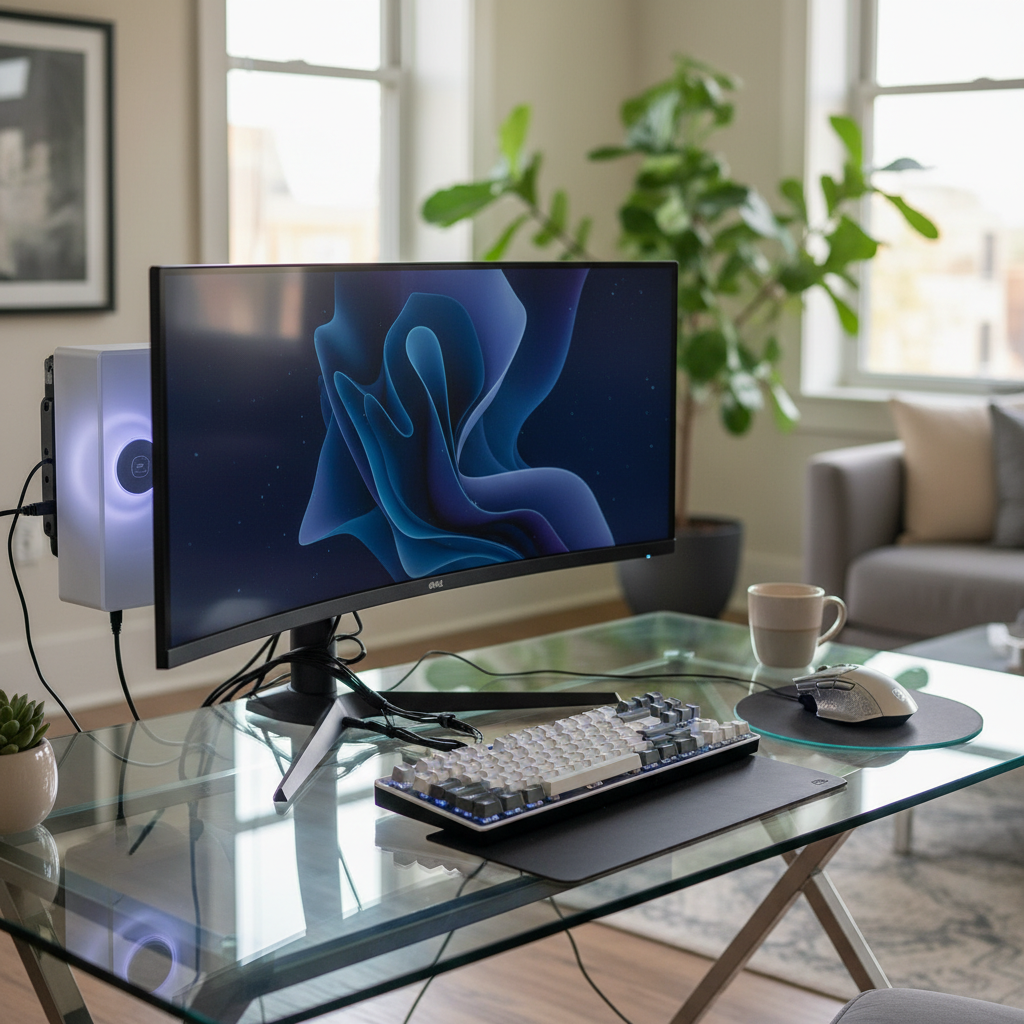 ⚠️ This picture may have spelling mistakes. Trust the words in the lesson.
c. Vents: Your Computer's 'Nose' for Breathing
Did you know your computer needs to breathe? Computers have little openings called 'vents' that help cool air get in and warm air get out. If these vents get blocked by dust or other things, your computer can get too hot, which is not good for it at all!
Imagine trying to breathe with a pillow over your face! You wouldn't like that, and neither does your computer. It needs clear 'nostrils' to stay cool and happy.
2. What to Do (and NOT Do!) Around Your Computer
Now, let's talk about some important rules, like house rules for your computer!
a. Food and Drinks: Keep Them Away!
This is a super important rule! Imagine spilling a glass of juice all over your favorite book. It would be ruined, right? The same goes for your computer. Liquids can easily get inside the computer and break it forever. Crumbs can get stuck in the keyboard.
This is like not letting a puppy chew on your shoes. It's a clear rule to protect something important!
b. Gentle Hands: Treat it Kindly
Computers are strong in some ways, but they also have delicate parts inside. Dropping your computer, hitting the keyboard too hard, or slamming the laptop screen shut can cause damage. We want to be gentle with our computer friend.
Be gentle with your computer, just like you would be gentle when holding a baby bird or playing with a small kitten. It’s fragile!
c. Plugs and Cords: Handle with Care
Computers have many cords that connect them to power outlets and other things like printers or speakers. Never yank a cord out of the computer or the wall. This can damage the cord or the computer itself.
Pulling a cord is like pulling a plant out by its roots – you might hurt it! Always be gentle and careful.
3. Inside Care: Helping Your Computer Stay Smart (The Software Job!)
Even though you can't see the 'inside' of your computer, there are still ways you help care for it.
a. Turning Off Your Computer Properly
When you're done using your computer, it's super important to turn it off the right way. This is called 'shutting down'. Just pressing the power button quickly might not let your computer finish all its tasks, which can confuse it or make it lose information.
Shutting down properly is like putting your pet to bed gently so it can have a good, peaceful sleep, instead of just yelling at it to stop playing and go to bed!
b. Asking an Adult for Help with New Things
Your computer can do so many amazing things, but sometimes it needs special care that only an adult knows how to give. Like installing new games, changing important settings, or if something isn't working right.
This is like if you feel sick, you tell a grown-up right away. They know how to help you feel better!

Conclusion: Be a Computer Caretaker Hero!
You are now ready to be a computer caretaker hero! By keeping it clean, being gentle, keeping food and drinks away, and turning it off properly, you're making sure your computer stays a happy, healthy, and helpful friend for a long, long time. Remember, a little care goes a long way!
Think of your computer as a super valuable treasure. By following these rules, you're protecting your treasure!
Keep learning, free
Create a free Syllabax account to unlock practice questions and games for this topic.
Visual Learning Enhanced! 🚀
To help you master this topic, we use Advanced Syllabax AI to generate detailed diagrams and visual models.
Note on Visuals: The AI sometimes makes spelling errors in image labels. Please refer to the lesson text for the correct terminology.