Troubleshooting Common Problems
Watch this topic in 60 seconds
Free preview · Lesson 1
Understanding Troubleshooting Common Problems
Troubleshooting Common Problems: Your Inner Detective (Grade 8)
Have you ever had your computer freeze, your bicycle chain come off, or a light switch stop working? It can be super frustrating! But what if you had a superpower that allowed you to figure out what was wrong and fix it? Well, you do! It’s called troubleshooting, and it’s a skill everyone can learn and use every single day.
Analogy: You Are a Detective!
Imagine you're a detective. When there's a mystery to solve, you don't just guess who did it. You follow clues, ask questions, and try different theories until you find the real answer. Troubleshooting is exactly like that – you're a detective solving the mystery of why something isn't working right!
What is Troubleshooting?
Simply put, troubleshooting is a step-by-step process of figuring out why something isn't working as it should and then finding a way to fix it. It’s not just for computers; you can troubleshoot almost anything, from a leaky faucet to a bad score on a test.
Why is Troubleshooting Important?
- Saves Time and Money: Instead of immediately replacing something or calling an expensive expert, you might be able to fix it yourself!
- Develops Problem-Solving Skills: It trains your brain to think logically and systematically.
- Builds Confidence: When you fix something, you feel a great sense of accomplishment!
- Helps Others: You can help friends and family when they run into problems.
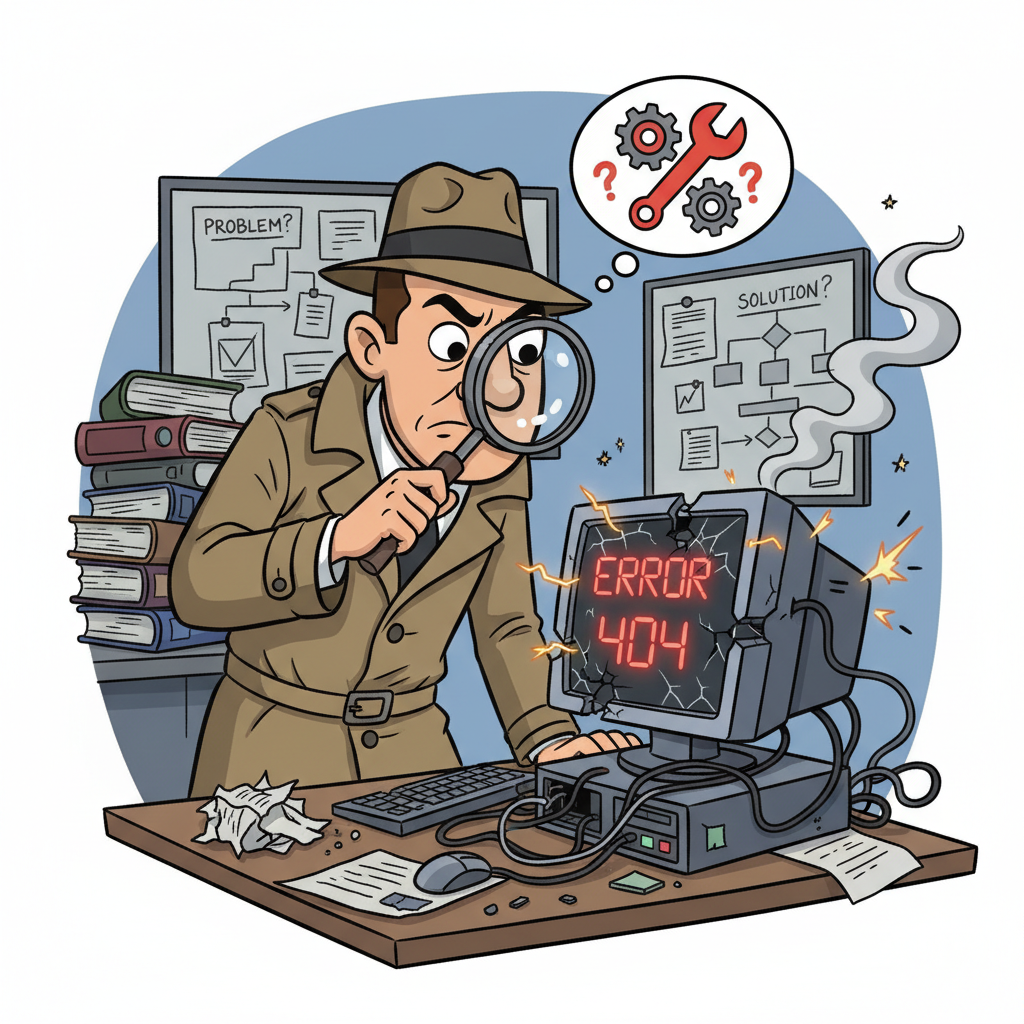
The Core Steps of Troubleshooting: Your Detective's Playbook
Here’s the basic playbook for becoming a troubleshooting master. Remember, these steps can be applied to almost any problem!
Step 1: Identify the Problem (What's Going On?)
This is like a doctor listening to a patient's symptoms. Before a doctor can help you, they need to know what hurts, when it started, and what it feels like. You need to do the same for your problem!
- Be Specific: Don't just say "it's broken." Describe exactly what's happening. Is the computer making a strange noise? Is the internet not connecting at all, or is it just slow?
- What's NOT Happening: Sometimes knowing what isn't working is just as important. The screen isn't turning on, but the power light IS on.
- Reproduce the Problem: Can you make the problem happen again? If your game crashes, can you play a specific level to make it crash again?
Example: Instead of "My bike is broken," say "My bike pedals spin, but the back wheel isn't moving."
Step 2: Gather Information (What Changed? When Did it Start?)
This is like a crime scene investigator (CSI) looking for clues. A CSI gathers all available evidence – fingerprints, witness statements, time of day. You need to gather all the clues about your problem.
- When did it start? Did it just happen, or has it been getting worse over time?
- What were you doing just before it happened? Did you install new software? Drop your phone? Spill water near a device?
- Look for error messages: If there's an error code or message, write it down exactly. These are super helpful clues!
- Check connections: Are all cables plugged in tightly? Is the power on?
Example: "My internet stopped working right after the power flickered during a thunderstorm." This is a huge clue!
Step 3: Formulate a Hypothesis (What's the Most Likely Cause?)
This is like a scientist forming a theory. Based on your observations and clues, what's your best guess about why the problem is happening? Think of the simplest, most common causes first.
- Start Simple: Is it plugged in? Is it turned on? Is the volume up?
- Think of Previous Experiences: Has this happened before? How was it fixed then?
- Consider the 'Last Change': If something worked perfectly and then suddenly stopped, what was the very last thing that changed or was done?
Example: For a computer that won't turn on, a simple hypothesis might be: "The computer isn't getting power because the power cable isn't plugged in."
Step 4: Test Solutions (One at a Time!)
This is like a chef trying to fix a recipe. If your cookies taste bad, you don't change all the ingredients at once! You change one thing (maybe add more sugar), then taste. If it's still bad, you try changing something else. Only change ONE thing at a time!
- Start with the Easiest/Most Obvious: For a TV not showing a picture, check if it's on the right input first, not immediately buying a new TV!
- Test One Change: If you unplug and re-plug three different cables at once, and then it works, you won't know which cable was the problem. If you re-plug one, test it. If it doesn't work, re-plug the next, and so on.
- If a solution doesn't work, undo it: If you try something and it doesn't fix the problem (and maybe even makes it worse), put it back the way it was before moving on to the next solution.
Example: For the computer not turning on, first, check if the power cord is securely plugged into the wall and the computer. If that doesn't work, try a different outlet. If that fails, try a different power cord. Each is one test.
Step 5: Verify the Fix (Is It REALLY Fixed?)
This is like a mechanic taking a repaired car for a test drive. Just because the engine starts doesn't mean the problem is gone. You need to make sure the original issue is completely resolved and that you haven't caused any new ones.
- Confirm the original problem is gone: Does the internet work normally now? Is the bicycle wheel spinning?
- Test other functions: Did fixing one thing break another? Make sure everything else is still working correctly.
- Monitor: Sometimes a problem might seem fixed but then comes back later. Keep an eye on it for a bit.
Example: If your internet was slow, and you reset the router, verify it's now fast again. Try loading a few different websites or streaming a video.
Step 6: Document/Learn (Remember for Next Time!)
This is like an explorer keeping a detailed map and journal. What did you do? What worked? What didn't? This information is gold for future problems!
- Write it Down: What was the problem? What steps did you take? What was the solution?
- Learn from Experience: The more you troubleshoot, the better you become. You'll start recognizing common issues and their fixes quickly.
- Share Knowledge: Tell others what you learned!
Example: "My Wi-Fi was slow. I rebooted the router and my computer, and it fixed it. Next time, try that first!"
Putting It All Together: A Quick Scenario
Problem: Your favorite video game on your console keeps freezing during gameplay.
- Identify: The game freezes, and I have to restart the console. It happens about 10 minutes into playing.
- Gather Info: It only happens with this one game. Other games work fine. It started happening yesterday after I downloaded an update for the game.
- Hypothesis: The game update might be corrupted or caused a bug.
- Test Solutions:
- Try restarting the console (a classic first step!). If it still freezes...
- Try deleting and re-downloading/reinstalling just that game. (This is one major change).
- Verify: After reinstalling, play the game for more than 10 minutes. Does it still freeze? If not, great!
- Document: "Game X froze after update Y. Reinstalling the game fixed it."
Troubleshooting is a valuable life skill that helps you understand how things work and empowers you to solve problems independently. Practice these steps, and you'll be a troubleshooting wizard in no time!
Keep learning, free
Create a free Syllabax account to unlock practice questions and games for this topic.
Visual Learning Enhanced! 🚀
To help you master this topic, we use Advanced Syllabax AI to generate detailed diagrams and visual models.
Note on Visuals: The AI sometimes makes spelling errors in image labels. Please refer to the lesson text for the correct terminology.