Using a Mouse: Click, Drag, Scroll
Watch this topic in 60 seconds
Free preview · Lesson 1
Understanding Using a Mouse: Click, Drag, Scroll
Hello, Young Computer Explorers! Let's Learn About Your Mouse!
Welcome, amazing 3rd graders! Today, we're going on an exciting adventure to learn all about a very special tool that helps us use computers: the computer mouse! Think of your mouse as a friendly helper that lets you point, choose, and move things around on your computer screen, just like your finger helps you point at things in real life.
What is a Computer Mouse?
Look at your mouse. It's usually a small, smooth object that fits comfortably in your hand. It has a wire that connects it to the computer, or sometimes it's wireless, like a remote control. On top, you'll usually see two buttons (one on the left, one on the right) and a little wheel in the middle. These are the superpowers of your mouse!
How Do We Hold the Mouse?
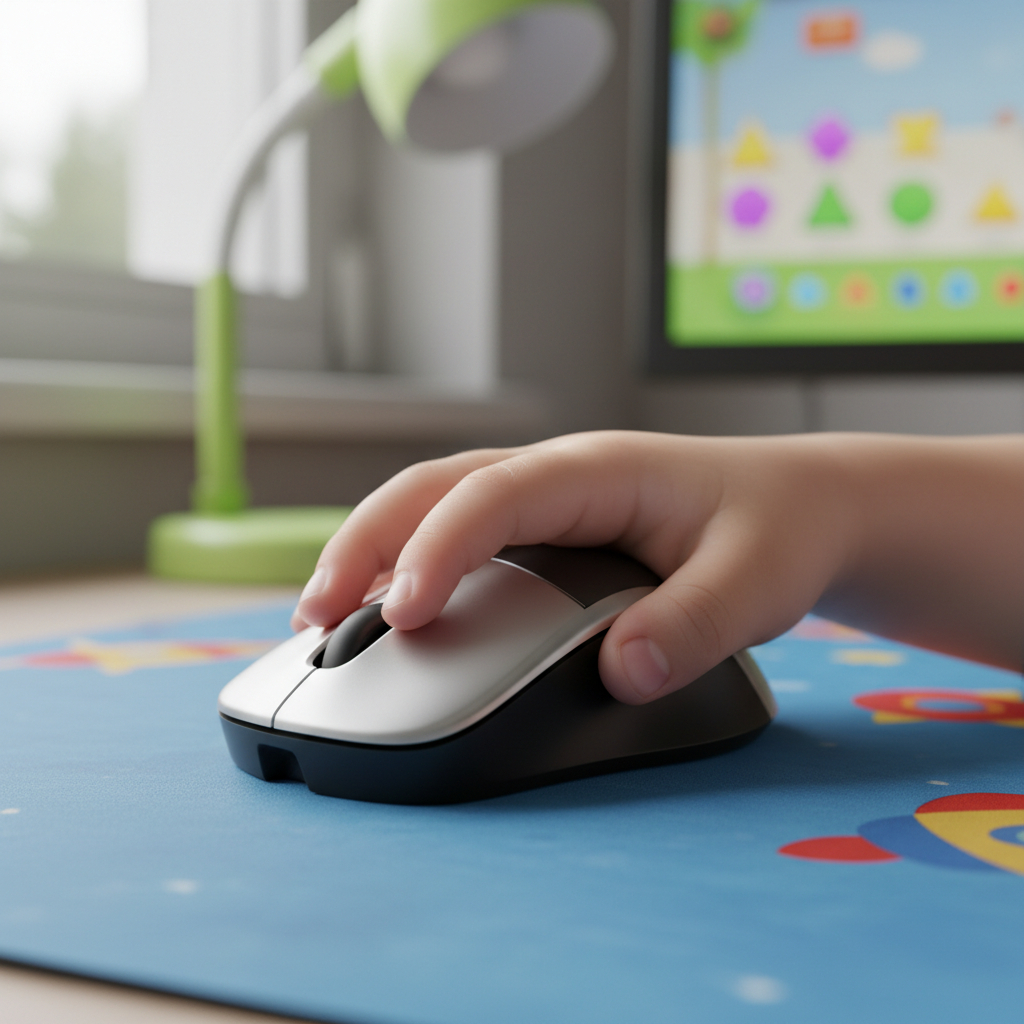
Hold your mouse gently, like you're holding a small toy car. Your palm should rest on the back of the mouse. Your index finger (the one you point with) goes on the left button, and your middle finger goes on the right button. Your thumb and other fingers gently hold the sides of the mouse. It should feel relaxed, not too tight!
Guiding Your Mouse: Making the Arrow Move!
Now, watch your computer screen. Do you see a little arrow, or sometimes a tiny hand, moving around? That's called the cursor! The cursor is like your mouse's shadow on the screen. When you move your mouse on your desk, the cursor moves in the exact same direction on the screen. If you push the mouse forward, the arrow goes up. If you pull it back, the arrow goes down. It's like guiding a tiny remote-controlled car across the screen!
Mouse Superpower 1: Clicking!
Clicking is one of the most important things your mouse does. There are two main kinds of clicks:
The Left Click (or Just 'Click')
This is your most used superpower! To left-click, just gently press and release the left button with your index finger. It makes a little 'click' sound, and the cursor on the screen looks like it's pressing down too. Think of it like tapping on a doorbell! When you click on an icon (a little picture) or a word, you are usually telling the computer, "Hey! I want to choose this!" or "Open this up for me!" If you click twice quickly, that's called a double-click, and it usually means "Open this program NOW!" like a secret knock to open a door quickly.
The Right Click
This click is a bit different. If you press the right button with your middle finger, a secret menu usually pops up on the screen! This menu gives you extra choices, like "Copy," "Paste," or "Save." It's like asking a waiter for a special menu with more options, instead of just saying "I'll have the usual!" Don't worry too much about this one yet, but it's good to know it's there!
Mouse Superpower 2: Dragging!
Imagine you have a toy on the floor and you want to move it from one spot to another without picking it up entirely. You'd hold onto it and slide it, right? That's exactly what dragging is like with your mouse!
To drag something, you first point your cursor at the item you want to move. Then, you press down and hold the left mouse button (don't let go!). While still holding the button, move your mouse. You'll see the item on the screen move along with your cursor! When the item is where you want it to be, you can finally release the left mouse button. Poof! The item is now in its new spot. This is super useful for moving pictures around, arranging icons, or drawing lines.
Mouse Superpower 3: Scrolling!
Have you ever read a really long story or looked at a web page with lots and lots of pictures? Sometimes, not everything fits on the screen at once. That's where the scroll wheel comes in!
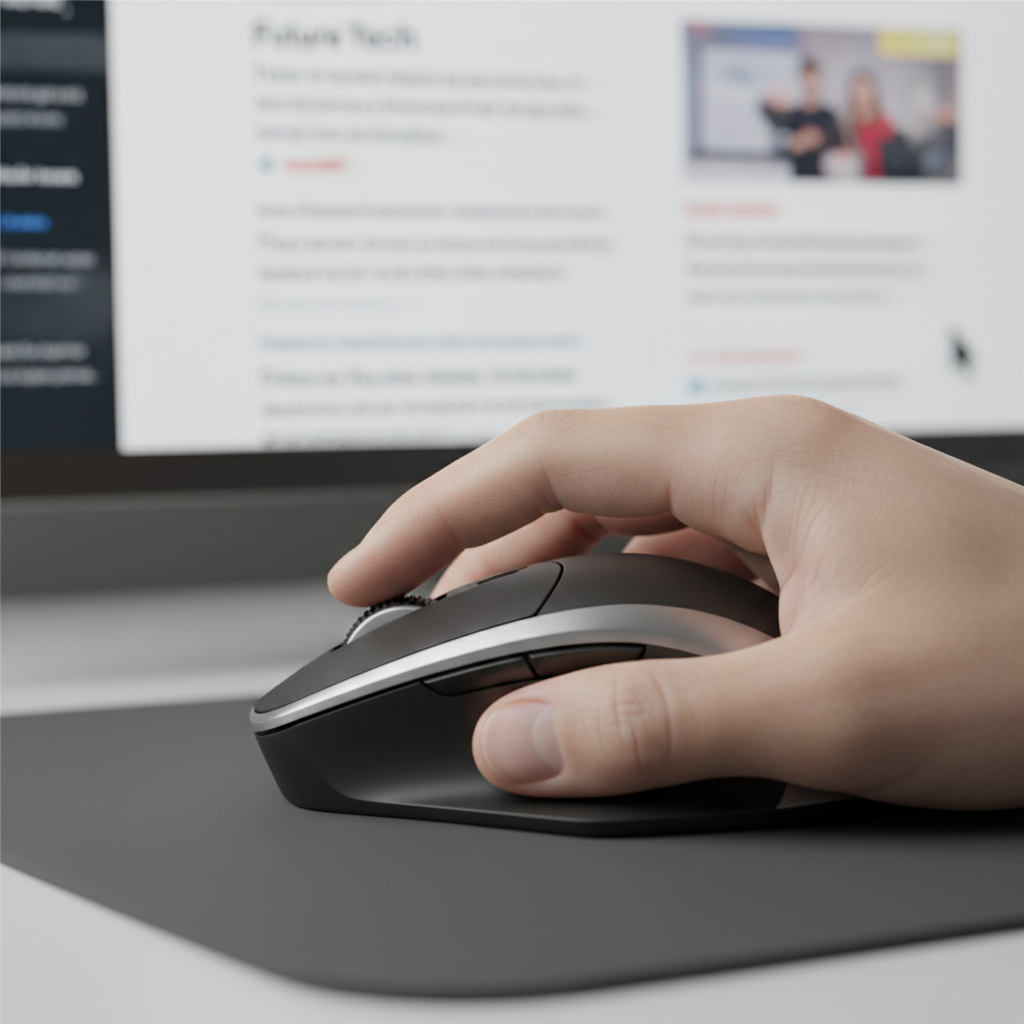
The scroll wheel is the little wheel between the left and right buttons. If you roll the wheel forward with your finger, the page on your screen will move up, showing you what's further down the page. If you roll the wheel backward, the page will move down, showing you what's higher up on the page. Think of it like a giant window blind: rolling the wheel lets you roll the page up or down to see everything that's hidden!
Let's Practice!
The best way to become a mouse master is to practice! Try these things:
- Move: Wiggle your mouse around and watch the cursor dance on the screen.
- Click: Find an icon and try clicking it once. What happens?
- Double-Click: Try double-clicking an app icon to open a program.
- Drag: If you're on a drawing program, try drawing a line by clicking, holding, and dragging.
- Scroll: Open a long webpage or document and roll the scroll wheel up and down to see everything.
Great job, computer explorers! You're now on your way to becoming experts at using your computer mouse. Keep practicing, and you'll be zipping around your computer in no time!
Keep learning, free
Create a free Syllabax account to unlock practice questions and games for this topic.
Visual Learning Enhanced! 🚀
To help you master this topic, we use Advanced Syllabax AI to generate detailed diagrams and visual models.
Note on Visuals: The AI sometimes makes spelling errors in image labels. Please refer to the lesson text for the correct terminology.