Starting & Shutting Down a Computer
Watch this topic in 60 seconds
Free preview · Lesson 1
Understanding Starting & Shutting Down a Computer
Starting & Shutting Down a Computer: Your First Steps into the Digital World!
Hello, future computer wizards! Today, we're going to learn something super important: how to properly turn your computer on and off. Think of your computer like a very smart toy or even a helpful robot. Just like you need to know how to gently wake up a friend in the morning and tuck them into bed at night, you need to know the right way to start and shut down your computer.
Part 1: Waking Up Your Computer – The Startup Story!
Imagine your computer is a sleepy giant, full of amazing games, stories, and learning tools. Before it can do anything, it needs to wake up! This process is called starting up or booting up.
Step 1: Find the Magic Button (The Power Button!)
Every computer has a special button that acts like an 'ON' switch. This is called the Power Button. It usually has a symbol that looks like a circle with a small line sticking out from the top (⏻). It might be on the front of a desktop computer's tower, on the side of a laptop, or even on the back of an all-in-one computer screen. Look carefully – it's often a little different color or stands out a bit.
Once you find it, give it a gentle press. You don't need to hold it down for a long time, just a quick tap is usually enough to tell the computer, "Hey, wake up!"
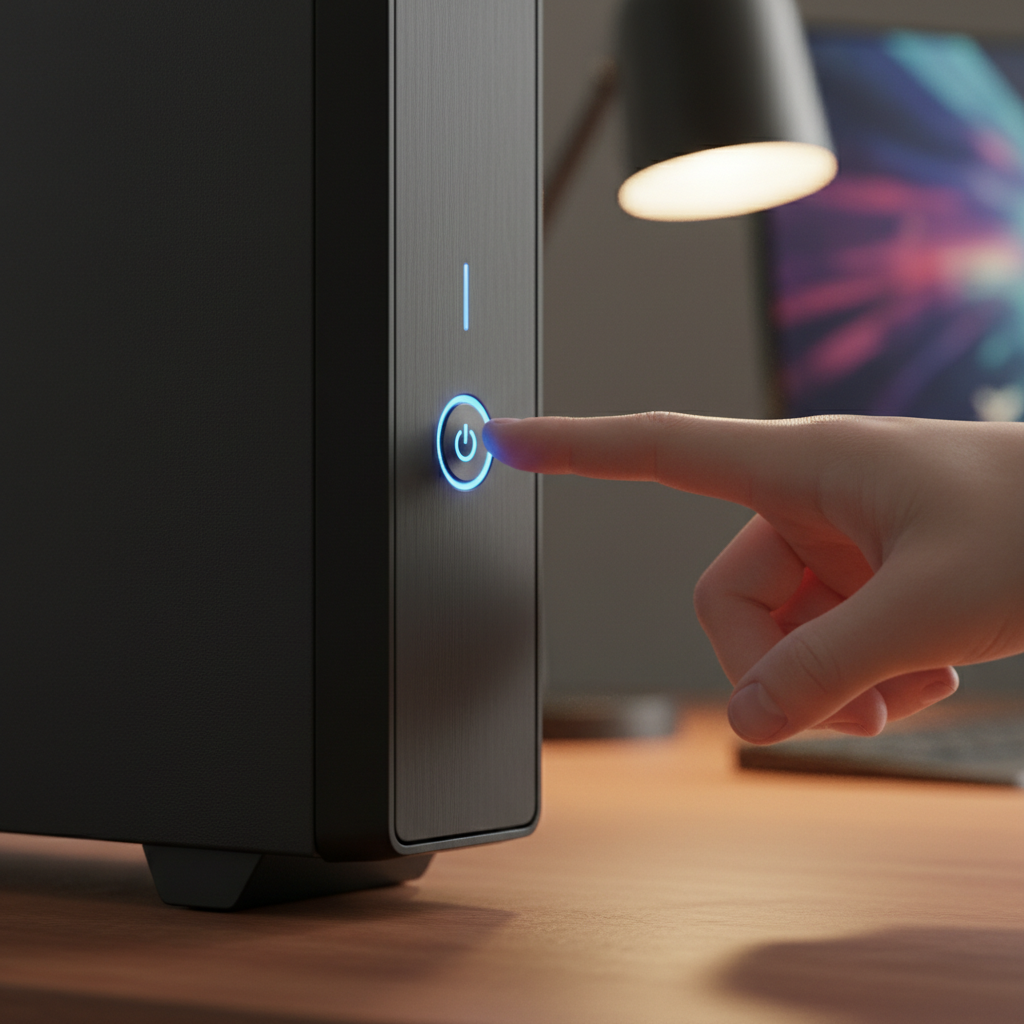 ⚠️ This picture may have spelling mistakes. Trust the words in the lesson.
Step 2: Watch the Lights and Listen to the Sounds (The Boot-Up Dance!)
After you press the power button, your computer won't magically be ready instantly. It needs a moment to gather its thoughts, just like you need a moment to stretch and rub your eyes after waking up. You might hear a quiet whirring sound (that's the fans cooling things down!) and see lights blink on the computer itself.
On your screen, you'll usually see some fancy pictures or words appear, like the logo of the computer company (Dell, Apple, HP, Lenovo) or the operating system (Windows, macOS, Chrome OS). This is the computer getting all its internal parts ready to work, checking if everything is okay, and loading all the necessary programs to run. Think of it like a chef getting all their ingredients out and organized before they start cooking.
Step 3: Unlocking Your Digital Door (Logging In!)
Once your computer has finished its 'wake-up' routine, it will probably show you a screen where you need to type in a username and a password. This is like unlocking the front door to your house – it makes sure only the right people can get inside and use the computer. If it's your family computer, your parents might have set up different accounts for different people. Always ask an adult if you're not sure what to type here!
Step 4: Welcome to Your Desktop!
After successfully logging in, voilà! You'll see your desktop. This is like your computer's main workspace, where you'll find icons (little pictures that represent programs or files), the taskbar (where you can see open programs), and maybe a pretty background picture. Now your computer is fully awake and ready for you to explore!
Part 2: Tucking Your Computer In – The Shutdown Story!
Just as it's important to wake your computer up properly, it's even MORE important to shut it down correctly. Why? Imagine you're building a tower of blocks, and someone just knocks it over without warning. All your hard work is scattered! The same thing can happen to your computer if you don't shut it down the right way.
Proper shutdown helps save your work, keeps your computer healthy, and makes sure it's ready to go for the next time.
Step 1: Save Your Work!
Before you even think about shutting down, make sure you've saved any work you've been doing! If you were writing a story, drawing a picture, or building something in a game, click the 'Save' button. This is like putting your artwork safely in a folder so it doesn't disappear.
Step 2: Find the 'Start' Button (Your Computer's Control Panel!)
On most Windows computers, you'll look for the Start button. This is usually in the bottom-left corner of your screen and looks like a window logo. Click on it, and a menu will pop up. This menu is like the control panel for your computer, giving you access to all its main functions.
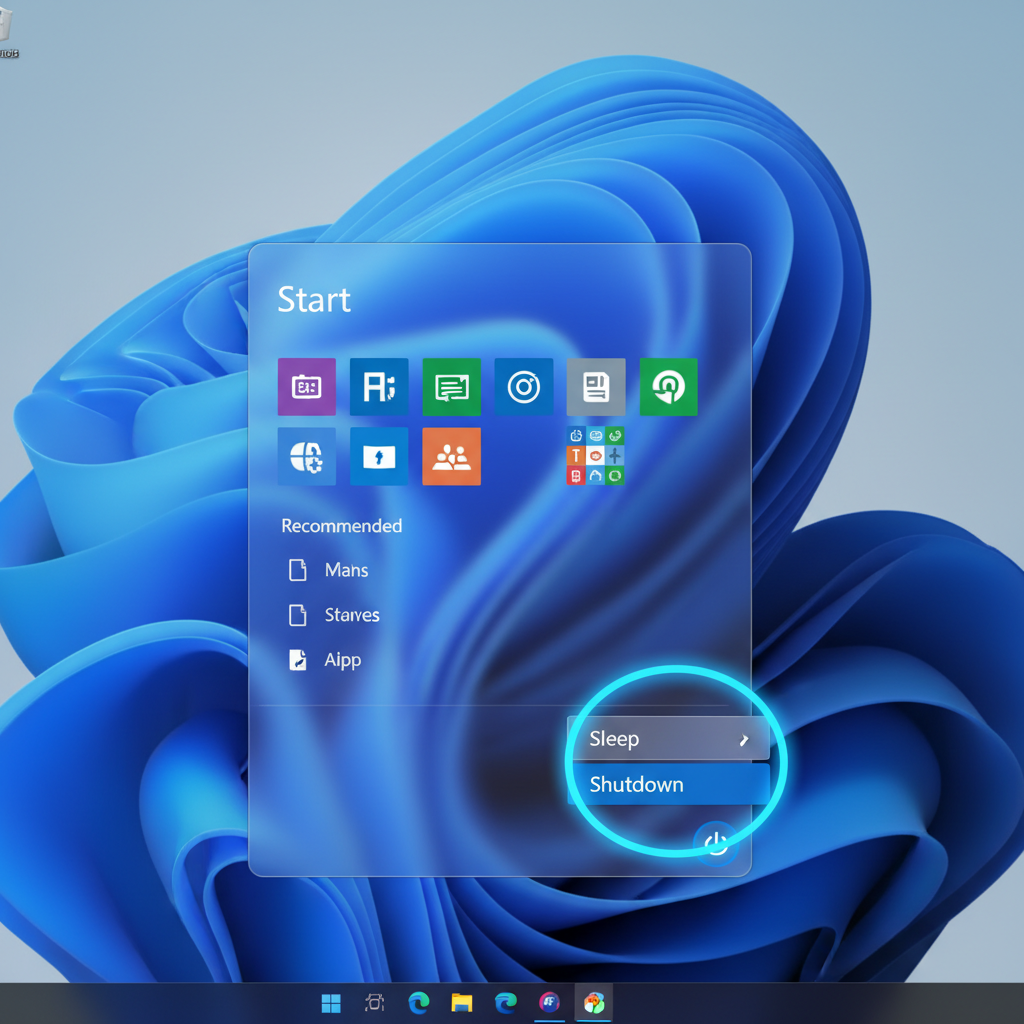 ⚠️ This picture may have spelling mistakes. Trust the words in the lesson.
Step 3: Choose 'Shut Down'!
In the Start menu, you'll see a small power icon (the same circle-with-a-line symbol as the power button!). Click on this icon, and you'll usually see a few options like 'Sleep', 'Restart', and 'Shut down'.
- Shut down: This is what we want! It completely turns off your computer, closing all programs safely. Think of it as your computer going to sleep for the night.
- Restart: This turns the computer off and then immediately turns it back on again. It's like your computer taking a quick nap and then waking right back up. Sometimes you need to do this if a program is acting a bit funny.
- Sleep: This puts your computer into a low-power state. It's like your computer is napping but can wake up super fast when you need it. It's good for short breaks, but not for when you're done for the day.
Click on 'Shut down'. Your computer will then begin its graceful farewell. It will close all open programs, save some settings, and then turn itself completely off. The screen will go black, and any lights on the computer will turn off. Once all the lights are off, you know your computer is safely tucked in.
Important Safety Rule: Never Just Pull the Plug!
Imagine someone reading a book, and you just snatch it out of their hands and tear it up! That's a bit like what happens if you simply unplug your computer from the wall or yank the battery out of a laptop without shutting it down properly. Your computer might lose important information, and its parts could even get damaged. Always use the 'Shut down' option!
Conclusion: Be a Responsible Computer User!
Learning how to start and shut down your computer properly are fundamental skills for anyone who uses technology. It's like learning to open and close a book carefully so it lasts a long time. By following these simple steps, you'll keep your computer happy, healthy, and ready for all your adventures in the digital world!
Keep learning, free
Create a free Syllabax account to unlock practice questions and games for this topic.
Visual Learning Enhanced! 🚀
To help you master this topic, we use Advanced Syllabax AI to generate detailed diagrams and visual models.
Note on Visuals: The AI sometimes makes spelling errors in image labels. Please refer to the lesson text for the correct terminology.