Typing Skills: Keyboard Familiarity
Watch this topic in 60 seconds
Free preview · Lesson 1
Understanding Typing Skills: Keyboard Familiarity
Typing Skills: Getting to Know Your Keyboard!
Hello, future typing champions! Have you ever seen someone type super fast, like their fingers are dancing across the keyboard? It looks like magic, but it's actually a skill you can learn! Think of your computer keyboard as a fantastic playground, and today, we're going to explore every corner of it so you can become a keyboard explorer!
Why Learn to Type? It's Like Learning to Ride a Bike!
Imagine you want to go somewhere. You could walk, which is fine, but if you learn to ride a bike, you can go much faster and further with less effort! Learning to type is just like that. You can find letters with one finger, but learning to type properly means you can write stories, do homework, and talk to friends online much, much faster and easier. It's a superpower for your fingers!
Meet Your Keyboard: The QWERTY Playground!
Most keyboards use a special layout called QWERTY. It's named after the first six letters on the top left row of letters (Q, W, E, R, T, Y). Think of QWERTY as the specific map of our typing playground. It might look a little jumbled at first, but it's designed to help your fingers move efficiently once you get used to it.
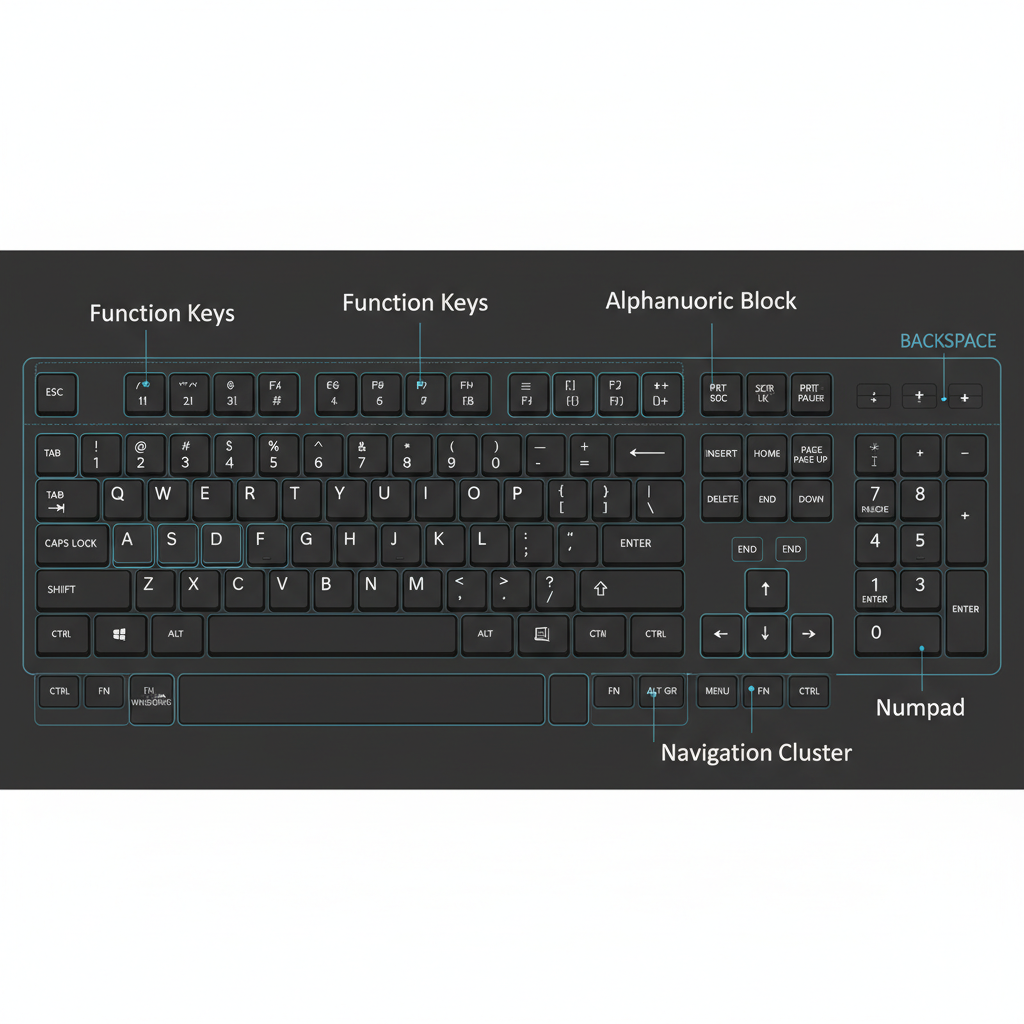 ⚠️ This picture may have spelling mistakes. Trust the words in the lesson.
The Main Typing Area: Your Alphabet Neighborhood
This is the biggest part of your keyboard, where all the letters (A-Z) live. It's like the main street of a town, where all the important shops are. You'll spend most of your time here, typing words and sentences.
The Number Row: Houses with Numbers on Top
Just above the alphabet keys, you'll see a row of numbers (1-9 and 0). These are like houses with their numbers clearly marked. You also have special symbols on these keys, like ! and @. To type the symbol, you usually hold down the Shift key (we'll talk about that next!) and press the number key.
The Spacebar: The Big, Comfy Bench!
Look for the longest key at the very bottom of the keyboard. That's the Spacebar! Its job is super important: it creates the spaces between words. Imagine you're building with LEGOs; you need little gaps to make separate pieces. The Spacebar does that for your words. You usually press it with your right or left thumb.
Shift Keys: The Magic UPPERCASE Buttons!
You'll find two Shift keys, one on the left and one on the right, usually with an arrow pointing up. Think of them as magic buttons that make letters uppercase (BIG letters) or let you type the special symbols on the number row and other keys. If you want to type a capital 'A', you hold down Shift and press 'A'. It's like having a 'loud voice' button for your letters!
Enter/Return Key: The 'New Line' Button!
Often on the right side of the main typing area, the Enter key (sometimes called Return) is like saying, 'Okay, I'm done with this line, let's start a new one below!' It's also used to confirm actions, like clicking 'OK' on a message.
Backspace and Delete Keys: Your Erasers!
Made a mistake? No problem! The Backspace key (usually above Enter) lets you erase letters to the left of where you're typing. The Delete key (often found in a separate block of keys) usually erases letters to the right. They are your best friends when you need to fix a typo, like an undo button for your words.
Arrow Keys: Your Navigation Pad!
Look for the four arrow keys arranged like a cross. These let you move your cursor (that little blinking line that shows where you are typing) up, down, left, or right without using your mouse. Think of them as the steering wheel for your cursor!
The Home Row: Your Typing 'Home Base'!
Now, let's talk about the most important starting point: the Home Row! These are the keys where your fingers rest when you're not typing. For your left hand, the home row keys are A, S, D, F. For your right hand, they are J, K, L, ; (semicolon). Your thumbs rest gently on the Spacebar.
Here's a cool secret: if you feel the F key and the J key, you'll notice tiny bumps or ridges on them. These are like little 'GPS markers' for your fingers! They help you find your way back to the home row without having to look down at the keyboard. It's like finding your bed in the dark – you know where it is by touch!
Perfect Posture: Getting Ready to Type!
Before you even touch the keyboard, getting your body ready is super important! Good posture helps you type comfortably, without getting tired, and even helps you type faster!
- Sit Up Straight: Imagine a string pulling gently from the top of your head towards the ceiling. Keep your back straight, but not stiff. Think of a superhero standing tall!
- Feet Flat: Place both feet flat on the floor. If they don't reach, use a small stool or box. This helps you stay balanced.
- Wrists Relaxed and Straight: Your wrists should be flat and floating above the keyboard, not bent up, down, or resting on the desk. Imagine your hands are hovering like little clouds over the keys. If your wrists are bent, it's like trying to run with your knees bent all the way – uncomfortable and slow!
- Elbows at Your Sides: Keep your elbows close to your body, forming an 'L' shape.
- Screen at Eye Level: Make sure your computer screen is directly in front of you and the top of the screen is roughly at your eye level. This stops you from craning your neck.
Your First Typing Adventure!
Now that you know your keyboard's neighborhoods and how to sit, let's try a simple exercise:
- Sit with good posture.
- Place your left hand fingers on A, S, D, F and your right hand fingers on J, K, L, ; (semicolon). Your thumbs should be near the Spacebar.
- Close your eyes for a moment and feel for the bumps on the F and J keys. This helps you train your fingers!
- Now, try typing the following, looking only at the screen, not your fingers:
- Press the Spacebar with your thumb between 'asdf' and 'jkl;'.
- Practice this a few times. Don't worry about speed, focus on accuracy and keeping your eyes on the screen!
asdf jkl; asdf jkl;
Keep Practicing!
Learning to type is like learning any new skill, whether it's playing a sport or drawing a picture. It takes practice! The more you explore your keyboard playground and practice using your home row and good posture, the faster and more confidently your fingers will dance across the keys. Soon, you'll be typing like a pro!
Keep learning, free
Create a free Syllabax account to unlock practice questions and games for this topic.
Visual Learning Enhanced! 🚀
To help you master this topic, we use Advanced Syllabax AI to generate detailed diagrams and visual models.
Note on Visuals: The AI sometimes makes spelling errors in image labels. Please refer to the lesson text for the correct terminology.